mirror of
https://github.com/dfinke/ImportExcel.git
synced 2025-12-12 14:23:14 +00:00
Compare commits
251 Commits
| Author | SHA1 | Date | |
|---|---|---|---|

|
337af82ae2 | ||
|
|
77ef2ebc40 | ||

|
92c97b25c3 | ||
|
|
52231254a5 | ||
|
|
494ac51ae5 | ||
|
|
0febb4a3c2 | ||
|
|
62f0faa5c5 | ||
|
|
1055bc41bf | ||
|
|
e100fa7a36 | ||
|
|
83bd387f98 | ||
|
|
caf0059ef5 | ||
|
|
965831ba57 | ||

|
a49cab5efc | ||
|
|
17bcea15e8 | ||
|
|
79fb29740d | ||
|
|
2984fe2ef5 | ||
|
|
8734dbd26c | ||
|
|
0211edf008 | ||
|
|
552552b93d | ||
|
|
2229bfb3ed | ||
|
|
25e7962100 | ||

|
6071f77218 | ||
|
|
52b9333d7c | ||
|
|
d3d8d76a71 | ||
|
|
f5f97fcd56 | ||
|
|
6665c2952d | ||
|
|
31444320cb | ||
|
|
d5734ff9b2 | ||
|
|
4481637c21 | ||
|
|
6caf247f5b | ||
|
|
65641955ba | ||
|
|
f2c13949a4 | ||
|
|
878ca570fb | ||
|
|
28fd5512bb | ||
|
|
7e465e3729 | ||
|
|
22283604f8 | ||
|
|
0c603afc0e | ||
|
|
a4a989c556 | ||
|
|
d94db666d7 | ||
|
|
438be760f7 | ||
|
|
2949ecc173 | ||
|
|
639ca738f6 | ||
|
|
736dd648f4 | ||
|
|
acdbd4a618 | ||
|
|
ad35d39850 | ||
|
|
e7afe166a4 | ||
|
|
37b076706e | ||
|
|
3303116658 | ||
|
|
89a8cb0469 | ||
|
|
bb9f4c31a6 | ||
|
|
996d1246cf | ||

|
0bb08fcb20 | ||
|
|
d004019761 | ||
|
|
a54ca228e9 | ||
|
|
bb6ff474a8 | ||
|
|
86b5c13543 | ||
|
|
c2525b0348 | ||
|
|
9625e4a8ac | ||
|
|
82177da695 | ||
|
|
b3f7a60be8 | ||
|
|
643610c267 | ||
|
|
bd7d70a050 | ||
|
|
d1f41012a1 | ||
|
|
0fbe9dbc9b | ||
|
|
e0b2d15c53 | ||
|
|
34c924ae19 | ||
|
|
9217962306 | ||
|
|
56acf56430 | ||
|
|
ef9be471ab | ||
|
|
9db2bc068e | ||
|
|
9560ea83f9 | ||
|
|
9c79ba573c | ||
|
|
894e645a47 | ||
|
|
f3dc390bfa | ||
|
|
f0f58f84a0 | ||
|
|
7ded24d2f9 | ||
|
|
cf964e3e4f | ||
|
|
8c5b3b2f5f | ||
|
|
8409adeeba | ||
|
|
153d4d8c45 | ||
|
|
69f9ba7d17 | ||
|
|
e4deb5801e | ||
|
|
1a74c0f0d0 | ||
|
|
72e44da219 | ||
|
|
bef2f29651 | ||
|
|
787dda70ee | ||
|
|
285e9e4949 | ||
|
|
01e3ea206d | ||
|
|
6f3420d11e | ||
|
|
2981bf23b1 | ||
|
|
c5cc018eb5 | ||
|
|
268d48ce3d | ||
|
|
eca631670c | ||
|
|
284560e109 | ||
|
|
234615dfdb | ||
|
|
d31cd04781 | ||
|
|
77481f2901 | ||
|
|
54fec69f88 | ||
|
|
1dc9a02d7d | ||

|
f86fdbab22 | ||
|
|
66937db040 | ||
|
|
80520299aa | ||
|
|
2753a6876a | ||
|
|
ade442b18c | ||
|
|
45ba112f73 | ||
|
|
e1fe36699b | ||
|
|
b3f4b188da | ||
|
|
0ce75794e6 | ||
|
|
3afe2059e5 | ||
|
|
66b7b64779 | ||
|
|
d90cd6d2d0 | ||
|
|
1d1f266fb6 | ||
|
|
4945b4d6e3 | ||
|
|
21b5a11aca | ||
|
|
d1976bf3a9 | ||
|
|
ffcdd39ae9 | ||
|
|
b4b5e75d28 | ||
|
|
4c3eb792d6 | ||
|
|
c4ef920bdf | ||
|
|
d81c2055e9 | ||
|
|
4528f3b052 | ||
|
|
5acec641fe | ||
|
|
04d06ff008 | ||
|
|
1974beef2d | ||
|
|
49f0c97635 | ||
|
|
0710724e2d | ||
|
|
a6438d468a | ||
|
|
ce92461efc | ||
|
|
b3c4a334b5 | ||

|
6b2190bfff | ||
|
|
5822ef330e | ||
|
|
d78e3fff98 | ||
|
|
85bd85ee69 | ||
|
|
04e8faaccc | ||
|
|
2c062a4e5d | ||
|
|
80c1a945f0 | ||
|
|
1d5ec26b04 | ||
|
|
860b2724f5 | ||
|
|
c38648a654 | ||
|
|
dcd730a4d1 | ||
|
|
0fdaeb977b | ||
|
|
61173d5e40 | ||
|
|
d26f0c66dd | ||
|
|
fe4fcff444 | ||
|
|
01c58faea8 | ||
|
|
dce2f6d108 | ||
|
|
49afad6977 | ||
|
|
b7add5f9e1 | ||
|
|
c07fc81dfe | ||
|
|
3835ceeebb | ||
|
|
6683bed799 | ||
|
|
20aade4bdd | ||
|
|
b6965e0724 | ||
|
|
9d85c6cb81 | ||
|
|
a17fc95415 | ||
|
|
ecb045274a | ||
|
|
e5c4a715d6 | ||
|
|
e27e98a9eb | ||
|
|
9da8bf8bf7 | ||

|
50905c7989 | ||
|
|
91a7c17341 | ||

|
3c18af50b9 | ||
|
|
66f5d09ace | ||
|
|
fa64299760 | ||
|
|
c36e5fb582 | ||
|
|
5158addc36 | ||
|
|
bf2e37ac9f | ||
|
|
d22d40cdc2 | ||
|
|
df49e04c6c | ||
|
|
f60ca87358 | ||
|
|
cef95f9ebe | ||
|
|
288071035f | ||
|
|
414d1ac72b | ||
|
|
1c7241774f | ||
|
|
7c773ff915 | ||
|
|
46de6c5934 | ||
|
|
955c737bb7 | ||
|
|
74e5fee161 | ||
|
|
c3331e8f09 | ||

|
1951a61699 | ||
|
|
5b29ccd9c2 | ||
|
|
d8bd5a8cb6 | ||
|
|
820722b481 | ||
|
|
08c82977f5 | ||
|
|
a2dd42fc80 | ||
|
|
c1d778ef85 | ||
|
|
7abb5dde89 | ||
|
|
0f15f3e3e5 | ||
|
|
3194bb0ee4 | ||
|
|
b1f716f0d5 | ||
|
|
a8f7a13248 | ||
|
|
d200a2929b | ||
|
|
99e69bd6c0 | ||
|
|
4f0c0d7c28 | ||
|
|
968d5a57b6 | ||
|
|
bdefb45095 | ||
|
|
4297d2ef82 | ||
|
|
a49bdb3abc | ||
|
|
a983ecd765 | ||
|
|
5a7d84e624 | ||
|
|
e0f5d9f789 | ||
|
|
7d3bcb810c | ||
|
|
8975aa2e95 | ||
|
|
77f30f105b | ||
|
|
972142f727 | ||
|
|
cfd1ac99b2 | ||
|
|
e09c5e5207 | ||
|
|
3ff59907ff | ||
|
|
ef4ac9777b | ||
|
|
65b1f79d53 | ||
|
|
ecad48acb3 | ||
|
|
f47887f7fe | ||
|
|
061ae22bfe | ||
|
|
53b63b3780 | ||
|
|
378a20a094 | ||
|
|
7edf5f8a3a | ||
|
|
6393701a2f | ||
|
|
71c22d647d | ||
|
|
ef656f72b3 | ||
|
|
dfd9b23cd7 | ||
|
|
f94a075f52 | ||
|
|
cea9713129 | ||
|
|
343687c418 | ||
|
|
d4d2b4a856 | ||
|
|
bed52d456d | ||
|
|
31e6eaf59b | ||
|
|
d770646dc7 | ||
|
|
bc65699068 | ||
|
|
ce3fd2021f | ||
|
|
10f670b4e6 | ||
|
|
c49b7b6db0 | ||
|
|
f768634214 | ||
|
|
07342235b9 | ||
|
|
2793ff1c21 | ||
|
|
121346f939 | ||
|
|
dc8a096732 | ||
|
|
c63512e658 | ||
|
|
e46fe6d3e9 | ||
|
|
6ae50c3193 | ||
|
|
ee2378150c | ||
|
|
259c7e8ae6 | ||
|
|
ae30bfe6c3 | ||
|
|
3756cd6ad8 | ||
|
|
1014250e0b | ||
|
|
951364da51 | ||
|
|
c1604fc08a | ||
|
|
5a235e309e | ||
|
|
af77580b5e | ||
|
|
b06a5059c5 | ||
|
|
edab941c44 | ||
|
|
91fb314bca |
6
.gitignore
vendored
6
.gitignore
vendored
@@ -2,6 +2,8 @@
|
||||
Thumbs.db
|
||||
ehthumbs.db
|
||||
|
||||
*.gitignore
|
||||
|
||||
# Folder config file
|
||||
Desktop.ini
|
||||
|
||||
@@ -14,6 +16,8 @@ $RECYCLE.BIN/
|
||||
*.msm
|
||||
*.msp
|
||||
|
||||
*.dll
|
||||
|
||||
# Windows shortcuts
|
||||
*.lnk
|
||||
|
||||
@@ -57,4 +61,6 @@ testCCFMT.ps1
|
||||
testHide.ps1
|
||||
ImportExcel.zip
|
||||
.vscode/launch.json
|
||||
.vscode/settings.json
|
||||
|
||||
~$*
|
||||
|
||||
7
.vscode/spellright.dict
vendored
7
.vscode/spellright.dict
vendored
@@ -28,3 +28,10 @@ PivtoTableName
|
||||
New-Excelchart
|
||||
paypal
|
||||
dll
|
||||
enums
|
||||
Numberformat
|
||||
ChartDefiniton
|
||||
hashtables
|
||||
Agramont
|
||||
AGramont
|
||||
Jhoneill
|
||||
|
||||
@@ -1,135 +1,254 @@
|
||||
Function Add-ConditionalFormatting {
|
||||
<#
|
||||
.Synopsis
|
||||
Adds contitional formatting to worksheet.
|
||||
Adds conditional formatting to all or part of a worksheet.
|
||||
.Description
|
||||
Conditional formatting allows Excel to:
|
||||
* Mark cells with icons depending on their value
|
||||
* Show a databar whose length indicates the value or a two or three color scale where the color indicates the relative value
|
||||
* Change the color, font, or number format of cells which meet given criteria
|
||||
Add-ConditionalFormatting allows these parameters to be set; for fine tuning of
|
||||
the rules, the -PassThru switch will return the rule so that you can modify
|
||||
things which are specific to that type of rule, example, the values which
|
||||
correspond to each icon in an Icon-Set.
|
||||
.Example
|
||||
>
|
||||
$excel = $avdata | Export-Excel -Path (Join-path $FilePath "\Machines.XLSX" ) -WorksheetName "Server Anti-Virus" -AutoSize -FreezeTopRow -AutoFilter -PassThru
|
||||
|
||||
Add-ConditionalFormatting -WorkSheet $excel.Workbook.Worksheets[1] -Address "b2:b1048576" -ForeGroundColor "RED" -RuleType ContainsText -ConditionValue "2003"
|
||||
Add-ConditionalFormatting -WorkSheet $excel.Workbook.Worksheets[1] -Address "i2:i1048576" -ForeGroundColor "RED" -RuleType ContainsText -ConditionValue "Disabled"
|
||||
$excel.Workbook.Worksheets[1].Cells["D1:G1048576"].Style.Numberformat.Format = [cultureinfo]::CurrentCulture.DateTimeFormat.ShortDatePattern
|
||||
$excel.Workbook.Worksheets[1].Row(1).style.font.bold = $true
|
||||
$excel.Save() ; $excel.Dispose()
|
||||
|
||||
Here Export-Excel is called with the -passThru parameter so the Excel Package object is stored in $Excel
|
||||
The desired worksheet is selected and the then columns B and i are conditially formatted (excluding the top row) to show red text if
|
||||
the columns contain "2003" or "Disabled respectively. A fixed date formats are then applied to columns D..G, and the top row is formatted.
|
||||
Finally the workbook is saved and the Excel object closed.
|
||||
Here Export-Excel is called with the -PassThru parameter so the ExcelPackage object
|
||||
representing Machines.XLSX is stored in $Excel.The desired worksheet is selected
|
||||
and then columns" B" and "I" are conditionally formatted (excluding the top row)
|
||||
to show red text if they contain "2003" or "Disabled" respectively.
|
||||
A fixed date format is then applied to columns D to G, and the top row is formatted.
|
||||
Finally the workbook is saved and the Excel package object is closed.
|
||||
.Example
|
||||
C:\> $r = Add-ConditionalFormatting -WorkSheet $excel.Workbook.Worksheets[1] -Range "B1:B100" -ThreeIconsSet Flags -Passthru
|
||||
C:\> $r.Reverse = $true ; $r.Icon1.Type = "Num"; $r.Icon2.Type = "Num" ; $r.Icon2.value = 100 ; $r.Icon3.type = "Num" ;$r.Icon3.value = 1000
|
||||
>
|
||||
$r = Add-ConditionalFormatting -WorkSheet $excel.Workbook.Worksheets[1] -Range "B1:B100" -ThreeIconsSet Flags -Passthru
|
||||
$r.Reverse = $true ; $r.Icon1.Type = "Num"; $r.Icon2.Type = "Num" ; $r.Icon2.value = 100 ; $r.Icon3.type = "Num" ;$r.Icon3.value = 1000
|
||||
|
||||
Again Export-Excel has been called with -PassThru leaving a package object
|
||||
in $Excel. This time B1:B100 has been conditionally formatted with 3 icons,
|
||||
using the "Flags" Icon-Set. Add-ConditionalFormatting does not provide access
|
||||
to every option in the formatting rule, so -PassThru has been used and the
|
||||
rule is modified to apply the flags in reverse order, and transitions
|
||||
between flags are set to 100 and 1000.
|
||||
.Example
|
||||
Add-ConditionalFormatting -WorkSheet $sheet -Range "D2:D1048576" -DataBarColor Red
|
||||
|
||||
This time $sheet holds an ExcelWorkshseet object and databars are added to
|
||||
column D, excluding the top row.
|
||||
.Example
|
||||
Add-ConditionalFormatting -Address $worksheet.cells["FinishPosition"] -RuleType Equal -ConditionValue 1 -ForeGroundColor Purple -Bold -Priority 1 -StopIfTrue
|
||||
|
||||
In this example a named range is used to select the cells where the condition
|
||||
should apply, and instead of specifying a sheet and range within the sheet as
|
||||
separate parameters, the cells where the format should apply are specified
|
||||
directly. If a cell in the "FinishPosition" range is 1, then the text is
|
||||
turned to Bold & Purple. This rule is moved to first in the priority list,
|
||||
and where cells have a value of 1, no other rules will be processed.
|
||||
.Example
|
||||
>
|
||||
$excel = Get-ChildItem | Select-Object -Property Name,Length,LastWriteTime,CreationTime | Export-Excel "$env:temp\test43.xlsx" -PassThru -AutoSize
|
||||
$ws = $excel.Workbook.Worksheets["Sheet1"]
|
||||
$ws.Cells["E1"].Value = "SavedAt"
|
||||
$ws.Cells["F1"].Value = [datetime]::Now
|
||||
$ws.Cells["F1"].Style.Numberformat.Format = (Expand-NumberFormat -NumberFormat 'Date-Time')
|
||||
$lastRow = $ws.Dimension.End.Row
|
||||
|
||||
Add-ConditionalFormatting -WorkSheet $ws -address "A2:A$Lastrow" -RuleType LessThan -ConditionValue "A" -ForeGroundColor Gray
|
||||
Add-ConditionalFormatting -WorkSheet $ws -address "B2:B$Lastrow" -RuleType GreaterThan -ConditionValue 1000000 -NumberFormat '#,###,,.00"M"'
|
||||
Add-ConditionalFormatting -WorkSheet $ws -address "C2:C$Lastrow" -RuleType GreaterThan -ConditionValue "=INT($F$1-7)" -ForeGroundColor Green -StopIfTrue
|
||||
Add-ConditionalFormatting -WorkSheet $ws -address "D2:D$Lastrow" -RuleType Equal -ConditionValue "=C2" -ForeGroundColor Blue -StopIfTrue
|
||||
|
||||
Close-ExcelPackage -Show $excel
|
||||
|
||||
The first few lines of code export a list of file and directory names, sizes
|
||||
and dates to a spreadsheet. It puts the date of the export in cell F1.
|
||||
The first Conditional format changes the color of files and folders that begin
|
||||
with a ".", "_" or anything else which sorts before "A".
|
||||
The second Conditional format changes the Number format of numbers bigger than
|
||||
1 million, for example 1,234,567,890 will dispay as "1,234.57M"
|
||||
The third highlights datestamps of files less than a week old when the export
|
||||
was run; the = is necessary in the condition value otherwise the rule will
|
||||
look for the the text INT($F$1-7), and the cell address for the date is fixed
|
||||
using the standard Excel $ notation.
|
||||
The final Conditional format looks for files which have not changed since they
|
||||
were created. Here the condition value is "=C2". The = sign means C2 is treated
|
||||
as a formula, not literal text. Unlike the file age, we want the cell used to
|
||||
change for each cell where the conditional format applies. The first cell in
|
||||
the conditional format range is D2, which is compared against C2, then D3 is
|
||||
compared against C3 and so on. A common mistake is to include the title row in
|
||||
the range and accidentally apply conditional formatting to it, or to begin the
|
||||
range at row 2 but use row 1 as the starting point for comparisons.
|
||||
.Example
|
||||
Add-ConditionalFormatting $ws.Cells["B:B"] GreaterThan 10000000 -Fore Red -Stop -Pri 1
|
||||
|
||||
This version shows the shortest syntax - the Address, Ruletype, and
|
||||
Conditionvalue can be identified from their position, and ForegroundColor,
|
||||
StopIfTrue and Priority can all be shortend.
|
||||
|
||||
Again Export excel has been called with -passthru leaving a package object in $Excel
|
||||
This time B1:B100 has been conditionally formatted with 3 icons, using the flags icon set.
|
||||
Add-ConditionalFormatting does not provide access to every option in the formatting rule, so passthru has been used and the
|
||||
rule is to apply the flags in reverse order, and boundaries for the number which will set the split are set to 100 and 1000
|
||||
#>
|
||||
Param (
|
||||
#The worksheet where the format is to be applied
|
||||
[Parameter(Mandatory = $true, ParameterSetName = "NamedRule")]
|
||||
[Parameter(Mandatory = $true, ParameterSetName = "DataBar")]
|
||||
[Parameter(Mandatory = $true, ParameterSetName = "ThreeIconSet")]
|
||||
[Parameter(Mandatory = $true, ParameterSetName = "FourIconSet")]
|
||||
[Parameter(Mandatory = $true, ParameterSetName = "FiveIconSet")]
|
||||
[OfficeOpenXml.ExcelWorksheet]$WorkSheet ,
|
||||
#The area of the worksheet where the format is to be applied
|
||||
[Parameter(Mandatory = $true, ParameterSetName = "NamedRule")]
|
||||
[Parameter(Mandatory = $true, ParameterSetName = "DataBar")]
|
||||
[Parameter(Mandatory = $true, ParameterSetName = "ThreeIconSet")]
|
||||
[Parameter(Mandatory = $true, ParameterSetName = "FourIconSet")]
|
||||
[Parameter(Mandatory = $true, ParameterSetName = "FiveIconSet")]
|
||||
[OfficeOpenXml.ExcelAddress]$Range ,
|
||||
#One or more row(s), column(s) and/or block(s) of cells to format
|
||||
[Parameter(Mandatory = $true, ParameterSetName = "NamedRuleAddress")]
|
||||
[Parameter(Mandatory = $true, ParameterSetName = "DataBarAddress")]
|
||||
[Parameter(Mandatory = $true, ParameterSetName = "ThreeIconSetAddress")]
|
||||
[Parameter(Mandatory = $true, ParameterSetName = "FourIconSetAddress")]
|
||||
[Parameter(Mandatory = $true, ParameterSetName = "FiveIconSetAddress")]
|
||||
#A block of cells to format - you can use a named range with -Address $ws.names[1] or $ws.cells["RangeName"]
|
||||
[Parameter(Mandatory = $true, Position = 0)]
|
||||
[Alias("Range")]
|
||||
$Address ,
|
||||
#One of the standard named rules - Top / Bottom / Less than / Greater than / Contains etc.
|
||||
[Parameter(Mandatory = $true, ParameterSetName = "NamedRule", Position = 3)]
|
||||
[Parameter(Mandatory = $true, ParameterSetName = "NamedRuleAddress", Position = 3)]
|
||||
#The worksheet where the format is to be applied
|
||||
[OfficeOpenXml.ExcelWorksheet]$WorkSheet ,
|
||||
#A standard named-rule - Top / Bottom / Less than / Greater than / Contains etc.
|
||||
[Parameter(Mandatory = $true, ParameterSetName = "NamedRule", Position = 1)]
|
||||
[OfficeOpenXml.ConditionalFormatting.eExcelConditionalFormattingRuleType]$RuleType ,
|
||||
#Text colour for matching objects
|
||||
[Alias("ForeGroundColour")]
|
||||
[System.Drawing.Color]$ForeGroundColor,
|
||||
#colour for databar type charts
|
||||
#Text color for matching objects
|
||||
[Parameter(ParameterSetName = "NamedRule")]
|
||||
[Alias("ForegroundColour")]
|
||||
$ForegroundColor,
|
||||
#Color for databar type charts
|
||||
[Parameter(Mandatory = $true, ParameterSetName = "DataBar")]
|
||||
[Parameter(Mandatory = $true, ParameterSetName = "DataBarAddress")]
|
||||
[Alias("DataBarColour")]
|
||||
[System.Drawing.Color]$DataBarColor,
|
||||
$DataBarColor,
|
||||
#One of the three-icon set types (e.g. Traffic Lights)
|
||||
[Parameter(Mandatory = $true, ParameterSetName = "ThreeIconSet")]
|
||||
[Parameter(Mandatory = $true, ParameterSetName = "ThreeIconSetAddress")]
|
||||
[OfficeOpenXml.ConditionalFormatting.eExcelconditionalFormatting3IconsSetType]$ThreeIconsSet,
|
||||
#A four-icon set name
|
||||
[Parameter(Mandatory = $true, ParameterSetName = "FourIconSet")]
|
||||
[Parameter(Mandatory = $true, ParameterSetName = "FourIconSetAddress")]
|
||||
[OfficeOpenXml.ConditionalFormatting.eExcelconditionalFormatting4IconsSetType]$FourIconsSet,
|
||||
#A five-icon set name
|
||||
[Parameter(Mandatory = $true, ParameterSetName = "FiveIconSet")]
|
||||
[Parameter(Mandatory = $true, ParameterSetName = "FiveIconSetAddress")]
|
||||
[OfficeOpenXml.ConditionalFormatting.eExcelconditionalFormatting5IconsSetType]$FiveIconsSet,
|
||||
#Use the icon set in reverse order
|
||||
#Use the Icon-Set in reverse order, or reverse the orders of Two- & Three-Color Scales
|
||||
[Parameter(ParameterSetName = "NamedRule")]
|
||||
[Parameter(ParameterSetName = "ThreeIconSet")]
|
||||
[Parameter(ParameterSetName = "ThreeIconSetAddress")]
|
||||
[Parameter(ParameterSetName = "FourIconSet")]
|
||||
[Parameter(ParameterSetName = "FourIconSetAddress")]
|
||||
[Parameter(ParameterSetName = "FiveIconSet")]
|
||||
[Parameter(ParameterSetName = "FiveIconSetAddress")]
|
||||
[switch]$Reverse,
|
||||
#A value for the condition (e.g. "2000" if the test is 'lessthan 2000')
|
||||
[string]$ConditionValue,
|
||||
#A second value for the conditions like "between x and Y"
|
||||
[string]$ConditionValue2,
|
||||
#Background colour for matching items
|
||||
[System.Drawing.Color]$BackgroundColor,
|
||||
#A value for the condition (for example 2000 if the test is 'lessthan 2000'; Formulas should begin with "=" )
|
||||
[Parameter(ParameterSetName = "NamedRule",Position = 2)]
|
||||
$ConditionValue,
|
||||
#A second value for the conditions like "Between X and Y"
|
||||
[Parameter(ParameterSetName = "NamedRule",Position = 3)]
|
||||
$ConditionValue2,
|
||||
#Background color for matching items
|
||||
[Parameter(ParameterSetName = "NamedRule")]
|
||||
$BackgroundColor,
|
||||
#Background pattern for matching items
|
||||
[Parameter(ParameterSetName = "NamedRule")]
|
||||
[OfficeOpenXml.Style.ExcelFillStyle]$BackgroundPattern = [OfficeOpenXml.Style.ExcelFillStyle]::None ,
|
||||
#Secondary colour when a background pattern requires it
|
||||
[System.Drawing.Color]$PatternColor,
|
||||
#Secondary color when a background pattern requires it
|
||||
[Parameter(ParameterSetName = "NamedRule")]
|
||||
$PatternColor,
|
||||
#Sets the numeric format for matching items
|
||||
[Parameter(ParameterSetName = "NamedRule")]
|
||||
$NumberFormat,
|
||||
#Put matching items in bold face
|
||||
[Parameter(ParameterSetName = "NamedRule")]
|
||||
[switch]$Bold,
|
||||
#Put matching items in italic
|
||||
[Parameter(ParameterSetName = "NamedRule")]
|
||||
[switch]$Italic,
|
||||
#Underline matching items
|
||||
[Parameter(ParameterSetName = "NamedRule")]
|
||||
[switch]$Underline,
|
||||
#Strikethrough text of matching items
|
||||
[Parameter(ParameterSetName = "NamedRule")]
|
||||
[switch]$StrikeThru,
|
||||
#Prevent the processing of subsequent rules
|
||||
[Parameter(ParameterSetName = "NamedRule")]
|
||||
[switch]$StopIfTrue,
|
||||
#Set the sequence for rule processing
|
||||
[int]$Priority,
|
||||
#If specified pass the rule back to the caller to allow additional customization.
|
||||
[switch]$Passthru
|
||||
[switch]$PassThru
|
||||
)
|
||||
|
||||
#Allow conditional formatting to work like Set-Format (with single ADDRESS parameter), split it to get worksheet and range of cells.
|
||||
If ($Address -and -not $WorkSheet -and -not $Range) {
|
||||
$WorkSheet = $Address.Worksheet[0]
|
||||
$Range = $Address.Address
|
||||
#Allow conditional formatting to work like Set-ExcelRange (with single ADDRESS parameter), split it to get worksheet and range of cells.
|
||||
If ($Address -is [OfficeOpenXml.Table.ExcelTable]) {
|
||||
$WorkSheet = $Address.Address.Worksheet
|
||||
$Address = $Address.Address.Address
|
||||
}
|
||||
elseif ($Address.Address -and $Address.Worksheet -and -not $WorkSheet) { #Address is a rangebase or similar
|
||||
$WorkSheet = $Address.Worksheet[0]
|
||||
$Address = $Address.Address
|
||||
}
|
||||
elseif ($Address -is [String] -and $WorkSheet -and $WorkSheet.Names[$Address] ) { #Address is the name of a named range.
|
||||
$Address = $WorkSheet.Names[$Address].Address
|
||||
}
|
||||
if (($Address -is [OfficeOpenXml.ExcelRow] -and -not $WorkSheet) -or
|
||||
($Address -is [OfficeOpenXml.ExcelColumn] -and -not $WorkSheet) ){ #EPPLUs Can't get the worksheet object from a row or column object, so bail if that was tried
|
||||
Write-Warning -Message "Add-ConditionalFormatting does not support Row or Column objects as an address; use a worksheet and/or specify 'R:R' or 'C:C' instead. "; return
|
||||
}
|
||||
elseif ($Address -is [OfficeOpenXml.ExcelRow]) { #But if we have a column or row object and a worksheet (I don't know *why*) turn them into a string for the range
|
||||
$Address = "$($Address.Row):$($Address.Row)"
|
||||
}
|
||||
elseif ($Address -is [OfficeOpenXml.ExcelColumn]) {
|
||||
$Address = [OfficeOpenXml.ExcelAddress]::new(1,$address.ColumnMin,1,$address.ColumnMax).Address -replace '1',''
|
||||
if ($Address -notmatch ':') {$Address = "$Address`:$Address"}
|
||||
}
|
||||
if ( $Address -is [string] -and $Address -match "!") {$Address = $Address -replace '^.*!',''}
|
||||
#By this point we should have a worksheet object whose ConditionalFormatting collection we will add to. If not, bail.
|
||||
if (-not $worksheet -or $WorkSheet -isnot [OfficeOpenXml.ExcelWorksheet]) {write-warning "You need to provide a worksheet object." ; return}
|
||||
#region create a rule of the right type
|
||||
if ($RuleType -match 'IconSet$') {Write-warning -Message "You cannot configure a Icon-Set rule in this way; please use -$RuleType <SetName>." ; return}
|
||||
if ($PSBoundParameters.ContainsKey("DataBarColor" ) ) {if ($DataBarColor -is [string]) {$DataBarColor = [System.Drawing.Color]::$DataBarColor }
|
||||
$rule = $WorkSheet.ConditionalFormatting.AddDatabar( $Address , $DataBarColor )
|
||||
}
|
||||
elseif ($PSBoundParameters.ContainsKey("ThreeIconsSet" ) ) {$rule = $WorkSheet.ConditionalFormatting.AddThreeIconSet($Address , $ThreeIconsSet)}
|
||||
elseif ($PSBoundParameters.ContainsKey("FourIconsSet" ) ) {$rule = $WorkSheet.ConditionalFormatting.AddFourIconSet( $Address , $FourIconsSet )}
|
||||
elseif ($PSBoundParameters.ContainsKey("FiveIconsSet" ) ) {$rule = $WorkSheet.ConditionalFormatting.AddFiveIconSet( $Address , $FiveIconsSet )}
|
||||
else {$rule = ($WorkSheet.ConditionalFormatting)."Add$RuleType"($Address ) }
|
||||
if ($Reverse) {
|
||||
if ($rule.type -match 'IconSet$' ) {$rule.reverse = $true}
|
||||
elseif ($rule.type -match 'ColorScale$') {$temp =$rule.LowValue.Color ; $rule.LowValue.Color = $rule.HighValue.Color; $rule.HighValue.Color = $temp}
|
||||
else {Write-Warning -Message "-Reverse was ignored because $ruletype does not support it."}
|
||||
}
|
||||
#region Create a rule of the right type
|
||||
if ($PSBoundParameters.ContainsKey("ThreeIconsSet" ) ) {$rule = $WorkSheet.ConditionalFormatting.AddThreeIconSet($Range , $ThreeIconsSet)}
|
||||
elseif ($PSBoundParameters.ContainsKey("FourIconsSet" ) ) {$rule = $WorkSheet.ConditionalFormatting.AddFourIconSet( $Range , $FourIconsSet) }
|
||||
elseif ($PSBoundParameters.ContainsKey("FiveIconsSet" ) ) {$rule = $WorkSheet.ConditionalFormatting.AddFiveIconSet( $Range , $FiveIconsSet) }
|
||||
elseif ($PSBoundParameters.ContainsKey("DataBarColor" ) ) {$rule = $WorkSheet.ConditionalFormatting.AddDatabar( $Range , $DataBarColor) }
|
||||
else {$rule = ($WorkSheet.ConditionalFormatting)."Add$RuleType"($Range)}
|
||||
if ($PSBoundParameters.ContainsKey("Reverse" ) ) {$rule.reverse = [boolean]$Reverse}
|
||||
#endregion
|
||||
#region set the rule conditions
|
||||
if ($PSBoundParameters.ContainsKey("ConditionValue") -and
|
||||
$RuleType -match "Top|Botom" ) {$rule.Rank = $ConditionValue }
|
||||
if ($PSBoundParameters.ContainsKey("ConditionValue") -and
|
||||
$RuleType -match "StdDev" ) {$rule.StdDev = $ConditionValue }
|
||||
if ($PSBoundParameters.ContainsKey("ConditionValue") -and
|
||||
$RuleType -match "Than|Equal|Expression" ) {$rule.Formula = $ConditionValue }
|
||||
if ($PSBoundParameters.ContainsKey("ConditionValue") -and
|
||||
$RuleType -match "Text|With" ) {$rule.Text = $ConditionValue }
|
||||
if ($PSBoundParameters.ContainsKey("ConditionValue") -and
|
||||
$PSBoundParameters.ContainsKey("ConditionValue") -and
|
||||
$RuleType -match "Between" ) {
|
||||
$rule.Formula = $ConditionValue;
|
||||
$rule.Formula2 = $ConditionValue2
|
||||
#for lessThan/GreaterThan/Equal/Between conditions make sure that strings are wrapped in quotes. Formulas should be passed with = which will be stripped.
|
||||
if ($RuleType -match "Than|Equal|Between" ) {
|
||||
if ($PSBoundParameters.ContainsKey("ConditionValue" )) {
|
||||
$number = $Null
|
||||
#if the condition type is not a value type, but parses as a number, make it the number
|
||||
if ($ConditionValue -isnot [System.ValueType] -and [Double]::TryParse($ConditionValue, [System.Globalization.NumberStyles]::Any, [System.Globalization.NumberFormatInfo]::CurrentInfo, [Ref]$number) ) {
|
||||
$ConditionValue = $number
|
||||
} #else if it is not a value type, or a formula, or wrapped in quotes, wrap it in quotes.
|
||||
elseif (($ConditionValue -isnot [System.ValueType])-and ($ConditionValue -notmatch '^=') -and ($ConditionValue -notmatch '^".*"$') ) {
|
||||
$ConditionValue = '"' + $ConditionValue +'"'
|
||||
}
|
||||
}
|
||||
if ($PSBoundParameters.ContainsKey("ConditionValue2")) {
|
||||
$number = $Null
|
||||
if ($ConditionValue -isnot [System.ValueType] -and [Double]::TryParse($ConditionValue2, [System.Globalization.NumberStyles]::Any, [System.Globalization.NumberFormatInfo]::CurrentInfo, [Ref]$number) ) {
|
||||
$ConditionValue2 = $number
|
||||
}
|
||||
elseif (($ConditionValue -isnot [System.ValueType]) -and ($ConditionValue2 -notmatch '^=') -and ($ConditionValue2 -notmatch '^".*"$') ) {
|
||||
$ConditionValue2 = '"' + $ConditionValue2 + '"'
|
||||
}
|
||||
}
|
||||
}
|
||||
#But we don't usually want quotes round containstext | beginswith type rules. Can't be Certain they need to be removed, so warn the user their condition might be wrong
|
||||
if ($RuleType -match "Text|With" -and $ConditionValue -match '^".*"$' ) {
|
||||
Write-Warning -Message "The condition will look for the quotes at the start and end."
|
||||
}
|
||||
if ($PSBoundParameters.ContainsKey("ConditionValue" ) -and
|
||||
$RuleType -match "Top|Botom" ) {$rule.Rank = $ConditionValue }
|
||||
if ($PSBoundParameters.ContainsKey("ConditionValue" ) -and
|
||||
$RuleType -match "StdDev" ) {$rule.StdDev = $ConditionValue }
|
||||
if ($PSBoundParameters.ContainsKey("ConditionValue" ) -and
|
||||
$RuleType -match "Than|Equal|Expression" ) {$rule.Formula = ($ConditionValue -replace '^=','') }
|
||||
if ($PSBoundParameters.ContainsKey("ConditionValue" ) -and
|
||||
$RuleType -match "Text|With" ) {$rule.Text = ($ConditionValue -replace '^=','') }
|
||||
if ($PSBoundParameters.ContainsKey("ConditionValue" ) -and
|
||||
$PSBoundParameters.ContainsKey("ConditionValue2") -and
|
||||
$RuleType -match "Between" ) {
|
||||
$rule.Formula = ($ConditionValue -replace '^=','');
|
||||
$rule.Formula2 = ($ConditionValue2 -replace '^=','')
|
||||
}
|
||||
if ($PSBoundParameters.ContainsKey("StopIfTrue") ) {$rule.StopIfTrue = $StopIfTrue }
|
||||
if ($PSBoundParameters.ContainsKey("Priority") ) {$rule.Priority = $Priority }
|
||||
#endregion
|
||||
#region set the rule format
|
||||
if ($PSBoundParameters.ContainsKey("NumberFormat" ) ) {$rule.Style.NumberFormat.Format = (Expand-NumberFormat $NumberFormat) }
|
||||
@@ -137,11 +256,14 @@
|
||||
elseif ($PSBoundParameters.ContainsKey("Underline" ) ) {$rule.Style.Font.Underline = [OfficeOpenXml.Style.ExcelUnderLineType]::None }
|
||||
if ($PSBoundParameters.ContainsKey("Bold" ) ) {$rule.Style.Font.Bold = [boolean]$Bold }
|
||||
if ($PSBoundParameters.ContainsKey("Italic" ) ) {$rule.Style.Font.Italic = [boolean]$Italic }
|
||||
if ($PSBoundParameters.ContainsKey("StrikeThru") ) {$rule.Style.Font.Strike = [boolean]$StrikeThru }
|
||||
if ($PSBoundParameters.ContainsKey("ForeGroundColor" ) ) {$rule.Style.Font.Color.color = $ForeGroundColor }
|
||||
if ($PSBoundParameters.ContainsKey("BackgroundColor" ) ) {$rule.Style.Fill.BackgroundColor.color = $BackgroundColor }
|
||||
if ($PSBoundParameters.ContainsKey("StrikeThru" ) ) {$rule.Style.Font.Strike = [boolean]$StrikeThru }
|
||||
if ($PSBoundParameters.ContainsKey("ForeGroundColor" ) ) {if ($ForeGroundColor -is [string]) {$ForeGroundColor = [System.Drawing.Color]::$ForeGroundColor }
|
||||
$rule.Style.Font.Color.color = $ForeGroundColor }
|
||||
if ($PSBoundParameters.ContainsKey("BackgroundColor" ) ) {if ($BackgroundColor -is [string]) {$BackgroundColor = [System.Drawing.Color]::$BackgroundColor }
|
||||
$rule.Style.Fill.BackgroundColor.color = $BackgroundColor }
|
||||
if ($PSBoundParameters.ContainsKey("BackgroundPattern") ) {$rule.Style.Fill.PatternType = $BackgroundPattern }
|
||||
if ($PSBoundParameters.ContainsKey("PatternColor" ) ) {$rule.Style.Fill.PatternColor.color = $PatternColor }
|
||||
if ($PSBoundParameters.ContainsKey("PatternColor" ) ) {if ($PatternColor -is [string]) {$PatternColor = [System.Drawing.Color]::$PatternColor }
|
||||
$rule.Style.Fill.PatternColor.color = $PatternColor }
|
||||
#endregion
|
||||
#Allow further tweaking by returning the rule, if passthru specified
|
||||
if ($Passthru) {$rule}
|
||||
|
||||
99
AddDataValidation.ps1
Normal file
99
AddDataValidation.ps1
Normal file
@@ -0,0 +1,99 @@
|
||||
Function Add-ExcelDataValidationRule {
|
||||
<#
|
||||
.Synopsis
|
||||
Adds data validation to a range of cells
|
||||
.Example
|
||||
>
|
||||
>Add-ExcelDataValidationRule -WorkSheet $PlanSheet -Range 'E2:E1001' -ValidationType Integer -Operator between -Value 0 -Value2 100 `
|
||||
-ShowErrorMessage -ErrorStyle stop -ErrorTitle 'Invalid Data' -ErrorBody 'Percentage must be a whole number between 0 and 100'
|
||||
|
||||
This defines a validation rule on cells E2-E1001; it is an integer rule and requires a number between 0 and 100
|
||||
If a value is input with a fraction, negative number, or positive number > 100 a stop dialog box appears.
|
||||
.Example
|
||||
>
|
||||
>Add-ExcelDataValidationRule -WorkSheet $PlanSheet -Range 'B2:B1001' -ValidationType List -Formula 'values!$a$2:$a$1000'
|
||||
-ShowErrorMessage -ErrorStyle stop -ErrorTitle 'Invalid Data' -ErrorBody 'You must select an item from the list'
|
||||
This defines a list rule on Cells B2:1001, and the posible values are in a sheet named "values" at cells A2 to A1000
|
||||
Blank cells in this range are ignored. If $ signs are left out of the fomrmula B2 would be checked against A2-A1000
|
||||
B3, against A3-A1001, B4 against A4-A1002 up to B1001 beng checked against A1001-A1999
|
||||
.Example
|
||||
>
|
||||
>Add-ExcelDataValidationRule -WorkSheet $PlanSheet -Range 'I2:N1001' -ValidationType List -ValueSet @('yes','YES','Yes')
|
||||
-ShowErrorMessage -ErrorStyle stop -ErrorTitle 'Invalid Data' -ErrorBody "Select Yes or leave blank for no"
|
||||
Similar to the previous example but this time provides a value set; Excel comparisons are case sesnsitive, hence 3 versions of Yes.
|
||||
#>
|
||||
|
||||
[CmdletBinding()]
|
||||
Param(
|
||||
#The range of cells to be validate, e.g. "B2:C100"
|
||||
[Parameter(ValueFromPipeline = $true,Position=0)]
|
||||
[Alias("Address")]
|
||||
$Range ,
|
||||
#The worksheet where the cells should be validated
|
||||
[OfficeOpenXml.ExcelWorksheet]$WorkSheet ,
|
||||
#An option corresponding to a choice from the 'Allow' pull down on the settings page in the Excel dialog. Any means "any allowed" i.e. no Validation
|
||||
[ValidateSet('Any','Custom','DateTime','Decimal','Integer','List','TextLength','Time')]
|
||||
$ValidationType,
|
||||
#The operator to apply to Decimal, Integer, TextLength, DateTime and time fields, e.g. equal, between
|
||||
[OfficeOpenXml.DataValidation.ExcelDataValidationOperator]$Operator = [OfficeOpenXml.DataValidation.ExcelDataValidationOperator]::equal ,
|
||||
#For Decimal, Integer, TextLength, DateTime the [first] data value
|
||||
$Value,
|
||||
#When using the between operator, the second data value
|
||||
$Value2,
|
||||
#The [first] data value as a formula. Use absolute formulas $A$1 if (e.g.) you want all cells to check against the same list
|
||||
$Formula,
|
||||
#When using the between operator, the second data value as a formula
|
||||
$Formula2,
|
||||
#When using the list validation type, a set of values (rather than refering to Sheet!B$2:B$100 )
|
||||
$ValueSet,
|
||||
#Corresponds to the the 'Show Error alert ...' check box on error alert page in the Excel dialog
|
||||
[switch]$ShowErrorMessage,
|
||||
#Stop, Warning, or Infomation, corresponding to to the style setting in the Excel dialog
|
||||
[OfficeOpenXml.DataValidation.ExcelDataValidationWarningStyle]$ErrorStyle,
|
||||
#The title for the message box corresponding to to the title setting in the Excel dialog
|
||||
[String]$ErrorTitle,
|
||||
#The error message corresponding to to the Error message setting in the Excel dialog
|
||||
[String]$ErrorBody,
|
||||
#Corresponds to the the 'Show Input message ...' check box on input message page in the Excel dialog
|
||||
[switch]$ShowPromptMessage,
|
||||
#The prompt message corresponding to to the Input message setting in the Excel dialog
|
||||
[String]$PromptBody,
|
||||
#The title for the message box corresponding to to the title setting in the Excel dialog
|
||||
[String]$PromptTitle,
|
||||
#By default the 'Ignore blank' option will be selected, unless NoBlank is sepcified.
|
||||
[String]$NoBlank
|
||||
)
|
||||
if ($Range -is [Array]) {
|
||||
$null = $PSBoundParameters.Remove("Range")
|
||||
$Range | Add-ExcelDataValidationRule @PSBoundParameters
|
||||
}
|
||||
else {
|
||||
#We should accept, a worksheet and a name of a range or a cell address; a table; the address of a table; a named range; a row, a column or .Cells[ ]
|
||||
if (-not $WorkSheet -and $Range.worksheet) {$WorkSheet = $Range.worksheet}
|
||||
if ($Range.Address) {$Range = $Range.Address}
|
||||
|
||||
if ($Range -isnot [string] -or -not $WorkSheet) {Write-Warning -Message "You need to provide a worksheet and range of cells." ;return}
|
||||
#else we assume Range is a range.
|
||||
|
||||
$validation = $WorkSheet.DataValidations."Add$ValidationType`Validation"($Range)
|
||||
if ($validation.AllowsOperator) {$validation.Operator = $Operator}
|
||||
if ($PSBoundParameters.ContainsKey('value')) {
|
||||
$validation.Formula.Value = $Value
|
||||
}
|
||||
elseif ($Formula) {$validation.Formula.ExcelFormula = $Formula}
|
||||
elseif ($ValueSet) {Foreach ($v in $ValueSet) {$validation.Formula.Values.Add($V)}}
|
||||
if ($PSBoundParameters.ContainsKey('Value2')) {
|
||||
$validation.Formula2.Value = $Value2
|
||||
}
|
||||
elseif ($Formula2) {$validation.Formula2.ExcelFormula = $Formula}
|
||||
$validation.ShowErrorMessage = [bool]$ShowErrorMessage
|
||||
$validation.ShowInputMessage = [bool]$ShowPromptMessage
|
||||
$validation.AllowBlank = -not $NoBlank
|
||||
|
||||
if ($PromptTitle) {$validation.PromptTitle = $PromptTitle}
|
||||
if ($ErrorTitle) {$validation.ErrorTitle = $ErrorTitle}
|
||||
if ($PromptBody) {$validation.Prompt = $PromptBody}
|
||||
if ($ErrorBody) {$validation.Error = $ErrorBody}
|
||||
if ($ErrorStyle) {$validation.ErrorStyle = $ErrorStyle}
|
||||
}
|
||||
}
|
||||
@@ -15,6 +15,7 @@ if (Get-Command -Name register-argumentCompleter -ErrorAction SilentlyContinue)
|
||||
Register-ArgumentCompleter -CommandName Compare-Worksheet -ParameterName BackgroundColor -ScriptBlock $Function:ColorCompletion
|
||||
Register-ArgumentCompleter -CommandName Compare-Worksheet -ParameterName FontColor -ScriptBlock $Function:ColorCompletion
|
||||
Register-ArgumentCompleter -CommandName Compare-Worksheet -ParameterName TabColor -ScriptBlock $Function:ColorCompletion
|
||||
Register-ArgumentCompleter -CommandName Join-Worksheet -ParameterName TitleBackgroundColor -ScriptBlock $Function:ColorCompletion
|
||||
Register-ArgumentCompleter -CommandName Merge-Worksheet -ParameterName AddBackgroundColor -ScriptBlock $Function:ColorCompletion
|
||||
Register-ArgumentCompleter -CommandName Merge-Worksheet -ParameterName ChangeBackgroundColor -ScriptBlock $Function:ColorCompletion
|
||||
Register-ArgumentCompleter -CommandName Merge-Worksheet ` -ParameterName DeleteBackgroundColor -ScriptBlock $Function:ColorCompletion
|
||||
@@ -25,14 +26,16 @@ if (Get-Command -Name register-argumentCompleter -ErrorAction SilentlyContinue)
|
||||
Register-ArgumentCompleter -CommandName Merge-MulipleSheets -ParameterName KeyFontColor -ScriptBlock $Function:ColorCompletion
|
||||
Register-ArgumentCompleter -CommandName New-ConditionalText -ParameterName PatternColor -ScriptBlock $Function:ColorCompletion
|
||||
Register-ArgumentCompleter -CommandName New-ConditionalText -ParameterName BackgroundColor -ScriptBlock $Function:ColorCompletion
|
||||
Register-ArgumentCompleter -CommandName Set-Format -ParameterName BackgroundColor -ScriptBlock $Function:ColorCompletion
|
||||
Register-ArgumentCompleter -CommandName Set-Format -ParameterName FontColor -ScriptBlock $Function:ColorCompletion
|
||||
Register-ArgumentCompleter -CommandName Set-Format -ParameterName BorderColor -ScriptBlock $Function:ColorCompletion
|
||||
Register-ArgumentCompleter -CommandName Set-Format -ParameterName PatternColor -ScriptBlock $Function:ColorCompletion
|
||||
Register-ArgumentCompleter -CommandName Set-Column -ParameterName BackgroundColor -ScriptBlock $Function:ColorCompletion
|
||||
Register-ArgumentCompleter -CommandName Set-Column -ParameterName FontColor -ScriptBlock $Function:ColorCompletion
|
||||
Register-ArgumentCompleter -CommandName Set-Column -ParameterName PatternColor -ScriptBlock $Function:ColorCompletion
|
||||
Register-ArgumentCompleter -CommandName Set-Row -ParameterName BackgroundColor -ScriptBlock $Function:ColorCompletion
|
||||
Register-ArgumentCompleter -CommandName Set-Row -ParameterName FontColor -ScriptBlock $Function:ColorCompletion
|
||||
Register-ArgumentCompleter -CommandName Set-Row -ParameterName PatternColor -ScriptBlock $Function:ColorCompletion
|
||||
Register-ArgumentCompleter -CommandName New-ConditionalText -ParameterName ConditionalTextColor -ScriptBlock $Function:ColorCompletion
|
||||
Register-ArgumentCompleter -CommandName Set-ExcelRange -ParameterName BackgroundColor -ScriptBlock $Function:ColorCompletion
|
||||
Register-ArgumentCompleter -CommandName Set-ExcelRange -ParameterName FontColor -ScriptBlock $Function:ColorCompletion
|
||||
Register-ArgumentCompleter -CommandName Set-ExcelRange -ParameterName BorderColor -ScriptBlock $Function:ColorCompletion
|
||||
Register-ArgumentCompleter -CommandName Set-ExcelRange -ParameterName PatternColor -ScriptBlock $Function:ColorCompletion
|
||||
Register-ArgumentCompleter -CommandName Set-ExcelColumn -ParameterName BackgroundColor -ScriptBlock $Function:ColorCompletion
|
||||
Register-ArgumentCompleter -CommandName Set-ExcelColumn -ParameterName FontColor -ScriptBlock $Function:ColorCompletion
|
||||
Register-ArgumentCompleter -CommandName Set-ExcelColumn -ParameterName PatternColor -ScriptBlock $Function:ColorCompletion
|
||||
Register-ArgumentCompleter -CommandName Set-ExcelRow -ParameterName BackgroundColor -ScriptBlock $Function:ColorCompletion
|
||||
Register-ArgumentCompleter -CommandName Set-ExcelRow -ParameterName FontColor -ScriptBlock $Function:ColorCompletion
|
||||
Register-ArgumentCompleter -CommandName Set-ExcelRow -ParameterName PatternColor -ScriptBlock $Function:ColorCompletion
|
||||
|
||||
}
|
||||
@@ -35,15 +35,15 @@
|
||||
Write-Progress -Activity "Exporting $range of $workSheetname in $Path" -Status "Opening Workbook and copying data"
|
||||
$xlWbk = $xlApp.Workbooks.Open($Path)
|
||||
$xlWbk.Worksheets($workSheetname).Select()
|
||||
$xlWbk.ActiveSheet.Range($range).Select() | Out-Null
|
||||
$xlApp.Selection.Copy() | Out-Null
|
||||
$null = $xlWbk.ActiveSheet.Range($range).Select()
|
||||
$null = $xlApp.Selection.Copy()
|
||||
Write-Progress -Activity "Exporting $range of $workSheetname in $Path" -Status "Saving copied data"
|
||||
# Get-Clipboard came in with PS5. Older versions can use [System.Windows.Clipboard] but it is ugly.
|
||||
$image = Get-Clipboard -Format Image
|
||||
$image.Save($destination, $Format)
|
||||
Write-Progress -Activity "Exporting $range of $workSheetname in $Path" -Status "Closing Excel"
|
||||
$xlWbk.ActiveSheet.Range("a1").Select() | Out-Null
|
||||
$xlApp.Selection.Copy() | Out-Null
|
||||
$null = $xlWbk.ActiveSheet.Range("a1").Select()
|
||||
$null = $xlApp.Selection.Copy()
|
||||
$xlApp.Quit()
|
||||
Write-Progress -Activity "Exporting $range of $workSheetname in $Path" -Completed
|
||||
if ($show) {Start-Process -FilePath $destination}
|
||||
|
||||
@@ -1,18 +1,21 @@
|
||||
Function ConvertTo-ExcelXlsx {
|
||||
[CmdletBinding()]
|
||||
<#
|
||||
.SYNOPSIS
|
||||
Converts an Excel xls to a xlsx using -ComObject
|
||||
#>
|
||||
[CmdletBinding()]
|
||||
Param
|
||||
(
|
||||
[parameter(Mandatory=$true, ValueFromPipeline)]
|
||||
[parameter(Mandatory = $true, ValueFromPipeline)]
|
||||
[string]$Path,
|
||||
[parameter(Mandatory=$false)]
|
||||
[parameter(Mandatory = $false)]
|
||||
[switch]$Force
|
||||
)
|
||||
Process
|
||||
{
|
||||
if(-Not ($Path | Test-Path) ){
|
||||
Process {
|
||||
if (-Not ($Path | Test-Path) ) {
|
||||
throw "File not found"
|
||||
}
|
||||
if(-Not ($Path | Test-Path -PathType Leaf) ){
|
||||
if (-Not ($Path | Test-Path -PathType Leaf) ) {
|
||||
throw "Folder paths are not allowed"
|
||||
}
|
||||
|
||||
@@ -20,31 +23,34 @@ Function ConvertTo-ExcelXlsx {
|
||||
$xlsFile = Get-Item -Path $Path
|
||||
$xlsxPath = "{0}x" -f $xlsFile.FullName
|
||||
|
||||
if($xlsFile.Extension -ne ".xls"){
|
||||
if ($xlsFile.Extension -ne ".xls") {
|
||||
throw "Expected .xls extension"
|
||||
}
|
||||
|
||||
if(Test-Path -Path $xlsxPath){
|
||||
if($Force){
|
||||
if (Test-Path -Path $xlsxPath) {
|
||||
if ($Force) {
|
||||
try {
|
||||
Remove-Item $xlsxPath -Force
|
||||
} catch {
|
||||
}
|
||||
catch {
|
||||
throw "{0} already exists and cannot be removed. The file may be locked by another application." -f $xlsxPath
|
||||
}
|
||||
Write-Verbose $("Removed {0}" -f $xlsxPath)
|
||||
} else {
|
||||
}
|
||||
else {
|
||||
throw "{0} already exists!" -f $xlsxPath
|
||||
}
|
||||
}
|
||||
|
||||
try{
|
||||
try {
|
||||
$Excel = New-Object -ComObject "Excel.Application"
|
||||
} catch {
|
||||
}
|
||||
catch {
|
||||
throw "Could not create Excel.Application ComObject. Please verify that Excel is installed."
|
||||
}
|
||||
|
||||
$Excel.Visible = $false
|
||||
$Excel.Workbooks.Open($xlsFile.FullName) | Out-Null
|
||||
$null = $Excel.Workbooks.Open($xlsFile.FullName)
|
||||
$Excel.ActiveWorkbook.SaveAs($xlsxPath, $xlFixedFormat)
|
||||
$Excel.ActiveWorkbook.Close()
|
||||
$Excel.Quit()
|
||||
|
||||
@@ -1,5 +1,4 @@
|
||||
function Copy-ExcelWorkSheet {
|
||||
[CmdletBinding()]
|
||||
<#
|
||||
.SYNOPSIS
|
||||
Copies a worksheet between workbooks or within the same workbook.
|
||||
@@ -27,14 +26,15 @@
|
||||
because -Show is not specified, so other steps can be carried using the package object, at the end the file is saved by Close-ExcelPackage
|
||||
|
||||
#>
|
||||
[CmdletBinding()]
|
||||
param(
|
||||
#An ExcelWorkbook or ExcelPackage object or the path to an XLSx file where the data is found.
|
||||
[Parameter(Mandatory=$true)]
|
||||
[Parameter(Mandatory = $true)]
|
||||
$SourceWorkbook,
|
||||
#Name or number (starting from 1) of the worksheet in the source workbook (defaults to 1).
|
||||
$SourceWorkSheet = 1 ,
|
||||
#An ExcelWorkbook or ExcelPackage object or the path to an XLSx file where the data should be copied.
|
||||
[Parameter(Mandatory=$true)]
|
||||
[Parameter(Mandatory = $true)]
|
||||
$DestinationWorkbook,
|
||||
#Name of the worksheet in the destination workbook; by default the same as the source worksheet's name. If the sheet exists it will be deleted and re-copied.
|
||||
$DestinationWorkSheet,
|
||||
@@ -65,13 +65,13 @@
|
||||
}
|
||||
}
|
||||
else {
|
||||
if ($SourceWorkbook -is [OfficeOpenXml.ExcelWorkbook]) {$sourcews=$SourceWorkbook.Worksheets[$SourceWorkSheet]}
|
||||
elseif ($SourceWorkbook -is [OfficeOpenXml.ExcelPackage] ) {$sourcews=$SourceWorkbook.Workbook.Worksheets[$SourceWorkSheet]}
|
||||
if ($SourceWorkbook -is [OfficeOpenXml.ExcelWorkbook]) {$sourcews = $SourceWorkbook.Worksheets[$SourceWorkSheet]}
|
||||
elseif ($SourceWorkbook -is [OfficeOpenXml.ExcelPackage] ) {$sourcews = $SourceWorkbook.Workbook.Worksheets[$SourceWorkSheet]}
|
||||
else {
|
||||
$SourceWorkbook = (Resolve-Path $SourceWorkbook).ProviderPath
|
||||
try {
|
||||
Write-Verbose "Opening worksheet '$Worksheetname' in Excel workbook '$SourceWorkbook'."
|
||||
$Stream = New-Object -TypeName System.IO.FileStream -ArgumentList $SourceWorkbook, 'Open', 'Read' ,'ReadWrite'
|
||||
$Stream = New-Object -TypeName System.IO.FileStream -ArgumentList $SourceWorkbook, 'Open', 'Read' , 'ReadWrite'
|
||||
$Package1 = New-Object -TypeName OfficeOpenXml.ExcelPackage -ArgumentList $Stream
|
||||
$sourceWs = $Package1.Workbook.Worksheets[$SourceWorkSheet]
|
||||
}
|
||||
@@ -85,7 +85,7 @@
|
||||
}
|
||||
elseif ($DestinationWorkbook -is [OfficeOpenXml.ExcelPackage] ) {
|
||||
$wb = $DestinationWorkbook.workbook
|
||||
if ($show) {$package2 =$DestinationWorkbook}
|
||||
if ($show) {$package2 = $DestinationWorkbook}
|
||||
}
|
||||
else {
|
||||
$package2 = Open-ExcelPackage -Create -Path $DestinationWorkbook
|
||||
@@ -98,6 +98,7 @@
|
||||
}
|
||||
Write-Verbose "Copying $($SourceWorkSheet) from $($SourceWorkbook) to $($DestinationWorkSheet) in $($DestinationWorkbook)"
|
||||
$null = Add-WorkSheet -ExcelWorkbook $wb -WorkSheetname $DestinationWorkSheet -CopySource $sourceWs
|
||||
if ($Stream) {$Stream.Close() }
|
||||
if ($package1) {Close-ExcelPackage -ExcelPackage $Package1 -NoSave }
|
||||
if ($package2) {Close-ExcelPackage -ExcelPackage $Package2 -Show:$show }
|
||||
if ($show -and $DestinationWorkbook -is [OfficeOpenXml.ExcelWorkbook]) {
|
||||
|
||||
18
DoTests.ps1
18
DoTests.ps1
@@ -1,14 +1,24 @@
|
||||
param(
|
||||
[Switch]$DontCreateZip
|
||||
)
|
||||
|
||||
##
|
||||
# Used in Appveyor.yml
|
||||
##
|
||||
|
||||
$PSVersionTable.PSVersion
|
||||
|
||||
## Create the zip before the tests run
|
||||
## Otherwise the EPPlus.dll is in use after the Pester run
|
||||
$ModuleVersion = (Get-Content -Raw .\ImportExcel.psd1) | Invoke-Expression | ForEach-Object ModuleVersion
|
||||
|
||||
$dest = "ImportExcel-{0}-{1}.zip" -f $ModuleVersion, (Get-Date).ToString("yyyyMMddHHmmss")
|
||||
Compress-Archive -Path . -DestinationPath .\$dest
|
||||
if (!$DontCreateZip) {
|
||||
$dest = "ImportExcel-{0}-{1}.zip" -f $ModuleVersion, (Get-Date).ToString("yyyyMMddHHmmss")
|
||||
Compress-Archive -Path . -DestinationPath .\$dest
|
||||
}
|
||||
|
||||
if ((Get-Module -ListAvailable pester) -eq $null) {
|
||||
Install-Module -Name Pester -Repository PSGallery -Force
|
||||
if ($null -eq (Get-Module -ListAvailable pester)) {
|
||||
Install-Module -Name Pester -Repository PSGallery -Force -Scope CurrentUser
|
||||
}
|
||||
|
||||
$result = Invoke-Pester -Script $PSScriptRoot\__tests__ -Verbose -PassThru
|
||||
|
||||
15
Examples/AddWorkSheet/AddMultiWorkSheet.ps1
Normal file
15
Examples/AddWorkSheet/AddMultiWorkSheet.ps1
Normal file
@@ -0,0 +1,15 @@
|
||||
try {. $PSScriptRoot\..\..\LoadPSD1.ps1} catch {}
|
||||
|
||||
$xlSourcefile = "$env:TEMP\Source.xlsx"
|
||||
write-host "Save location: $xlSourcefile"
|
||||
|
||||
Remove-Item $xlSourcefile -ErrorAction Ignore
|
||||
|
||||
#Put some simple data in a worksheet and Get an excel package object to represent the file
|
||||
$TabData1 = 1..5 | Export-Excel $xlSourcefile -WorksheetName 'Tab 1' -AutoSize -AutoFilter
|
||||
|
||||
#Add another tab. Replace the $TabData2 with your data
|
||||
$TabData2 = 1..10 | Export-Excel $xlSourcefile -WorksheetName 'Tab 2' -AutoSize -AutoFilter
|
||||
|
||||
#Add another tab. Replace the $TabData3 with your data
|
||||
$TabData3 = 1..15 | Export-Excel $xlSourcefile -WorksheetName 'Tab 3' -AutoSize -AutoFilter -Show
|
||||
@@ -4,8 +4,9 @@ $xlSourcefile = "$env:TEMP\Source.xlsx"
|
||||
|
||||
Remove-Item $xlSourcefile -ErrorAction Ignore
|
||||
|
||||
#Put some simple data in a worksheet and Get an excel package object to represent the file
|
||||
$excel = 1..10 | Export-Excel $xlSourcefile -PassThru
|
||||
|
||||
#Add a new worksheet named 'NewSheet' and copying the sheet that was just made (Sheet1) to the new sheet
|
||||
Add-WorkSheet -ExcelPackage $excel -WorkSheetname "NewSheet" -CopySource $excel.Workbook.Worksheets["Sheet1"]
|
||||
|
||||
#Save and open in Excel
|
||||
Close-ExcelPackage -ExcelPackage $excel -Show
|
||||
|
||||
@@ -11,7 +11,7 @@ A,B,C,Date
|
||||
$c = New-ExcelChartDefinition -Title Impressions `
|
||||
-ChartType Line `
|
||||
-XRange "Impressions[Date]" `
|
||||
-YRange "Impressions[B]" # @("Impressions[B]","Impressions[A]") `
|
||||
-YRange @("Impressions[B]","Impressions[A]") `
|
||||
-SeriesHeader 'B data','A data' `
|
||||
-Row 0 -Column 0
|
||||
|
||||
|
||||
@@ -13,14 +13,14 @@ function plot {
|
||||
$file = 'C:\temp\plot.xlsx'
|
||||
Remove-Item $file -ErrorAction Ignore
|
||||
|
||||
$c = New-ExcelChart -XRange X -YRange Y -ChartType Line -NoLegend -Title Plot -Column 2 -ColumnOffSetPixels 35
|
||||
# $c = New-ExcelChart -XRange X -YRange Y -ChartType Line -NoLegend -Title Plot -Column 2 -ColumnOffSetPixels 35
|
||||
|
||||
$(for ($i = $minx; $i -lt $maxx-.1; $i+=.1) {
|
||||
[pscustomobject]@{
|
||||
X=$i.ToString("N1")
|
||||
Y=(&$f $i)
|
||||
}
|
||||
}) | Export-Excel $file -Show -AutoNameRange -ExcelChartDefinition $c
|
||||
}) | Export-Excel $file -Show -AutoNameRange -LineChart -NoLegend #-ExcelChartDefinition $c
|
||||
}
|
||||
|
||||
function pi {[math]::pi}
|
||||
|
||||
@@ -1,5 +1,5 @@
|
||||
echo Last7Days LastMonth LastWeek NextMonth NextWeek ThisMonth ThisWeek Today Tomorrow Yesterday |
|
||||
% {
|
||||
Foreach-Object {
|
||||
$text = @"
|
||||
`$f = ".\testExport.xlsx"
|
||||
|
||||
|
||||
@@ -1,13 +1,13 @@
|
||||
try {. $PSScriptRoot\..\..\LoadPSD1.ps1} catch {}
|
||||
|
||||
$file = ".\conditionalTextFormatting.xlsx"
|
||||
$file = "$env:temp\conditionalTextFormatting.xlsx"
|
||||
Remove-Item $file -ErrorAction Ignore
|
||||
|
||||
Get-Service |
|
||||
Select-Object Status, Name, DisplayName, ServiceName |
|
||||
Export-Excel $file -Show -AutoSize -AutoFilter -ConditionalText $(
|
||||
New-ConditionalText stop
|
||||
New-ConditionalText runn darkblue cyan
|
||||
New-ConditionalText -ConditionalType EndsWith svc wheat green
|
||||
New-ConditionalText -ConditionalType BeginsWith windows darkgreen wheat
|
||||
New-ConditionalText stop #Stop is the condition value, the rule is defaults to 'Contains text' and the default Colors are used
|
||||
New-ConditionalText runn darkblue cyan #runn is the condition value, the rule is defaults to 'Contains text'; the foregroundColur is darkblue and the background is cyan
|
||||
New-ConditionalText -ConditionalType EndsWith svc wheat green #the rule here is 'Ends with' and the value is 'svc' the forground is wheat and the background dark green
|
||||
New-ConditionalText -ConditionalType BeginsWith windows darkgreen wheat #this is 'Begins with "Windows"' the forground is dark green and the background wheat
|
||||
)
|
||||
@@ -1,5 +1,6 @@
|
||||
try {. $PSScriptRoot\..\..\LoadPSD1.ps1} catch {}
|
||||
|
||||
#Define a "Contains blanks" rule. No format is specified so it default to dark-red text on light-pink background.
|
||||
$ContainsBlanks = New-ConditionalText -ConditionalType ContainsBlanks
|
||||
|
||||
$data = $(
|
||||
@@ -11,7 +12,8 @@ $data = $(
|
||||
New-PSItem g h i
|
||||
)
|
||||
|
||||
$file ="c:\temp\testblanks.xlsx"
|
||||
$file ="$env:temp\testblanks.xlsx"
|
||||
|
||||
Remove-Item $file -ErrorAction Ignore
|
||||
#use the conditional format definition created above
|
||||
$data | Export-Excel $file -show -ConditionalText $ContainsBlanks
|
||||
@@ -1,23 +1,32 @@
|
||||
try {. $PSScriptRoot\..\..\LoadPSD1.ps1} catch {}
|
||||
|
||||
Remove-Item -Path .\test.xlsx -ErrorAction Ignore
|
||||
$path = "$env:temp\test.xlsx"
|
||||
Remove-Item -Path $path -ErrorAction Ignore
|
||||
|
||||
#Export processes, and get an ExcelPackage object representing the file.
|
||||
$excel = Get-Process |
|
||||
Select-Object -Property Name,Company,Handles,CPU,PM,NPM,WS |
|
||||
Export-Excel -Path .\test.xlsx -ClearSheet -WorkSheetname "Processes" -PassThru
|
||||
Export-Excel -Path $path -ClearSheet -WorkSheetname "Processes" -PassThru
|
||||
|
||||
$sheet = $excel.Workbook.Worksheets["Processes"]
|
||||
$sheet.Column(1) | Set-Format -Bold -AutoFit
|
||||
|
||||
#Apply fixed formatting to columns. Set-Format is an Alias for Set-Excel Range, -NFormat is an alias for numberformat
|
||||
$sheet.Column(1) | Set-ExcelRange -Bold -AutoFit
|
||||
$sheet.Column(2) | Set-Format -Width 29 -WrapText
|
||||
$sheet.Column(3) | Set-Format -HorizontalAlignment Right -NFormat "#,###"
|
||||
|
||||
Set-Format -Address $sheet.Cells["E1:H1048576"] -HorizontalAlignment Right -NFormat "#,###"
|
||||
Set-Format -Address $sheet.Column(4) -HorizontalAlignment Right -NFormat "#,##0.0" -Bold
|
||||
Set-ExcelRange -Range -Address $sheet.Cells["E1:H1048576"] -HorizontalAlignment Right -NFormat "#,###"
|
||||
#Set-Format is an alias for Set-ExcelRange
|
||||
Set-Format -Range $sheet.Column(4) -HorizontalAlignment Right -NFormat "#,##0.0" -Bold
|
||||
#In Set-ExcelRange / Set-Format "-Address" is an alias for "-Range"
|
||||
Set-Format -Address $sheet.Row(1) -Bold -HorizontalAlignment Center
|
||||
|
||||
Add-ConditionalFormatting -WorkSheet $sheet -Range "D2:D1048576" -DataBarColor Red
|
||||
#Create a Red Data-bar for the values in Column D
|
||||
Add-ConditionalFormatting -WorkSheet $sheet -Address "D2:D1048576" -DataBarColor Red
|
||||
# Conditional formatting applies to "Addreses" aliases allow either "Range" or "Address" to be used in Set-ExcelRange or Add-Conditional formatting.
|
||||
Add-ConditionalFormatting -WorkSheet $sheet -Range "G2:G1048576" -RuleType GreaterThan -ConditionValue "104857600" -ForeGroundColor Red
|
||||
|
||||
foreach ($c in 5..9) {Set-Format -Address $sheet.Column($c) -AutoFit }
|
||||
|
||||
#Create a pivot and save the file.
|
||||
Export-Excel -ExcelPackage $excel -WorkSheetname "Processes" -IncludePivotChart -ChartType ColumnClustered -NoLegend -PivotRows company -PivotData @{'Name'='Count'} -Show
|
||||
@@ -1,6 +1,6 @@
|
||||
try {. $PSScriptRoot\..\..\LoadPSD1.ps1} catch {}
|
||||
|
||||
$f = ".\testExport.xlsx"
|
||||
$f = "$env:TEMP\testExport.xlsx"
|
||||
|
||||
Remove-Item $f -ErrorAction Ignore
|
||||
|
||||
@@ -21,6 +21,8 @@ $data = $(
|
||||
New-PSItem Westerly 120
|
||||
New-PSItem SouthWest 118
|
||||
)
|
||||
# in this example instead of doing $variable = New-Conditional text <parameters> .... ; Export-excel -conditionalText $variable <other parameters>
|
||||
# the syntax is used is Export-excel -conditionalText (New-Conditional text <parameters>) <other parameters>
|
||||
|
||||
|
||||
#$data | Export-Excel $f -Show -AutoSize -ConditionalText (New-ConditionalText -ConditionalType AboveAverage)
|
||||
|
||||
@@ -1,10 +1,12 @@
|
||||
try {. $PSScriptRoot\..\..\LoadPSD1.ps1} catch {}
|
||||
|
||||
Remove-Item .\testExport.xlsx -ErrorAction Ignore
|
||||
Remove-Item "$env:TEMP\testExport.xlsx" -ErrorAction Ignore
|
||||
|
||||
Get-Process | Where-Object Company | Select-Object Company, Name, PM, Handles, *mem* |
|
||||
|
||||
Export-Excel .\testExport.xlsx -Show -AutoSize -AutoNameRange `
|
||||
#This example creates a 3 Icon set for the values in the "PM column, and Highlights company names (anywhere in the data) with different colors
|
||||
|
||||
Export-Excel "$env:TEMP\testExport.xlsx" -Show -AutoSize -AutoNameRange `
|
||||
-ConditionalFormat $(
|
||||
New-ConditionalFormattingIconSet -Range "C:C" `
|
||||
-ConditionalFormat ThreeIconSet -IconType Arrows
|
||||
|
||||
@@ -1,6 +1,4 @@
|
||||
cls
|
||||
|
||||
ipmo ..\..\ImportExcel.psd1 -Force
|
||||
try {ipmo ..\..\ImportExcel.psd1 -Force} catch {}
|
||||
|
||||
$data = $(
|
||||
New-PSItem 100 (echo test testx)
|
||||
@@ -10,8 +8,8 @@ $data = $(
|
||||
New-PSItem 500
|
||||
)
|
||||
|
||||
$file1 = "tryComparison1.xlsx"
|
||||
$file2 = "tryComparison2.xlsx"
|
||||
$file1 = "$env:Temp\tryComparison1.xlsx"
|
||||
$file2 = "$env:Temp\tryComparison2.xlsx"
|
||||
|
||||
rm $file1 -ErrorAction Ignore
|
||||
rm $file2 -ErrorAction Ignore
|
||||
|
||||
@@ -51,7 +51,7 @@ Set-Format -Address $sheet1.Cells["E2:G2"] -BorderBottom $BorderBottom -BorderCo
|
||||
Set-Format -Address $sheet1.Cells["I2:K2"] -BorderBottom $BorderBottom -BorderColor $BorderColor
|
||||
Set-Format -Address $sheet1.Cells["M2:O2"] -BorderBottom $BorderBottom -BorderColor $BorderColor
|
||||
|
||||
Set-Format -Address $sheet1.Cells["A2:C8"] -FontColor GrayText
|
||||
Set-Format -Address $sheet1.Cells["A2:C8"] -FontColor Gray
|
||||
|
||||
$HorizontalAlignment = "Center"
|
||||
Set-Format -Address $sheet1.Cells["F1"] -HorizontalAlignment $HorizontalAlignment -Bold -Value Revenue
|
||||
|
||||
Binary file not shown.
85
Examples/ExcelDataValidation/MutipleValidations.ps1
Normal file
85
Examples/ExcelDataValidation/MutipleValidations.ps1
Normal file
@@ -0,0 +1,85 @@
|
||||
#region Setup
|
||||
<#
|
||||
This examples demos three types of validation:
|
||||
* Creating a list using a PowerShell array
|
||||
* Creating a list data from another Excel Worksheet
|
||||
* Creating a rule for numbers to be between 0 an 10000
|
||||
|
||||
Run the script then try"
|
||||
* Add random data in Column B
|
||||
* Then choose from the drop down list
|
||||
* Add random data in Column C
|
||||
* Then choose from the drop down list
|
||||
* Add .01 in column F
|
||||
#>
|
||||
|
||||
try {. $PSScriptRoot\..\..\LoadPSD1.ps1} catch {}
|
||||
|
||||
$path = "$Env:TEMP\DataValidation.xlsx"
|
||||
Remove-Item $path -ErrorAction SilentlyContinue
|
||||
|
||||
$data = ConvertFrom-Csv -InputObject @"
|
||||
ID,Region,Product,Quantity,Price
|
||||
12001,North,Nails,37,3.99
|
||||
12002,South,Hammer,5,12.10
|
||||
12003,East,Saw,12,15.37
|
||||
12010,West,Drill,20,8
|
||||
12011,North,Crowbar,7,23.48
|
||||
"@
|
||||
|
||||
# Export the raw data
|
||||
$excelPackage = $Data |
|
||||
Export-Excel -WorksheetName "Sales" -Path $path -PassThru
|
||||
|
||||
# Creates a sheet with data that will be used in a validation rule
|
||||
$excelPackage = @('Chisel', 'Crowbar', 'Drill', 'Hammer', 'Nails', 'Saw', 'Screwdriver', 'Wrench') |
|
||||
Export-excel -ExcelPackage $excelPackage -WorksheetName Values -PassThru
|
||||
|
||||
#endregion
|
||||
|
||||
#region Creating a list using a PowerShell array
|
||||
$ValidationParams = @{
|
||||
WorkSheet = $excelPackage.sales
|
||||
ShowErrorMessage = $true
|
||||
ErrorStyle = 'stop'
|
||||
ErrorTitle = 'Invalid Data'
|
||||
}
|
||||
|
||||
|
||||
$MoreValidationParams = @{
|
||||
Range = 'B2:B1001'
|
||||
ValidationType = 'List'
|
||||
ValueSet = @('North', 'South', 'East', 'West')
|
||||
ErrorBody = "You must select an item from the list."
|
||||
}
|
||||
|
||||
Add-ExcelDataValidationRule @ValidationParams @MoreValidationParams
|
||||
#endregion
|
||||
|
||||
#region Creating a list data from another Excel Worksheet
|
||||
$MoreValidationParams = @{
|
||||
Range = 'C2:C1001'
|
||||
ValidationType = 'List'
|
||||
Formula = 'values!$a$1:$a$10'
|
||||
ErrorBody = "You must select an item from the list.`r`nYou can add to the list on the values page" #Bucket
|
||||
}
|
||||
|
||||
Add-ExcelDataValidationRule @ValidationParams @MoreValidationParams
|
||||
#endregion
|
||||
|
||||
#region Creating a rule for numbers to be between 0 an 10000
|
||||
$MoreValidationParams = @{
|
||||
Range = 'F2:F1001'
|
||||
ValidationType = 'Integer'
|
||||
Operator = 'between'
|
||||
Value = 0
|
||||
Value2 = 10000
|
||||
ErrorBody = 'Quantity must be a whole number between 0 and 10000'
|
||||
}
|
||||
|
||||
Add-ExcelDataValidationRule @ValidationParams @MoreValidationParams
|
||||
#endregion
|
||||
|
||||
#region Close Package
|
||||
Close-ExcelPackage -ExcelPackage $excelPackage -Show
|
||||
#endregion
|
||||
Binary file not shown.
24
Examples/FormatCellStyles/ApplyStyle.ps1
Normal file
24
Examples/FormatCellStyles/ApplyStyle.ps1
Normal file
@@ -0,0 +1,24 @@
|
||||
$data = ConvertFrom-Csv @'
|
||||
Item,Quantity,Price,Total Cost
|
||||
Footballs,9,21.95,197.55
|
||||
Cones,36,7.99,287.64
|
||||
Shin Guards,14,10.95,153.3
|
||||
Turf Shoes,22,79.95,1758.9
|
||||
Baseballs,68,7.99,543.32
|
||||
Baseball Gloves,31,65.00,2015.00
|
||||
Baseball Bats,38,159.00,6042.00
|
||||
'@
|
||||
|
||||
$f = "$env:TEMP\styles.xlsx"
|
||||
Remove-Item $f -ErrorAction SilentlyContinue
|
||||
|
||||
$pkg = $data | Export-Excel -Path $f -AutoSize -PassThru
|
||||
|
||||
$ws = $pkg.Workbook.Worksheets["Sheet1"]
|
||||
|
||||
Set-ExcelRange -WorkSheet $ws -Range "A2:C6" -BackgroundColor PeachPuff -FontColor Purple -FontSize 12 -Width 12
|
||||
Set-ExcelRange -WorkSheet $ws -Range "D2:D6" -BackgroundColor WhiteSmoke -FontColor Orange -Bold -FontSize 12 -Width 12
|
||||
Set-ExcelRange -WorkSheet $ws -Range "A1:D1" -BackgroundColor BlueViolet -FontColor Wheat -FontSize 12 -Width 12
|
||||
Set-ExcelRange -WorkSheet $ws -Range "A:A" -Width 15
|
||||
|
||||
Close-ExcelPackage -ExcelPackage $pkg -Show
|
||||
@@ -8,7 +8,7 @@
|
||||
$sign=@{sign=echo + -}
|
||||
$location=@{location=echo Atlanta Newark Washington Chicago Philadelphia Houston Phoneix}
|
||||
|
||||
$(1..6 | % {
|
||||
$(1..6 | Foreach-Object {
|
||||
|
||||
$from=$to=""
|
||||
while($from -eq $to) {
|
||||
|
||||
101
Examples/Grouping/First10Races.csv
Normal file
101
Examples/Grouping/First10Races.csv
Normal file
@@ -0,0 +1,101 @@
|
||||
Race,Date,FinishPosition,Driver,GridPosition,Team,Points
|
||||
Australian,25/03/2018,1,Sebastian Vettel,3,Ferrari,25
|
||||
Australian,25/03/2018,2,Lewis Hamilton,1,Mercedes,18
|
||||
Australian,25/03/2018,3,Kimi Räikkönen,2,Ferrari,15
|
||||
Australian,25/03/2018,4,Daniel Ricciardo,8,Red Bull Racing-TAG Heuer,12
|
||||
Australian,25/03/2018,5,Fernando Alonso,10,McLaren-Renault,10
|
||||
Australian,25/03/2018,6,Max Verstappen,4,Red Bull Racing-TAG Heuer,8
|
||||
Australian,25/03/2018,7,Nico Hülkenberg,7,Renault,6
|
||||
Australian,25/03/2018,8,Valtteri Bottas,15,Mercedes,4
|
||||
Australian,25/03/2018,9,Stoffel Vandoorne,11,McLaren-Renault,2
|
||||
Australian,25/03/2018,10,Carlos Sainz,9,Renault,1
|
||||
Bahrain,08/04/2018,1,Sebastian Vettel,1,Ferrari,25
|
||||
Bahrain,08/04/2018,2,Valtteri Bottas,3,Mercedes,18
|
||||
Bahrain,08/04/2018,3,Lewis Hamilton,9,Mercedes,15
|
||||
Bahrain,08/04/2018,4,Pierre Gasly,5,STR-Honda,12
|
||||
Bahrain,08/04/2018,5,Kevin Magnussen,6,Haas-Ferrari,10
|
||||
Bahrain,08/04/2018,6,Nico Hülkenberg,7,Renault,8
|
||||
Bahrain,08/04/2018,7,Fernando Alonso,13,McLaren-Renault,6
|
||||
Bahrain,08/04/2018,8,Stoffel Vandoorne,14,McLaren-Renault,4
|
||||
Bahrain,08/04/2018,9,Marcus Ericsson,17,Sauber-Ferrari,2
|
||||
Bahrain,08/04/2018,10,Esteban Ocon,8,Force India-Mercedes,1
|
||||
Chinese,15/04/2018,1,Daniel Ricciardo,6,Red Bull Racing-TAG Heuer,25
|
||||
Chinese,15/04/2018,2,Valtteri Bottas,3,Mercedes,18
|
||||
Chinese,15/04/2018,3,Kimi Räikkönen,2,Ferrari,15
|
||||
Chinese,15/04/2018,4,Lewis Hamilton,4,Mercedes,12
|
||||
Chinese,15/04/2018,5,Max Verstappen,5,Red Bull Racing-TAG Heuer,10
|
||||
Chinese,15/04/2018,6,Nico Hülkenberg,7,Renault,8
|
||||
Chinese,15/04/2018,7,Fernando Alonso,13,McLaren-Renault,6
|
||||
Chinese,15/04/2018,8,Sebastian Vettel,1,Ferrari,4
|
||||
Chinese,15/04/2018,9,Carlos Sainz,9,Renault,2
|
||||
Chinese,15/04/2018,10,Kevin Magnussen,11,Haas-Ferrari,1
|
||||
Azerbaijan,29/04/2018,1,Lewis Hamilton,2,Mercedes,25
|
||||
Azerbaijan,29/04/2018,2,Kimi Räikkönen,6,Ferrari,18
|
||||
Azerbaijan,29/04/2018,3,Sergio Pérez,8,Force India-Mercedes,15
|
||||
Azerbaijan,29/04/2018,4,Sebastian Vettel,1,Ferrari,12
|
||||
Azerbaijan,29/04/2018,5,Carlos Sainz,9,Renault,10
|
||||
Azerbaijan,29/04/2018,6,Charles Leclerc,13,Sauber-Ferrari,8
|
||||
Azerbaijan,29/04/2018,7,Fernando Alonso,12,McLaren-Renault,6
|
||||
Azerbaijan,29/04/2018,8,Lance Stroll,10,Williams-Mercedes,4
|
||||
Azerbaijan,29/04/2018,9,Stoffel Vandoorne,16,McLaren-Renault,2
|
||||
Azerbaijan,29/04/2018,10,Brendon Hartley,19,STR-Honda,1
|
||||
Spanish,13/05/2018,1,Lewis Hamilton,1,Mercedes,25
|
||||
Spanish,13/05/2018,2,Valtteri Bottas,2,Mercedes,18
|
||||
Spanish,13/05/2018,3,Max Verstappen,5,Red Bull Racing-TAG Heuer,15
|
||||
Spanish,13/05/2018,4,Sebastian Vettel,3,Ferrari,12
|
||||
Spanish,13/05/2018,5,Daniel Ricciardo,6,Red Bull Racing-TAG Heuer,10
|
||||
Spanish,13/05/2018,6,Kevin Magnussen,7,Haas-Ferrari,8
|
||||
Spanish,13/05/2018,7,Carlos Sainz,9,Renault,6
|
||||
Spanish,13/05/2018,8,Fernando Alonso,8,McLaren-Renault,4
|
||||
Spanish,13/05/2018,9,Sergio Pérez,15,Force India-Mercedes,2
|
||||
Spanish,13/05/2018,10,Charles Leclerc,14,Sauber-Ferrari,1
|
||||
Monaco,27/05/2018,1,Daniel Ricciardo,1,Red Bull Racing-TAG Heuer,25
|
||||
Monaco,27/05/2018,2,Sebastian Vettel,2,Ferrari,18
|
||||
Monaco,27/05/2018,3,Lewis Hamilton,3,Mercedes,15
|
||||
Monaco,27/05/2018,4,Kimi Räikkönen,4,Ferrari,12
|
||||
Monaco,27/05/2018,5,Valtteri Bottas,5,Mercedes,10
|
||||
Monaco,27/05/2018,6,Esteban Ocon,6,Force India-Mercedes,8
|
||||
Monaco,27/05/2018,7,Pierre Gasly,10,STR-Honda,6
|
||||
Monaco,27/05/2018,8,Nico Hülkenberg,11,Renault,4
|
||||
Monaco,27/05/2018,9,Max Verstappen,20,Red Bull Racing-TAG Heuer,2
|
||||
Monaco,27/05/2018,10,Carlos Sainz,8,Renault,1
|
||||
Canadian,10/06/2018,1,Sebastian Vettel,1,Ferrari,25
|
||||
Canadian,10/06/2018,2,Valtteri Bottas,2,Mercedes,18
|
||||
Canadian,10/06/2018,3,Max Verstappen,3,Red Bull Racing-TAG Heuer,15
|
||||
Canadian,10/06/2018,4,Daniel Ricciardo,6,Red Bull Racing-TAG Heuer,12
|
||||
Canadian,10/06/2018,5,Lewis Hamilton,4,Mercedes,10
|
||||
Canadian,10/06/2018,6,Kimi Räikkönen,5,Ferrari,8
|
||||
Canadian,10/06/2018,7,Nico Hülkenberg,7,Renault,6
|
||||
Canadian,10/06/2018,8,Carlos Sainz,9,Renault,4
|
||||
Canadian,10/06/2018,9,Esteban Ocon,8,Force India-Mercedes,2
|
||||
Canadian,10/06/2018,10,Charles Leclerc,13,Sauber-Ferrari,1
|
||||
French,24/06/2018,1,Lewis Hamilton,1,Mercedes,25
|
||||
French,24/06/2018,2,Max Verstappen,4,Red Bull Racing-TAG Heuer,18
|
||||
French,24/06/2018,3,Kimi Räikkönen,6,Ferrari,15
|
||||
French,24/06/2018,4,Daniel Ricciardo,5,Red Bull Racing-TAG Heuer,12
|
||||
French,24/06/2018,5,Sebastian Vettel,3,Ferrari,10
|
||||
French,24/06/2018,6,Kevin Magnussen,9,Haas-Ferrari,8
|
||||
French,24/06/2018,7,Valtteri Bottas,2,Mercedes,6
|
||||
French,24/06/2018,8,Carlos Sainz,7,Renault,4
|
||||
French,24/06/2018,9,Nico Hülkenberg,12,Renault,2
|
||||
French,24/06/2018,10,Charles Leclerc,8,Sauber-Ferrari,1
|
||||
Austrian,01/07/2018,1,Max Verstappen,4,Red Bull Racing-TAG Heuer,25
|
||||
Austrian,01/07/2018,2,Kimi Räikkönen,3,Ferrari,18
|
||||
Austrian,01/07/2018,3,Sebastian Vettel,6,Ferrari,15
|
||||
Austrian,01/07/2018,4,Romain Grosjean,5,Haas-Ferrari,12
|
||||
Austrian,01/07/2018,5,Kevin Magnussen,8,Haas-Ferrari,10
|
||||
Austrian,01/07/2018,6,Esteban Ocon,11,Force India-Mercedes,8
|
||||
Austrian,01/07/2018,7,Sergio Pérez,15,Force India-Mercedes,6
|
||||
Austrian,01/07/2018,8,Fernando Alonso,20,McLaren-Renault,4
|
||||
Austrian,01/07/2018,9,Charles Leclerc,17,Sauber-Ferrari,2
|
||||
Austrian,01/07/2018,10,Marcus Ericsson,18,Sauber-Ferrari,1
|
||||
British,08/07/2018,1,Sebastian Vettel,2,Ferrari,25
|
||||
British,08/07/2018,2,Lewis Hamilton,1,Mercedes,18
|
||||
British,08/07/2018,3,Kimi Räikkönen,3,Ferrari,15
|
||||
British,08/07/2018,4,Valtteri Bottas,4,Mercedes,12
|
||||
British,08/07/2018,5,Daniel Ricciardo,6,Red Bull Racing-TAG Heuer,10
|
||||
British,08/07/2018,6,Nico Hülkenberg,11,Renault,8
|
||||
British,08/07/2018,7,Esteban Ocon,10,Force India-Mercedes,6
|
||||
British,08/07/2018,8,Fernando Alonso,13,McLaren-Renault,4
|
||||
British,08/07/2018,9,Kevin Magnussen,7,Haas-Ferrari,2
|
||||
British,08/07/2018,10,Sergio Pérez,12,Force India-Mercedes,1
|
||||
|
10
Examples/Grouping/GroupDate.ps1
Normal file
10
Examples/Grouping/GroupDate.ps1
Normal file
@@ -0,0 +1,10 @@
|
||||
$xlfile = "$env:TEMP\Points.xlsx"
|
||||
|
||||
Remove-Item $xlfile -ErrorAction SilentlyContinue
|
||||
|
||||
$PivotTableDefinition = New-PivotTableDefinition -Activate -PivotTableName Points `
|
||||
-PivotRows Driver, Date -PivotData @{Points = "SUM"} -GroupDateRow Date -GroupDatePart Years, Months
|
||||
|
||||
Import-Csv "$PSScriptRoot\First10Races.csv" |
|
||||
Select-Object Race, @{n = "Date"; e = {[datetime]::ParseExact($_.date, "dd/MM/yyyy", (Get-Culture))}}, FinishPosition, Driver, GridPosition, Team, Points |
|
||||
Export-Excel $xlfile -Show -AutoSize -PivotTableDefinition $PivotTableDefinition
|
||||
10
Examples/Grouping/GroupNumeric.ps1
Normal file
10
Examples/Grouping/GroupNumeric.ps1
Normal file
@@ -0,0 +1,10 @@
|
||||
$xlfile = "$env:TEMP\Places.xlsx"
|
||||
|
||||
Remove-Item $xlfile -ErrorAction SilentlyContinue
|
||||
|
||||
$PivotTableDefinition = New-PivotTableDefinition -Activate -PivotTableName Places `
|
||||
-PivotRows Driver, FinishPosition -PivotData @{Date = "Count"} -GroupNumericRow FinishPosition -GroupNumericMin 1 -GroupNumericMax 25 -GroupNumericInterval 3
|
||||
|
||||
Import-Csv "$PSScriptRoot\First10Races.csv" |
|
||||
Select-Object Race, @{n = "Date"; e = {[datetime]::ParseExact($_.date, "dd/MM/yyyy", (Get-Culture))}}, FinishPosition, Driver, GridPosition, Team, Points |
|
||||
Export-Excel $xlfile -Show -AutoSize -PivotTableDefinition $PivotTableDefinition
|
||||
39
Examples/Grouping/TimestampBucket.ps1
Normal file
39
Examples/Grouping/TimestampBucket.ps1
Normal file
@@ -0,0 +1,39 @@
|
||||
$data = ConvertFrom-Csv @"
|
||||
Timestamp,Tenant
|
||||
10/29/2018 3:00:00.123,1
|
||||
10/29/2018 3:00:10.456,1
|
||||
10/29/2018 3:01:20.389,1
|
||||
10/29/2018 3:00:30.222,1
|
||||
10/29/2018 3:00:40.143,1
|
||||
10/29/2018 3:00:50.809,1
|
||||
10/29/2018 3:01:00.193,1
|
||||
10/29/2018 3:01:10.555,1
|
||||
10/29/2018 3:01:20.739,1
|
||||
10/29/2018 3:01:30.912,1
|
||||
10/29/2018 3:01:40.989,1
|
||||
10/29/2018 3:01:50.545,1
|
||||
10/29/2018 3:02:00.999,1
|
||||
"@ | Select-Object @{n = 'Timestamp'; e = {get-date $_.timestamp}}, tenant, @{n = 'Bucket'; e = { - (get-date $_.timestamp).Second % 30}}
|
||||
|
||||
$f = "$env:temp\pivottest.xlsx"
|
||||
Remove-Item $f -ErrorAction SilentlyContinue
|
||||
|
||||
$pivotDefParams = @{
|
||||
PivotTableName = 'Timestamp Buckets'
|
||||
PivotRows = @('Timestamp', 'Tenant')
|
||||
PivotData = @{'Bucket' = 'count'}
|
||||
GroupDateRow = 'TimeStamp'
|
||||
GroupDatePart = @('Hours', 'Minutes')
|
||||
Activate = $true
|
||||
}
|
||||
|
||||
$excelParams = @{
|
||||
PivotTableDefinition = New-PivotTableDefinition @pivotDefParams
|
||||
Path = $f
|
||||
WorkSheetname = "Log Data"
|
||||
AutoSize = $true
|
||||
AutoFilter = $true
|
||||
Show = $true
|
||||
}
|
||||
|
||||
$data | Export-Excel @excelParams
|
||||
101
Examples/HyperLinks/First10Races.csv
Normal file
101
Examples/HyperLinks/First10Races.csv
Normal file
@@ -0,0 +1,101 @@
|
||||
Race,Date,FinishPosition,Driver,GridPosition,Team,Points
|
||||
Australian,25/03/2018,1,Sebastian Vettel,3,Ferrari,25
|
||||
Australian,25/03/2018,2,Lewis Hamilton,1,Mercedes,18
|
||||
Australian,25/03/2018,3,Kimi Räikkönen,2,Ferrari,15
|
||||
Australian,25/03/2018,4,Daniel Ricciardo,8,Red Bull Racing-TAG Heuer,12
|
||||
Australian,25/03/2018,5,Fernando Alonso,10,McLaren-Renault,10
|
||||
Australian,25/03/2018,6,Max Verstappen,4,Red Bull Racing-TAG Heuer,8
|
||||
Australian,25/03/2018,7,Nico Hülkenberg,7,Renault,6
|
||||
Australian,25/03/2018,8,Valtteri Bottas,15,Mercedes,4
|
||||
Australian,25/03/2018,9,Stoffel Vandoorne,11,McLaren-Renault,2
|
||||
Australian,25/03/2018,10,Carlos Sainz,9,Renault,1
|
||||
Bahrain,08/04/2018,1,Sebastian Vettel,1,Ferrari,25
|
||||
Bahrain,08/04/2018,2,Valtteri Bottas,3,Mercedes,18
|
||||
Bahrain,08/04/2018,3,Lewis Hamilton,9,Mercedes,15
|
||||
Bahrain,08/04/2018,4,Pierre Gasly,5,STR-Honda,12
|
||||
Bahrain,08/04/2018,5,Kevin Magnussen,6,Haas-Ferrari,10
|
||||
Bahrain,08/04/2018,6,Nico Hülkenberg,7,Renault,8
|
||||
Bahrain,08/04/2018,7,Fernando Alonso,13,McLaren-Renault,6
|
||||
Bahrain,08/04/2018,8,Stoffel Vandoorne,14,McLaren-Renault,4
|
||||
Bahrain,08/04/2018,9,Marcus Ericsson,17,Sauber-Ferrari,2
|
||||
Bahrain,08/04/2018,10,Esteban Ocon,8,Force India-Mercedes,1
|
||||
Chinese,15/04/2018,1,Daniel Ricciardo,6,Red Bull Racing-TAG Heuer,25
|
||||
Chinese,15/04/2018,2,Valtteri Bottas,3,Mercedes,18
|
||||
Chinese,15/04/2018,3,Kimi Räikkönen,2,Ferrari,15
|
||||
Chinese,15/04/2018,4,Lewis Hamilton,4,Mercedes,12
|
||||
Chinese,15/04/2018,5,Max Verstappen,5,Red Bull Racing-TAG Heuer,10
|
||||
Chinese,15/04/2018,6,Nico Hülkenberg,7,Renault,8
|
||||
Chinese,15/04/2018,7,Fernando Alonso,13,McLaren-Renault,6
|
||||
Chinese,15/04/2018,8,Sebastian Vettel,1,Ferrari,4
|
||||
Chinese,15/04/2018,9,Carlos Sainz,9,Renault,2
|
||||
Chinese,15/04/2018,10,Kevin Magnussen,11,Haas-Ferrari,1
|
||||
Azerbaijan,29/04/2018,1,Lewis Hamilton,2,Mercedes,25
|
||||
Azerbaijan,29/04/2018,2,Kimi Räikkönen,6,Ferrari,18
|
||||
Azerbaijan,29/04/2018,3,Sergio Pérez,8,Force India-Mercedes,15
|
||||
Azerbaijan,29/04/2018,4,Sebastian Vettel,1,Ferrari,12
|
||||
Azerbaijan,29/04/2018,5,Carlos Sainz,9,Renault,10
|
||||
Azerbaijan,29/04/2018,6,Charles Leclerc,13,Sauber-Ferrari,8
|
||||
Azerbaijan,29/04/2018,7,Fernando Alonso,12,McLaren-Renault,6
|
||||
Azerbaijan,29/04/2018,8,Lance Stroll,10,Williams-Mercedes,4
|
||||
Azerbaijan,29/04/2018,9,Stoffel Vandoorne,16,McLaren-Renault,2
|
||||
Azerbaijan,29/04/2018,10,Brendon Hartley,19,STR-Honda,1
|
||||
Spanish,13/05/2018,1,Lewis Hamilton,1,Mercedes,25
|
||||
Spanish,13/05/2018,2,Valtteri Bottas,2,Mercedes,18
|
||||
Spanish,13/05/2018,3,Max Verstappen,5,Red Bull Racing-TAG Heuer,15
|
||||
Spanish,13/05/2018,4,Sebastian Vettel,3,Ferrari,12
|
||||
Spanish,13/05/2018,5,Daniel Ricciardo,6,Red Bull Racing-TAG Heuer,10
|
||||
Spanish,13/05/2018,6,Kevin Magnussen,7,Haas-Ferrari,8
|
||||
Spanish,13/05/2018,7,Carlos Sainz,9,Renault,6
|
||||
Spanish,13/05/2018,8,Fernando Alonso,8,McLaren-Renault,4
|
||||
Spanish,13/05/2018,9,Sergio Pérez,15,Force India-Mercedes,2
|
||||
Spanish,13/05/2018,10,Charles Leclerc,14,Sauber-Ferrari,1
|
||||
Monaco,27/05/2018,1,Daniel Ricciardo,1,Red Bull Racing-TAG Heuer,25
|
||||
Monaco,27/05/2018,2,Sebastian Vettel,2,Ferrari,18
|
||||
Monaco,27/05/2018,3,Lewis Hamilton,3,Mercedes,15
|
||||
Monaco,27/05/2018,4,Kimi Räikkönen,4,Ferrari,12
|
||||
Monaco,27/05/2018,5,Valtteri Bottas,5,Mercedes,10
|
||||
Monaco,27/05/2018,6,Esteban Ocon,6,Force India-Mercedes,8
|
||||
Monaco,27/05/2018,7,Pierre Gasly,10,STR-Honda,6
|
||||
Monaco,27/05/2018,8,Nico Hülkenberg,11,Renault,4
|
||||
Monaco,27/05/2018,9,Max Verstappen,20,Red Bull Racing-TAG Heuer,2
|
||||
Monaco,27/05/2018,10,Carlos Sainz,8,Renault,1
|
||||
Canadian,10/06/2018,1,Sebastian Vettel,1,Ferrari,25
|
||||
Canadian,10/06/2018,2,Valtteri Bottas,2,Mercedes,18
|
||||
Canadian,10/06/2018,3,Max Verstappen,3,Red Bull Racing-TAG Heuer,15
|
||||
Canadian,10/06/2018,4,Daniel Ricciardo,6,Red Bull Racing-TAG Heuer,12
|
||||
Canadian,10/06/2018,5,Lewis Hamilton,4,Mercedes,10
|
||||
Canadian,10/06/2018,6,Kimi Räikkönen,5,Ferrari,8
|
||||
Canadian,10/06/2018,7,Nico Hülkenberg,7,Renault,6
|
||||
Canadian,10/06/2018,8,Carlos Sainz,9,Renault,4
|
||||
Canadian,10/06/2018,9,Esteban Ocon,8,Force India-Mercedes,2
|
||||
Canadian,10/06/2018,10,Charles Leclerc,13,Sauber-Ferrari,1
|
||||
French,24/06/2018,1,Lewis Hamilton,1,Mercedes,25
|
||||
French,24/06/2018,2,Max Verstappen,4,Red Bull Racing-TAG Heuer,18
|
||||
French,24/06/2018,3,Kimi Räikkönen,6,Ferrari,15
|
||||
French,24/06/2018,4,Daniel Ricciardo,5,Red Bull Racing-TAG Heuer,12
|
||||
French,24/06/2018,5,Sebastian Vettel,3,Ferrari,10
|
||||
French,24/06/2018,6,Kevin Magnussen,9,Haas-Ferrari,8
|
||||
French,24/06/2018,7,Valtteri Bottas,2,Mercedes,6
|
||||
French,24/06/2018,8,Carlos Sainz,7,Renault,4
|
||||
French,24/06/2018,9,Nico Hülkenberg,12,Renault,2
|
||||
French,24/06/2018,10,Charles Leclerc,8,Sauber-Ferrari,1
|
||||
Austrian,01/07/2018,1,Max Verstappen,4,Red Bull Racing-TAG Heuer,25
|
||||
Austrian,01/07/2018,2,Kimi Räikkönen,3,Ferrari,18
|
||||
Austrian,01/07/2018,3,Sebastian Vettel,6,Ferrari,15
|
||||
Austrian,01/07/2018,4,Romain Grosjean,5,Haas-Ferrari,12
|
||||
Austrian,01/07/2018,5,Kevin Magnussen,8,Haas-Ferrari,10
|
||||
Austrian,01/07/2018,6,Esteban Ocon,11,Force India-Mercedes,8
|
||||
Austrian,01/07/2018,7,Sergio Pérez,15,Force India-Mercedes,6
|
||||
Austrian,01/07/2018,8,Fernando Alonso,20,McLaren-Renault,4
|
||||
Austrian,01/07/2018,9,Charles Leclerc,17,Sauber-Ferrari,2
|
||||
Austrian,01/07/2018,10,Marcus Ericsson,18,Sauber-Ferrari,1
|
||||
British,08/07/2018,1,Sebastian Vettel,2,Ferrari,25
|
||||
British,08/07/2018,2,Lewis Hamilton,1,Mercedes,18
|
||||
British,08/07/2018,3,Kimi Räikkönen,3,Ferrari,15
|
||||
British,08/07/2018,4,Valtteri Bottas,4,Mercedes,12
|
||||
British,08/07/2018,5,Daniel Ricciardo,6,Red Bull Racing-TAG Heuer,10
|
||||
British,08/07/2018,6,Nico Hülkenberg,11,Renault,8
|
||||
British,08/07/2018,7,Esteban Ocon,10,Force India-Mercedes,6
|
||||
British,08/07/2018,8,Fernando Alonso,13,McLaren-Renault,4
|
||||
British,08/07/2018,9,Kevin Magnussen,7,Haas-Ferrari,2
|
||||
British,08/07/2018,10,Sergio Pérez,12,Force India-Mercedes,1
|
||||
|
27
Examples/HyperLinks/Races.ps1
Normal file
27
Examples/HyperLinks/Races.ps1
Normal file
@@ -0,0 +1,27 @@
|
||||
|
||||
#First 10 races is a CSV file containing the top 10 finishers for the first 10 Formula one races of 2018. Read this file and group the results by race
|
||||
#We will create links to each race in the first 10 rows of the spreadSheet
|
||||
#The next row will be column labels
|
||||
#After that will come a block for each race.
|
||||
|
||||
#Read the data, and decide how much space to leave for the hyperlinks
|
||||
$scriptPath = Split-Path -Path $MyInvocation.MyCommand.path -Parent
|
||||
$dataPath = Join-Path -Path $scriptPath -ChildPath "First10Races.csv"
|
||||
$results = Import-Csv -Path $dataPath | Group-Object -Property RACE
|
||||
$topRow = $lastDataRow = 1 + $results.Count
|
||||
|
||||
#Export the first row of the first group (race) with headers.
|
||||
$path = "$env:TEMP\Results.xlsx"
|
||||
Remove-Item -Path $path -ErrorAction SilentlyContinue
|
||||
$excel = $results[0].Group[0] | Export-Excel -Path $path -StartRow $TopRow -BoldTopRow -PassThru
|
||||
|
||||
#export each group (race) below the last one, without headers, and create a range for each using the group (Race) name
|
||||
foreach ($r in $results) {
|
||||
$excel = $R.Group | Export-Excel -ExcelPackage $excel -NoHeader -StartRow ($lastDataRow +1) -RangeName $R.Name -PassThru -AutoSize
|
||||
$lastDataRow += $R.Group.Count
|
||||
}
|
||||
|
||||
#Create a hyperlink for each property with display text of "RaceNameGP" which links to the range created when the rows were exported a
|
||||
$results | ForEach-Object {(New-Object -TypeName OfficeOpenXml.ExcelHyperLink -ArgumentList "Sheet1!$($_.Name)" , "$($_.name) GP")} |
|
||||
Export-Excel -ExcelPackage $excel -AutoSize -Show
|
||||
|
||||
41
Examples/Index - Music.ps1
Normal file
41
Examples/Index - Music.ps1
Normal file
@@ -0,0 +1,41 @@
|
||||
#requires -modules "Get-IndexedItem"
|
||||
[cmdletbinding()]
|
||||
Param()
|
||||
Remove-Item ~\documents\music.xlsx -ErrorAction SilentlyContinue
|
||||
[System.Diagnostics.Stopwatch]$stopwatch = [System.Diagnostics.Stopwatch]::StartNew()
|
||||
|
||||
#Query system index for .MP3 files in C:\Users, where album artist is non-blank. Leave sorted table with columns of interest in $Music.
|
||||
|
||||
Get-IndexedItem "itemtype='.mp3'","AlbumArtist like '%'" -Recurse C:\Users -OutputVariable Music `
|
||||
-OrderBy AlbumArtist, AlbumTitle, TrackNumber, Title -NoFiles `
|
||||
-Property AlbumArtist, AlbumTitle, TrackNumber, Title, Duration, Size, SampleRate
|
||||
Write-Verbose -Message ("Fetched " + $music.Rows.Count + " rows from index: " + $stopwatch.Elapsed.TotalSeconds)
|
||||
#Send Table in $Music to Excel, format as a table, point $ws to the Worksheet
|
||||
$excel = Send-SQLDataToExcel -Path ~\documents\music.xlsx -DataTable $music -WorkSheetname Music -TableName Music -Passthru
|
||||
Write-Verbose -Message ("Inserted into Excel: " + $stopwatch.Elapsed.TotalSeconds)
|
||||
$ws = $excel.Music
|
||||
|
||||
#Strip "SYSTEM.", "SYSTEM.AUDIO", "SYSTEM.MEDIA", "SYSTEM.MUSIC" from the column headings
|
||||
#Convert Duration (column 5) from 100ns ticks to days and format as minutes, seconds, decimal
|
||||
#Format filesize and sample rate nicely
|
||||
#Autofit the columns.
|
||||
Set-ExcelRow -Worksheet $ws -Row 1 -Value {($worksheet.cells[$row,$column].value -replace '^SYSTEM\.','') -replace '^MEDIA\.|^AUDIO\.|^MUSIC\.','' }
|
||||
Set-ExcelColumn -Worksheet $ws -Column 5 -NumberFormat 'mm:ss.0' -StartRow 2 -Value {$worksheet.cells[$row,$column].value / 864000000000 }
|
||||
Write-Verbose -Message ("Cells Reset: " + $stopwatch.Elapsed.TotalSeconds)
|
||||
Set-Column -Worksheet $ws -Column 6 -NumberFormat '#.#,,"MB"'
|
||||
Set-ExcelColumn -Worksheet $ws -Column 7 -NumberFormat '0.0,"KHz"'
|
||||
$ws.Cells[$ws.Dimension].AutoFitColumns()
|
||||
|
||||
#Make a Pivot table for sum of space and count of tracks by artist. Sort by artist, apply formatting to space, give it nice titles.
|
||||
$pt = Add-PivotTable -PassThru -PivotTableName SpaceUsedByMusic -ExcelPackage $excel -SourceWorkSheet $ws `
|
||||
-PivotRows ALBUMARTIST -PivotData ([ordered]@{"Size"="Sum"; "Duration"="Count"}) -PivotDataToColumn
|
||||
|
||||
$pt.RowFields[0].Sort = [OfficeOpenXml.Table.PivotTable.eSortType]::Ascending
|
||||
$pt.DataFields[0].Format = '#.0,,"MB"'
|
||||
$pt.DataFields[0].Name = 'Space Used'
|
||||
$pt.DataFields[1].Name = 'Tracks'
|
||||
|
||||
#Save the file, and load it into Excel
|
||||
$stopwatch.Stop()
|
||||
Write-Verbose -Message ("Pivot Done: " + $stopwatch.Elapsed.TotalSeconds)
|
||||
Close-ExcelPackage -show $excel
|
||||
@@ -40,4 +40,4 @@ $ptdef = New-PivotTableDefinition -PivotTableName "Summary" -PivotRows "Store" -
|
||||
#Put in a title and freeze to top of the sheet including title and colmun headings
|
||||
#Add the Pivot table.
|
||||
#Show the result
|
||||
Join-Worksheet -Path $path -WorkSheetName "Total" -Clearsheet -FromLabel "Store" -TableName "Summary" -TableStyle Light1 -AutoSize -BoldTopRow -FreezePane 2,1 -Title "Store Sales Summary" -TitleBold -TitleSize 14 -PivotTableDefinition $ptdef -show
|
||||
Join-Worksheet -Path $path -WorkSheetName "Total" -Clearsheet -FromLabel "Store" -TableName "Combined" -TableStyle Light1 -AutoSize -BoldTopRow -FreezePane 2,1 -Title "Store Sales Summary" -TitleBold -TitleSize 14 -PivotTableDefinition $ptdef -show
|
||||
|
||||
@@ -1,11 +1,13 @@
|
||||
|
||||
$path = "$env:TEMP\Test.xlsx"
|
||||
Remove-item -Path $path -ErrorAction SilentlyContinue
|
||||
Get-WmiObject -Class win32_logicaldisk |
|
||||
#Export disk volume, and Network adapter to their own sheets.
|
||||
Get-WmiObject -Class win32_logicaldisk |
|
||||
Select-Object -Property DeviceId,VolumeName, Size,Freespace |
|
||||
Export-Excel -Path $path -WorkSheetname Volumes -NumberFormat "0,000"
|
||||
Get-NetAdapter |
|
||||
Select-Object -Property Name,InterfaceDescription,MacAddress,LinkSpeed |
|
||||
Export-Excel -Path $path -WorkSheetname NetAdapters
|
||||
|
||||
#Create a summary page with a title of Summary, label the blocks with the name of the sheet they came from and hide the source sheets
|
||||
Join-Worksheet -Path $path -HideSource -WorkSheetName Summary -NoHeader -LabelBlocks -AutoSize -Title "Summary" -TitleBold -TitleSize 22 -show
|
||||
|
||||
@@ -11,12 +11,13 @@ $params = @{
|
||||
ExcelChartDefinition = New-ExcelChartDefinition -XRange Item -YRange UnitSold -Title 'Units Sold'
|
||||
Path = $xlfile
|
||||
}
|
||||
|
||||
#Import 4 sets of sales data from 4 CSV files, using the parameters above.
|
||||
Import-Csv $PSScriptRoot\NorthSales.csv | Export-Excel -WorkSheetname North @params
|
||||
Import-Csv $PSScriptRoot\EastSales.csv | Export-Excel -WorkSheetname East @params
|
||||
Import-Csv $PSScriptRoot\SouthSales.csv | Export-Excel -WorkSheetname South @params
|
||||
Import-Csv $PSScriptRoot\WestSales.csv | Export-Excel -WorkSheetname West @params
|
||||
|
||||
#Join the 4 worksheets together on a sheet named Allsales, use the same parameters, except for AutoNameRange and ExcelChartDefinition.
|
||||
$params.Remove("AutoNameRange")
|
||||
$params.Remove("ExcelChartDefinition")
|
||||
Join-Worksheet -WorkSheetName AllSales -Show @params
|
||||
21
Examples/MergeWorkSheet/Merge_2_Servers_Services.ps1
Normal file
21
Examples/MergeWorkSheet/Merge_2_Servers_Services.ps1
Normal file
@@ -0,0 +1,21 @@
|
||||
Remove-Item -Path "$env:temp\server*.xlsx" , "$env:temp\Combined*.xlsx" -ErrorAction SilentlyContinue
|
||||
|
||||
#Get a subset of services into $s and export them
|
||||
[System.Collections.ArrayList]$s = get-service | Select-Object -first 25 -Property *
|
||||
$s | Export-Excel -Path $env:temp\server1.xlsx
|
||||
|
||||
#$s is a zero based array, excel rows are 1 based and excel has a header row so Excel rows will be 2 + index in $s.
|
||||
#Change a row. Add a row. Delete a row. And export the changed $s to a second file.
|
||||
$s[2].DisplayName = "Changed from the orginal" #This will be row 4 in Excel - this should be highlighted as a change
|
||||
|
||||
$d = $s[-1] | Select-Object -Property *
|
||||
$d.DisplayName = "Dummy Service"
|
||||
$d.Name = "Dummy"
|
||||
$s.Insert(3,$d) #This will be row 5 in Excel - this should be highlighted as a new item
|
||||
|
||||
$s.RemoveAt(5) #This will be row 7 in Excel - this should be highlighted as deleted item
|
||||
|
||||
$s | Export-Excel -Path $env:temp\server2.xlsx
|
||||
|
||||
#This use of Merge-worksheet Assumes a default worksheet name, (sheet1) We will check and output Name (the key), DisplayName and StartType and ignore other properties.
|
||||
Merge-Worksheet -Referencefile "$env:temp\server1.xlsx" -Differencefile "$env:temp\Server2.xlsx" -OutputFile "$env:temp\combined1.xlsx" -Property name,displayname,startType -Key name -Show
|
||||
34
Examples/MergeWorkSheet/Merge_3_Servers_Services.ps1
Normal file
34
Examples/MergeWorkSheet/Merge_3_Servers_Services.ps1
Normal file
@@ -0,0 +1,34 @@
|
||||
Remove-Item -Path "$env:temp\server*.xlsx" , "$env:temp\Combined*.xlsx" -ErrorAction SilentlyContinue
|
||||
|
||||
#Get a subset of services into $s and export them
|
||||
[System.Collections.ArrayList]$s = get-service | Select-Object -first 25 -Property Name,DisplayName,StartType
|
||||
$s | Export-Excel -Path $env:temp\server1.xlsx
|
||||
|
||||
#$s is a zero based array, excel rows are 1 based and excel has a header row so Excel rows will be 2 + index in $s.
|
||||
#Change a row. Add a row. Delete a row. And export the changed $s to a second file.
|
||||
$row4Displayname = $s[2].DisplayName
|
||||
$s[2].DisplayName = "Changed from the orginal" #This will be excel row 4 and Server 2 will show as changed.
|
||||
|
||||
$d = $s[-1] | Select-Object -Property *
|
||||
$d.DisplayName = "Dummy Service"
|
||||
$d.Name = "Dummy"
|
||||
$s.Insert(3,$d) #This will be Excel row 5 and server 2 will show as changed - so will Server 3
|
||||
|
||||
$s.RemoveAt(5) #This will be Excel row 7 and Server 2 will show as missing.
|
||||
|
||||
$s | Export-Excel -Path $env:temp\server2.xlsx
|
||||
|
||||
#Make some more changes to $s and export it to a third file
|
||||
$s[2].displayname = $row4Displayname #Server 3 row 4 will match server 1 so won't be highlighted
|
||||
|
||||
$d = $s[-1] | Select-Object -Property *
|
||||
$d.DisplayName = "Second Service"
|
||||
$d.Name = "Service2"
|
||||
$s.Insert(6,$d) #This will be an extra row in Server 3 at row 8. It will show as missing in Server 2.
|
||||
$s.RemoveAt(8) #This will show as missing in Server 3 at row 11 ()
|
||||
|
||||
$s | Export-Excel -Path $env:temp\server3.xlsx
|
||||
|
||||
#Now bring the three files together.
|
||||
|
||||
Merge-MultipleSheets -Path "$env:temp\server1.xlsx", "$env:temp\Server2.xlsx","$env:temp\Server3.xlsx" -OutputFile "$env:temp\combined3.xlsx" -Property name,displayname,startType -Key name -Show
|
||||
55
Examples/MortgageCalculator/MortgageCalculator.ps1
Normal file
55
Examples/MortgageCalculator/MortgageCalculator.ps1
Normal file
@@ -0,0 +1,55 @@
|
||||
<#
|
||||
Fixed Rate Loan/Mortgage Calculator in Excel
|
||||
#>
|
||||
|
||||
param(
|
||||
$Amount = 400000,
|
||||
$InterestRate = .065,
|
||||
$Term = 30
|
||||
)
|
||||
|
||||
function New-CellData {
|
||||
param(
|
||||
$Range,
|
||||
$Value,
|
||||
$Format
|
||||
)
|
||||
|
||||
$setFormatParams = @{
|
||||
WorkSheet = $ws
|
||||
Range = $Range
|
||||
NumberFormat = $Format
|
||||
}
|
||||
|
||||
if ($Value -is [string] -and $Value.StartsWith('=')) {
|
||||
$setFormatParams.Formula = $Value
|
||||
}
|
||||
else {
|
||||
$setFormatParams.Value = $Value
|
||||
}
|
||||
|
||||
Set-Format @setFormatParams
|
||||
}
|
||||
|
||||
$f = "$PSScriptRoot\mortgage.xlsx"
|
||||
Remove-Item $f -ErrorAction SilentlyContinue
|
||||
|
||||
$pkg = "" | Export-Excel $f -Title 'Fixed Rate Loan Payments' -PassThru -AutoSize
|
||||
$ws = $pkg.Workbook.Worksheets["Sheet1"]
|
||||
|
||||
New-CellData A3 'Amount'
|
||||
New-CellData B3 $Amount '$#,##0'
|
||||
|
||||
New-CellData A4 "Interest Rate"
|
||||
New-CellData B4 $InterestRate 'Percentage'
|
||||
|
||||
New-CellData A5 "Term (Years)"
|
||||
New-CellData B5 $Term
|
||||
|
||||
New-CellData D3 "Monthly Payment"
|
||||
New-CellData F3 "=-PMT(F4, B5*12, B3)" '$#,##0.#0'
|
||||
|
||||
New-CellData D4 "Monthly Rate"
|
||||
New-CellData F4 "=((1+B4)^(1/12))-1" 'Percentage'
|
||||
|
||||
Close-ExcelPackage $pkg -Show
|
||||
@@ -3,7 +3,7 @@ try {. $PSScriptRoot\..\..\LoadPSD1.ps1} catch {}
|
||||
$xlfile = "$env:TEMP\testThis.xlsx"
|
||||
Remove-Item $xlfile -ErrorAction Ignore
|
||||
|
||||
1..10 | Export-Excel $xlfile -WorkSheetname First
|
||||
11..20 | Export-Excel $xlfile -WorkSheetname Second -MoveToStart
|
||||
21..30 | Export-Excel $xlfile -WorkSheetname Third -MoveBefore First
|
||||
31..40 | Export-Excel $xlfile -WorkSheetname Fourth -MoveAfter Third -Show
|
||||
1..10 | Export-Excel $xlfile -WorkSheetname First #'First' will be the only sheet
|
||||
11..20 | Export-Excel $xlfile -WorkSheetname Second -MoveToStart #'Second' is moved before first so the order is 'Second', 'First'
|
||||
21..30 | Export-Excel $xlfile -WorkSheetname Third -MoveBefore First #'Second' is moved before first so the order is 'Second', 'Third', 'First'
|
||||
31..40 | Export-Excel $xlfile -WorkSheetname Fourth -MoveAfter Third -Show #'Fourth' is moved after third so the order is ' 'Second', 'Third', 'Fourth' First'
|
||||
@@ -1,6 +1,6 @@
|
||||
try {. $PSScriptRoot\..\..\LoadPSD1.ps1} catch {}
|
||||
|
||||
$file = "disks.xlsx"
|
||||
$file = "$env:TEMP\disks.xlsx"
|
||||
|
||||
Remove-Item $file -ErrorAction Ignore
|
||||
|
||||
@@ -11,5 +11,5 @@ $data = $(
|
||||
New-PSItem -3.2 -4.1
|
||||
New-PSItem -5.2 6.1
|
||||
)
|
||||
|
||||
#Set the numbers throughout the sheet to format as positive in blue with a + sign, negative in Red with a - sign.
|
||||
$data | Export-Excel -Path $file -Show -AutoSize -NumberFormat "[Blue]+0.#0;[Red]-0.#0"
|
||||
|
||||
@@ -1,6 +1,6 @@
|
||||
try {. $PSScriptRoot\..\..\LoadPSD1.ps1} catch {}
|
||||
|
||||
$file = "disks.xlsx"
|
||||
$file = "$env:temp\disks.xlsx"
|
||||
|
||||
Remove-Item $file -ErrorAction Ignore
|
||||
|
||||
@@ -12,6 +12,5 @@ $data = $(
|
||||
New-PSItem -5.2 6.1
|
||||
New-PSItem 1000 -2000
|
||||
)
|
||||
|
||||
$data | Export-Excel -Path $file -Show -AutoSize -NumberFormat '[Blue]$#,##0.00;[Red]-$#,##0.00'
|
||||
|
||||
#Number format can expand terms like Currency, to the local currency format
|
||||
$data | Export-Excel -Path $file -Show -AutoSize -NumberFormat 'Currency'
|
||||
|
||||
Binary file not shown.
23
Examples/OutTabulator/demo.txt
Normal file
23
Examples/OutTabulator/demo.txt
Normal file
@@ -0,0 +1,23 @@
|
||||
# ConvertFrom-Excel
|
||||
''
|
||||
|
||||
.\test.xlsx
|
||||
|
||||
Import-Excel .\test.xlsx | ft
|
||||
|
||||
ConvertFrom-Excel -ExcelFile .\test.xlsx -outFile .\targetout.html
|
||||
|
||||
# Create a column definition
|
||||
$columnOptions = @()
|
||||
|
||||
$columnOptions += New-ColumnOption -ColumnName Progress -formatter progress
|
||||
ConvertFrom-Excel -ExcelFile .\test.xlsx -outFile .\targetout.html -columnOptions $columnOptions
|
||||
|
||||
$columnOptions += New-ColumnOption Activity -formatter lineFormatter
|
||||
ConvertFrom-Excel -ExcelFile .\test.xlsx -outFile .\targetout.html -columnOptions $columnOptions
|
||||
|
||||
$columnOptions += New-ColumnOption -ColumnName Rating -formatter star
|
||||
$columnOptions += New-ColumnOption Driver -formatter tickCross
|
||||
ConvertFrom-Excel -ExcelFile .\test.xlsx -outFile .\targetout.html -columnOptions $columnOptions
|
||||
|
||||
ConvertFrom-Excel -ExcelFile .\test.xlsx -outFile .\targetout.html -columnOptions $columnOptions -groupBy Gender
|
||||
216
Examples/OutTabulator/start-demo.ps1
Normal file
216
Examples/OutTabulator/start-demo.ps1
Normal file
@@ -0,0 +1,216 @@
|
||||
## Start-Demo.ps1
|
||||
##################################################################################################
|
||||
## This is an overhaul of Jeffrey Snover's original Start-Demo script by Joel "Jaykul" Bennett
|
||||
##
|
||||
## I've switched it to using ReadKey instead of ReadLine (you don't have to hit Enter each time)
|
||||
## As a result, I've changed the names and keys for a lot of the operations, so that they make
|
||||
## sense with only a single letter to tell them apart (sorry if you had them memorized).
|
||||
##
|
||||
## I've also been adding features as I come across needs for them, and you'll contribute your
|
||||
## improvements back to the PowerShell Script repository as well.
|
||||
##################################################################################################
|
||||
## Revision History (version 3.3)
|
||||
## 3.3.3 Fixed: Script no longer says "unrecognized key" when you hit shift or ctrl, etc.
|
||||
## Fixed: Blank lines in script were showing as errors (now printed like comments)
|
||||
## 3.3.2 Fixed: Changed the "x" to match the "a" in the help text
|
||||
## 3.3.1 Fixed: Added a missing bracket in the script
|
||||
## 3.3 - Added: Added a "Clear Screen" option
|
||||
## - Added: Added a "Rewind" function (which I'm not using much)
|
||||
## 3.2 - Fixed: Put back the trap { continue; }
|
||||
## 3.1 - Fixed: No Output when invoking Get-Member (and other cmdlets like it???)
|
||||
## 3.0 - Fixed: Commands which set a variable, like: $files = ls
|
||||
## - Fixed: Default action doesn't continue
|
||||
## - Changed: Use ReadKey instead of ReadLine
|
||||
## - Changed: Modified the option prompts (sorry if you had them memorized)
|
||||
## - Changed: Various time and duration strings have better formatting
|
||||
## - Enhance: Colors are settable: prompt, command, comment
|
||||
## - Added: NoPauseAfterExecute switch removes the extra pause
|
||||
## If you set this, the next command will be displayed immediately
|
||||
## - Added: Auto Execute mode (FullAuto switch) runs the rest of the script
|
||||
## at an automatic speed set by the AutoSpeed parameter (or manually)
|
||||
## - Added: Automatically append an empty line to the end of the demo script
|
||||
## so you have a chance to "go back" after the last line of you demo
|
||||
##################################################################################################
|
||||
##
|
||||
param(
|
||||
$file=".\demo.txt",
|
||||
[int]$command=0,
|
||||
[System.ConsoleColor]$promptColor="Yellow",
|
||||
[System.ConsoleColor]$commandColor="White",
|
||||
[System.ConsoleColor]$commentColor="Green",
|
||||
[switch]$FullAuto,
|
||||
[int]$AutoSpeed = 3,
|
||||
[switch]$NoPauseAfterExecute
|
||||
)
|
||||
|
||||
$RawUI = $Host.UI.RawUI
|
||||
$hostWidth = $RawUI.BufferSize.Width
|
||||
|
||||
# A function for reading in a character
|
||||
function Read-Char() {
|
||||
$_OldColor = $RawUI.ForeGroundColor
|
||||
$RawUI.ForeGroundColor = "Red"
|
||||
$inChar=$RawUI.ReadKey("IncludeKeyUp")
|
||||
# loop until they press a character, so Shift or Ctrl, etc don't terminate us
|
||||
while($inChar.Character -eq 0){
|
||||
$inChar=$RawUI.ReadKey("IncludeKeyUp")
|
||||
}
|
||||
$RawUI.ForeGroundColor = $_OldColor
|
||||
return $inChar.Character
|
||||
}
|
||||
|
||||
function Rewind($lines, $index, $steps = 1) {
|
||||
$started = $index;
|
||||
$index -= $steps;
|
||||
while(($index -ge 0) -and ($lines[$index].Trim(" `t").StartsWith("#"))){
|
||||
$index--
|
||||
}
|
||||
if( $index -lt 0 ) { $index = $started }
|
||||
return $index
|
||||
}
|
||||
|
||||
$file = Resolve-Path $file
|
||||
while(-not(Test-Path $file)) {
|
||||
$file = Read-Host "Please enter the path of your demo script (Crtl+C to cancel)"
|
||||
$file = Resolve-Path $file
|
||||
}
|
||||
|
||||
Clear-Host
|
||||
|
||||
$_lines = Get-Content $file
|
||||
# Append an extra (do nothing) line on the end so we can still go back after the last line.
|
||||
$_lines += "Write-Host 'The End'"
|
||||
$_starttime = [DateTime]::now
|
||||
$FullAuto = $false
|
||||
|
||||
Write-Host -nonew -back black -fore $promptColor $(" " * $hostWidth)
|
||||
Write-Host -nonew -back black -fore $promptColor @"
|
||||
<Demo Started :: $(split-path $file -leaf)>$(' ' * ($hostWidth -(18 + $(split-path $file -leaf).Length)))
|
||||
"@
|
||||
Write-Host -nonew -back black -fore $promptColor "Press"
|
||||
Write-Host -nonew -back black -fore Red " ? "
|
||||
Write-Host -nonew -back black -fore $promptColor "for help.$(' ' * ($hostWidth -17))"
|
||||
Write-Host -nonew -back black -fore $promptColor $(" " * $hostWidth)
|
||||
|
||||
# We use a FOR and an INDEX ($_i) instead of a FOREACH because
|
||||
# it is possible to start at a different location and/or jump
|
||||
# around in the order.
|
||||
for ($_i = $Command; $_i -lt $_lines.count; $_i++)
|
||||
{
|
||||
# Put the current command in the Window Title along with the demo duration
|
||||
$Dur = [DateTime]::Now - $_StartTime
|
||||
$RawUI.WindowTitle = "$(if($dur.Hours -gt 0){'{0}h '})$(if($dur.Minutes -gt 0){'{1}m '}){2}s {3}" -f
|
||||
$dur.Hours, $dur.Minutes, $dur.Seconds, $($_Lines[$_i])
|
||||
|
||||
# Echo out the commmand to the console with a prompt as though it were real
|
||||
Write-Host -nonew -fore $promptColor "[$_i]$([char]0x2265) "
|
||||
if ($_lines[$_i].Trim(" ").StartsWith("#") -or $_lines[$_i].Trim(" ").Length -le 0) {
|
||||
Write-Host -fore $commentColor "$($_Lines[$_i]) "
|
||||
continue
|
||||
} else {
|
||||
Write-Host -nonew -fore $commandColor "$($_Lines[$_i]) "
|
||||
}
|
||||
|
||||
if( $FullAuto ) { Start-Sleep $autoSpeed; $ch = [char]13 } else { $ch = Read-Char }
|
||||
switch($ch)
|
||||
{
|
||||
"?" {
|
||||
Write-Host -Fore $promptColor @"
|
||||
|
||||
Running demo: $file
|
||||
(n) Next (p) Previous
|
||||
(q) Quit (s) Suspend
|
||||
(t) Timecheck (v) View $(split-path $file -leaf)
|
||||
(g) Go to line by number
|
||||
(f) Find lines by string
|
||||
(a) Auto Execute mode
|
||||
(c) Clear Screen
|
||||
"@
|
||||
$_i-- # back a line, we're gonna step forward when we loop
|
||||
}
|
||||
"n" { # Next (do nothing)
|
||||
Write-Host -Fore $promptColor "<Skipping Line>"
|
||||
}
|
||||
"p" { # Previous
|
||||
Write-Host -Fore $promptColor "<Back one Line>"
|
||||
while ($_lines[--$_i].Trim(" ").StartsWith("#")){}
|
||||
$_i-- # back a line, we're gonna step forward when we loop
|
||||
}
|
||||
"a" { # EXECUTE (Go Faster)
|
||||
$AutoSpeed = [int](Read-Host "Pause (seconds)")
|
||||
$FullAuto = $true;
|
||||
Write-Host -Fore $promptColor "<eXecute Remaining Lines>"
|
||||
$_i-- # Repeat this line, and then just blow through the rest
|
||||
}
|
||||
"q" { # Quit
|
||||
Write-Host -Fore $promptColor "<Quiting demo>"
|
||||
$_i = $_lines.count;
|
||||
break;
|
||||
}
|
||||
"v" { # View Source
|
||||
$lines[0..($_i-1)] | Write-Host -Fore Yellow
|
||||
$lines[$_i] | Write-Host -Fore Green
|
||||
$lines[($_i+1)..$lines.Count] | Write-Host -Fore Yellow
|
||||
$_i-- # back a line, we're gonna step forward when we loop
|
||||
}
|
||||
"t" { # Time Check
|
||||
$dur = [DateTime]::Now - $_StartTime
|
||||
Write-Host -Fore $promptColor $(
|
||||
"{3} -- $(if($dur.Hours -gt 0){'{0}h '})$(if($dur.Minutes -gt 0){'{1}m '}){2}s" -f
|
||||
$dur.Hours, $dur.Minutes, $dur.Seconds, ([DateTime]::Now.ToShortTimeString()))
|
||||
$_i-- # back a line, we're gonna step forward when we loop
|
||||
}
|
||||
"s" { # Suspend (Enter Nested Prompt)
|
||||
Write-Host -Fore $promptColor "<Suspending demo - type 'Exit' to resume>"
|
||||
$Host.EnterNestedPrompt()
|
||||
$_i-- # back a line, we're gonna step forward when we loop
|
||||
}
|
||||
"g" { # GoTo Line Number
|
||||
$i = [int](Read-Host "line number")
|
||||
if($i -le $_lines.Count) {
|
||||
if($i -gt 0) {
|
||||
# extra line back because we're gonna step forward when we loop
|
||||
$_i = Rewind $_lines $_i (($_i-$i)+1)
|
||||
} else {
|
||||
$_i = -1 # Start negative, because we step forward when we loop
|
||||
}
|
||||
}
|
||||
}
|
||||
"f" { # Find by pattern
|
||||
$match = $_lines | Select-String (Read-Host "search string")
|
||||
if($match -eq $null) {
|
||||
Write-Host -Fore Red "Can't find a matching line"
|
||||
} else {
|
||||
$match | % { Write-Host -Fore $promptColor $("[{0,2}] {1}" -f ($_.LineNumber - 1), $_.Line) }
|
||||
if($match.Count -lt 1) {
|
||||
$_i = $match.lineNumber - 2 # back a line, we're gonna step forward when we loop
|
||||
} else {
|
||||
$_i-- # back a line, we're gonna step forward when we loop
|
||||
}
|
||||
}
|
||||
}
|
||||
"c" {
|
||||
Clear-Host
|
||||
$_i-- # back a line, we're gonna step forward when we loop
|
||||
}
|
||||
"$([char]13)" { # on enter
|
||||
Write-Host
|
||||
trap [System.Exception] {Write-Error $_; continue;}
|
||||
Invoke-Expression ($_lines[$_i]) | out-default
|
||||
if(-not $NoPauseAfterExecute -and -not $FullAuto) {
|
||||
$null = $RawUI.ReadKey("NoEcho,IncludeKeyUp") # Pause after output for no apparent reason... ;)
|
||||
}
|
||||
}
|
||||
default
|
||||
{
|
||||
Write-Host -Fore Green "`nKey not recognized. Press ? for help, or ENTER to execute the command."
|
||||
$_i-- # back a line, we're gonna step forward when we loop
|
||||
}
|
||||
}
|
||||
}
|
||||
$dur = [DateTime]::Now - $_StartTime
|
||||
Write-Host -Fore $promptColor $(
|
||||
"<Demo Complete -- $(if($dur.Hours -gt 0){'{0}h '})$(if($dur.Minutes -gt 0){'{1}m '}){2}s>" -f
|
||||
$dur.Hours, $dur.Minutes, $dur.Seconds, [DateTime]::Now.ToLongTimeString())
|
||||
Write-Host -Fore $promptColor $([DateTime]::now)
|
||||
Write-Host
|
||||
80
Examples/OutTabulator/targetout.html
Normal file
80
Examples/OutTabulator/targetout.html
Normal file
@@ -0,0 +1,80 @@
|
||||
<!doctype html>
|
||||
|
||||
<html lang="en">
|
||||
<head>
|
||||
<meta charset="UTF-8">
|
||||
<meta name="viewport" content="width=device-width, initial-scale=1.0">
|
||||
<meta http-equiv="X-UA-Compatible" content="ie=edge">
|
||||
<title>Out-TabulatorView</title>
|
||||
</head>
|
||||
<body>
|
||||
|
||||
<script type="text/javascript" src="file:///C:\Program Files\WindowsPowerShell\Modules\OutTabulatorView\js\jquery-3.3.1.min.js"></script>
|
||||
<script type="text/javascript" src="file:///C:\Program Files\WindowsPowerShell\Modules\OutTabulatorView\js\jquery-ui.min.js"></script>
|
||||
<script type="text/javascript" src="file:///C:\Program Files\WindowsPowerShell\Modules\OutTabulatorView\js\tabulator.min.js"></script>
|
||||
<script type="text/javascript" src="file:///C:\Program Files\WindowsPowerShell\Modules\OutTabulatorView\js\jquery.sparkline.min.js"></script>
|
||||
|
||||
<link href="file:///C:\Program Files\WindowsPowerShell\Modules\OutTabulatorView\css\tabulator.min.css" rel="stylesheet">
|
||||
|
||||
|
||||
<div id="example-table"></div>
|
||||
|
||||
<script type="text/javascript">
|
||||
var lineFormatter = function(cell, formatterParams){
|
||||
setTimeout(function(){ //give cell enough time to be added to the DOM before calling sparkline formatter
|
||||
cell.getElement().sparkline(cell.getValue(), {width:"100%", type:"line", disableTooltips:true});
|
||||
}, 10);
|
||||
};
|
||||
|
||||
var tabledata = [{"Name":"Alan Francis","Progress":90,"Activity":[4,17,11,7,6,12,14,13,11,10,9,6,11,12,0,5,12,14,18,11],"Gender":"male","Rating":3,"Color":"blue","dob":"07/08/1972","Driver":"true"},{"Name":"Brendon Philips","Progress":100,"Activity":[3,7,9,1,4,8,2,6,4,2,1,3,1,3,3,1,1,3,1,3],"Gender":"male","Rating":1,"Color":"orange","dob":"01/08/1980","Driver":""},{"Name":"Christine Lobowski","Progress":42,"Activity":[1,2,5,4,1,16,4,2,1,3,3,7,9,1,4,8,2,6,4,2],"Gender":"female","Rating":0,"Color":"green","dob":"22/05/1982","Driver":"true"},{"Name":"Ed White","Progress":70,"Activity":[20,17,15,11,16,9,4,17,11,12,0,5,12,14,18,11,12,14,20,12],"Gender":"male","Rating":0,"Color":"yellow","dob":"19/06/1976","Driver":""},{"Name":"Emily Sykes","Progress":42,"Activity":[11,15,19,20,17,16,16,5,3,2,1,2,3,4,5,4,2,5,9,8],"Gender":"female","Rating":1,"Color":"maroon","dob":"11/11/1970","Driver":""},{"Name":"Emma Netwon","Progress":40,"Activity":[3,7,9,1,4,8,3,7,9,1,4,8,2,6,4,2,2,6,4,2],"Gender":"female","Rating":4,"Color":"brown","dob":"07/10/1963","Driver":"true"},{"Name":"Frank Harbours","Progress":38,"Activity":[20,17,15,11,16,9,12,14,20,12,11,7,6,12,14,13,11,10,9,6],"Gender":"male","Rating":4,"Color":"red","dob":"12/05/1966","Driver":1},{"Name":"Gemma Jane","Progress":60,"Activity":[4,17,11,12,0,5,12,14,18,11,11,15,19,20,17,16,16,5,3,2],"Gender":"female","Rating":0,"Color":"red","dob":"22/05/1982","Driver":"true"},{"Name":"Hannah Farnsworth","Progress":30,"Activity":[1,2,5,4,1,16,10,12,14,16,13,9,7,11,10,13,4,2,1,3],"Gender":"female","Rating":1,"Color":"pink","dob":"11/02/1991","Driver":""},{"Name":"James Newman","Progress":73,"Activity":[1,20,5,3,10,13,17,15,9,11,1,2,3,4,5,4,2,5,9,8],"Gender":"male","Rating":5,"Color":"red","dob":"22/03/1998","Driver":""},{"Name":"Jamie Newhart","Progress":23,"Activity":[11,7,6,12,14,13,11,10,9,6,4,17,11,12,0,5,12,14,18,11],"Gender":"male","Rating":3,"Color":"green","dob":"14/05/1985","Driver":"true"},{"Name":"Jenny Green","Progress":56,"Activity":[11,15,19,20,17,15,11,16,9,12,14,20,12,20,17,16,16,5,3,2],"Gender":"female","Rating":4,"Color":"indigo","dob":"12/11/1998","Driver":"true"},{"Name":"John Phillips","Progress":80,"Activity":[11,7,6,12,14,1,20,5,3,10,13,17,15,9,1,13,11,10,9,6],"Gender":"male","Rating":1,"Color":"green","dob":"24/09/1950","Driver":"true"},{"Name":"Margret Marmajuke","Progress":16,"Activity":[1,3,1,3,3,1,1,3,1,3,20,17,15,11,16,9,12,14,20,12],"Gender":"female","Rating":5,"Color":"yellow","dob":"31/01/1999","Driver":""},{"Name":"Martin Barryman","Progress":20,"Activity":[1,2,3,4,5,4,11,7,6,12,14,13,11,10,9,6,2,5,9,8],"Gender":"male","Rating":5,"Color":"violet","dob":"04/04/2001","Driver":""},{"Name":"Mary May","Progress":1,"Activity":[10,12,14,16,13,9,7,11,10,13,1,2,5,4,1,16,4,2,1,3],"Gender":"female","Rating":2,"Color":"blue","dob":"14/05/1982","Driver":"true"},{"Name":"Oli Bob","Progress":12,"Activity":[1,20,5,3,10,13,17,15,9,11,10,12,14,16,13,9,7,11,10,13],"Gender":"male","Rating":1,"Color":"red","dob":"19/02/1984","Driver":1},{"Name":"Paul Branderson","Progress":60,"Activity":[1,3,1,3,3,1,11,15,19,20,17,16,16,5,3,2,1,3,1,3],"Gender":"male","Rating":5,"Color":"orange","dob":"01/01/1982","Driver":""},{"Name":"Victoria Bath","Progress":20,"Activity":[10,12,14,16,13,9,7,1,2,3,4,5,4,2,5,9,8,11,10,13],"Gender":"female","Rating":2,"Color":"purple","dob":"22/03/1986","Driver":null}]
|
||||
|
||||
$("#example-table").tabulator(
|
||||
{
|
||||
"outFile": ".\\targetout.html",
|
||||
"columns": [
|
||||
{
|
||||
"field": "Name",
|
||||
"title": "Name"
|
||||
},
|
||||
{
|
||||
"field": "Progress",
|
||||
"title": "Progress",
|
||||
"formatter": "progress"
|
||||
},
|
||||
{
|
||||
"field": "Activity",
|
||||
"title": "Activity",
|
||||
"formatter": lineFormatter
|
||||
},
|
||||
{
|
||||
"field": "Gender",
|
||||
"title": "Gender"
|
||||
},
|
||||
{
|
||||
"field": "Rating",
|
||||
"title": "Rating",
|
||||
"formatter": "star"
|
||||
},
|
||||
{
|
||||
"field": "Color",
|
||||
"title": "Color"
|
||||
},
|
||||
{
|
||||
"field": "dob",
|
||||
"title": "dob"
|
||||
},
|
||||
{
|
||||
"field": "Driver",
|
||||
"title": "Driver",
|
||||
"formatter": "tickCross"
|
||||
}
|
||||
],
|
||||
"groupBy": "Gender"
|
||||
|
||||
});
|
||||
|
||||
$("#example-table").tabulator("setData", tabledata);
|
||||
|
||||
</script>
|
||||
</body>
|
||||
</html>
|
||||
9
Examples/OutTabulator/tryConvertFromExcel.ps1
Normal file
9
Examples/OutTabulator/tryConvertFromExcel.ps1
Normal file
@@ -0,0 +1,9 @@
|
||||
[CmdletBinding()]
|
||||
param($outFile = "$PSScriptRoot\targetout.html")
|
||||
|
||||
$columnOptions = @()
|
||||
|
||||
$columnOptions += New-ColumnOption -ColumnName Progress -formatter progress
|
||||
$columnOptions += New-ColumnOption -ColumnName Activity -formatter lineFormatter
|
||||
|
||||
ConvertFrom-Excel -ExcelFile $PSScriptRoot\test.xlsx -outFile $PSScriptRoot\targetout.html -columnOptions $columnOptions
|
||||
@@ -1,16 +1,20 @@
|
||||
try {. $PSScriptRoot\..\..\LoadPSD1.ps1} catch {}
|
||||
|
||||
$file = "sales.xlsx"
|
||||
$file = "$env:Temp\sales.xlsx"
|
||||
|
||||
Remove-Item $file -ErrorAction Ignore
|
||||
|
||||
#Using -Passthru with Export-Excel returns an Excel Package object.
|
||||
$xlPkg = Import-Csv .\sales.csv | Export-Excel $file -PassThru
|
||||
|
||||
$ws = $xlPkg.Workbook.WorkSheets[1]
|
||||
#We add script properties to the package so $xlPkg.Sheet1 is equivalent to $xlPkg.Workbook.WorkSheets["Sheet1"]
|
||||
$ws = $xlPkg.Sheet1
|
||||
|
||||
#We can manipulate the cells ...
|
||||
$ws.Cells["E1"].Value = "TotalSold"
|
||||
$ws.Cells["F1"].Value = "Add 10%"
|
||||
|
||||
#This is for illustration - there are more efficient ways to do this.
|
||||
2..($ws.Dimension.Rows) |
|
||||
ForEach-Object {
|
||||
$ws.Cells["E$_"].Formula = "=C$_+D$_"
|
||||
@@ -19,7 +23,7 @@ $ws.Cells["F1"].Value = "Add 10%"
|
||||
|
||||
$ws.Cells.AutoFitColumns()
|
||||
|
||||
#You can call close-ExcelPackage $xlPkg -show, but here we will do the ssteps explicitly
|
||||
$xlPkg.Save()
|
||||
$xlPkg.Dispose()
|
||||
|
||||
Invoke-Item $file
|
||||
Binary file not shown.
55
Examples/PivotTable/MultiplePivotTables.ps1
Normal file
55
Examples/PivotTable/MultiplePivotTables.ps1
Normal file
@@ -0,0 +1,55 @@
|
||||
$data = ConvertFrom-Csv @"
|
||||
Region,Date,Fruit,Sold
|
||||
North,1/1/2017,Pears,50
|
||||
South,1/1/2017,Pears,150
|
||||
East,4/1/2017,Grapes,100
|
||||
West,7/1/2017,Bananas,150
|
||||
South,10/1/2017,Apples,200
|
||||
North,1/1/2018,Pears,100
|
||||
East,4/1/2018,Grapes,200
|
||||
West,7/1/2018,Bananas,300
|
||||
South,10/1/2018,Apples,400
|
||||
"@ | Select-Object -Property Region, @{n = "Date"; e = {[datetime]::ParseExact($_.Date, "M/d/yyyy", (Get-Culture))}}, Fruit, Sold
|
||||
|
||||
$xlfile = "$env:temp\multiplePivotTables.xlsx"
|
||||
Remove-Item $xlfile -ErrorAction SilentlyContinue
|
||||
|
||||
$excel = $data | Export-Excel $xlfile -PassThru -AutoSize -TableName FruitData
|
||||
|
||||
$pivotTableParams = @{
|
||||
PivotTableName = "ByRegion"
|
||||
Address = $excel.Sheet1.cells["F1"]
|
||||
SourceWorkSheet = $excel.Sheet1
|
||||
PivotRows = echo Region Fruit Date
|
||||
PivotData = @{'sold' = 'sum'}
|
||||
PivotTableStyle = 'Light21'
|
||||
GroupDateRow = "Date"
|
||||
GroupDatePart = echo Years Quarters
|
||||
}
|
||||
|
||||
$pt = Add-PivotTable @pivotTableParams -PassThru
|
||||
#$pt.RowHeaderCaption ="By Region,Fruit,Date"
|
||||
$pt.RowHeaderCaption = "By " + ($pivotTableParams.PivotRows -join ",")
|
||||
|
||||
$pivotTableParams.PivotTableName = "ByFruit"
|
||||
$pivotTableParams.Address = $excel.Sheet1.cells["J1"]
|
||||
$pivotTableParams.PivotRows = echo Fruit Region Date
|
||||
|
||||
$pt = Add-PivotTable @pivotTableParams -PassThru
|
||||
$pt.RowHeaderCaption = "By Fruit,Region"
|
||||
|
||||
$pivotTableParams.PivotTableName = "ByDate"
|
||||
$pivotTableParams.Address = $excel.Sheet1.cells["N1"]
|
||||
$pivotTableParams.PivotRows = echo Date Region Fruit
|
||||
|
||||
$pt = Add-PivotTable @pivotTableParams -PassThru
|
||||
$pt.RowHeaderCaption = "By Date,Region,Fruit"
|
||||
|
||||
$pivotTableParams.PivotTableName = "ByYears"
|
||||
$pivotTableParams.Address = $excel.Sheet1.cells["S1"]
|
||||
$pivotTableParams.GroupDatePart = echo Years
|
||||
|
||||
$pt = Add-PivotTable @pivotTableParams -PassThru
|
||||
$pt.RowHeaderCaption = "By Years,Region"
|
||||
|
||||
Close-ExcelPackage $excel -Show
|
||||
@@ -1,15 +1,25 @@
|
||||
try {. $PSScriptRoot\..\..\LoadPSD1.ps1} catch {}
|
||||
|
||||
Remove-Item .\test1.xlsx -ErrorAction Ignore
|
||||
|
||||
$ExcelParams = @{
|
||||
Path = ".\test1.xlsx"
|
||||
Path = "$env:TEMP\test1.xlsx"
|
||||
IncludePivotTable = $true
|
||||
PivotRows = 'Company'
|
||||
PivotTableName = 'MyTable'
|
||||
PivotData = @{'Handles' = 'sum'}
|
||||
Show = $true
|
||||
Activate = $true
|
||||
}
|
||||
Remove-Item $ExcelParams.Path -ErrorAction Ignore
|
||||
Get-Process | Select-Object Company, Handles | Export-Excel @ExcelParams
|
||||
|
||||
Get-Process | Select-Object Company, Handles |
|
||||
Export-Excel @ExcelParams
|
||||
<# Builds a pivot table that looks like this:
|
||||
|
||||
Sum of Handles
|
||||
Row Labels Total
|
||||
Adobe Systems Incorporated 3100
|
||||
(blank) 214374
|
||||
Apple Inc. 215
|
||||
etc
|
||||
etc
|
||||
Grand Total 365625
|
||||
#>
|
||||
26
Examples/PivotTable/TableAndPivotTable.ps1
Normal file
26
Examples/PivotTable/TableAndPivotTable.ps1
Normal file
@@ -0,0 +1,26 @@
|
||||
$path = "$Env:TEMP\test.xlsx"
|
||||
remove-item -path $path -ErrorAction SilentlyContinue
|
||||
|
||||
#Export some sales data to Excel, format it as a table and put a data-bar in. For this example we won't create the pivot table during the export
|
||||
$excel = ConvertFrom-Csv @"
|
||||
Product, City, Gross, Net
|
||||
Apple, London , 300, 250
|
||||
Orange, London , 400, 350
|
||||
Banana, London , 300, 200
|
||||
Orange, Paris, 600, 500
|
||||
Banana, Paris, 300, 200
|
||||
Apple, New York, 1200,700
|
||||
"@ | Export-Excel -PassThru -Path $path -TableStyle Medium13 -tablename "RawData" -ConditionalFormat @{Range="C2:C7"; DataBarColor="Green"}
|
||||
|
||||
#Add a pivot table, specify its address to put it on the same sheet, use the data that was just exported set the table style and number format.
|
||||
#Use the "City" for the row names, and "Product" for the columnnames, and sum both the gross and net values for each City/Product combination; add grand totals to rows and columns.
|
||||
# activate the sheet and add a pivot chart (defined in a hash table)
|
||||
Add-PivotTable -Address $excel.Sheet1.Cells["F1"] -SourceWorkSheet $Excel.Sheet1 -SourceRange $Excel.Sheet1.Dimension.Address -PivotTableName "Sales" -PivotTableStyle "Medium12" -PivotNumberFormat "$#,##0.00" `
|
||||
-PivotRows "City" -PivotColumns "Product" -PivotData @{Gross="Sum";Net="Sum"}-PivotTotals "Both" -Activate -PivotChartDefinition @{
|
||||
Title="Gross and net by city and product";
|
||||
ChartType="ColumnClustered";
|
||||
Column=11; Width=500; Height=360;
|
||||
YMajorUnit=500; YMinorUnit=100; YAxisNumberformat="$#,##0"
|
||||
LegendPosition="Bottom"}
|
||||
#Save and open in excel
|
||||
Close-ExcelPackage $excel -Show
|
||||
Binary file not shown.
Binary file not shown.
Binary file not shown.
@@ -1,6 +1,6 @@
|
||||
try {. $PSScriptRoot\..\..\LoadPSD1.ps1} catch {}
|
||||
|
||||
$xlFile=".\testPivot.xlsx"
|
||||
$xlFile="$env:TEMP\testPivot.xlsx"
|
||||
Remove-Item $xlFile -ErrorAction Ignore
|
||||
|
||||
$data =@"
|
||||
@@ -18,4 +18,18 @@ $data |
|
||||
-AutoSize -AutoFilter `
|
||||
-IncludePivotTable `
|
||||
-PivotRows Product `
|
||||
-PivotData @{"Units"="sum"} -PivotFilter Region, Area
|
||||
-PivotData @{"Units"="sum"} -PivotFilter Region, Area -Activate
|
||||
|
||||
<#
|
||||
Creates a Pivot table that looks like
|
||||
Region All^
|
||||
Area All^
|
||||
|
||||
Sum of Units
|
||||
Row Labels Total
|
||||
Apple 100
|
||||
Pear 240
|
||||
Grape 280
|
||||
Banana 160
|
||||
Grand Total 780
|
||||
#>
|
||||
@@ -1,6 +1,6 @@
|
||||
try {. $PSScriptRoot\..\..\LoadPSD1.ps1} catch {}
|
||||
|
||||
$plt = New-Plot
|
||||
$plt.Plot((Get-Range 0 5 .02|%{[math]::Cos(2*[math]::pi*$_)}))
|
||||
$plt.Plot((Get-Range 0 5 .02|Foreach-Object {[math]::Cos(2*[math]::pi*$_)}))
|
||||
$plt.SetChartSize(800,300)
|
||||
$plt.Show()
|
||||
@@ -1,5 +1,7 @@
|
||||
try {. $PSScriptRoot\..\..\LoadPSD1.ps1} catch {}
|
||||
#requires -modules "getSql"
|
||||
|
||||
try {. $PSScriptRoot\..\..\LoadPSD1.ps1} catch {}
|
||||
#download f1Results from https://1drv.ms/f/s!AhfYu7-CJv4egbt5FD7Cdxi8jSz3aQ and update the path below
|
||||
Get-SQL -Session f1 -Excel -Connection C:\Users\mcp\OneDrive\Public\F1\f1Results.xlsx -showtables -Verbose
|
||||
|
||||
Remove-Item .\demo3.xlsx
|
||||
|
||||
@@ -1,10 +1,13 @@
|
||||
try {. $PSScriptRoot\..\..\LoadPSD1.ps1} catch {}
|
||||
|
||||
$p = Get-Process | Select-Object Company, Handles | Export-Excel c:\temp\testBackgroundColor.xlsx -ClearSheet -KillExcel -PassThru
|
||||
$path = "$env:TEMP\testBackgroundColor.xlsx"
|
||||
|
||||
$p = Get-Process | Select-Object Company, Handles | Export-Excel $path -ClearSheet -PassThru
|
||||
|
||||
$ws = $p.Workbook.WorkSheets[1]
|
||||
$totalRows = $ws.Dimension.Rows
|
||||
|
||||
Set-Format -Address $ws.Cells["B2:B$($totalRows)"] -BackgroundColor LightBlue
|
||||
#Set the range from B2 to the last active row. s
|
||||
Set-ExcelRange -Range $ws.Cells["B2:B$($totalRows)"] -BackgroundColor LightBlue
|
||||
|
||||
Export-Excel -ExcelPackage $p -show -AutoSize
|
||||
@@ -3,7 +3,7 @@ try {. $PSScriptRoot\..\..\LoadPSD1.ps1} catch {}
|
||||
|
||||
#. ..\New-PSItem.ps1
|
||||
|
||||
Remove-Item *.xlsx
|
||||
Remove-Item "$env:temp\functions.xlsx" -ErrorAction SilentlyContinue
|
||||
|
||||
$(
|
||||
New-PSItem 12001 Nails 37 3.99 =C2*D2 (echo ID Product Quantity Price Total)
|
||||
@@ -11,4 +11,4 @@ $(
|
||||
New-PSItem 12003 Saw 12 15.37 =C4*D4
|
||||
New-PSItem 12010 Drill 20 8 =C5*D5
|
||||
New-PSItem 12011 Crowbar 7 23.48 =C6*D6
|
||||
) | Export-Excel functions.xlsx -AutoSize -Show
|
||||
) | Export-Excel "$env:temp\functions.xlsx"-AutoSize -Show
|
||||
|
||||
@@ -1,6 +1,6 @@
|
||||
try {. $PSScriptRoot\..\..\LoadPSD1.ps1} catch {}
|
||||
|
||||
Remove-Item *.xlsx
|
||||
Remove-Item "$env:temp\functions.xlsx" -ErrorAction SilentlyContinue
|
||||
|
||||
$(
|
||||
New-PSItem =2%/12 60 500000 "=pmt(rate,nper,pv)" (echo rate nper pv pmt)
|
||||
@@ -9,4 +9,4 @@ $(
|
||||
New-PSItem =5%/12 60 500000 "=pmt(rate,nper,pv)"
|
||||
New-PSItem =6%/12 60 500000 "=pmt(rate,nper,pv)"
|
||||
New-PSItem =7%/12 60 500000 "=pmt(rate,nper,pv)"
|
||||
) | Export-Excel functions.xlsx -AutoNameRange -AutoSize -Show
|
||||
) | Export-Excel "$env:temp\functions.xlsx" -AutoNameRange -AutoSize -Show
|
||||
@@ -1,10 +1,10 @@
|
||||
try {. $PSScriptRoot\..\..\LoadPSD1.ps1} catch {}
|
||||
|
||||
Remove-Item *.xlsx
|
||||
Remove-Item "$env:temp\hyperlink.xlsx" -ErrorAction SilentlyContinue
|
||||
|
||||
$(
|
||||
New-PSItem '=Hyperlink("http://dougfinke.com/blog","Doug Finke")' @("Link")
|
||||
New-PSItem '=Hyperlink("http://blogs.msdn.com/b/powershell/","PowerShell Blog")'
|
||||
New-PSItem '=Hyperlink("http://blogs.technet.com/b/heyscriptingguy/","Hey, Scripting Guy")'
|
||||
|
||||
) | Export-Excel hyperlink.xlsx -AutoSize -Show
|
||||
) | Export-Excel "$env:temp\hyperlink.xlsx" -AutoSize -Show
|
||||
|
||||
Binary file not shown.
@@ -1,25 +1,24 @@
|
||||
<#
|
||||
Revisit I think yahoo deprecated their service
|
||||
#>
|
||||
|
||||
function Get-StockInfo {
|
||||
param(
|
||||
$stock,
|
||||
[datetime]$startDate,
|
||||
[datetime]$endDate
|
||||
[Parameter(Mandatory)]
|
||||
$symbols,
|
||||
[ValidateSet('open', 'close', 'high', 'low', 'avgTotalVolume')]
|
||||
$dataPlot = "close"
|
||||
)
|
||||
|
||||
Process {
|
||||
$xlfile = "$env:TEMP\stocks.xlsx"
|
||||
rm $xlfile -ErrorAction Ignore
|
||||
|
||||
if (!$endDate) { $endDate = $startDate}
|
||||
$result = Invoke-RestMethod "https://api.iextrading.com/1.0/stock/market/batch?symbols=$($symbols)&types=quote&last=1"
|
||||
|
||||
$baseUrl = "http://query.yahooapis.com/v1/public/yql?q="
|
||||
$q = @"
|
||||
select * from yahoo.finance.historicaldata where symbol = "$($stock)" and startDate = "$($startDate.ToString('yyyy-MM-dd'))" and endDate = "$($endDate.ToString('yyyy-MM-dd'))"
|
||||
"@
|
||||
$suffix = "&env=store://datatables.org/alltableswithkeys&format=json"
|
||||
$r = Invoke-RestMethod ($baseUrl + $q + $suffix)
|
||||
$r.query.results.quote
|
||||
$symbolCount = $symbols.Split(",").count
|
||||
|
||||
}
|
||||
|
||||
$ecd = New-ExcelChartDefinition -Row 1 -Column 1 -SeriesHeader $dataPlot `
|
||||
-XRange symbol -YRange $dataPlot `
|
||||
-Title "$($dataPlot)`r`n As Of $((Get-Date).ToShortDateString())"
|
||||
|
||||
$(foreach ($name in $result.psobject.Properties.name) {
|
||||
$result.$name.quote
|
||||
}) | Export-Excel $xlfile -AutoNameRange -AutoSize -Show -ExcelChartDefinition $ecd -StartRow 21 -StartColumn 2
|
||||
}
|
||||
@@ -1,20 +0,0 @@
|
||||
<#
|
||||
Revisit I think yahoo deprecated their service
|
||||
#>
|
||||
|
||||
# try {. $PSScriptRoot\..\..\LoadPSD1.ps1} catch {}
|
||||
|
||||
# $Symbol = "MSFT"
|
||||
|
||||
# . .\Get-StockInfo.ps1
|
||||
|
||||
# Remove-Item *.xlsx -ErrorAction Ignore
|
||||
|
||||
# $chart = New-ExcelChart -XRange Date -YRange Volume `
|
||||
# -ChartType ColumnStacked `
|
||||
# -Column 9 -Title "$Symbol Volume"
|
||||
|
||||
# Get-StockInfo $Symbol 11/2 11/30 |
|
||||
# Export-Excel .\stocks.xlsx -Show `
|
||||
# -AutoSize -AutoNameRange `
|
||||
# -ExcelChartDefinition $chart
|
||||
3
Examples/Stocks/GetStocksAvgTotVol.ps1
Normal file
3
Examples/Stocks/GetStocksAvgTotVol.ps1
Normal file
@@ -0,0 +1,3 @@
|
||||
. $PSScriptRoot\Get-StockInfo.ps1
|
||||
|
||||
Get-StockInfo -symbols "msft,ibm,ge,xom,aapl" -dataPlot avgTotalVolume
|
||||
Binary file not shown.
@@ -1,7 +1,7 @@
|
||||
try {. $PSScriptRoot\..\..\LoadPSD1.ps1} catch {}
|
||||
|
||||
$xlfile = "testData.xlsx"
|
||||
Remove-Item *.xlsx
|
||||
$xlfile = "$env:Temp\testData.xlsx"
|
||||
Remove-Item $xlfile -ErrorAction SilentlyContinue
|
||||
|
||||
$r = Get-ChildItem C:\WINDOWS\system32
|
||||
|
||||
@@ -23,16 +23,19 @@ $top10ByFileSize = $r |
|
||||
Select-Object -First 10 Name, @{n="Size";e={$_.Length}} #,Extension,Path
|
||||
|
||||
|
||||
$top10BySize | Export-Excel $xlfile -WorkSheetname FileInfo -TableName ExtSize
|
||||
$top10ByCount | Export-Excel $xlfile -WorkSheetname FileInfo -StartRow 13 -TableName ExtCount
|
||||
$top10ByFileSize | Export-Excel $xlfile -WorkSheetname FileInfo -StartRow 25 -AutoSize -TableName FileSize
|
||||
$xlPkg = $top10BySize | Export-Excel -path $xlfile -WorkSheetname FileInfo -TableName ExtSize -PassThru
|
||||
$xlPkg = $top10ByCount | Export-Excel -ExcelPackage $xlPkg -WorkSheetname FileInfo -StartRow 13 -TableName ExtCount -PassThru
|
||||
$xlPkg = $top10ByFileSize | Export-Excel -ExcelPackage $xlPkg -WorkSheetname FileInfo -StartRow 25 -TableName FileSize -PassThru -AutoSize
|
||||
|
||||
#worksheets.tables["Name1","Name2"] returns 2 tables. Set-ExcelRange can process those and will set the number format over both
|
||||
Set-ExcelRange -Range $xlpkg.Workbook.Worksheets[1].Tables["ExtSize","FileSize"] -NumberFormat '0,,"MB"'
|
||||
|
||||
$ps = Get-Process | Where-Object Company
|
||||
|
||||
$ps |
|
||||
Sort-Object handles -Descending |
|
||||
Select-Object -First 10 company, handles |
|
||||
Export-Excel $xlfile -WorkSheetname Handles -AutoSize -TableName Handles
|
||||
Export-Excel -ExcelPackage $xlPkg -WorkSheetname Handles -AutoSize -TableName Handles
|
||||
|
||||
$ps |
|
||||
Sort-Object PM -Descending |
|
||||
|
||||
Binary file not shown.
90
Examples/TestRestAPI/PSExcelPester.psm1
Normal file
90
Examples/TestRestAPI/PSExcelPester.psm1
Normal file
@@ -0,0 +1,90 @@
|
||||
function ConvertTo-PesterTest {
|
||||
param(
|
||||
[parameter(Mandatory)]
|
||||
$XlFilename,
|
||||
$WorksheetName = 'Sheet1'
|
||||
)
|
||||
|
||||
$testFileName = "{0}.tests.ps1" -f (get-date).ToString("yyyyMMddHHmmss")
|
||||
|
||||
$records = Import-Excel $XlFilename
|
||||
|
||||
$params = @{}
|
||||
|
||||
$blocks = $(foreach ($record in $records) {
|
||||
foreach ($propertyName in $record.psobject.properties.name) {
|
||||
if ($propertyName -notmatch 'ExpectedResult|QueryString') {
|
||||
$params.$propertyName = $record.$propertyName
|
||||
}
|
||||
}
|
||||
|
||||
if ($record.QueryString) {
|
||||
$params.Uri += "?{0}" -f $record.QueryString
|
||||
}
|
||||
|
||||
@"
|
||||
|
||||
it "Should have the expected result '$($record.ExpectedResult)'" {
|
||||
`$target = '$($params | ConvertTo-Json -compress)' | ConvertFrom-Json
|
||||
|
||||
`$target.psobject.Properties.name | ForEach-Object {`$p=@{}} {`$p.`$_=`$(`$target.`$_)}
|
||||
|
||||
Invoke-RestMethod @p | Should Be '$($record.ExpectedResult)'
|
||||
}
|
||||
|
||||
"@
|
||||
})
|
||||
|
||||
@"
|
||||
Describe "Tests from $($XlFilename) in $($WorksheetName)" {
|
||||
$($blocks)
|
||||
}
|
||||
"@ | Set-Content -Encoding Ascii $testFileName
|
||||
|
||||
[PSCustomObject]@{
|
||||
TestFileName = (Get-ChildItem $testFileName).FullName
|
||||
}
|
||||
}
|
||||
|
||||
function Show-PesterResult {
|
||||
param(
|
||||
[Parameter(ValueFromPipelineByPropertyName, Mandatory)]
|
||||
$TestFileName
|
||||
)
|
||||
|
||||
Begin {
|
||||
$xlfilename = ".\test.xlsx"
|
||||
Remove-Item $xlfilename -ErrorAction SilentlyContinue
|
||||
|
||||
$ConditionalText = @()
|
||||
$ConditionalText += New-ConditionalText -Range "Result" -Text failed -BackgroundColor red -ConditionalTextColor black
|
||||
$ConditionalText += New-ConditionalText -Range "Result" -Text passed -BackgroundColor green -ConditionalTextColor black
|
||||
$ConditionalText += New-ConditionalText -Range "Result" -Text pending -BackgroundColor gray -ConditionalTextColor black
|
||||
|
||||
$xlParams = @{
|
||||
Path = $xlfilename
|
||||
WorkSheetname = 'PesterTests'
|
||||
ConditionalText = $ConditionalText
|
||||
PivotRows = 'Result', 'Name'
|
||||
PivotData = @{'Result' = 'Count'}
|
||||
IncludePivotTable = $true
|
||||
AutoSize = $true
|
||||
AutoNameRange = $true
|
||||
AutoFilter = $true
|
||||
Show = $true
|
||||
}
|
||||
}
|
||||
|
||||
End {
|
||||
|
||||
$(foreach ($result in (Invoke-Pester -Script $TestFileName -PassThru -Show None).TestResult) {
|
||||
[PSCustomObject][Ordered]@{
|
||||
Description = $result.Describe
|
||||
Name = $result.Name
|
||||
Result = $result.Result
|
||||
Messge = $result.FailureMessage
|
||||
StackTrace = $result.StackTrace
|
||||
}
|
||||
}) | Export-Excel @xlParams
|
||||
}
|
||||
}
|
||||
@@ -1,6 +1,6 @@
|
||||
function Show-PesterResults {
|
||||
$xlfilename=".\test.xlsx"
|
||||
rm $xlfilename -ErrorAction Ignore
|
||||
$xlfilename = ".\test.xlsx"
|
||||
Remove-Item $xlfilename -ErrorAction Ignore
|
||||
|
||||
$ConditionalText = @()
|
||||
$ConditionalText += New-ConditionalText -Range "Result" -Text failed -BackgroundColor red -ConditionalTextColor black
|
||||
@@ -8,33 +8,25 @@
|
||||
$ConditionalText += New-ConditionalText -Range "Result" -Text pending -BackgroundColor gray -ConditionalTextColor black
|
||||
|
||||
$xlParams = @{
|
||||
Path=$xlfilename
|
||||
Path = $xlfilename
|
||||
WorkSheetname = 'PesterTests'
|
||||
ConditionalText=$ConditionalText
|
||||
PivotRows = 'Description'
|
||||
PivotColumns = 'Result'
|
||||
PivotData = @{'Result'='Count'}
|
||||
ConditionalText = $ConditionalText
|
||||
PivotRows = 'Result', 'Name'
|
||||
PivotData = @{'Result' = 'Count'}
|
||||
IncludePivotTable = $true
|
||||
#IncludePivotChart = $true
|
||||
#NoLegend = $true
|
||||
#ShowPercent = $true
|
||||
#ShowCategory = $true
|
||||
AutoSize = $true
|
||||
AutoNameRange = $true
|
||||
AutoFilter = $true
|
||||
Show = $true
|
||||
}
|
||||
|
||||
$(foreach($result in (Invoke-Pester -PassThru -Show None).TestResult) {
|
||||
|
||||
$(foreach ($result in (Invoke-Pester -PassThru -Show None).TestResult) {
|
||||
[PSCustomObject]@{
|
||||
Description = $result.Describe
|
||||
Name = $result.Name
|
||||
#Time = $result.Time
|
||||
Result = $result.Result
|
||||
Messge = $result.FailureMessage
|
||||
StackTrace = $result.StackTrace
|
||||
}
|
||||
|
||||
}) | Sort Description | Export-Excel @xlParams
|
||||
}) | Sort-Object Description | Export-Excel @xlParams
|
||||
}
|
||||
@@ -1,5 +1,3 @@
|
||||
try {. $PSScriptRoot\..\..\LoadPSD1.ps1} catch {}
|
||||
|
||||
function Test-APIReadXls {
|
||||
param(
|
||||
[parameter(Mandatory)]
|
||||
@@ -7,6 +5,8 @@ function Test-APIReadXls {
|
||||
$WorksheetName = 'Sheet1'
|
||||
)
|
||||
|
||||
$testFileName = "{0}.tests.ps1" -f (get-date).ToString("yyyyMMddHHmmss")
|
||||
|
||||
$records = Import-Excel $XlFilename
|
||||
|
||||
$params = @{}
|
||||
@@ -35,15 +35,11 @@ function Test-APIReadXls {
|
||||
"@
|
||||
})
|
||||
|
||||
$testFileName = "{0}.tests.ps1" -f (get-date).ToString("yyyyMMddHHmmss.fff")
|
||||
|
||||
@"
|
||||
Describe "Tests from $($XlFilename) in $($WorksheetName)" {
|
||||
$($blocks)
|
||||
}
|
||||
"@ | Set-Content -Encoding Ascii $testFileName
|
||||
|
||||
#Invoke-Pester -Script (Get-ChildItem $testFileName)
|
||||
Get-ChildItem $testFileName
|
||||
(Get-ChildItem $testFileName).FullName
|
||||
}
|
||||
|
||||
|
||||
@@ -2,6 +2,6 @@ try {. $PSScriptRoot\..\..\LoadPSD1.ps1} catch {}
|
||||
|
||||
. $PSScriptRoot\TestAPIReadXls.ps1
|
||||
|
||||
Test-APIReadXls $PSScriptRoot\testlist.xlsx | % {
|
||||
Test-APIReadXls $PSScriptRoot\testlist.xlsx | Foreach-Object {
|
||||
Invoke-Pester -Script $_.fullname -PassThru -Show None
|
||||
}
|
||||
Binary file not shown.
1239
Export-Excel.ps1
1239
Export-Excel.ps1
File diff suppressed because it is too large
Load Diff
28
Export-StocksToExcel.ps1
Normal file
28
Export-StocksToExcel.ps1
Normal file
@@ -0,0 +1,28 @@
|
||||
function Export-StocksToExcel {
|
||||
param(
|
||||
[string]$symbols,
|
||||
[ValidateSet("Open", "High", "Low", "Close", "Volume")]
|
||||
$measure = "Open"
|
||||
)
|
||||
|
||||
$xl = "$env:TEMP\Stocks.xlsx"
|
||||
|
||||
Remove-Item $xl -ErrorAction SilentlyContinue
|
||||
|
||||
$r = Invoke-RestMethod "https://azfnstockdata-fn83fffd32.azurewebsites.net/api/GetQuoteChart?symbol=$($symbols)"
|
||||
|
||||
$chartColumn = $symbols.Split(',').count + 2
|
||||
$ptd = New-PivotTableDefinition `
|
||||
-SourceWorkSheet Sheet1 `
|
||||
-PivotTableName result `
|
||||
-PivotData @{$measure = 'sum'} `
|
||||
-PivotRows date `
|
||||
-PivotColumns symbol `
|
||||
-ChartType Line `
|
||||
-ChartTitle "Stock - $measure " `
|
||||
-IncludePivotChart -NoTotalsInPivot -ChartColumn $chartColumn -ChartRow 3 -Activate
|
||||
|
||||
$r | Sort-Object Date, symbol | Export-Excel $xl -PivotTableDefinition $ptd -AutoSize -AutoFilter -Show
|
||||
}
|
||||
|
||||
# Export-StocksToExcel -symbols 'ibm,aapl,msft' -measure High
|
||||
@@ -1,3 +1,5 @@
|
||||
# https://www.leeholmes.com/blog/2015/01/05/extracting-tables-from-powershells-invoke-webrequest/
|
||||
# tweaked from the above code
|
||||
function Get-HtmlTable {
|
||||
param(
|
||||
[Parameter(Mandatory=$true)]
|
||||
@@ -21,9 +23,9 @@ function Get-HtmlTable {
|
||||
|
||||
if(!$propertyNames) {
|
||||
if($cells[0].tagName -eq 'th') {
|
||||
$propertyNames = @($cells | foreach {$_.innertext -replace ' ',''})
|
||||
$propertyNames = @($cells | ForEach-Object {$_.innertext -replace ' ',''})
|
||||
} else {
|
||||
$propertyNames = @(1..($cells.Count + 2) | % { "P$_" })
|
||||
$propertyNames = @(1..($cells.Count + 2) | Foreach-Object { "P$_" })
|
||||
}
|
||||
continue
|
||||
}
|
||||
|
||||
@@ -1,7 +1,7 @@
|
||||
function Get-XYRange {
|
||||
param($targetData)
|
||||
|
||||
$record = $targetData| select -First 1
|
||||
$record = $targetData | Select-Object -First 1
|
||||
$p=$record.psobject.Properties.name
|
||||
|
||||
$infer = for ($idx = 0; $idx -lt $p.Count; $idx++) {
|
||||
@@ -20,7 +20,7 @@ function Get-XYRange {
|
||||
}
|
||||
|
||||
[PSCustomObject]@{
|
||||
XRange = $infer | ? {$_.datatype -match 'string'} | select -First 1 excelcolumn, name
|
||||
YRange = $infer | ? {$_.datatype -match 'int|double'} |select -First 1 excelcolumn, name
|
||||
XRange = $infer | Where-Object -FilterScript {$_.datatype -match 'string'} | Select-Object -First 1 -Property excelcolumn, name
|
||||
YRange = $infer | Where-Object -FilterScript {$_.datatype -match 'int|double'} | Select-Object -First 1 -Property excelcolumn, name
|
||||
}
|
||||
}
|
||||
@@ -89,15 +89,13 @@ function ConvertFrom-ExcelColumnName {
|
||||
|
||||
$sum=0
|
||||
$columnName.ToCharArray() |
|
||||
ForEach {
|
||||
ForEach-Object {
|
||||
$sum*=26
|
||||
$sum+=[char]$_.tostring().toupper()-[char]'A'+1
|
||||
}
|
||||
$sum
|
||||
}
|
||||
|
||||
cls
|
||||
|
||||
ipmo .\ImportExcel.psd1 -Force
|
||||
|
||||
#Get-ExcelTableName .\testTable.xlsx | Get-ExcelTable .\testTable.xlsx
|
||||
|
||||
File diff suppressed because it is too large
Load Diff
182
ImportExcel.psd1
182
ImportExcel.psd1
@@ -1,85 +1,153 @@
|
||||
@{
|
||||
|
||||
# Script module or binary module file associated with this manifest.
|
||||
RootModule = 'ImportExcel.psm1'
|
||||
# Script module or binary module file associated with this manifest.
|
||||
RootModule = 'ImportExcel.psm1'
|
||||
|
||||
# Version number of this module.
|
||||
ModuleVersion = '5.1.1'
|
||||
# Version number of this module.
|
||||
ModuleVersion = '6.0.0'
|
||||
|
||||
# ID used to uniquely identify this module
|
||||
GUID = '60dd4136-feff-401a-ba27-a84458c57ede'
|
||||
# ID used to uniquely identify this module
|
||||
GUID = '60dd4136-feff-401a-ba27-a84458c57ede'
|
||||
|
||||
# Author of this module
|
||||
Author = 'Douglas Finke'
|
||||
# Author of this module
|
||||
Author = 'Douglas Finke'
|
||||
|
||||
# Company or vendor of this module
|
||||
CompanyName = 'Doug Finke'
|
||||
# Company or vendor of this module
|
||||
CompanyName = 'Doug Finke'
|
||||
|
||||
# Copyright statement for this module
|
||||
Copyright = 'c 2015 All rights reserved.'
|
||||
# Copyright statement for this module
|
||||
Copyright = 'c 2015 All rights reserved.'
|
||||
|
||||
# Description of the functionality provided by this module
|
||||
# Description of the functionality provided by this module
|
||||
Description = @'
|
||||
PowerShell module to import/export Excel spreadsheets, without Excel.
|
||||
Check out the How To Videos https://www.youtube.com/watch?v=U3Ne_yX4tYo&list=PL5uoqS92stXioZw-u-ze_NtvSo0k0K0kq
|
||||
'@
|
||||
|
||||
# Minimum version of the Windows PowerShell engine required by this module
|
||||
# PowerShellVersion = ''
|
||||
# Minimum version of the Windows PowerShell engine required by this module
|
||||
# PowerShellVersion = ''
|
||||
|
||||
# Name of the Windows PowerShell host required by this module
|
||||
# PowerShellHostName = ''
|
||||
# Name of the Windows PowerShell host required by this module
|
||||
# PowerShellHostName = ''
|
||||
|
||||
# Minimum version of the Windows PowerShell host required by this module
|
||||
# PowerShellHostVersion = ''
|
||||
# Minimum version of the Windows PowerShell host required by this module
|
||||
# PowerShellHostVersion = ''
|
||||
|
||||
# Minimum version of Microsoft .NET Framework required by this module
|
||||
# DotNetFrameworkVersion = ''
|
||||
# Minimum version of Microsoft .NET Framework required by this module
|
||||
# DotNetFrameworkVersion = ''
|
||||
|
||||
# Minimum version of the common language runtime (CLR) required by this module
|
||||
# CLRVersion = ''
|
||||
# Minimum version of the common language runtime (CLR) required by this module
|
||||
# CLRVersion = ''
|
||||
|
||||
# Processor architecture (None, X86, Amd64) required by this module
|
||||
# ProcessorArchitecture = ''
|
||||
# Processor architecture (None, X86, Amd64) required by this module
|
||||
# ProcessorArchitecture = ''
|
||||
|
||||
# Modules that must be imported into the global environment prior to importing this module
|
||||
# RequiredModules = @()
|
||||
# Modules that must be imported into the global environment prior to importing this module
|
||||
# RequiredModules = @()
|
||||
|
||||
# Assemblies that must be loaded prior to importing this module
|
||||
# RequiredAssemblies = @()
|
||||
# Assemblies that must be loaded prior to importing this module
|
||||
# RequiredAssemblies = @()
|
||||
|
||||
# Script files (.ps1) that are run in the caller's environment prior to importing this module.
|
||||
# ScriptsToProcess = @()
|
||||
# Script files (.ps1) that are run in the caller's environment prior to importing this module.
|
||||
# ScriptsToProcess = @()
|
||||
|
||||
# Type files (.ps1xml) to be loaded when importing this module
|
||||
# TypesToProcess = @()
|
||||
# Type files (.ps1xml) to be loaded when importing this module
|
||||
# TypesToProcess = @()
|
||||
|
||||
# Format files (.ps1xml) to be loaded when importing this module
|
||||
# FormatsToProcess = @()
|
||||
# Format files (.ps1xml) to be loaded when importing this module
|
||||
# FormatsToProcess = @()
|
||||
|
||||
# Modules to import as nested modules of the module specified in RootModule/ModuleToProcess
|
||||
# NestedModules = @()
|
||||
# Modules to import as nested modules of the module specified in RootModule/ModuleToProcess
|
||||
# NestedModules = @()
|
||||
|
||||
# Functions to export from this module
|
||||
FunctionsToExport = '*'
|
||||
# Functions to export from this module
|
||||
FunctionsToExport = @(
|
||||
'Add-ConditionalFormatting',
|
||||
'Add-ExcelChart',
|
||||
'Add-ExcelDataValidationRule',
|
||||
'Add-ExcelName',
|
||||
'Add-ExcelTable',
|
||||
'Add-PivotTable',
|
||||
'Add-WorkSheet',
|
||||
'BarChart',
|
||||
'Close-ExcelPackage',
|
||||
'ColumnChart',
|
||||
'Compare-WorkSheet',
|
||||
'Convert-XlRangeToImage',
|
||||
'ConvertFrom-ExcelData',
|
||||
'ConvertFrom-ExcelSheet',
|
||||
'ConvertFrom-ExcelToSQLInsert',
|
||||
'ConvertTo-ExcelXlsx',
|
||||
'Copy-ExcelWorkSheet',
|
||||
'DoChart',
|
||||
'Expand-NumberFormat',
|
||||
'Export-Excel',
|
||||
'Export-ExcelSheet',
|
||||
'Export-MultipleExcelSheets',
|
||||
'Get-ExcelColumnName',
|
||||
'Get-ExcelSheetInfo',
|
||||
'Get-ExcelWorkbookInfo',
|
||||
'Get-HtmlTable',
|
||||
'Get-Range',
|
||||
'Get-XYRange',
|
||||
'Import-Excel',
|
||||
'Import-Html',
|
||||
'Import-UPS',
|
||||
'Import-USPS',
|
||||
'Invoke-AllTests',
|
||||
'Invoke-Sum',
|
||||
'Join-Worksheet',
|
||||
'LineChart',
|
||||
'Merge-MultipleSheets',
|
||||
'Merge-Worksheet',
|
||||
'New-ConditionalFormattingIconSet',
|
||||
'New-ConditionalText',
|
||||
'New-ExcelChartDefinition',
|
||||
'New-PivotTableDefinition',
|
||||
'New-Plot',
|
||||
'New-PSItem',
|
||||
'NumberFormatCompletion',
|
||||
'Open-ExcelPackage',
|
||||
'PieChart',
|
||||
'Pivot',
|
||||
'Remove-WorkSheet'
|
||||
'Select-Worksheet',
|
||||
'Send-SQLDataToExcel',
|
||||
'Set-CellStyle',
|
||||
'Set-ExcelColumn',
|
||||
'Set-ExcelRange',
|
||||
'Set-ExcelRow',
|
||||
'Test-Boolean',
|
||||
'Test-Date',
|
||||
'Test-Integer',
|
||||
'Test-Number',
|
||||
'Test-String',
|
||||
'Update-FirstObjectProperties'
|
||||
)
|
||||
|
||||
# Cmdlets to export from this module
|
||||
CmdletsToExport = '*'
|
||||
# Cmdlets to export from this module
|
||||
#CmdletsToExport = '*'
|
||||
|
||||
# Variables to export from this module
|
||||
VariablesToExport = '*'
|
||||
# Variables to export from this module
|
||||
#VariablesToExport = '*'
|
||||
|
||||
# Aliases to export from this module
|
||||
AliasesToExport = '*'
|
||||
# Aliases to export from this module
|
||||
AliasesToExport = @(
|
||||
'New-ExcelChart',
|
||||
'Set-Column',
|
||||
'Set-Format',
|
||||
'Set-Row',
|
||||
'Use-ExcelData'
|
||||
)
|
||||
|
||||
# List of all modules packaged with this module
|
||||
# ModuleList = @()
|
||||
# List of all modules packaged with this module
|
||||
# ModuleList = @()
|
||||
|
||||
# List of all files packaged with this module
|
||||
# FileList = @()
|
||||
# List of all files packaged with this module
|
||||
# FileList = @()
|
||||
|
||||
# Private data to pass to the module specified in RootModule/ModuleToProcess
|
||||
PrivateData = @{
|
||||
# Private data to pass to the module specified in RootModule/ModuleToProcess
|
||||
PrivateData = @{
|
||||
# PSData is module packaging and gallery metadata embedded in PrivateData
|
||||
# It's for rebuilding PowerShellGet (and PoshCode) NuGet-style packages
|
||||
# We had to do this because it's the only place we're allowed to extend the manifest
|
||||
@@ -89,7 +157,7 @@ PrivateData = @{
|
||||
Category = "Scripting Excel"
|
||||
|
||||
# Keyword tags to help users find this module via navigations and search.
|
||||
Tags = @("Excel","EPPlus","Export","Import")
|
||||
Tags = @("Excel", "EPPlus", "Export", "Import")
|
||||
|
||||
# The web address of an icon which can be used in galleries to represent this module
|
||||
#IconUri = "http://pesterbdd.com/images/Pester.png"
|
||||
@@ -109,12 +177,12 @@ PrivateData = @{
|
||||
# Indicates this is a pre-release/testing version of the module.
|
||||
IsPrerelease = 'False'
|
||||
}
|
||||
}
|
||||
}
|
||||
|
||||
# HelpInfo URI of this module
|
||||
# HelpInfoURI = ''
|
||||
# HelpInfo URI of this module
|
||||
# HelpInfoURI = ''
|
||||
|
||||
# Default prefix for commands exported from this module. Override the default prefix using Import-Module -Prefix.
|
||||
# DefaultCommandPrefix = ''
|
||||
# Default prefix for commands exported from this module. Override the default prefix using Import-Module -Prefix.
|
||||
# DefaultCommandPrefix = ''
|
||||
|
||||
}
|
||||
180
ImportExcel.psm1
180
ImportExcel.psm1
@@ -1,45 +1,50 @@
|
||||
#region import everything we need
|
||||
Add-Type -Path "$($PSScriptRoot)\EPPlus.dll"
|
||||
. $PSScriptRoot\AddConditionalFormatting.ps1
|
||||
. $PSScriptRoot\Charting.ps1
|
||||
. $PSScriptRoot\ColorCompletion.ps1
|
||||
. $PSScriptRoot\ConvertExcelToImageFile.ps1
|
||||
. $PSScriptRoot\Compare-WorkSheet.ps1
|
||||
. $PSScriptRoot\ConvertFromExcelData.ps1
|
||||
. $PSScriptRoot\ConvertFromExcelToSQLInsert.ps1
|
||||
. $PSScriptRoot\ConvertToExcelXlsx.ps1
|
||||
. $PSScriptRoot\Copy-ExcelWorkSheet.ps1
|
||||
. $PSScriptRoot\Export-Excel.ps1
|
||||
. $PSScriptRoot\Export-ExcelSheet.ps1
|
||||
. $PSScriptRoot\Get-ExcelColumnName.ps1
|
||||
. $PSScriptRoot\Get-ExcelSheetInfo.ps1
|
||||
. $PSScriptRoot\Get-ExcelWorkbookInfo.ps1
|
||||
. $PSScriptRoot\Get-HtmlTable.ps1
|
||||
. $PSScriptRoot\Get-Range.ps1
|
||||
. $PSScriptRoot\Get-XYRange.ps1
|
||||
. $PSScriptRoot\Import-Html.ps1
|
||||
. $PSScriptRoot\InferData.ps1
|
||||
. $PSScriptRoot\Invoke-Sum.ps1
|
||||
. $PSScriptRoot\Join-WorkSheet.ps1
|
||||
. $PSScriptRoot\Merge-Worksheet.ps1
|
||||
. $PSScriptRoot\New-ConditionalFormattingIconSet.ps1
|
||||
. $PSScriptRoot\New-ConditionalText.ps1
|
||||
. $PSScriptRoot\New-ExcelChart.ps1
|
||||
. $PSScriptRoot\New-PSItem.ps1
|
||||
. $PSScriptRoot\Open-ExcelPackage.ps1
|
||||
. $PSScriptRoot\Pivot.ps1
|
||||
. $PSScriptRoot\Send-SQLDataToExcel.ps1
|
||||
. $PSScriptRoot\Set-CellStyle.ps1
|
||||
. $PSScriptRoot\Set-Column.ps1
|
||||
. $PSScriptRoot\Set-Row.ps1
|
||||
. $PSScriptRoot\SetFormat.ps1
|
||||
. $PSScriptRoot\TrackingUtils.ps1
|
||||
. $PSScriptRoot\Update-FirstObjectProperties.ps1
|
||||
Add-Type -Path "$($PSScriptRoot)\EPPlus.dll"
|
||||
. $PSScriptRoot\AddConditionalFormatting.ps1
|
||||
. $PSScriptRoot\AddDataValidation.ps1
|
||||
. $PSScriptRoot\Charting.ps1
|
||||
. $PSScriptRoot\ColorCompletion.ps1
|
||||
. $PSScriptRoot\ConvertExcelToImageFile.ps1
|
||||
. $PSScriptRoot\Compare-WorkSheet.ps1
|
||||
. $PSScriptRoot\ConvertFromExcelData.ps1
|
||||
. $PSScriptRoot\ConvertFromExcelToSQLInsert.ps1
|
||||
. $PSScriptRoot\ConvertToExcelXlsx.ps1
|
||||
. $PSScriptRoot\Copy-ExcelWorkSheet.ps1
|
||||
. $PSScriptRoot\Export-Excel.ps1
|
||||
. $PSScriptRoot\Export-ExcelSheet.ps1
|
||||
. $PSScriptRoot\Export-StocksToExcel.ps1
|
||||
. $PSScriptRoot\Get-ExcelColumnName.ps1
|
||||
. $PSScriptRoot\Get-ExcelSheetInfo.ps1
|
||||
. $PSScriptRoot\Get-ExcelWorkbookInfo.ps1
|
||||
. $PSScriptRoot\Get-HtmlTable.ps1
|
||||
. $PSScriptRoot\Get-Range.ps1
|
||||
. $PSScriptRoot\Get-XYRange.ps1
|
||||
. $PSScriptRoot\Import-Html.ps1
|
||||
. $PSScriptRoot\InferData.ps1
|
||||
. $PSScriptRoot\Invoke-Sum.ps1
|
||||
. $PSScriptRoot\Join-WorkSheet.ps1
|
||||
. $PSScriptRoot\Merge-Worksheet.ps1
|
||||
. $PSScriptRoot\New-ConditionalFormattingIconSet.ps1
|
||||
. $PSScriptRoot\New-ConditionalText.ps1
|
||||
. $PSScriptRoot\New-ExcelChart.ps1
|
||||
. $PSScriptRoot\New-PSItem.ps1
|
||||
. $PSScriptRoot\Open-ExcelPackage.ps1
|
||||
. $PSScriptRoot\Pivot.ps1
|
||||
. $PSScriptRoot\PivotTable.ps1
|
||||
. $PSScriptRoot\RemoveWorksheet.ps1
|
||||
. $PSScriptRoot\Send-SQLDataToExcel.ps1
|
||||
. $PSScriptRoot\Set-CellStyle.ps1
|
||||
. $PSScriptRoot\Set-Column.ps1
|
||||
. $PSScriptRoot\Set-Row.ps1
|
||||
. $PSScriptRoot\Set-WorkSheetProtection.ps1
|
||||
. $PSScriptRoot\SetFormat.ps1
|
||||
. $PSScriptRoot\TrackingUtils.ps1
|
||||
. $PSScriptRoot\Update-FirstObjectProperties.ps1
|
||||
|
||||
|
||||
New-Alias -Name Use-ExcelData -Value "ConvertFrom-ExcelData" -Force
|
||||
New-Alias -Name Use-ExcelData -Value "ConvertFrom-ExcelData" -Force
|
||||
|
||||
if ($PSVersionTable.PSVersion.Major -ge 5) {
|
||||
if ($PSVersionTable.PSVersion.Major -ge 5) {
|
||||
. $PSScriptRoot\Plot.ps1
|
||||
|
||||
Function New-Plot {
|
||||
@@ -48,11 +53,11 @@
|
||||
[PSPlot]::new()
|
||||
}
|
||||
|
||||
}
|
||||
else {
|
||||
}
|
||||
else {
|
||||
Write-Warning 'PowerShell 5 is required for plot.ps1'
|
||||
Write-Warning 'PowerShell Excel is ready, except for that functionality'
|
||||
}
|
||||
}
|
||||
#endregion
|
||||
function Import-Excel {
|
||||
<#
|
||||
@@ -62,7 +67,7 @@ function Import-Excel {
|
||||
.DESCRIPTION
|
||||
The Import-Excel cmdlet creates custom objects from the rows in an Excel worksheet. Each row represents one object. All of this is possible without installing Microsoft Excel and by using the .NET library ‘EPPLus.dll’.
|
||||
|
||||
By default, the property names of the objects are retrieved from the column headers. Because an object cannot have a blanc property name, only columns with column headers will be imported.
|
||||
By default, the property names of the objects are retrieved from the column headers. Because an object cannot have a blank property name, only columns with column headers will be imported.
|
||||
|
||||
If the default behavior is not desired and you want to import the complete worksheet ‘as is’, the parameter ‘-NoHeader’ can be used. In case you want to provide your own property names, you can use the parameter ‘-HeaderName’.
|
||||
|
||||
@@ -220,7 +225,7 @@ function Import-Excel {
|
||||
|
||||
Notice that empty rows and empty columns are not imported.
|
||||
|
||||
.EXAMPLE
|
||||
.EXAMPLE
|
||||
Import data from an Excel worksheet. One object is created for each row. The property names are provided with the ‘-HeaderName’ parameter. The import will start from row 2 and empty columns and rows are not imported.
|
||||
|
||||
----------------------------------------------------------
|
||||
@@ -240,6 +245,16 @@ function Import-Excel {
|
||||
|
||||
Notice that only 1 object is imported with only 3 properties. Column B and row 2 are empty and have been disregarded by using the switch '-DataOnly'. The property names have been named with the values provided with the parameter '-HeaderName'. Row number 1 with ‘Chuck Norris’ has not been imported, because we started the import from row 2 with the parameter ‘-StartRow 2’.
|
||||
|
||||
.EXAMPLE
|
||||
>
|
||||
PS> ,(Import-Excel -Path .\SysTables_AdventureWorks2014.xlsx) |
|
||||
Write-SqlTableData -ServerInstance localhost\DEFAULT -Database BlankDB -SchemaName dbo -TableName MyNewTable_fromExcel -Force
|
||||
|
||||
Imports data from an Excel file and pipe the data to the Write-SqlTableData to be INSERTed into a table in a SQL Server database.
|
||||
The ",( ... )" around the Import-Excel command allows all rows to be imported from the Excel file, prior to pipelining to the Write-SqlTableData cmdlet. This helps prevent a RBAR scenario and is important when trying to import thousands of rows.
|
||||
The -Force parameter will be ignored if the table already exists. However, if a table is not found that matches the values provided by -SchemaName and -TableName parameters, it will create a new table in SQL Server database. The Write-SqlTableData cmdlet will inherit the column names & datatypes for the new table from the object being piped in.
|
||||
NOTE: You need to install the SqlServer module from the PowerShell Gallery in oder to get the Write-SqlTableData cmdlet.
|
||||
|
||||
.LINK
|
||||
https://github.com/dfinke/ImportExcel
|
||||
|
||||
@@ -247,24 +262,24 @@ function Import-Excel {
|
||||
#>
|
||||
|
||||
[CmdLetBinding(DefaultParameterSetName)]
|
||||
[Diagnostics.CodeAnalysis.SuppressMessageAttribute("PSAvoidUsingPlainTextForPassword","")]
|
||||
[Diagnostics.CodeAnalysis.SuppressMessageAttribute("PSAvoidUsingPlainTextForPassword", "")]
|
||||
Param (
|
||||
[Alias('FullName')]
|
||||
[Parameter(ValueFromPipelineByPropertyName, ValueFromPipeline, Position=0, Mandatory)]
|
||||
[Parameter(ValueFromPipelineByPropertyName, ValueFromPipeline, Position = 0, Mandatory)]
|
||||
[ValidateScript( {(Test-Path -Path $_ -PathType Leaf) -and ($_ -match '.xls$|.xlsx$|.xlsm$')})]
|
||||
[String]$Path,
|
||||
[Alias('Sheet')]
|
||||
[Parameter(Position=1)]
|
||||
[Parameter(Position = 1)]
|
||||
[ValidateNotNullOrEmpty()]
|
||||
[String]$WorksheetName,
|
||||
[Parameter(ParameterSetName='B', Mandatory)]
|
||||
[Parameter(ParameterSetName = 'B', Mandatory)]
|
||||
[String[]]$HeaderName ,
|
||||
[Parameter(ParameterSetName='C', Mandatory)]
|
||||
[Parameter(ParameterSetName = 'C', Mandatory)]
|
||||
[Switch]$NoHeader ,
|
||||
[Alias('HeaderRow','TopRow')]
|
||||
[Alias('HeaderRow', 'TopRow')]
|
||||
[ValidateRange(1, 9999)]
|
||||
[Int]$StartRow = 1,
|
||||
[Alias('StopRow','BottomRow')]
|
||||
[Alias('StopRow', 'BottomRow')]
|
||||
[Int]$EndRow ,
|
||||
[Alias('LeftColumn')]
|
||||
[Int]$StartColumn = 1,
|
||||
@@ -294,13 +309,13 @@ function Import-Excel {
|
||||
$i = 0
|
||||
foreach ($C in $Columns) {
|
||||
$i++
|
||||
$C | Select-Object @{N='Column'; E={$_}}, @{N='Value'; E={'P' + $i}}
|
||||
$C | Select-Object @{N = 'Column'; E = {$_}}, @{N = 'Value'; E = {'P' + $i}}
|
||||
}
|
||||
}
|
||||
elseif ($HeaderName) {
|
||||
$i = 0
|
||||
foreach ($H in $HeaderName) {
|
||||
$H | Select-Object @{N='Column'; E={$Columns[$i]}}, @{N='Value'; E={$H}}
|
||||
$H | Select-Object @{N = 'Column'; E = {$Columns[$i]}}, @{N = 'Value'; E = {$H}}
|
||||
$i++
|
||||
}
|
||||
}
|
||||
@@ -310,7 +325,7 @@ function Import-Excel {
|
||||
}
|
||||
|
||||
foreach ($C in $Columns) {
|
||||
$Worksheet.Cells[$StartRow,$C] | Where-Object {$_.Value} | Select-Object @{N='Column'; E={$C}}, Value
|
||||
$Worksheet.Cells[$StartRow, $C] | Where-Object {$_.Value} | Select-Object @{N = 'Column'; E = {$C}}, Value
|
||||
}
|
||||
}
|
||||
}
|
||||
@@ -321,28 +336,27 @@ function Import-Excel {
|
||||
}
|
||||
|
||||
Process {
|
||||
Try {
|
||||
#region Open file
|
||||
try {
|
||||
$Path = (Resolve-Path $Path).ProviderPath
|
||||
Write-Verbose "Import Excel workbook '$Path' with worksheet '$Worksheetname'"
|
||||
|
||||
$Stream = New-Object -TypeName System.IO.FileStream -ArgumentList $Path, 'Open', 'Read', 'ReadWrite'
|
||||
}
|
||||
Catch {throw "Could not open $Path ; $_ "}
|
||||
|
||||
if ($Password) {
|
||||
$Excel = New-Object -TypeName OfficeOpenXml.ExcelPackage
|
||||
|
||||
Try {
|
||||
$Excel.Load($Stream,$Password)
|
||||
}
|
||||
Catch {
|
||||
throw "Password '$Password' is not correct."
|
||||
$Excel = New-Object -TypeName OfficeOpenXml.ExcelPackage
|
||||
$excel.Load( $Stream, $Password)
|
||||
}
|
||||
Catch { throw "Could not read $Path with the provided password." }
|
||||
}
|
||||
else {
|
||||
$Excel = New-Object -TypeName OfficeOpenXml.ExcelPackage -ArgumentList $Stream
|
||||
try {$Excel = New-Object -TypeName OfficeOpenXml.ExcelPackage -ArgumentList $Stream}
|
||||
Catch {throw "Failed to read $Path"}
|
||||
}
|
||||
#endregion
|
||||
|
||||
Try {
|
||||
#region Select worksheet
|
||||
if ($WorksheetName) {
|
||||
if (-not ($Worksheet = $Excel.Workbook.Worksheets[$WorkSheetName])) {
|
||||
@@ -358,7 +372,7 @@ function Import-Excel {
|
||||
#If we are doing dataonly it is quicker to work out which rows to ignore before processing the cells.
|
||||
if (-not $EndRow ) {$EndRow = $Worksheet.Dimension.End.Row }
|
||||
if (-not $EndColumn) {$EndColumn = $Worksheet.Dimension.End.Column }
|
||||
$endAddress = [OfficeOpenXml.ExcelAddress]::TranslateFromR1C1("R[$EndRow]C[$EndColumn]",0,0)
|
||||
$endAddress = [OfficeOpenXml.ExcelAddress]::TranslateFromR1C1("R[$EndRow]C[$EndColumn]", 0, 0)
|
||||
if ($DataOnly) {
|
||||
#If we are using headers startrow will be the headerrow so examine data from startRow + 1,
|
||||
if ($NoHeader) {$range = "A" + ($StartRow ) + ":" + $endAddress }
|
||||
@@ -370,10 +384,10 @@ function Import-Excel {
|
||||
$colHash = @{}
|
||||
$rowHash = @{}
|
||||
foreach ($cell in $Worksheet.Cells[$range]) {
|
||||
if ($null -ne $cell.Value ) {$colHash[$cell.Start.Column]=1; $rowHash[$cell.Start.row]=1 }
|
||||
if ($null -ne $cell.Value ) {$colHash[$cell.Start.Column] = 1; $rowHash[$cell.Start.row] = 1 }
|
||||
}
|
||||
$rows = ( $StartRow..$EndRow ).Where({$rowHash[$_]})
|
||||
$columns = ($StartColumn..$EndColumn).Where({$colHash[$_]})
|
||||
$rows = ( $StartRow..$EndRow ).Where( {$rowHash[$_]})
|
||||
$columns = ($StartColumn..$EndColumn).Where( {$colHash[$_]})
|
||||
}
|
||||
else {
|
||||
$Columns = $StartColumn..$EndColumn ; if ($StartColumn -gt $EndColumn) {Write-Warning -Message "Selecting columns $StartColumn to $EndColumn might give odd results."}
|
||||
@@ -396,12 +410,13 @@ function Import-Excel {
|
||||
else {
|
||||
#region Create one object per row
|
||||
foreach ($R in $Rows) {
|
||||
Write-Verbose "Import row '$R'"
|
||||
#Disabled write-verbose for speed
|
||||
# Write-Verbose "Import row '$R'"
|
||||
$NewRow = [Ordered]@{}
|
||||
|
||||
foreach ($P in $PropertyNames) {
|
||||
$NewRow[$P.Value] = $Worksheet.Cells[$R, $P.Column].Value
|
||||
Write-Verbose "Import cell '$($Worksheet.Cells[$R, $P.Column].Address)' with property name '$($p.Value)' and value '$($Worksheet.Cells[$R, $P.Column].Value)'."
|
||||
# Write-Verbose "Import cell '$($Worksheet.Cells[$R, $P.Column].Address)' with property name '$($p.Value)' and value '$($Worksheet.Cells[$R, $P.Column].Value)'."
|
||||
}
|
||||
|
||||
[PSCustomObject]$NewRow
|
||||
@@ -446,11 +461,11 @@ function ConvertFrom-ExcelSheet {
|
||||
[String]
|
||||
$OutputPath = '.\',
|
||||
[String]
|
||||
$SheetName="*",
|
||||
[ValidateSet('ASCII', 'BigEndianUniCode','Default','OEM','UniCode','UTF32','UTF7','UTF8')]
|
||||
$SheetName = "*",
|
||||
[ValidateSet('ASCII', 'BigEndianUniCode', 'Default', 'OEM', 'UniCode', 'UTF32', 'UTF7', 'UTF8')]
|
||||
[string]
|
||||
$Encoding = 'UTF8',
|
||||
[ValidateSet('.txt', '.log','.csv')]
|
||||
[ValidateSet('.txt', '.log', '.csv')]
|
||||
[string]
|
||||
$Extension = '.csv',
|
||||
[ValidateSet(';', ',')]
|
||||
@@ -459,7 +474,7 @@ function ConvertFrom-ExcelSheet {
|
||||
)
|
||||
|
||||
$Path = (Resolve-Path $Path).Path
|
||||
$stream = New-Object -TypeName System.IO.FileStream -ArgumentList $Path,"Open","Read","ReadWrite"
|
||||
$stream = New-Object -TypeName System.IO.FileStream -ArgumentList $Path, "Open", "Read", "ReadWrite"
|
||||
$xl = New-Object -TypeName OfficeOpenXml.ExcelPackage -ArgumentList $stream
|
||||
$workbook = $xl.Workbook
|
||||
|
||||
@@ -471,8 +486,7 @@ function ConvertFrom-ExcelSheet {
|
||||
$params.Remove('Extension')
|
||||
$params.NoTypeInformation = $true
|
||||
|
||||
Foreach ($sheet in $targetSheets)
|
||||
{
|
||||
Foreach ($sheet in $targetSheets) {
|
||||
Write-Verbose "Exporting sheet: $($sheet.Name)"
|
||||
|
||||
$params.Path = "$OutputPath\$($Sheet.Name)$Extension"
|
||||
@@ -486,18 +500,18 @@ function ConvertFrom-ExcelSheet {
|
||||
}
|
||||
|
||||
function Export-MultipleExcelSheets {
|
||||
[Diagnostics.CodeAnalysis.SuppressMessageAttribute("PSAvoidUsingPlainTextForPassword","")]
|
||||
[Diagnostics.CodeAnalysis.SuppressMessageAttribute("PSAvoidUsingPlainTextForPassword", "")]
|
||||
param(
|
||||
[Parameter(Mandatory=$true)]
|
||||
[Parameter(Mandatory = $true)]
|
||||
$Path,
|
||||
[Parameter(Mandatory=$true)]
|
||||
[Parameter(Mandatory = $true)]
|
||||
[hashtable]$InfoMap,
|
||||
[string]$Password,
|
||||
[Switch]$Show,
|
||||
[Switch]$AutoSize
|
||||
)
|
||||
|
||||
$parameters = @{}+$PSBoundParameters
|
||||
$parameters = @{} + $PSBoundParameters
|
||||
$parameters.Remove("InfoMap")
|
||||
$parameters.Remove("Show")
|
||||
|
||||
@@ -505,12 +519,12 @@ function Export-MultipleExcelSheets {
|
||||
|
||||
foreach ($entry in $InfoMap.GetEnumerator()) {
|
||||
Write-Progress -Activity "Exporting" -Status "$($entry.Key)"
|
||||
$parameters.WorkSheetname=$entry.Key
|
||||
$parameters.WorkSheetname = $entry.Key
|
||||
|
||||
& $entry.Value | Export-Excel @parameters
|
||||
}
|
||||
|
||||
if($Show) {Invoke-Item $Path}
|
||||
if ($Show) {Invoke-Item $Path}
|
||||
}
|
||||
|
||||
Function WorksheetArgumentCompleter {
|
||||
@@ -520,9 +534,9 @@ Function WorksheetArgumentCompleter {
|
||||
$xlpkg = Open-ExcelPackage -Path $xlPath
|
||||
$WorksheetNames = $xlPkg.Workbook.Worksheets.Name
|
||||
Close-ExcelPackage -nosave -ExcelPackage $xlpkg
|
||||
$WorksheetNames.where({$_ -like "*$wordToComplete*"}) | foreach-object {
|
||||
$WorksheetNames.where( {$_ -like "*$wordToComplete*"}) | foreach-object {
|
||||
New-Object -TypeName System.Management.Automation.CompletionResult -ArgumentList "'$_'",
|
||||
$_ , ([System.Management.Automation.CompletionResultType]::ParameterValue) ,$_
|
||||
$_ , ([System.Management.Automation.CompletionResultType]::ParameterValue) , $_
|
||||
}
|
||||
}
|
||||
}
|
||||
|
||||
@@ -68,7 +68,7 @@ function Invoke-AllTests {
|
||||
)
|
||||
|
||||
$resultCount=0
|
||||
$tests.GetEnumerator() | ForEach {
|
||||
$tests.GetEnumerator() | ForEach-Object {
|
||||
|
||||
$result=& $_.Value $target
|
||||
|
||||
|
||||
@@ -85,7 +85,7 @@ Process {
|
||||
}
|
||||
|
||||
if (-not (Test-Path $InstallDirectory)) {
|
||||
New-Item -Path $InstallDirectory -ItemType Directory -EA Stop | Out-Null
|
||||
$null = New-Item -Path $InstallDirectory -ItemType Directory -EA Stop
|
||||
Write-Verbose "$ModuleName created module folder '$InstallDirectory'"
|
||||
}
|
||||
|
||||
|
||||
@@ -1,47 +1,3 @@
|
||||
<#
|
||||
.SYNOPSIS
|
||||
Install the module in the PowerShell module folder.
|
||||
$fullPath = 'C:\Program Files\WindowsPowerShell\Modules\ImportExcel'
|
||||
|
||||
.DESCRIPTION
|
||||
Install the module in the PowerShell module folder by copying all the files.
|
||||
#>
|
||||
|
||||
[CmdLetBinding()]
|
||||
Param (
|
||||
[ValidateNotNullOrEmpty()]
|
||||
[String]$ModuleName = 'ImportExcel',
|
||||
[ValidateScript({Test-Path -Path $_ -Type Container})]
|
||||
[String]$ModulePath = 'C:\Program Files\WindowsPowerShell\Modules'
|
||||
)
|
||||
|
||||
Begin {
|
||||
Try {
|
||||
Write-Verbose "$ModuleName module installation started"
|
||||
|
||||
$Files = Get-Content $PSScriptRoot\filelist.txt
|
||||
}
|
||||
Catch {
|
||||
throw "Failed installing the module '$ModuleName': $_"
|
||||
}
|
||||
}
|
||||
|
||||
Process {
|
||||
Try {
|
||||
$TargetPath = Join-Path -Path $ModulePath -ChildPath $ModuleName
|
||||
|
||||
if (-not (Test-Path $TargetPath)) {
|
||||
New-Item -Path $TargetPath -ItemType Directory -EA Stop | Out-Null
|
||||
Write-Verbose "$ModuleName created module folder '$TargetPath'"
|
||||
}
|
||||
|
||||
Get-ChildItem $Files | ForEach-Object {
|
||||
Copy-Item -Path $_.FullName -Destination "$($TargetPath)\$($_.Name)"
|
||||
Write-Verbose "$ModuleName installed module file '$($_.Name)'"
|
||||
}
|
||||
|
||||
Write-Verbose "$ModuleName module installation successful"
|
||||
}
|
||||
Catch {
|
||||
throw "Failed installing the module '$ModuleName': $_"
|
||||
}
|
||||
}
|
||||
Robocopy . $fullPath /mir /XD .vscode .git examples testimonials images spikes /XF appveyor.yml .gitattributes .gitignore
|
||||
@@ -1,59 +1,72 @@
|
||||
function Join-Worksheet {
|
||||
[CmdletBinding(DefaultParameterSetName = 'Default')]
|
||||
<#
|
||||
.SYNOPSIS
|
||||
Combines data on all the sheets in an Excel worksheet onto a single sheet.
|
||||
.DESCRIPTION
|
||||
Join worksheet can work in two main ways:
|
||||
Either Combining data which has the same layout from many pages into one, or combining pages which have nothing in common.
|
||||
In the former case the header row is copied from the first sheet and, by default, each row of data is labelled with the name of the sheet it came from.
|
||||
In the latter case -NoHeader is specified, and each copied block can have the sheet it came from placed above it as a title.
|
||||
Join-Worksheet can work in two main ways, either
|
||||
Combining data which has the same layout from many pages into one, or
|
||||
combining pages which have nothing in common.
|
||||
In the former case the header row is copied from the first sheet and,
|
||||
by default, each row of data is labelled with the name of the sheet it came from.
|
||||
In the latter case -NoHeader is specified, and each copied block can have the
|
||||
sheet it came from placed above it as a title.
|
||||
.EXAMPLE
|
||||
foreach ($computerName in @('Server1', 'Server2', 'Server3', 'Server4')) {
|
||||
>
|
||||
PS> foreach ($computerName in @('Server1', 'Server2', 'Server3', 'Server4')) {
|
||||
Get-Service -ComputerName $computerName | Select-Object -Property Status, Name, DisplayName, StartType |
|
||||
Export-Excel -Path .\test.xlsx -WorkSheetname $computerName -AutoSize
|
||||
}
|
||||
$ptDef =New-PivotTableDefinition -PivotTableName "Pivot1" -SourceWorkSheet "Combined" -PivotRows "Status" -PivotFilter "MachineName" -PivotData @{Status='Count'} -IncludePivotChart -ChartType BarClustered3D
|
||||
Join-Worksheet -Path .\test.xlsx -WorkSheetName combined -FromLabel "MachineName" -HideSource -AutoSize -FreezeTopRow -BoldTopRow -PivotTableDefinition $pt -Show
|
||||
PS> $ptDef =New-PivotTableDefinition -PivotTableName "Pivot1" -SourceWorkSheet "Combined" -PivotRows "Status" -PivotFilter "MachineName" -PivotData @{Status='Count'} -IncludePivotChart -ChartType BarClustered3D
|
||||
PS> Join-Worksheet -Path .\test.xlsx -WorkSheetName combined -FromLabel "MachineName" -HideSource -AutoSize -FreezeTopRow -BoldTopRow -PivotTableDefinition $pt -Show
|
||||
|
||||
The foreach command gets the services running on four servers and exports each to its own page in Test.xlsx.
|
||||
$PtDef= creates a defintion for a single Pivot table.
|
||||
The Join-Worksheet command uses the same file and merges the results onto a sheet named "Combined". It sets a column header of "Machinename",
|
||||
this column will contain the name of the sheet the data was copied from; after copying the data to the sheet "combined", the other sheets will be hidden.
|
||||
Join-Worksheet finishes by calling export-Excel to AutoSize cells, freeze the top row and make it bold and add the Pivot table.
|
||||
The foreach command gets the services running on four servers and exports each
|
||||
to its own page in Test.xlsx.
|
||||
$PtDef= creates a definition for a PivotTable.
|
||||
The Join-Worksheet command uses the same file and merges the results into a sheet
|
||||
named "Combined". It sets a column header of "Machinename", this column will
|
||||
contain the name of the sheet the data was copied from; after copying the data
|
||||
to the sheet "Combined", the other sheets will be hidden.
|
||||
Join-Worksheet finishes by calling Export-Excel to AutoSize cells, freeze the
|
||||
top row and make it bold and add thePivotTable.
|
||||
|
||||
.EXAMPLE
|
||||
Get-WmiObject -Class win32_logicaldisk | select -Property DeviceId,VolumeName, Size,Freespace |
|
||||
>
|
||||
PS> Get-WmiObject -Class win32_logicaldisk | Select-Object -Property DeviceId,VolumeName, Size,Freespace |
|
||||
Export-Excel -Path "$env:computerName.xlsx" -WorkSheetname Volumes -NumberFormat "0,000"
|
||||
Get-NetAdapter | Select-Object Name,InterfaceDescription,MacAddress,LinkSpeed |
|
||||
PS> Get-NetAdapter | Select-Object Name,InterfaceDescription,MacAddress,LinkSpeed |
|
||||
Export-Excel -Path "$env:COMPUTERNAME.xlsx" -WorkSheetname NetAdapter
|
||||
Join-Worksheet -Path "$env:COMPUTERNAME.xlsx" -WorkSheetName Summary -Title "Summary" -TitleBold -TitleSize 22 -NoHeader -LabelBlocks -AutoSize -HideSource -show
|
||||
PS> Join-Worksheet -Path "$env:COMPUTERNAME.xlsx" -WorkSheetName Summary -Title "Summary" -TitleBold -TitleSize 22 -NoHeader -LabelBlocks -AutoSize -HideSource -show
|
||||
|
||||
The first two command get logical disk and network card information; each type is exported to its own sheet in a workbook.
|
||||
The Join-worksheet command copies both onto a page named "Summary". Because the data is disimilar -NoHeader is specified, ensuring the whole of each page is copied.
|
||||
Specifying -LabelBlocks causes each sheet's name to become a title on the summary page above the copied data.
|
||||
The source data is hidden, a title is addded in 22 point boldface and the columns are sized to fit the data.
|
||||
The first two commands get logical-disk and network-card information; each type
|
||||
is exported to its own sheet in a workbook.
|
||||
The Join-Worksheet command copies both onto a page named "Summary". Because
|
||||
the data is dissimilar, -NoHeader is specified, ensuring the whole of each
|
||||
page is copied. Specifying -LabelBlocks causes each sheet's name to become
|
||||
a title on the summary page above the copied data. The source data is
|
||||
hidden, a title is added in 22 point boldface and the columns are sized
|
||||
to fit the data.
|
||||
#>
|
||||
[CmdletBinding(DefaultParameterSetName = 'Default')]
|
||||
param (
|
||||
# Path to a new or existing .XLSX file.
|
||||
[Parameter(ParameterSetName = "Default", Position = 0)]
|
||||
[Parameter(ParameterSetName = "Table" , Position = 0)]
|
||||
[String]$Path ,
|
||||
# An object representing an Excel Package - usually this is returned by specifying -Passthru allowing multiple commands to work on the same Workbook without saving and reloading each time.
|
||||
# An object representing an Excel Package - either from Open-Excel Package or specifying -PassThru to Export-Excel.
|
||||
[Parameter(Mandatory = $true, ParameterSetName = "PackageDefault")]
|
||||
[Parameter(Mandatory = $true, ParameterSetName = "PackageTable")]
|
||||
[OfficeOpenXml.ExcelPackage]$ExcelPackage,
|
||||
# The name of a sheet within the workbook where the other sheets will be joined together - "Combined" by default.
|
||||
$WorkSheetName = 'Combined',
|
||||
# If specified any pre-existing target for the joined data will be deleted and re-created; otherwise data will be appended on this sheet.
|
||||
# If specified ,any pre-existing target for the joined data will be deleted and re-created; otherwise data will be appended on this sheet.
|
||||
[switch]$Clearsheet,
|
||||
#Join-Worksheet assumes each sheet has identical headers and the headers should be copied to the target sheet, unless -NoHeader is specified.
|
||||
[switch]$NoHeader,
|
||||
#If -NoHeader is NOT specified, then rows of data will be labeled with the name of the sheet they came, FromLabel is the header for this column. If it is null or empty, the labels will be omitted.
|
||||
$FromLabel = "From" ,
|
||||
#If -NoHeader is NOT specified, then rows of data will be labeled with the name of the sheet they came from. FromLabel is the header for this column. If it is null or empty, the labels will be omitted.
|
||||
[string]$FromLabel = "From" ,
|
||||
#If specified, the copied blocks of data will have the name of the sheet they were copied from inserted above them as a title.
|
||||
[switch]$LabelBlocks,
|
||||
#Sizes the width of the Excel column to the maximum width needed to display all the containing data in that cell.
|
||||
#Sets the width of the Excel columns to display all the data in their cells.
|
||||
[Switch]$AutoSize,
|
||||
#Freezes headers etc. in the top row.
|
||||
[Switch]$FreezeTopRow,
|
||||
@@ -63,30 +76,31 @@
|
||||
[Switch]$FreezeTopRowFirstColumn,
|
||||
# Freezes panes at specified coordinates (in the form RowNumber , ColumnNumber).
|
||||
[Int[]]$FreezePane,
|
||||
#Enables the 'Filter' in Excel on the complete header row. So users can easily sort, filter and/or search the data in the select column from within Excel.
|
||||
#Enables the Excel filter on the headers of the combined sheet.
|
||||
[Parameter(ParameterSetName = 'Default')]
|
||||
[Parameter(ParameterSetName = 'PackageDefault')]
|
||||
[Switch]$AutoFilter,
|
||||
#Makes the top Row boldface.
|
||||
#Makes the top row boldface.
|
||||
[Switch]$BoldTopRow,
|
||||
#If Specified hides the sheets that the data is copied from.
|
||||
#If specified, hides the sheets that the data is copied from.
|
||||
[switch]$HideSource,
|
||||
#Text of a title to be placed in Cell A1.
|
||||
[String]$Title,
|
||||
#Sets the fill pattern for the title cell.
|
||||
[OfficeOpenXml.Style.ExcelFillStyle]$TitleFillPattern = 'None',
|
||||
[OfficeOpenXml.Style.ExcelFillStyle]$TitleFillPattern = 'Solid',
|
||||
#Sets the cell background color for the title cell.
|
||||
[System.Drawing.Color]$TitleBackgroundColor,
|
||||
$TitleBackgroundColor,
|
||||
#Sets the title in boldface type.
|
||||
[Switch]$TitleBold,
|
||||
#Sets the point size for the title.
|
||||
[Int]$TitleSize = 22,
|
||||
#Hashtable(s) with Sheet PivotRows, PivotColumns, PivotData, IncludePivotChart and ChartType values to specify a definition for one or more pivot table(s).
|
||||
#Hashtable(s) with Sheet PivotRows, PivotColumns, PivotData, IncludePivotChart and ChartType values to specify a definition for one or morePivotTable(s).
|
||||
[Hashtable]$PivotTableDefinition,
|
||||
#A hashtable containing ChartType, Title, NoLegend, ShowCategory, ShowPercent, Yrange, Xrange and SeriesHeader for one or more [non-pivot] charts.
|
||||
[Object[]]$ExcelChartDefinition,
|
||||
#One or more conditional formatting rules defined with New-ConditionalFormattingIconSet.
|
||||
[Object[]]$ConditionalFormat,
|
||||
#Applies a 'Conditional formatting rule' in Excel on all the cells. When specific conditions are met a rule is triggered.
|
||||
#Applies a Conditional formatting rule defined with New-ConditionalText. When specific conditions are met the format is applied
|
||||
[Object[]]$ConditionalText,
|
||||
#Makes each column a named range.
|
||||
[switch]$AutoNameRange,
|
||||
@@ -104,12 +118,13 @@
|
||||
})]
|
||||
[Parameter(ParameterSetName = 'Table' , Mandatory = $true)]
|
||||
[Parameter(ParameterSetName = 'PackageTable' , Mandatory = $true)]
|
||||
# Makes the data in the worksheet a table with a name applies a style to it. Name must not contain spaces.
|
||||
# Makes the data in the worksheet a table with a name and applies a style to it. Name must not contain spaces.
|
||||
[String]$TableName,
|
||||
[Parameter(ParameterSetName = 'Table')]
|
||||
[Parameter(ParameterSetName = 'PackageTable')]
|
||||
#Selects the style for the named table - defaults to "Medium6".
|
||||
[OfficeOpenXml.Table.TableStyles]$TableStyle = 'Medium6',
|
||||
#Selects the style for the named table - defaults to 'Medium6'.
|
||||
#If specified, returns the range of cells in the combined sheet, in the format "A1:Z100".
|
||||
[switch]$ReturnRange,
|
||||
#Opens the Excel file immediately after creation. Convenient for viewing the results instantly without having to search for the file first.
|
||||
[switch]$Show,
|
||||
@@ -134,6 +149,7 @@
|
||||
if ($TitleBold) {$destinationSheet.Cells[1, 1].Style.Font.Bold = $True }
|
||||
#Can only set TitleBackgroundColor if TitleFillPattern is something other than None.
|
||||
if ($TitleBackgroundColor -AND ($TitleFillPattern -ne 'None')) {
|
||||
if ($TitleBackgroundColor -is [string]) {$TitleBackgroundColor = [System.Drawing.Color]::$TitleBackgroundColor }
|
||||
$destinationSheet.Cells[1, 1].Style.Fill.PatternType = $TitleFillPattern
|
||||
$destinationSheet.Cells[1, 1].Style.Fill.BackgroundColor.SetColor($TitleBackgroundColor)
|
||||
}
|
||||
@@ -145,6 +161,7 @@
|
||||
#Assume every row has titles in row 1, copy row 1 from first sheet to new sheet.
|
||||
$destinationSheet.Select("A$row")
|
||||
$ExcelPackage.Workbook.Worksheets[1].cells["1:1"].Copy($destinationSheet.SelectedRange)
|
||||
#fromlabel can't be an empty string
|
||||
if ($FromLabel ) {
|
||||
#Add a column which says where the data comes from.
|
||||
$fromColumn = ($destinationSheet.Dimension.Columns + 1)
|
||||
@@ -181,7 +198,7 @@
|
||||
#We accept a bunch of parameters work to pass on to Export-excel ( Autosize, Autofilter, boldtopRow Freeze ); if we have any of those call export-excel otherwise close the package here.
|
||||
$params = @{} + $PSBoundParameters
|
||||
'Path', 'Clearsheet', 'NoHeader', 'FromLabel', 'LabelBlocks', 'HideSource',
|
||||
'Title', 'TitleFillPattern', 'TitleBackgroundColor', 'TitleBold', 'TitleSize' | ForEach-Object {[void]$params.Remove($_)}
|
||||
'Title', 'TitleFillPattern', 'TitleBackgroundColor', 'TitleBold', 'TitleSize' | ForEach-Object {$null = $params.Remove($_)}
|
||||
if ($params.Keys.Count) {
|
||||
if ($Title) { $params.StartRow = 2}
|
||||
$params.WorkSheetName = $WorkSheetName
|
||||
|
||||
@@ -1,83 +1,103 @@
|
||||
Function Merge-Worksheet {
|
||||
<#
|
||||
.Synopsis
|
||||
Merges two worksheets (or other objects) into a single worksheet with differences marked up.
|
||||
Merges two Worksheets (or other objects) into a single Worksheet with differences marked up.
|
||||
.Description
|
||||
The Compare-Worksheet command takes two worksheets and marks differences in the source document, and optionally outputs a grid showing the changes.
|
||||
By contrast the Merge-Worksheet command takes the worksheets and combines them into a single sheet showing the old and new data side by side .
|
||||
Although it is designed to work with Excel data it can work with arrays of any kind of object; so it can be a merge *of* worksheets, or a merge *to* worksheet.
|
||||
The Compare-Worksheet command takes two Worksheets and marks differences in the source document, and optionally outputs a grid showing the changes.
|
||||
By contrast the Merge-Worksheet command takes the Worksheets and combines them into a single sheet showing the old and new data side by side.
|
||||
Although it is designed to work with Excel data it can work with arrays of any kind of object; so it can be a merge *of* Worksheets, or a merge *to* a Worksheet.
|
||||
.Example
|
||||
merge-worksheet "Server54.xlsx" "Server55.xlsx" -WorkSheetName services -OutputFile Services.xlsx -OutputSheetName 54-55 -show
|
||||
The workbooks contain audit information for two servers, one page contains a list of services. This command creates a worksheet named 54-55
|
||||
in a workbook named services which shows all the services and their differences, and opens it in Excel.
|
||||
Merge-Worksheet "Server54.xlsx" "Server55.xlsx" -WorksheetName services -OutputFile Services.xlsx -OutputSheetName 54-55 -show
|
||||
The workbooks contain audit information for two servers, one sheet contains
|
||||
a list of services. This command creates a worksheet named "54-55" in a
|
||||
workbook named "services.xlsx" which shows all the services and their
|
||||
differences, and opens the new workbook in Excel.
|
||||
.Example
|
||||
merge-worksheet "Server54.xlsx" "Server55.xlsx" -WorkSheetName services -OutputFile Services.xlsx -OutputSheetName 54-55 -HideEqual -AddBackgroundColor LightBlue -show
|
||||
This modifies the previous command to hide the equal rows in the output sheet and changes the color used to mark rows added to the second file.
|
||||
Merge-Worksheet "Server54.xlsx" "Server55.xlsx" -WorksheetName services -OutputFile Services.xlsx -OutputSheetName 54-55 -HideEqual -AddBackgroundColor LightBlue -show
|
||||
This modifies the previous command to hide the equal rows in the output
|
||||
sheet and changes the color used to mark rows added to the second file.
|
||||
.Example
|
||||
merge-worksheet -OutputFile .\j1.xlsx -OutputSheetName test11 -ReferenceObject (dir .\ImportExcel\4.0.7) -DifferenceObject (dir .\ImportExcel\4.0.8) -Property Length -Show
|
||||
Merge-Worksheet -OutputFile .\j1.xlsx -OutputSheetName test11 -ReferenceObject (dir .\ImportExcel\4.0.7) -DifferenceObject (dir .\ImportExcel\4.0.8) -Property Length -Show
|
||||
This version compares two directories, and marks what has changed.
|
||||
Because no "Key" property is given, "Name" is assumed to be the key and the only other property examined is length.
|
||||
Files which are added or deleted or have changed size will be highlighed in the output sheet. Changes to dates or other attributes will be ignored.
|
||||
Because no "Key" property is given, "Name" is assumed to be the key
|
||||
and the only other property examined is length. Files which are added
|
||||
or deleted or have changed size will be highlighed in the output sheet.
|
||||
Changes to dates or other attributes will be ignored.
|
||||
.Example
|
||||
merge-worksheet -RefO (dir .\ImportExcel\4.0.7) -DiffO (dir .\ImportExcel\4.0.8) -Pr Length | Out-GridView
|
||||
This time no file is written and the results -which include all properties, not just length, are output and sent to Out-Gridview.
|
||||
This version uses aliases to shorten the parameters,
|
||||
(OutputFileName can be "outFile" and the sheet "OutSheet" : DifferenceObject & ReferenceObject can be DiffObject & RefObject).
|
||||
Merge-Worksheet -RefO (dir .\ImportExcel\4.0.7) -DiffO (dir .\ImportExcel\4.0.8) -Pr Length | Out-GridView
|
||||
This time no file is written and the results - which include all properties,
|
||||
not just length, are output and sent to Out-Gridview. This version uses
|
||||
aliases to shorten the parameters, (OutputFileName can be "outFile" and
|
||||
the Sheet can be"OutSheet"; DifferenceObject & ReferenceObject can be
|
||||
DiffObject & RefObject respectively).
|
||||
#>
|
||||
[cmdletbinding(SupportsShouldProcess=$true)]
|
||||
Param(
|
||||
#First Excel file to compare. You can compare two Excel files or two other objects but not one of each.
|
||||
[parameter(ParameterSetName='A',Mandatory=$true,Position=0)]
|
||||
[parameter(ParameterSetName='B',Mandatory=$true,Position=0)]
|
||||
[parameter(ParameterSetName='C',Mandatory=$true,Position=0)]
|
||||
#First Excel file to compare. You can compare two Excel files or two other objects or a reference obhct against a difference file, but not a reference file against an object.
|
||||
[parameter(ParameterSetName='A',Mandatory=$true,Position=0)] #A = Compare two files default headers
|
||||
[parameter(ParameterSetName='B',Mandatory=$true,Position=0)] #B = Compare two files user supplied headers
|
||||
[parameter(ParameterSetName='C',Mandatory=$true,Position=0)] #C = Compare two files headers P1, P2, P3 etc
|
||||
$Referencefile ,
|
||||
|
||||
#Second Excel file to compare.
|
||||
[parameter(ParameterSetName='A',Mandatory=$true,Position=1)]
|
||||
[parameter(ParameterSetName='B',Mandatory=$true,Position=1)]
|
||||
[parameter(ParameterSetName='C',Mandatory=$true,Position=1)]
|
||||
[parameter(ParameterSetName='E',Mandatory=$true,Position=1)]
|
||||
[parameter(ParameterSetName='E',Mandatory=$true,Position=1)] #D Compare two objects; E = Compare one object one file that uses default headers
|
||||
[parameter(ParameterSetName='F',Mandatory=$true,Position=1)] #F = Compare one object one file that uses user supplied headers
|
||||
[parameter(ParameterSetName='G',Mandatory=$true,Position=1)] #G Compare one object one file that uses headers P1, P2, P3 etc
|
||||
$Differencefile ,
|
||||
|
||||
#Name(s) of worksheets to compare,
|
||||
[parameter(ParameterSetName='A',Position=2)]
|
||||
#Name(s) of Worksheets to compare.
|
||||
[parameter(ParameterSetName='A',Position=2)] #Applies to all sets EXCEPT D which is two objects (no sheets)
|
||||
[parameter(ParameterSetName='B',Position=2)]
|
||||
[parameter(ParameterSetName='C',Position=2)]
|
||||
[parameter(ParameterSetName='E',Position=2)]
|
||||
$WorkSheetName = "Sheet1",
|
||||
[parameter(ParameterSetName='F',Position=2)]
|
||||
[parameter(ParameterSetName='G',Position=2)]
|
||||
$WorksheetName = "Sheet1",
|
||||
|
||||
#The row from where we start to import data, all rows above the StartRow are disregarded. By default this is the first row.
|
||||
[parameter(ParameterSetName='A')]
|
||||
[parameter(ParameterSetName='A')] #Applies to all sets EXCEPT D which is two objects (no sheets, so no start row )
|
||||
[parameter(ParameterSetName='B')]
|
||||
[parameter(ParameterSetName='C')]
|
||||
[parameter(ParameterSetName='E')]
|
||||
[parameter(ParameterSetName='F')]
|
||||
[parameter(ParameterSetName='G')]
|
||||
[int]$Startrow = 1,
|
||||
|
||||
#Specifies custom property names to use, instead of the values defined in the column headers of the TopRow.
|
||||
[Parameter(ParameterSetName='B',Mandatory=$true)]
|
||||
#Specifies custom property names to use, instead of the values defined in the column headers of the Start ROw.
|
||||
[Parameter(ParameterSetName='B',Mandatory=$true)] #Compare object + sheet or 2 sheets with user supplied headers
|
||||
[Parameter(ParameterSetName='F',Mandatory=$true)]
|
||||
[String[]]$Headername,
|
||||
|
||||
#Automatically generate property names (P1, P2, P3, ..) instead of the using the values the top row of the sheet.
|
||||
[Parameter(ParameterSetName='C',Mandatory=$true)]
|
||||
#Automatically generate property names (P1, P2, P3, ..) instead of using the values the top row of the sheet.
|
||||
[Parameter(ParameterSetName='C',Mandatory=$true)] #Compare object + sheet or 2 sheets with headers of P1, P2, P3 ...
|
||||
[Parameter(ParameterSetName='G',Mandatory=$true)]
|
||||
[switch]$NoHeader,
|
||||
|
||||
#Object to compare if a worksheet is NOT being used.
|
||||
#Reference object to compare if a Worksheet is NOT being used. Reference object can combine with a difference sheet or difference object
|
||||
[parameter(ParameterSetName='D',Mandatory=$true)]
|
||||
[parameter(ParameterSetName='E',Mandatory=$true)]
|
||||
[parameter(ParameterSetName='F',Mandatory=$true)]
|
||||
[parameter(ParameterSetName='G',Mandatory=$true)]
|
||||
[Alias('RefObject')]
|
||||
$ReferenceObject ,
|
||||
#Object to compare if a worksheet is NOT being used.
|
||||
#Difference object to compare if a Worksheet is NOT being used for either half. Can't have a reference sheet and difference object.
|
||||
[parameter(ParameterSetName='D',Mandatory=$true,Position=1)]
|
||||
[Alias('DiffObject')]
|
||||
$DifferenceObject ,
|
||||
[parameter(ParameterSetName='D',Position=2)]
|
||||
[parameter(ParameterSetName='E',Position=3)]
|
||||
[parameter(ParameterSetName='E',Position=2)]
|
||||
[parameter(ParameterSetName='F',Position=2)]
|
||||
[parameter(ParameterSetName='G',Position=2)]
|
||||
#If there isn't a filename to use to label data from the "Difference" side, DiffPrefix is used, it defaults to "=>"
|
||||
$DiffPrefix = "=>" ,
|
||||
#File to hold merged data.
|
||||
[parameter(Position=3)]
|
||||
[Alias('OutFile')]
|
||||
$OutputFile ,
|
||||
#Name of worksheet to output - if none specified will use the reference worksheet name.
|
||||
#Name of Worksheet to output - if none specified will use the reference Worksheet name.
|
||||
[parameter(Position=4)]
|
||||
[Alias('OutSheet')]
|
||||
$OutputSheetName = "Sheet1",
|
||||
@@ -88,51 +108,54 @@
|
||||
#Name of a column which is unique used to pair up rows from the refence and difference side, default is "Name".
|
||||
$Key = "Name" ,
|
||||
#Sets the font color for the "key" field; this means you can filter by color to get only changed rows.
|
||||
[System.Drawing.Color]$KeyFontColor = "DarkRed",
|
||||
$KeyFontColor = [System.Drawing.Color]::DarkRed ,
|
||||
#Sets the background color for changed rows.
|
||||
[System.Drawing.Color]$ChangeBackgroundColor = "Orange",
|
||||
$ChangeBackgroundColor = [System.Drawing.Color]::Orange,
|
||||
#Sets the background color for rows in the reference but deleted from the difference sheet.
|
||||
[System.Drawing.Color]$DeleteBackgroundColor = "LightPink",
|
||||
$DeleteBackgroundColor = [System.Drawing.Color]::LightPink,
|
||||
#Sets the background color for rows not in the reference but added to the difference sheet.
|
||||
[System.Drawing.Color]$AddBackgroundColor = "PaleGreen",
|
||||
#if Specified hides the rows in the spreadsheet that are equal and only shows changes, added or deleted rows.
|
||||
$AddBackgroundColor = [System.Drawing.Color]::PaleGreen,
|
||||
#if specified, hides the rows in the spreadsheet that are equal and only shows changes, added or deleted rows.
|
||||
[switch]$HideEqual ,
|
||||
#If specified outputs the data to the pipeline (you can add -whatif so it the command only outputs to the pipeline).
|
||||
#If specified, outputs the data to the pipeline (you can add -WhatIf so the command only outputs to the pipeline).
|
||||
[switch]$Passthru ,
|
||||
#If specified, opens the output workbook.
|
||||
[Switch]$Show
|
||||
)
|
||||
|
||||
#region Read Excel data
|
||||
if ($Differencefile -is [System.IO.FileInfo]) {$Differencefile = $Differencefile.FullName}
|
||||
if ($Referencefile -is [System.IO.FileInfo]) {$Referencefile = $Referencefile.FullName}
|
||||
if ($Referencefile -and $Differencefile) {
|
||||
#if the filenames don't resolve, give up now.
|
||||
try { $oneFile = ((Resolve-Path -Path $Referencefile -ErrorAction Stop).path -eq (Resolve-Path -Path $Differencefile -ErrorAction Stop).path)}
|
||||
Catch { Write-Warning -Message "Could not Resolve the filenames." ; return }
|
||||
|
||||
#If we have one file , we must have two different worksheet names. If we have two files $worksheetName can be a single string or two strings.
|
||||
if ($onefile -and ( ($WorkSheetName.count -ne 2) -or $WorkSheetName[0] -eq $WorkSheetName[1] ) ) {
|
||||
Write-Warning -Message "If both the Reference and difference file are the same then worksheet name must provide 2 different names"
|
||||
#If we have one file , we must have two different Worksheet names. If we have two files $WorksheetName can be a single string or two strings.
|
||||
if ($onefile -and ( ($WorksheetName.count -ne 2) -or $WorksheetName[0] -eq $WorksheetName[1] ) ) {
|
||||
Write-Warning -Message "If both the Reference and difference file are the same then Worksheet name must provide 2 different names"
|
||||
return
|
||||
}
|
||||
if ($WorkSheetName.count -eq 2) {$workSheet2 = $DiffPrefix = $WorkSheetName[1] ; $worksheet1 = $WorkSheetName[0] ; }
|
||||
elseif ($WorkSheetName -is [string]) {$worksheet2 = $workSheet1 = $WorkSheetName ;
|
||||
if ($WorksheetName.count -eq 2) {$Worksheet2 = $DiffPrefix = $WorksheetName[1] ; $Worksheet1 = $WorksheetName[0] ; }
|
||||
elseif ($WorksheetName -is [string]) {$Worksheet2 = $Worksheet1 = $WorksheetName ;
|
||||
$DiffPrefix = (Split-Path -Path $Differencefile -Leaf) -replace "\.xlsx$","" }
|
||||
else {Write-Warning -Message "You must provide either a single worksheet name or two names." ; return }
|
||||
else {Write-Warning -Message "You must provide either a single Worksheet name or two names." ; return }
|
||||
|
||||
$params= @{ ErrorAction = [System.Management.Automation.ActionPreference]::Stop }
|
||||
foreach ($p in @("HeaderName","NoHeader","StartRow")) {if ($PSBoundParameters[$p]) {$params[$p] = $PSBoundParameters[$p]}}
|
||||
try {
|
||||
$ReferenceObject = Import-Excel -Path $Referencefile -WorksheetName $WorkSheet1 @params
|
||||
$DifferenceObject = Import-Excel -Path $Differencefile -WorksheetName $WorkSheet2 @Params
|
||||
$ReferenceObject = Import-Excel -Path $Referencefile -WorksheetName $Worksheet1 @params
|
||||
$DifferenceObject = Import-Excel -Path $Differencefile -WorksheetName $Worksheet2 @Params
|
||||
}
|
||||
Catch {Write-Warning -Message "Could not read the worksheet from $Referencefile::$worksheet1 and/or $Differencefile::$worksheet2." ; return }
|
||||
Catch {Write-Warning -Message "Could not read the Worksheet from $Referencefile::$Worksheet1 and/or $Differencefile::$Worksheet2." ; return }
|
||||
if ($NoHeader) {$firstDataRow = $Startrow } else {$firstDataRow = $Startrow + 1}
|
||||
}
|
||||
elseif ( $Differencefile) {
|
||||
if ($WorkSheetName -isnot [string]) {Write-Warning -Message "You must provide a single worksheet name." ; return }
|
||||
$params = @{WorkSheetName=$WorkSheetName; Path=$Differencefile; ErrorAction = [System.Management.Automation.ActionPreference]::Stop ;}
|
||||
if ($WorksheetName -isnot [string]) {Write-Warning -Message "You must provide a single Worksheet name." ; return }
|
||||
$params = @{WorksheetName=$WorksheetName; Path=$Differencefile; ErrorAction=[System.Management.Automation.ActionPreference]::Stop }
|
||||
foreach ($p in @("HeaderName","NoHeader","StartRow")) {if ($PSBoundParameters[$p]) {$params[$p] = $PSBoundParameters[$p]}}
|
||||
try {$DifferenceObject = Import-Excel @Params }
|
||||
Catch {Write-Warning -Message "Could not read the worksheet '$WorkSheetName' from $Differencefile::$WorkSheetName." ; return }
|
||||
Catch {Write-Warning -Message "Could not read the Worksheet '$WorksheetName' from $Differencefile::$WorksheetName." ; return }
|
||||
if ($DiffPrefix -eq "=>" ) {
|
||||
$DiffPrefix = (Split-Path -Path $Differencefile -Leaf) -replace "\.xlsx$",""
|
||||
}
|
||||
@@ -148,7 +171,7 @@
|
||||
$headings = $DifferenceObject[0].psobject.Properties.Name # This preserves the sequence - using get-member would sort them alphabetically! There may be extra properties in
|
||||
if ($NoHeader -and "Name" -eq $Key) {$Key = "p1"}
|
||||
if ($headings -notcontains $Key -and
|
||||
('*' -ne $Key)) {Write-Warning -Message "You need to specify one of the headings in the sheet '$worksheet1' as a key." ; return }
|
||||
('*' -ne $Key)) {Write-Warning -Message "You need to specify one of the headings in the sheet '$Worksheet1' as a key." ; return }
|
||||
foreach ($p in $Property) { $propList += ($headings.where({$_ -like $p}) )}
|
||||
foreach ($p in $ExcludeProperty) { $propList = $propList.where({$_ -notlike $p}) }
|
||||
if (($propList -notcontains $Key) -and
|
||||
@@ -198,19 +221,29 @@
|
||||
else {$Rowhash[$row.$key] = $rowNo }
|
||||
$rowNo ++
|
||||
}
|
||||
if ($DifferenceObject.count -gt $Rowhash.Keys.Count) {
|
||||
Write-Warning -Message "Difference object has $($DifferenceObject.Count) rows; but only $($Rowhash.keys.count) unique keys"
|
||||
}
|
||||
if ($Key -eq '*') {$key = "_ALL"}
|
||||
#endregion
|
||||
#We need to know all the properties we've met on the objects we've diffed
|
||||
$eDiffProps = [ordered]@{}
|
||||
#When we do a compare object changes will result in two rows so we group them and join them together.
|
||||
$expandedDiff = Compare-Object -ReferenceObject $ReferenceObject -DifferenceObject $DifferenceObject -Property $propList -PassThru -IncludeEqual |
|
||||
Group-Object -Property $key | ForEach-Object {
|
||||
#The value of the key column is the name of the group.
|
||||
#The value of the key column is the name of the Group.
|
||||
$keyval = $_.name
|
||||
#we're going to create a custom object from a hash table. ??Might no longer need to preserve the field order
|
||||
#we're going to create a custom object from a hash table.
|
||||
$hash = [ordered]@{}
|
||||
foreach ($result in $_.Group) {
|
||||
if ($result.SideIndicator -ne "=>") {$hash["_Row"] = $result._Row }
|
||||
elseif (-not $hash["$DiffPrefix Row"]) {$hash["_Row"] = "" }
|
||||
#if we have already set the side, be this must the second record, so set side to indicate "changed"
|
||||
if ($hash.Side) {$hash.Side = "<>"} else {$hash["Side"] = $result.SideIndicator}
|
||||
#if we have already set the side, this must be the second record, so set side to indicate "changed"; if we got two "Same" indicators we may have a classh of keys
|
||||
if ($hash.Side) {
|
||||
if ($hash.Side -eq $result.SideIndicator) {Write-Warning -Message "'$keyval' may be a duplicate."}
|
||||
$hash.Side = "<>"
|
||||
}
|
||||
else {$hash["Side"] = $result.SideIndicator}
|
||||
switch ($hash.side) {
|
||||
'==' { $hash["$DiffPrefix is"] = 'Same' }
|
||||
'=>' { $hash["$DiffPrefix is"] = 'Added' }
|
||||
@@ -223,7 +256,7 @@
|
||||
}
|
||||
'<=' { $hash["$DiffPrefix is"] = 'Removed'}
|
||||
}
|
||||
#find the number of the row in the the "difference" object which has this key. If it is the object is only the reference this will be blank.
|
||||
#find the number of the row in the the "difference" object which has this key. If it is the object is only in the reference this will be blank.
|
||||
$hash["$DiffPrefix Row"] = $Rowhash[$keyval]
|
||||
$hash[$key] = $keyval
|
||||
#Create FieldName and/or =>FieldName columns
|
||||
@@ -235,6 +268,8 @@
|
||||
elseif ($result.SideIndicator -eq "=>") { $hash[("$DiffPrefix $p")] = $result.$P}
|
||||
}
|
||||
}
|
||||
|
||||
foreach ($k in $hash.keys) {$eDiffProps[$k] = $true}
|
||||
[Pscustomobject]$hash
|
||||
} | Sort-Object -Property "_row"
|
||||
|
||||
@@ -245,35 +280,35 @@
|
||||
$expandedDiff = $expandedDiff | Sort-Object -Property "$DiffPrefix Row"
|
||||
for ($i = 1; $i -lt $expandedDiff.Count; $i++) {if (-not $expandedDiff[$i]."_Row") {$expandedDiff[$i]."_Row" = $expandedDiff[$i-1]."_Row" } }
|
||||
|
||||
$AllProps = @("_Row") + $OutputProps + $expandedDiff[0].psobject.properties.name.where({$_ -notin ($outputProps + @("_row","side","SideIndicator","_ALL" ))})
|
||||
$AllProps = @("_Row") + $OutputProps + $eDiffProps.keys.where({$_ -notin ($outputProps + @("_row","side","SideIndicator","_ALL" ))})
|
||||
|
||||
if ($PassThru -or -not $OutputFile) {return ($expandedDiff | Select-Object -Property $allprops | Sort-Object -Property "_row", "$DiffPrefix Row" | Update-FirstObjectProperties ) }
|
||||
if ($PassThru -or -not $OutputFile) {return ($expandedDiff | Select-Object -Property $allprops | Sort-Object -Property "_row", "$DiffPrefix Row" ) }
|
||||
elseif ($PSCmdlet.ShouldProcess($OutputFile,"Write Output to Excel file")) {
|
||||
$expandedDiff = $expandedDiff | Sort-Object -Property "_row", "$DiffPrefix Row"
|
||||
$xl = $expandedDiff | Select-Object -Property $OutputProps | Update-FirstObjectProperties |
|
||||
Export-Excel -Path $OutputFile -WorkSheetname $OutputSheetName -FreezeTopRow -BoldTopRow -AutoSize -AutoFilter -PassThru
|
||||
Export-Excel -Path $OutputFile -Worksheetname $OutputSheetName -FreezeTopRow -BoldTopRow -AutoSize -AutoFilter -PassThru
|
||||
$ws = $xl.Workbook.Worksheets[$OutputSheetName]
|
||||
for ($i = 0; $i -lt $expandedDiff.Count; $i++ ) {
|
||||
if ( $expandedDiff[$i].side -ne "==" ) {
|
||||
Set-Format -WorkSheet $ws -Range ("A" + ($i + 2 )) -FontColor $KeyFontColor
|
||||
Set-ExcelRange -Worksheet $ws -Range ("A" + ($i + 2 )) -FontColor $KeyFontColor
|
||||
}
|
||||
elseif ( $HideEqual ) {$ws.row($i+2).hidden = $true }
|
||||
if ( $expandedDiff[$i].side -eq "<>" ) {
|
||||
$range = $ws.Dimension -replace "\d+", ($i + 2 )
|
||||
Set-Format -WorkSheet $ws -Range $range -BackgroundColor $ChangeBackgroundColor
|
||||
Set-ExcelRange -Worksheet $ws -Range $range -BackgroundColor $ChangeBackgroundColor
|
||||
}
|
||||
elseif ( $expandedDiff[$i].side -eq "<=" ) {
|
||||
$rangeR1C1 = "R[{0}]C[1]:R[{0}]C[{1}]" -f ($i + 2 ) , $lastRefColNo
|
||||
$range = [OfficeOpenXml.ExcelAddress]::TranslateFromR1C1($rangeR1C1,0,0)
|
||||
Set-Format -WorkSheet $ws -Range $range -BackgroundColor $DeleteBackgroundColor
|
||||
Set-ExcelRange -Worksheet $ws -Range $range -BackgroundColor $DeleteBackgroundColor
|
||||
}
|
||||
elseif ( $expandedDiff[$i].side -eq "=>" ) {
|
||||
if ($propList.count -gt 1) {
|
||||
$rangeR1C1 = "R[{0}]C[{1}]:R[{0}]C[{2}]" -f ($i + 2 ) , $FirstDiffColNo , $lastDiffColNo
|
||||
$range = [OfficeOpenXml.ExcelAddress]::TranslateFromR1C1($rangeR1C1,0,0)
|
||||
Set-Format -WorkSheet $ws -Range $range -BackgroundColor $AddBackgroundColor
|
||||
Set-ExcelRange -Worksheet $ws -Range $range -BackgroundColor $AddBackgroundColor
|
||||
}
|
||||
Set-Format -WorkSheet $ws -Range ("A" + ($i + 2 )) -BackgroundColor $AddBackgroundColor
|
||||
Set-ExcelRange -Worksheet $ws -Range ("A" + ($i + 2 )) -BackgroundColor $AddBackgroundColor
|
||||
}
|
||||
}
|
||||
Close-ExcelPackage -ExcelPackage $xl -Show:$Show
|
||||
@@ -281,84 +316,104 @@
|
||||
}
|
||||
|
||||
Function Merge-MultipleSheets {
|
||||
[cmdletbinding()]
|
||||
[Alias("Merge-MulipleSheets")]
|
||||
<#
|
||||
.Synopsis
|
||||
Merges worksheets into a single worksheet with differences marked up.
|
||||
Merges Worksheets into a single Worksheet with differences marked up.
|
||||
.Description
|
||||
The Merge worksheet command combines 2 sheets. Merge-MultipleSheets is designed to merge more than 2.
|
||||
So if asked to merge sheets A,B,C which contain Services, with a Name, Displayname and Start mode, where "name" is treated as the key
|
||||
Merge-MultipleSheets calls Merge-Worksheet to merge Name, Displayname and Start mode, from sheets A and C
|
||||
the result has column headings -Row, Name, DisplayName, Startmode, C-DisplayName, C-StartMode C-Is, C-Row
|
||||
Merge-MultipleSheets then calls Merge-Worsheet with this result and sheet B, comparing 'Name', 'Displayname' and 'Start mode' columns on each side
|
||||
which outputs _Row, Name, DisplayName, Startmode, B-DisplayName, B-StartMode B-Is, B-Row, C-DisplayName, C-StartMode C-Is, C-Row
|
||||
Any columns in the "reference" side which are not used in the comparison are appended on the right, which is we compare the sheets in reverse order.
|
||||
The Merge Worksheet command combines two sheets. Merge-MultipleSheets is
|
||||
designed to merge more than two. So if asked to merge sheets A,B,C which
|
||||
contain Services, with a Name, Displayname and Start mode, where "Name" is
|
||||
treated as the key, Merge-MultipleSheets calls Merge-Worksheet to merge
|
||||
"Name", "Displayname" and "Startmode" from sheets A and C; the result has
|
||||
column headings "_Row", "Name", "DisplayName", "Startmode", "C-DisplayName",
|
||||
"C-StartMode", "C-Is" and "C-Row".
|
||||
Merge-MultipleSheets then calls Merge-Worksheet again passing it the
|
||||
intermediate result and sheet B, comparing "Name", "Displayname" and
|
||||
"Start mode" columns on each side, and gets a result with columns "_Row",
|
||||
"Name", "DisplayName", "Startmode", "B-DisplayName", "B-StartMode", "B-Is",
|
||||
"B-Row", "C-DisplayName", "C-StartMode", "C-Is" and "C-Row". Any columns on
|
||||
the "reference" side which are not used in the comparison are added on the
|
||||
right, which is why we compare the sheets in reverse order.
|
||||
|
||||
The "Is" column holds "Same", "Added", "Removed" or "Changed" and is used for conditional formatting in the output sheet (this is hidden by default),
|
||||
and when the data is written to Excel the "reference" columns, in this case "DisplayName" and "Start" are renamed to reflect their source,
|
||||
so become "A-DisplayName" and "A-Start".
|
||||
The "Is" columns hold "Same", "Added", "Removed" or "Changed" and is used for
|
||||
conditional formatting in the output sheet (these columns are hidden by default),
|
||||
and when the data is written to Excel the "reference" columns, in this case
|
||||
"DisplayName" and "Start" are renamed to reflect their source, so become
|
||||
"A-DisplayName" and "A-Start".
|
||||
|
||||
Conditional formatting is also applied to the "key" column (name in this case) so the view can be filtered to rows with changes by filtering this column on color.
|
||||
Conditional formatting is also applied to the Key column ("Name" in this
|
||||
case) so the view can be filtered to rows with changes by filtering this
|
||||
column on color.
|
||||
|
||||
Note: the processing order can affect what is seen as a change. For example if there is an extra item in sheet B in the example above,
|
||||
Sheet C will be processed and that row and will not be seen to be missing. When sheet B is processed it is marked as an addition, and the conditional formatting marks
|
||||
the entries from sheet A to show that a values were added in at least one sheet.
|
||||
However if Sheet B is the reference sheet, A and C will be seen to have an item removed;
|
||||
and if B is processed before C, the extra item is known when C is processed and so C is considered to be missing that item.
|
||||
Note: the processing order can affect what is seen as a change. For example
|
||||
if there is an extra item in sheet B in the example above, Sheet C will be
|
||||
processed and that row and will not be seen to be missing. When sheet B is
|
||||
processed it is marked as an addition, and the conditional formatting marks
|
||||
the entries from sheet A to show that a values were added in at least one
|
||||
sheet. However if Sheet B is the reference sheet, A and C will be seen to
|
||||
have an item removed; and if B is processed before C, the extra item is
|
||||
known when C is processed and so C is considered to be missing that item.
|
||||
.Example
|
||||
dir Server*.xlsx | Merge-MulipleSheets -WorkSheetName Services -OutputFile Test2.xlsx -OutputSheetName Services -Show
|
||||
We are auditing servers and each one has a workbook in the current directory which contains a "Services" worksheet (the result of
|
||||
Get-WmiObject -Class win32_service | Select-Object -Property Name, Displayname, Startmode
|
||||
No key is specified so the key is assumed to be the "Name" column. The files are merged and the result is opened on completion.
|
||||
dir Server*.xlsx | Merge-MulipleSheets -WorksheetName Services -OutputFile Test2.xlsx -OutputSheetName Services -Show
|
||||
Here we are auditing servers and each one has a workbook in the current
|
||||
directory which contains a "Services" Worksheet (the result of
|
||||
Get-WmiObject -Class win32_service | Select-Object -Property Name, Displayname, Startmode)
|
||||
No key is specified so the key is assumed to be the "Name" column.
|
||||
The files are merged and the result is opened on completion.
|
||||
.Example
|
||||
dir Serv*.xlsx | Merge-MulipleSheets -WorkSheetName Software -Key "*" -ExcludeProperty Install* -OutputFile Test2.xlsx -OutputSheetName Software -Show
|
||||
The server audit files in the previous example also have "Software" worksheet, but no single field on that sheet works as a key.
|
||||
Specifying "*" for the key produces a compound key using all non-excluded fields (and the installation date and file location are excluded).
|
||||
dir Serv*.xlsx | Merge-MulipleSheets -WorksheetName Software -Key "*" -ExcludeProperty Install* -OutputFile Test2.xlsx -OutputSheetName Software -Show
|
||||
The server audit files in the previous example also have "Software" worksheet,
|
||||
but no single field on that sheet works as a key. Specifying "*" for the key
|
||||
produces a compound key using all non-excluded fields (and the installation
|
||||
date and file location are excluded).
|
||||
.Example
|
||||
Merge-MulipleSheets -Path hotfixes.xlsx -WorkSheetName Serv* -Key hotfixid -OutputFile test2.xlsx -OutputSheetName hotfixes -HideRowNumbers -Show
|
||||
This time all the servers have written their hofix information to their own worksheets in a shared Excel workbook named "Hotfixes"
|
||||
(the information was obtained by running Get-Hotfix | Sort-Object -Property description,hotfixid | Select-Object -Property Description,HotfixID)
|
||||
This ignores any sheets which are not named "Serv*", and uses the HotfixID as the key ; in this version the row numbers are hidden.
|
||||
Merge-MulipleSheets -Path hotfixes.xlsx -WorksheetName Serv* -Key hotfixid -OutputFile test2.xlsx -OutputSheetName hotfixes -HideRowNumbers -Show
|
||||
This time all the servers have written their hotfix information to their own
|
||||
worksheets in a shared Excel workbook named "Hotfixes.xlsx" (the information was
|
||||
obtained by running Get-Hotfix | Sort-Object -Property description,hotfixid | Select-Object -Property Description,HotfixID)
|
||||
This ignores any sheets which are not named "Serv*", and uses the HotfixID as
|
||||
the key; in this version the row numbers are hidden.
|
||||
#>
|
||||
|
||||
[cmdletbinding()]
|
||||
#[Alias("Merge-MulipleSheets")] #There was a spelling error in the first release. This was there to ensure things didn't break but intelisense gave the alias first.
|
||||
param (
|
||||
#Paths to the files to be merged. Files are also accepted
|
||||
[Parameter(Mandatory=$true,ValueFromPipeline=$true)]
|
||||
[string[]]$Path ,
|
||||
#The row from where we start to import data, all rows above the StartRow are disregarded. By default this is the first row.
|
||||
$Path ,
|
||||
#The row from where we start to import data, all rows above the Start row are disregarded. By default this is the first row.
|
||||
[int]$Startrow = 1,
|
||||
|
||||
#Specifies custom property names to use, instead of the values defined in the column headers of the TopRow.
|
||||
#Specifies custom property names to use, instead of the values defined in the column headers of the Start row.
|
||||
[String[]]$Headername,
|
||||
|
||||
#Automatically generate property names (P1, P2, P3, ..) instead of the using the values the top row of the sheet.
|
||||
#If specified, property names will be automatically generated (P1, P2, P3, ..) instead of using the values from the start row.
|
||||
[switch]$NoHeader,
|
||||
|
||||
#Name(s) of worksheets to compare,
|
||||
$WorkSheetName = "Sheet1",
|
||||
#File to write output to
|
||||
#Name(s) of Worksheets to compare.
|
||||
$WorksheetName = "Sheet1",
|
||||
#File to write output to.
|
||||
[Alias('OutFile')]
|
||||
$OutputFile = ".\temp.xlsx",
|
||||
#Name of worksheet to output - if none specified will use the reference worksheet name.
|
||||
#Name of Worksheet to output - if none specified will use the reference Worksheet name.
|
||||
[Alias('OutSheet')]
|
||||
$OutputSheetName = "Sheet1",
|
||||
#Properties to include in the DIFF - supports wildcards, default is "*".
|
||||
#Properties to include in the comparison - supports wildcards, default is "*".
|
||||
$Property = "*" ,
|
||||
#Properties to exclude from the the search - supports wildcards.
|
||||
#Properties to exclude from the the comparison - supports wildcards.
|
||||
$ExcludeProperty ,
|
||||
#Name of a column which is unique used to pair up rows from the refence and difference side, default is "Name".
|
||||
#Name of a column which is unique used to pair up rows from the reference and difference sides, default is "Name".
|
||||
$Key = "Name" ,
|
||||
#Sets the font color for the "key" field; this means you can filter by color to get only changed rows.
|
||||
[System.Drawing.Color]$KeyFontColor = "Red",
|
||||
#Sets the font color for the Key field; this means you can filter by color to get only changed rows.
|
||||
$KeyFontColor = [System.Drawing.Color]::Red,
|
||||
#Sets the background color for changed rows.
|
||||
[System.Drawing.Color]$ChangeBackgroundColor = "Orange",
|
||||
$ChangeBackgroundColor = [System.Drawing.Color]::Orange,
|
||||
#Sets the background color for rows in the reference but deleted from the difference sheet.
|
||||
[System.Drawing.Color]$DeleteBackgroundColor = "LightPink",
|
||||
$DeleteBackgroundColor = [System.Drawing.Color]::LightPink,
|
||||
#Sets the background color for rows not in the reference but added to the difference sheet.
|
||||
[System.Drawing.Color]$AddBackgroundColor = "Orange",
|
||||
#if Specified hides the columns in the spreadsheet that contain the row numbers
|
||||
$AddBackgroundColor = [System.Drawing.Color]::Orange,
|
||||
#If specified, hides the columns in the spreadsheet that contain the row numbers.
|
||||
[switch]$HideRowNumbers ,
|
||||
#If specified outputs the data to the pipeline (you can add -whatif so it the command only outputs to the command)
|
||||
#If specified, outputs the data to the pipeline (you can add -whatif so it the command only outputs to the pipeline).
|
||||
[switch]$Passthru ,
|
||||
#If specified, opens the output workbook.
|
||||
[Switch]$Show
|
||||
@@ -366,50 +421,51 @@ Function Merge-MultipleSheets {
|
||||
begin { $filestoProcess = @() }
|
||||
process { $filestoProcess += $Path}
|
||||
end {
|
||||
if ($filestoProcess.Count -eq 1 -and $WorkSheetName -match '\*') {
|
||||
if ($filestoProcess.Count -eq 1 -and $WorksheetName -match '\*') {
|
||||
Write-Progress -Activity "Merging sheets" -CurrentOperation "Expanding * to names of sheets in $($filestoProcess[0]). "
|
||||
$excel = Open-ExcelPackage -Path $filestoProcess
|
||||
$WorksheetName = $excel.Workbook.Worksheets.Name.where({$_ -like $WorkSheetName})
|
||||
$WorksheetName = $excel.Workbook.Worksheets.Name.where({$_ -like $WorksheetName})
|
||||
Close-ExcelPackage -NoSave -ExcelPackage $excel
|
||||
}
|
||||
|
||||
#Merge indentically named sheets in different work books;
|
||||
if ($filestoProcess.Count -ge 2 -and $WorkSheetName -is "string" ) {
|
||||
Get-Variable -Name 'HeaderName','NoHeader','StartRow','Key','Property','ExcludeProperty','WorkSheetName' -ErrorAction SilentlyContinue |
|
||||
#Merge identically named sheets in different work books;
|
||||
if ($filestoProcess.Count -ge 2 -and $WorksheetName -is "string" ) {
|
||||
Get-Variable -Name 'HeaderName','NoHeader','StartRow','Key','Property','ExcludeProperty','WorksheetName' -ErrorAction SilentlyContinue |
|
||||
Where-Object {$_.Value} | ForEach-Object -Begin {$params= @{} } -Process {$params[$_.Name] = $_.Value}
|
||||
|
||||
Write-Progress -Activity "Merging sheets" -CurrentOperation "Comparing $($filestoProcess[-1]) against $($filestoProcess[0]). "
|
||||
Write-Progress -Activity "Merging sheets" -CurrentOperation "comparing '$WorksheetName' in $($filestoProcess[-1]) against $($filestoProcess[0]). "
|
||||
$merged = Merge-Worksheet @params -Referencefile $filestoProcess[0] -Differencefile $filestoProcess[-1]
|
||||
$nextFileNo = 2
|
||||
while ($nextFileNo -lt $filestoProcess.count -and $merged) {
|
||||
Write-Progress -Activity "Merging sheets" -CurrentOperation "Comparing $($filestoProcess[-$nextFileNo]) against $($filestoProcess[0]). "
|
||||
Write-Progress -Activity "Merging sheets" -CurrentOperation "comparing '$WorksheetName' in $($filestoProcess[-$nextFileNo]) against $($filestoProcess[0]). "
|
||||
$merged = Merge-Worksheet @params -ReferenceObject $merged -Differencefile $filestoProcess[-$nextFileNo]
|
||||
$nextFileNo ++
|
||||
|
||||
}
|
||||
}
|
||||
#Merge different sheets from one workbook
|
||||
elseif ($filestoProcess.Count -eq 1 -and $WorkSheetName.Count -ge 2 ) {
|
||||
elseif ($filestoProcess.Count -eq 1 -and $WorksheetName.Count -ge 2 ) {
|
||||
Get-Variable -Name 'HeaderName','NoHeader','StartRow','Key','Property','ExcludeProperty' -ErrorAction SilentlyContinue |
|
||||
Where-Object {$_.Value} | ForEach-Object -Begin {$params= @{} } -Process {$params[$_.Name] = $_.Value}
|
||||
|
||||
Write-Progress -Activity "Merging sheets" -CurrentOperation "Comparing $($WorkSheetName[-1]) against $($WorkSheetName[0]). "
|
||||
$merged = Merge-Worksheet @params -Referencefile $filestoProcess[0] -Differencefile $filestoProcess[0] -WorkSheetName $WorkSheetName[0,-1]
|
||||
Write-Progress -Activity "Merging sheets" -CurrentOperation "Comparing $($WorksheetName[-1]) against $($WorksheetName[0]). "
|
||||
$merged = Merge-Worksheet @params -Referencefile $filestoProcess[0] -Differencefile $filestoProcess[0] -WorksheetName $WorksheetName[0,-1]
|
||||
$nextSheetNo = 2
|
||||
while ($nextSheetNo -lt $WorkSheetName.count -and $merged) {
|
||||
Write-Progress -Activity "Merging sheets" -CurrentOperation "Comparing $($WorkSheetName[-$nextSheetNo]) against $($WorkSheetName[0]). "
|
||||
$merged = Merge-Worksheet @params -ReferenceObject $merged -Differencefile $filestoProcess[0] -WorkSheetName $WorkSheetName[-$nextSheetNo] -DiffPrefix $WorkSheetName[-$nextSheetNo]
|
||||
while ($nextSheetNo -lt $WorksheetName.count -and $merged) {
|
||||
Write-Progress -Activity "Merging sheets" -CurrentOperation "Comparing $($WorksheetName[-$nextSheetNo]) against $($WorksheetName[0]). "
|
||||
$merged = Merge-Worksheet @params -ReferenceObject $merged -Differencefile $filestoProcess[0] -WorksheetName $WorksheetName[-$nextSheetNo] -DiffPrefix $WorksheetName[-$nextSheetNo]
|
||||
$nextSheetNo ++
|
||||
}
|
||||
}
|
||||
#We either need one worksheet name and many files or one file and many sheets.
|
||||
#We either need one Worksheet name and many files or one file and many sheets.
|
||||
else { Write-Warning -Message "Need at least two files to process" ; return }
|
||||
#if the process didn't return data then abandon now.
|
||||
if (-not $merged) {Write-Warning -Message "The merge operation did not return any data."; return }
|
||||
|
||||
$orderByProperties = $merged[0].psobject.properties.where({$_.name -match "row$"}).name
|
||||
Write-Progress -Activity "Merging sheets" -CurrentOperation "Creating output sheet '$OutputSheetName' in $OutputFile"
|
||||
$excel = $merged | Sort-Object -Property $orderByProperties | Update-FirstObjectProperties |
|
||||
Export-Excel -Path $OutputFile -WorkSheetname $OutputSheetName -ClearSheet -BoldTopRow -AutoFilter -PassThru
|
||||
Write-Progress -Activity "Merging sheets" -CurrentOperation "creating output sheet '$OutputSheetName' in $OutputFile"
|
||||
$excel = $merged | Sort-Object -Property $orderByProperties |
|
||||
Export-Excel -Path $OutputFile -Worksheetname $OutputSheetName -ClearSheet -BoldTopRow -AutoFilter -PassThru
|
||||
$sheet = $excel.Workbook.Worksheets[$OutputSheetName]
|
||||
|
||||
#We will put in a conditional format for "if all the others are not flagged as 'same'" to mark rows where something is added, removed or changed
|
||||
@@ -423,8 +479,8 @@ Function Merge-MultipleSheets {
|
||||
if ($filesToProcess.Count -ge 2) {
|
||||
$refPrefix = (Split-Path -Path $filestoProcess[0] -Leaf) -replace "\.xlsx$"," "
|
||||
}
|
||||
else {$refPrefix = $WorkSheetName[0] }
|
||||
Write-Progress -Activity "Merging sheets" -CurrentOperation "Applying formatting to sheet '$OutputSheetName' in $OutputFile"
|
||||
else {$refPrefix = $WorksheetName[0] }
|
||||
Write-Progress -Activity "Merging sheets" -CurrentOperation "applying formatting to sheet '$OutputSheetName' in $OutputFile"
|
||||
#Find the column headings which are in the form "diffFile is"; which will hold 'Same', 'Added' or 'Changed'
|
||||
foreach ($cell in $sheet.Cells[($sheet.Dimension.Address -replace "\d+$","1")].Where({$_.value -match "\sIS$"}) ) {
|
||||
#Work leftwards across the headings applying conditional formatting which says
|
||||
@@ -433,7 +489,7 @@ Function Merge-MultipleSheets {
|
||||
$columnNo = $cell.start.Column -1
|
||||
$cellAddr = [OfficeOpenXml.ExcelAddress]::TranslateFromR1C1("R1C$columnNo",1,$columnNo)
|
||||
while ($sheet.cells[$cellAddr].value -match $prefix) {
|
||||
$condFormattingParams = @{RuleType='Expression'; BackgroundPattern='None'; WorkSheet=$sheet; Range=$([OfficeOpenXml.ExcelAddress]::TranslateFromR1C1("R[1]C[$columnNo]:R[1048576]C[$columnNo]",0,0)) }
|
||||
$condFormattingParams = @{RuleType='Expression'; BackgroundPattern='Solid'; Worksheet=$sheet; StopIfTrue=$true; Range=$([OfficeOpenXml.ExcelAddress]::TranslateFromR1C1("R[1]C[$columnNo]:R[1048576]C[$columnNo]",0,0)) }
|
||||
Add-ConditionalFormatting @condFormattingParams -ConditionValue ($cell.Address + '="Added"' ) -BackgroundColor $AddBackgroundColor
|
||||
Add-ConditionalFormatting @condFormattingParams -ConditionValue ($cell.Address + '="Changed"') -BackgroundColor $ChangeBackgroundColor
|
||||
Add-ConditionalFormatting @condFormattingParams -ConditionValue ($cell.Address + '="Removed"') -BackgroundColor $DeleteBackgroundColor
|
||||
@@ -449,15 +505,16 @@ Function Merge-MultipleSheets {
|
||||
$nameRegex = $colNames -Join '|'
|
||||
foreach ($cell in $sheet.Cells[($sheet.Dimension.Address -replace "\d+$","1")].Where({$_.value -Notmatch $nameRegex}) ) {
|
||||
$cell.Value = $refPrefix + $cell.Value
|
||||
$condFormattingParams = @{RuleType='Expression'; BackgroundPattern='None'; WorkSheet=$sheet; Range=[OfficeOpenXml.ExcelAddress]::TranslateFromR1C1("R[2]C[$($cell.start.column)]:R[1048576]C[$($cell.start.column)]",0,0)}
|
||||
Add-ConditionalFormatting @condFormattingParams -ConditionValue ("OR(" +(($sameChecks -join ",") -replace '<>"Same"','="Added"') +")" ) -BackgroundColor $DeleteBackgroundColor
|
||||
$condFormattingParams = @{RuleType='Expression'; BackgroundPattern='Solid'; Worksheet=$sheet; StopIfTrue=$true; Range=[OfficeOpenXml.ExcelAddress]::TranslateFromR1C1("R[2]C[$($cell.start.column)]:R[1048576]C[$($cell.start.column)]",0,0)}
|
||||
Add-ConditionalFormatting @condFormattingParams -ConditionValue ("OR(" +(($sameChecks -join ",") -replace '<>"Same"','="Added"' ) +")" ) -BackgroundColor $DeleteBackgroundColor
|
||||
Add-ConditionalFormatting @condFormattingParams -ConditionValue ("AND(" +(($sameChecks -join ",") -replace '<>"Same"','="Changed"') +")" ) -BackgroundColor $ChangeBackgroundColor
|
||||
}
|
||||
#We've made a bunch of things wider so now is the time to autofit columns. Any hiding has to come AFTER this, because it unhides things
|
||||
$sheet.Cells.AutoFitColumns()
|
||||
|
||||
#if we have a key field (we didn't concatenate all fields) use what we built up in $sameChecks to apply conditional formatting to it (Row no will be in column A, Key in Column B)
|
||||
if ($Key -ne '*') {
|
||||
Add-ConditionalFormatting -WorkSheet $sheet -Range "B2:B1048576" -ForeGroundColor $KeyFontColor -BackgroundPattern 'None' -RuleType Expression -ConditionValue ("OR(" +($sameChecks -join ",") +")" )
|
||||
Add-ConditionalFormatting -Worksheet $sheet -Range "B2:B1048576" -ForeGroundColor $KeyFontColor -BackgroundPattern 'None' -RuleType Expression -ConditionValue ("OR(" +($sameChecks -join ",") +")" )
|
||||
$sheet.view.FreezePanes(2, 3)
|
||||
}
|
||||
else {$sheet.view.FreezePanes(2, 2) }
|
||||
@@ -472,8 +529,8 @@ Function Merge-MultipleSheets {
|
||||
$sheet.Column($cell.start.Column).HIDDEN = $true
|
||||
}
|
||||
}
|
||||
|
||||
Close-ExcelPackage -ExcelPackage $excel -Show:$Show
|
||||
if ($Passthru) {$excel}
|
||||
else {Close-ExcelPackage -ExcelPackage $excel -Show:$Show}
|
||||
Write-Progress -Activity "Merging sheets" -Completed
|
||||
}
|
||||
}
|
||||
|
||||
@@ -1,4 +1,32 @@
|
||||
function New-ConditionalFormattingIconSet {
|
||||
<#
|
||||
.SYNOPSIS
|
||||
Creates an object which describes a conditional formatting rule a for 3,4 or 5 icon set.
|
||||
.DESCRIPTION
|
||||
Export-Excel takes a -ConditionalFormat parameter which can hold one or more descriptions for conditional formats;
|
||||
this command builds the defintion of a Conditional formatting rule for an icon set.
|
||||
.PARAMETER Range
|
||||
The range of cells that the conditional format applies to.
|
||||
.PARAMETER ConditionalFormat
|
||||
The type of rule: one of "ThreeIconSet","FourIconSet" or "FiveIconSet"
|
||||
.PARAMETER IconType
|
||||
The name of an iconSet - different icons are available depending on whether 3,4 or 5 icon set is selected.
|
||||
.PARAMETER Reverse
|
||||
Use the icons in the reverse order.
|
||||
.Example
|
||||
$cfRange = [OfficeOpenXml.ExcelAddress]::new($topRow, $column, $lastDataRow, $column)
|
||||
$cfdef = New-ConditionalFormattingIconSet -Range $cfrange -ConditionalFormat ThreeIconSet -IconType Arrows
|
||||
Export-Excel -ExcelPackage $excel -ConditionalFormat $cfdef -show
|
||||
|
||||
The first line creates a range - one column wide in the column $column, running
|
||||
from $topRow to $lastDataRow.
|
||||
The second line creates a definition object using this range
|
||||
and the third uses Export-Excel with an open package to apply the format and
|
||||
save and open the file.
|
||||
.Link
|
||||
Add-Add-ConditionalFormatting
|
||||
New-ConditionalText
|
||||
#>
|
||||
param(
|
||||
[Parameter(Mandatory=$true)]
|
||||
$Range,
|
||||
|
||||
@@ -1,22 +1,71 @@
|
||||
function New-ConditionalText {
|
||||
<#
|
||||
.SYNOPSIS
|
||||
Creates an object which describes a conditional formatting rule for single valued rules.
|
||||
.DESCRIPTION
|
||||
Some Conditional formatting rules don't apply styles to a cell (IconSets and Databars).
|
||||
Some take two parameters (Between).
|
||||
Some take none (ThisWeek, ContainsErrors, AboveAverage etc).
|
||||
The others take a single parameter (Top, BottomPercent, GreaterThan, Contains etc).
|
||||
This command creates an object to describe the last two categories, which can then be passed to Export-Excel.
|
||||
.PARAMETER Range
|
||||
The range of cells that the conditional format applies to; if none is specified the range will be apply to all the data in the sheet.
|
||||
.PARAMETER ConditionalType
|
||||
One of the supported rules; by default "ContainsText" is selected.
|
||||
.PARAMETER Text
|
||||
The text (or other value) to use in the rule. Note that Equals, GreaterThan/LessThan rules require text to wrapped in double quotes.
|
||||
.PARAMETER ConditionalTextColor
|
||||
The font color for the cell - by default: "DarkRed".
|
||||
.PARAMETER BackgroundColor
|
||||
The fill color for the cell - by default: "LightPink".
|
||||
.PARAMETER PatternType
|
||||
The background pattern for the cell - by default: "Solid"
|
||||
.EXAMPLE
|
||||
>
|
||||
$ct = New-ConditionalText -Text 'Ferrari'
|
||||
Export-Excel -ExcelPackage $excel -ConditionalTest $ct -show
|
||||
|
||||
The first line creates a definition object which will highlight the word
|
||||
"Ferrari" in any cell. and the second uses Export-Excel with an open package
|
||||
to apply the format and save and open the file.
|
||||
.EXAMPLE
|
||||
>
|
||||
$ct = New-ConditionalText -Text "Ferrari"
|
||||
$ct2 = New-ConditionalText -Range $worksheet.Names["FinishPosition"].Address -ConditionalType LessThanOrEqual -Text 3 -ConditionalTextColor Red -BackgroundColor White
|
||||
Export-Excel -ExcelPackage $excel -ConditionalText $ct,$ct2 -show
|
||||
|
||||
This builds on the previous example, and specifies a condition of <=3 with
|
||||
a format of red text on a white background; this applies to a named range
|
||||
"Finish Position". The range could be written -Range "C:C" to specify a
|
||||
named column, or -Range "C2:C102" to specify certain cells in the column.
|
||||
.Link
|
||||
Add-Add-ConditionalFormatting
|
||||
New-ConditionalFormattingIconSet
|
||||
#>
|
||||
|
||||
[cmdletbinding()]
|
||||
param(
|
||||
#[Parameter(Mandatory=$true)]
|
||||
[Alias("ConditionValue")]
|
||||
$Text,
|
||||
[System.Drawing.Color]$ConditionalTextColor="DarkRed",
|
||||
[System.Drawing.Color]$BackgroundColor="LightPink",
|
||||
[Alias("ForeGroundColor")]
|
||||
$ConditionalTextColor=[System.Drawing.Color]::DarkRed,
|
||||
$BackgroundColor=[System.Drawing.Color]::LightPink,
|
||||
[String]$Range,
|
||||
[OfficeOpenXml.Style.ExcelFillStyle]$PatternType=[OfficeOpenXml.Style.ExcelFillStyle]::Solid,
|
||||
[ValidateSet(
|
||||
"LessThan","LessThanOrEqual","GreaterThan","GreaterThanOrEqual",
|
||||
"NotEqual","Equal","ContainsText","NotContainsText","BeginsWith","EndsWith",
|
||||
"Last7Days","LastMonth","LastWeek",
|
||||
"NextMonth","NextWeek",
|
||||
"ThisMonth","ThisWeek",
|
||||
"Today","Tomorrow","Yesterday",
|
||||
"DuplicateValues",
|
||||
"AboveOrEqualAverage","BelowAverage","AboveAverage",
|
||||
"Top", "TopPercent", "ContainsBlanks"
|
||||
"LessThan", "LessThanOrEqual", "GreaterThan", "GreaterThanOrEqual",
|
||||
"Equal", "NotEqual",
|
||||
"Top", "TopPercent", "Bottom", "BottomPercent",
|
||||
"ContainsText", "NotContainsText", "BeginsWith", "EndsWith",
|
||||
"ContainsBlanks", "NotContainsBlanks", "ContainsErrors", "NotContainsErrors",
|
||||
"DuplicateValues", "UniqueValues",
|
||||
"Tomorrow", "Today", "Yesterday", "Last7Days",
|
||||
"NextWeek", "ThisWeek", "LastWeek",
|
||||
"NextMonth", "ThisMonth", "LastMonth",
|
||||
"AboveAverage", "AboveOrEqualAverage", "BelowAverage", "BelowOrEqualAverage"
|
||||
)]
|
||||
[Alias("RuleType")]
|
||||
$ConditionalType="ContainsText"
|
||||
)
|
||||
|
||||
|
||||
@@ -1,6 +1,102 @@
|
||||
function New-ExcelChartDefinition {
|
||||
[cmdletbinding()]
|
||||
function New-ExcelChartDefinition {
|
||||
<#
|
||||
.SYNOPSIS
|
||||
Creates a Definition of a chart which can be added using Export-Excel, or Add-PivotTable
|
||||
.DESCRIPTION
|
||||
All the parameters which are passed to Add-ExcelChart can be added to an object and
|
||||
passed to Export-Excel with the -ExcelChartDefinition parameter,
|
||||
or to Add-PivotTable with the -PivotChartDefinition parameter.
|
||||
This command sets up those definitions.
|
||||
.PARAMETER Title
|
||||
The title for the chart.
|
||||
.PARAMETER TitleBold
|
||||
Sets the title in bold face.
|
||||
.PARAMETER TitleSize
|
||||
Sets the point size for the title.
|
||||
.PARAMETER ChartType
|
||||
One of the built-in chart types, such as Pie, ClusteredColumn, Line etc. Defaults to "ColumnStacked".
|
||||
.PARAMETER XRange
|
||||
The range of cells containing values for the X-Axis - usually labels.
|
||||
.PARAMETER YRange
|
||||
The range(s) of cells holding values for the Y-Axis - usually "data".
|
||||
.PARAMETER Width
|
||||
Width of the chart in pixels. Defaults to 500.
|
||||
.PARAMETER Height
|
||||
Height of the chart in pixels. Defaults to 350.
|
||||
.PARAMETER Row
|
||||
Row position of the top left corner of the chart. 0 places at the top of the sheet, 1 below row 1 and so on.
|
||||
.PARAMETER RowOffSetPixels
|
||||
Offset to position the chart by a fraction of a row.
|
||||
.PARAMETER Column
|
||||
Column position of the top left corner of the chart. 0 places at the edge of the sheet 1 to the right of column A and so on.
|
||||
.PARAMETER ColumnOffSetPixels
|
||||
Offset to position the chart by a fraction of a column.
|
||||
.PARAMETER NoLegend
|
||||
If specified, turns off display of the key. If you only have one data series it may be preferable to use the title to say what the chart is.
|
||||
.PARAMETER SeriesHeader
|
||||
Specifies explicit name(s) for the data series, which will appear in the legend/key
|
||||
.PARAMETER LegendPosition
|
||||
Location of the key, either "Left", "Right", "Top", "Bottom" or "TopRight".
|
||||
.PARAMETER LegendSize
|
||||
Font size for the key.
|
||||
.PARAMETER LegendBold
|
||||
Sets the key in bold type.
|
||||
.PARAMETER ShowCategory
|
||||
Attaches a category label in charts which support this.
|
||||
.PARAMETER ShowPercent
|
||||
Attaches a percentage label in charts which support this.
|
||||
.PARAMETER XAxisTitleText
|
||||
Specifies a title for the X-axis.
|
||||
.PARAMETER XAxisTitleBold
|
||||
Sets the X-axis title in bold face.
|
||||
.PARAMETER XAxisTitleSize
|
||||
Sets the font size for the axis title.
|
||||
.PARAMETER XAxisNumberformat
|
||||
A number formatting string, like "#,##0.00", for numbers along the X-axis.
|
||||
.PARAMETER XMajorUnit
|
||||
Spacing for the major gridlines / tick marks along the X-axis.
|
||||
.PARAMETER XMinorUnit
|
||||
Spacing for the minor gridlines / tick marks along the X-axis.
|
||||
.PARAMETER XMaxValue
|
||||
Maximum value for the scale along the X-axis.
|
||||
.PARAMETER XMinValue
|
||||
Minimum value for the scale along the X-axis.
|
||||
.PARAMETER xAxisPosition
|
||||
Position for the X-axis ("Top" or" Bottom").
|
||||
.PARAMETER YAxisTitleText
|
||||
Specifies a title for the Y-axis.
|
||||
.PARAMETER YAxisTitleBold
|
||||
Sets the Y-axis title in bold face.
|
||||
.PARAMETER YAxisTitleSize
|
||||
Sets the font size for the Y-axis title.
|
||||
.PARAMETER YAxisNumberformat
|
||||
A number formatting string, like "#,##0.00", for numbers on the Y-axis
|
||||
.PARAMETER YMajorUnit
|
||||
Spacing for the major gridlines / tick marks on the Y-axis.
|
||||
.PARAMETER YMinorUnit
|
||||
Spacing for the minor gridlines / tick marks on the Y-axis.
|
||||
.PARAMETER YMaxValue
|
||||
Maximum value on the Y-axis.
|
||||
.PARAMETER YMinValue
|
||||
Minimum value on the Y-axis.
|
||||
.PARAMETER YAxisPosition
|
||||
Position for the Y-axis ("Left" or "Right").
|
||||
.PARAMETER Header
|
||||
No longer used. This may be removed in future versions.
|
||||
.Example
|
||||
>
|
||||
PS> $cDef = New-ExcelChartDefinition -ChartType line -XRange "X" -YRange "Sinx" -Title "Graph of Sine X" -TitleBold -TitleSize 14 `
|
||||
-Column 2 -ColumnOffSetPixels 35 -Width 800 -XAxisTitleText "Degrees" -XAxisTitleBold -XAxisTitleSize 12 -XMajorUnit 30 -XMinorUnit 10 -XMinValue 0 -XMaxValue 361 -XAxisNumberformat "000" `
|
||||
-YMinValue -1.25 -YMaxValue 1.25 -YMajorUnit 0.25 -YAxisNumberformat "0.00" -YAxisTitleText "Sine" -YAxisTitleBold -YAxisTitleSize 12 `
|
||||
-SeriesHeader "Sin(x)" -LegendSize 8 -legendBold -LegendPosition Bottom
|
||||
|
||||
0..360 | ForEach-Object {[pscustomobject][ordered]@{x = $_; Sinx = "=Sin(Radians(x)) "}} | Export-Excel -AutoNameRange -now -WorkSheetname SinX -ExcelChartDefinition $cDef -Show
|
||||
|
||||
This reworks an example from Add-Excel-Chart but here the chart is defined
|
||||
and the defintion stored in $cDef and then Export-Excel uses $cDef .
|
||||
#>
|
||||
[Alias("New-ExcelChart")] #This was the former name. The new name reflects that we are defining a chart, not making one in the workbook.
|
||||
[cmdletbinding()]
|
||||
param(
|
||||
$Title = "Chart Title",
|
||||
$Header,
|
||||
@@ -13,8 +109,9 @@ function New-ExcelChartDefinition {
|
||||
$RowOffSetPixels = 10,
|
||||
$Column = 6,
|
||||
$ColumnOffSetPixels = 5,
|
||||
[OfficeOpenXml.Drawing.Chart.eLegendPosition]$LegendPosition,
|
||||
$LegendSize,
|
||||
[Switch]$legendBold,
|
||||
[Switch]$LegendBold,
|
||||
[Switch]$NoLegend,
|
||||
[Switch]$ShowCategory,
|
||||
[Switch]$ShowPercent,
|
||||
@@ -53,12 +150,15 @@ function New-ExcelChartDefinition {
|
||||
RowOffSetPixels = $RowOffSetPixels
|
||||
Column = $Column
|
||||
ColumnOffSetPixels = $ColumnOffSetPixels
|
||||
LegendPosition = $LegendPosition
|
||||
LegendSize = $LegendSize
|
||||
Legendbold = $LegendBold
|
||||
NoLegend = $NoLegend -as [Boolean]
|
||||
ShowCategory = $ShowCategory -as [Boolean]
|
||||
ShowPercent = $ShowPercent -as [Boolean]
|
||||
SeriesHeader = $SeriesHeader
|
||||
TitleBold = $TitleBold -as [Boolean]
|
||||
TitleSize = $TitleSize
|
||||
SeriesHeader = $SeriesHeader
|
||||
XAxisTitleText = $XAxisTitleText
|
||||
XAxisTitleBold = $XAxisTitleBold -as [Boolean]
|
||||
XAxisTitleSize = $XAxisTitleSize
|
||||
@@ -79,3 +179,279 @@ function New-ExcelChartDefinition {
|
||||
YAxisPosition = $YAxisPosition
|
||||
}
|
||||
}
|
||||
|
||||
function Add-ExcelChart {
|
||||
<#
|
||||
.SYNOPSIS
|
||||
Creates a chart in an existing Excel worksheet.
|
||||
.DESCRIPTION
|
||||
Creates a chart. It is possible to configure the type of chart, the range of X values (labels) and Y values.
|
||||
the title, the legend, the ranges for both axes, the format and position of the axes.
|
||||
Normally the command does not return anything, but if -passthru is specified the chart is returned so that it can be customized.
|
||||
.PARAMETER Worksheet
|
||||
An existing Sheet where the chart will be created.
|
||||
.PARAMETER Title
|
||||
The title for the chart.
|
||||
.PARAMETER TitleBold
|
||||
Sets the title in bold face.
|
||||
.PARAMETER TitleSize
|
||||
Sets the point size for the title.
|
||||
.PARAMETER ChartType
|
||||
One of the built-in chart types, such as Pie, ClusteredColumn, Line etc. Defaults to "ColumnStacked".
|
||||
.PARAMETER XRange
|
||||
The range of cells containing values for the X-Axis - usually labels.
|
||||
.PARAMETER YRange
|
||||
The range(s) of cells holding values for the Y-Axis - usually "data".
|
||||
.PARAMETER PivotTable
|
||||
Instead of specify X and Y ranges, get data from a PivotTable by passing a PivotTable Object.
|
||||
.PARAMETER Width
|
||||
Width of the chart in Pixels. Defaults to 500.
|
||||
.PARAMETER Height
|
||||
Height of the chart in Pixels. Defaults to 350.
|
||||
.PARAMETER Row
|
||||
Row position of the top left corner of the chart. 0 places at the top of the sheet, 1 below row 1 and so on.
|
||||
.PARAMETER RowOffSetPixels
|
||||
Offset to position the chart by a fraction of a row.
|
||||
.PARAMETER Column
|
||||
Column position of the top left corner of the chart. 0 places at the edge of the sheet 1 to the right of column A and so on.
|
||||
.PARAMETER ColumnOffSetPixels
|
||||
Offset to position the chart by a fraction of a column.
|
||||
.PARAMETER NoLegend
|
||||
If specified, turns of display of the key. If you only have one data series it may be preferable to use the title to say what the chart is.
|
||||
.PARAMETER SeriesHeader
|
||||
Specify explicit name(s) for the data series, which will appear in the legend/key. The contents of a cell can be specified in the from =Sheet9!Z10 .
|
||||
.PARAMETER LegendPosition
|
||||
Location of the key, either left, right, top, bottom or TopRight.
|
||||
.PARAMETER LegendSize
|
||||
Font size for the key.
|
||||
.PARAMETER LegendBold
|
||||
Sets the key in bold type.
|
||||
.PARAMETER ShowCategory
|
||||
Attaches a category label in charts which support this.
|
||||
.PARAMETER ShowPercent
|
||||
Attaches a percentage label in charts which support this.
|
||||
.PARAMETER XAxisTitleText
|
||||
Specifies a title for the X-axis.
|
||||
.PARAMETER XAxisTitleBold
|
||||
Sets the X-axis title in bold face.
|
||||
.PARAMETER XAxisTitleSize
|
||||
Sets the font size for the axis title.
|
||||
.PARAMETER XAxisNumberformat
|
||||
A number formatting string, like "#,##0.00", for numbers along the X-axis.
|
||||
.PARAMETER XMajorUnit
|
||||
Spacing for the major gridlines / tick marks along the X-axis.
|
||||
.PARAMETER XMinorUnit
|
||||
Spacing for the minor gridlines / tick marks along the X-axis.
|
||||
.PARAMETER XMaxValue
|
||||
Maximum value for the scale along the X-axis.
|
||||
.PARAMETER XMinValue
|
||||
Minimum value for the scale along the X-axis.
|
||||
.PARAMETER xAxisPosition
|
||||
Position for the X-axis (Top or Bottom).
|
||||
.PARAMETER YAxisTitleText
|
||||
Specifies a title for the Y-axis.
|
||||
.PARAMETER YAxisTitleBold
|
||||
Sets the Y-axis title in bold face.
|
||||
.PARAMETER YAxisTitleSize
|
||||
Sets the font size for the Y-axis title
|
||||
.PARAMETER YAxisNumberformat
|
||||
A number formatting string, like "#,##0.00", for numbers on the Y-axis.
|
||||
.PARAMETER YMajorUnit
|
||||
Spacing for the major gridlines / tick marks on the Y-axis.
|
||||
.PARAMETER YMinorUnit
|
||||
Spacing for the minor gridlines / tick marks on the Y-axis.
|
||||
.PARAMETER YMaxValue
|
||||
Maximum value on the Y-axis.
|
||||
.PARAMETER YMinValue
|
||||
Minimum value on the Y-axis.
|
||||
.PARAMETER YAxisPosition
|
||||
Position for the Y-axis (Left or Right).
|
||||
.PARAMETER PassThru
|
||||
Add-Excel chart doesn't normally return anything, but if -PassThru is specified it returns the newly created chart to allow it to be fine tuned.
|
||||
.EXAMPLE
|
||||
>
|
||||
PS> $Excel = ConvertFrom-Csv @"
|
||||
Product, City, Sales
|
||||
Apple, London , 300
|
||||
Orange, London , 400
|
||||
Banana, London , 300
|
||||
Orange, Paris, 600
|
||||
Banana, Paris, 300
|
||||
Apple, New York, 1200
|
||||
"@ | Export-Excel -Path test.xlsx -PassThru
|
||||
Add-ExcelChart -Worksheet $Excel.Workbook.Worksheets[1] -ChartType "Doughnut" -XRange "A2:B7" -YRange "C2:C7" -width 500
|
||||
Close-ExcelPackage -Show $Excel
|
||||
|
||||
The first command expands a multi-line string into 6 rows of data which is exported to new Excel file; leaving an ExcelPackage object in $excel
|
||||
The second command adds a chart - the cell ranges are explicitly specified. Note that the XRange (labels) is TWO columns wide and the chart will
|
||||
combine the name of the product and the name of the City to create the label.
|
||||
The width of the chart is set explictly, the default legend is used and there is no Chart title.
|
||||
.EXAMPLE
|
||||
>
|
||||
PS> $Excel = Invoke-Sum (Get-Process) Company Handles, PM, VirtualMemorySize | Export-Excel $path -AutoSize -ExcelChartDefinition $c -AutoNameRange -PassThru
|
||||
Add-ExcelChart -Worksheet $Excel.Workbook.Worksheets[1] -Title "VM use" -ChartType PieExploded3D -XRange "Name" -YRange "VirtualMemorySize" -NoLegend -ShowCategory
|
||||
Close-ExcelPackage $Excel -Show
|
||||
|
||||
The first line exports information and creates named ranges for each column.
|
||||
The Second line uses the ranges to specify a chart - the labels come from the range "Name" and the data from the range "VirtualMemorySize"
|
||||
The chart is specified as a 3D exploded PIE chart, with a title of "VM Use" and instead of a legend the the pie slices are identified with a label.
|
||||
.EXAMPLE
|
||||
>
|
||||
PS> $Excel = Invoke-Sum (Get-Process) Company Handles, PM, VirtualMemorySize | Export-Excel test.xlsx -TableName Processes -PassThru
|
||||
Add-ExcelChart -Worksheet $Excel.Workbook.Worksheets[1] -Title Stats -ChartType LineMarkersStacked -XRange "Processes[Name]" -YRange "Processes[PM]", "Processes[VirtualMemorySize]" -SeriesHeader 'PM', 'VMSize'
|
||||
Close-ExcelPackage $Excel -Show
|
||||
|
||||
The first line exports information to a table in new file; and captures the excel Package object in $Excel
|
||||
The second line creates a chart on the first page of the work sheet, using the notation "TableName[ColumnnName]" to refer to the data,
|
||||
the labels come Name column in the table, and the data series from its PM and VirtualMemorySize columns. The display names for these in the header are set to PM and VMSize
|
||||
.EXAMPLE
|
||||
>
|
||||
PS> $excel = 0..360 | ForEach-Object {[pscustomobject][ordered]@{x = $_; Sinx = "=Sin(Radians(x)) "}} | Export-Excel -AutoNameRange -Path Text.xlsx -WorkSheetname SinX -PassThru
|
||||
Add-ExcelChart -Worksheet $excel.Workbook.Worksheets["Sinx"] -ChartType line -XRange "X" -YRange "Sinx" -Title "Graph of Sine X" -TitleBold -TitleSize 14 `
|
||||
-Column 2 -ColumnOffSetPixels 35 -Width 800 -XAxisTitleText "Degrees" -XAxisTitleBold -XAxisTitleSize 12 -XMajorUnit 30 -XMinorUnit 10 -XMinValue 0 -XMaxValue 361 -XAxisNumberformat "000" `
|
||||
-YMinValue -1.25 -YMaxValue 1.25 -YMajorUnit 0.25 -YAxisNumberformat "0.00" -YAxisTitleText "Sine" -YAxisTitleBold -YAxisTitleSize 12 `
|
||||
-SeriesHeader "Sin(x)" -LegendSize 8 -legendBold -LegendPosition Bottom
|
||||
Close-ExcelPackage $Excel -Show
|
||||
|
||||
The first line puts numbers from 0 to 360 into a sheet, as the first column, and
|
||||
a formula to calculate the Sine of that number of number of degrees in the second column.
|
||||
It creates named-ranges for the two columns - "X" and "SinX" respectively
|
||||
The Add-ExcelChart command adds a chart to that worksheet, specifying a line chart
|
||||
with the X values coming from named-range "X" and the Y values coming from named-range "SinX".
|
||||
The chart has a title, and is positioned to the right of column 2 and sized 800 pixels wide
|
||||
The X-axis is labelled "Degrees", in bold 12 point type and runs from 0 to 361 with labels every 30,
|
||||
and minor tick marks every 10. Degrees are shown padded to 3 digits.
|
||||
The Y-axis is labelled "Sine" and to allow some room above and below its scale runs from -1.25 to 1.25,
|
||||
and is marked off in units of 0.25 shown to two decimal places.
|
||||
The key will for the chart will be at the bottom in 8 point bold type and the line will be named "Sin(x)".
|
||||
#>
|
||||
[cmdletbinding(DefaultParameterSetName='Worksheet')]
|
||||
[OutputType([OfficeOpenXml.Drawing.Chart.ExcelChart])]
|
||||
param(
|
||||
[Parameter(ParameterSetName='Workshet',Mandatory=$true)]
|
||||
[OfficeOpenXml.ExcelWorksheet]$Worksheet,
|
||||
[Parameter(ParameterSetName='PivotTable',Mandatory=$true)]
|
||||
[OfficeOpenXml.Table.PivotTable.ExcelPivotTable]$PivotTable ,
|
||||
[String]$Title,
|
||||
#$Header, Not used but referenced previously
|
||||
[OfficeOpenXml.Drawing.Chart.eChartType]$ChartType = "ColumnStacked",
|
||||
$XRange,
|
||||
$YRange,
|
||||
[int]$Width = 500,
|
||||
[int]$Height = 350,
|
||||
[int]$Row = 0,
|
||||
[int]$RowOffSetPixels = 10,
|
||||
[int]$Column = 6,
|
||||
[int]$ColumnOffSetPixels = 5,
|
||||
[OfficeOpenXml.Drawing.Chart.eLegendPosition]$LegendPosition,
|
||||
$LegendSize,
|
||||
[Switch]$LegendBold,
|
||||
[Switch]$NoLegend,
|
||||
[Switch]$ShowCategory,
|
||||
[Switch]$ShowPercent,
|
||||
[String[]]$SeriesHeader,
|
||||
[Switch]$TitleBold,
|
||||
[Int]$TitleSize ,
|
||||
[String]$XAxisTitleText,
|
||||
[Switch]$XAxisTitleBold,
|
||||
$XAxisTitleSize ,
|
||||
[string]$XAxisNumberformat,
|
||||
$XMajorUnit,
|
||||
$XMinorUnit,
|
||||
$XMaxValue,
|
||||
$XMinValue,
|
||||
[OfficeOpenXml.Drawing.Chart.eAxisPosition]$XAxisPosition ,
|
||||
[String]$YAxisTitleText,
|
||||
[Switch]$YAxisTitleBold,
|
||||
$YAxisTitleSize,
|
||||
[string]$YAxisNumberformat,
|
||||
$YMajorUnit,
|
||||
$YMinorUnit,
|
||||
$YMaxValue,
|
||||
$YMinValue,
|
||||
[OfficeOpenXml.Drawing.Chart.eAxisPosition]$YAxisPosition,
|
||||
[Switch]$PassThru
|
||||
)
|
||||
try {
|
||||
if ($PivotTable) {
|
||||
$Worksheet = $PivotTable.WorkSheet
|
||||
$chart = $Worksheet.Drawings.AddChart(("Chart" + $PivotTable.Name ),$ChartType,$PivotTable)
|
||||
}
|
||||
else {
|
||||
$ChartName = 'Chart' + (Split-Path -Leaf ([System.IO.path]::GetTempFileName())) -replace 'tmp|\.', ''
|
||||
$chart = $Worksheet.Drawings.AddChart($ChartName, $ChartType)
|
||||
$chartDefCount = @($YRange).Count
|
||||
if ($chartDefCount -eq 1) {
|
||||
$Series = $chart.Series.Add($YRange, $XRange)
|
||||
if ($SeriesHeader) { $Series.Header = $SeriesHeader}
|
||||
else { $Series.Header = 'Series 1'}
|
||||
}
|
||||
else {
|
||||
for ($idx = 0; $idx -lt $chartDefCount; $idx += 1) {
|
||||
if ($Yrange.count -eq $xrange.count) {
|
||||
$Series = $chart.Series.Add($YRange[$idx], $XRange[$idx])
|
||||
}
|
||||
else {
|
||||
$Series = $chart.Series.Add($YRange[$idx], $XRange)
|
||||
}
|
||||
if ($SeriesHeader.Count -gt 0) {
|
||||
if ($SeriesHeader[$idx] -match '^=') {$Series.HeaderAddress = $SeriesHeader[$idx] -replace '^=',''}
|
||||
else {$Series.Header = $SeriesHeader[$idx] }
|
||||
}
|
||||
else { $Series.Header = "Series $($idx)"}
|
||||
}
|
||||
}
|
||||
}
|
||||
if ($Title) {
|
||||
$chart.Title.Text = $Title
|
||||
if ($TitleBold) {$chart.Title.Font.Bold = $true}
|
||||
if ($TitleSize) {$chart.Title.Font.Size = $TitleSize}
|
||||
}
|
||||
if ($NoLegend) { $chart.Legend.Remove() }
|
||||
else {
|
||||
if ($PSBoundParameters.ContainsKey('LegendPosition')) {$chart.Legend.Position = $LegendPosition}
|
||||
if ($PSBoundParameters.ContainsKey('LegendBold')) {$chart.Legend.Font.Bold = [boolean]$LegendBold}
|
||||
if ($LegendSize) {$chart.Legend.Font.Size = $LegendSize}
|
||||
}
|
||||
|
||||
if ($XAxisTitleText) {
|
||||
$chart.XAxis.Title.Text = $XAxisTitleText
|
||||
if ($PSBoundParameters.ContainsKey('XAxisTitleBold')) {
|
||||
$chart.XAxis.Title.Font.Bold = [boolean]$XAxisTitleBold
|
||||
}
|
||||
if ($XAxisTitleSize) {$chart.XAxis.Title.Font.Size = $XAxisTitleSize}
|
||||
}
|
||||
if ($XAxisPosition) {Write-Warning "X-axis position is not being set propertly at the moment, parameter ignored" }
|
||||
#$chart.ChartXml.chartSpace.chart.plotArea.catAx.axPos.val = $XAxisPosition.ToString().substring(0,1)}
|
||||
if ($XMajorUnit) {$chart.XAxis.MajorUnit = $XMajorUnit}
|
||||
if ($XMinorUnit) {$chart.XAxis.MinorUnit = $XMinorUnit}
|
||||
if ($null -ne $XMinValue) {$chart.XAxis.MinValue = $XMinValue}
|
||||
if ($null -ne $XMaxValue) {$chart.XAxis.MaxValue = $XMaxValue}
|
||||
if ($XAxisNumberformat) {$chart.XAxis.Format = (Expand-NumberFormat $XAxisNumberformat)}
|
||||
|
||||
if ($YAxisTitleText) {
|
||||
$chart.YAxis.Title.Text = $YAxisTitleText
|
||||
if ($PSBoundParameters.ContainsKey('YAxisTitleBold')) {
|
||||
$chart.YAxis.Title.Font.Bold = [boolean]$YAxisTitleBold
|
||||
}
|
||||
if ($YAxisTitleSize) {$chart.YAxis.Title.Font.Size = $YAxisTitleSize}
|
||||
}
|
||||
if ($YAxisPosition) {Write-Warning "Y-axis position is not being set propertly at the moment, parameter ignored" }
|
||||
#$chart.ChartXml.chartSpace.chart.plotArea.valAx.axPos.val= $YAxisPosition.ToString().substring(0,1)}
|
||||
if ($YMajorUnit) {$chart.YAxis.MajorUnit = $YMajorUnit}
|
||||
if ($YMinorUnit) {$chart.YAxis.MinorUnit = $YMinorUnit}
|
||||
if ($null -ne $YMinValue){$chart.YAxis.MinValue = $YMinValue}
|
||||
if ($null -ne $YMaxValue){$chart.YAxis.MaxValue = $YMaxValue}
|
||||
if ($YAxisNumberformat) {$chart.YAxis.Format = (Expand-NumberFormat $YAxisNumberformat)}
|
||||
if ($null -ne $chart.Datalabel) {
|
||||
$chart.Datalabel.ShowCategory = [boolean]$ShowCategory
|
||||
$chart.Datalabel.ShowPercent = [boolean]$ShowPercent
|
||||
}
|
||||
|
||||
$chart.SetPosition($Row, $RowOffsetPixels, $Column, $ColumnOffsetPixels)
|
||||
$chart.SetSize($Width, $Height)
|
||||
|
||||
if ($PassThru) {return $chart}
|
||||
}
|
||||
catch {Write-Warning -Message "Failed adding Chart to worksheet '$($WorkSheet).name': $_"}
|
||||
}
|
||||
|
||||
@@ -1,94 +0,0 @@
|
||||
#Requires -Modules Pester
|
||||
|
||||
|
||||
$here = Split-Path -Parent $MyInvocation.MyCommand.Path
|
||||
|
||||
|
||||
Import-Module $here -Force
|
||||
|
||||
$WarningPreference = 'SilentlyContinue'
|
||||
$ProgressPreference = 'SilentlyContinue'
|
||||
|
||||
Function Test-isNumeric {
|
||||
Param (
|
||||
[Parameter(ValueFromPipeline)]$x
|
||||
)
|
||||
|
||||
Return $x -is [byte] -or $x -is [int16] -or $x -is [int32] -or $x -is [int64] `
|
||||
-or $x -is [sbyte] -or $x -is [uint16] -or $x -is [uint32] -or $x -is [uint64] `
|
||||
-or $x -is [float] -or $x -is [double] -or $x -is [decimal]
|
||||
}
|
||||
|
||||
$fakeData = [PSCustOmobject]@{
|
||||
Property_1_Date = (Get-Date).ToString('d') # US '10/16/2017' BE '16/10/2107'
|
||||
Property_2_Formula = '=SUM(G2:H2)'
|
||||
Property_3_String = 'My String'
|
||||
Property_4_String = 'a'
|
||||
Property_5_IPAddress = '10.10.25.5'
|
||||
Property_6_Number = '0'
|
||||
Property_7_Number = '5'
|
||||
Property_8_Number = '007'
|
||||
Property_9_Number = (33).ToString('F2') # US '33.00' BE '33,00'
|
||||
Property_10_Number = (5/3).ToString('F2') # US '1.67' BE '1,67'
|
||||
Property_11_Number = (15999998/3).ToString('N2') # US '5,333,332.67' BE '5.333.332,67'
|
||||
Property_12_Number = '1.555,83'
|
||||
Property_13_PhoneNr = '+32 44'
|
||||
Property_14_PhoneNr = '+32 4 4444 444'
|
||||
Property_15_PhoneNr = '+3244444444'
|
||||
}
|
||||
|
||||
$Path = 'Test.xlsx'
|
||||
|
||||
Describe 'Export-Excel' {
|
||||
in $TestDrive {
|
||||
Describe 'Number conversion' {
|
||||
Context 'numerical values expected' {
|
||||
#region Create test file
|
||||
$fakeData | Export-Excel -Path $Path
|
||||
|
||||
$Path = $ExecutionContext.SessionState.Path.GetUnresolvedProviderPathFromPSPath($Path)
|
||||
$Excel = New-Object OfficeOpenXml.ExcelPackage $Path
|
||||
$Worksheet = $Excel.Workbook.WorkSheets[1]
|
||||
#endregion
|
||||
|
||||
it 'zero' {
|
||||
$fakeData.Property_6_Number | Should -BeExactly '0'
|
||||
$Worksheet.Cells[2, 6].Text | Should -BeExactly $fakeData.Property_6_Number
|
||||
$Worksheet.Cells[2, 6].Value | Test-isNumeric | Should -Be $true
|
||||
}
|
||||
|
||||
It 'regular number' {
|
||||
$fakeData.Property_7_Number | Should -BeExactly '5'
|
||||
$Worksheet.Cells[2, 7].Text | Should -BeExactly $fakeData.Property_7_Number
|
||||
$Worksheet.Cells[2, 7].Value | Test-isNumeric | Should -Be $true
|
||||
}
|
||||
|
||||
It 'number starting with zero' {
|
||||
$fakeData.Property_8_Number | Should -BeExactly '007'
|
||||
$Worksheet.Cells[2, 8].Text | Should -BeExactly '7'
|
||||
$Worksheet.Cells[2, 8].Value | Test-isNumeric | Should -Be $true
|
||||
}
|
||||
|
||||
It 'decimal number' {
|
||||
# US '33.00' BE '33,00'
|
||||
$fakeData.Property_9_Number | Should -BeExactly (33).ToString('F2')
|
||||
$Worksheet.Cells[2, 9].Text | Should -BeExactly '33'
|
||||
$Worksheet.Cells[2, 9].Value | Test-isNumeric | Should -Be $true
|
||||
|
||||
# US '1.67' BE '1,67'
|
||||
$fakeData.Property_10_Number | Should -BeExactly (5/3).ToString('F2')
|
||||
$Worksheet.Cells[2, 10].Text | Should -BeExactly $fakeData.Property_10_Number
|
||||
$Worksheet.Cells[2, 10].Value | Test-isNumeric | Should -Be $true
|
||||
}
|
||||
|
||||
It 'thousand seperator and decimal number' {
|
||||
# US '5,333,332.67' BE '5.333.332,67'
|
||||
# Excel BE '5333332,67'
|
||||
$fakeData.Property_11_Number | Should -BeExactly (15999998/3).ToString('N2')
|
||||
$Worksheet.Cells[2, 11].Text | Should -BeExactly $fakeData.Property_11_Number
|
||||
$Worksheet.Cells[2, 11].Value | Test-isNumeric | Should -Be $true
|
||||
}
|
||||
}
|
||||
}
|
||||
}
|
||||
}
|
||||
@@ -1,22 +1,44 @@
|
||||
Function Open-ExcelPackage {
|
||||
<#
|
||||
.Synopsis
|
||||
Returns an Excel Package Object with for the specified XLSX ile
|
||||
Returns an ExcelPackage object for the specified XLSX fil.e
|
||||
.Description
|
||||
Import-Excel and Export-Excel open an Excel file, carry out their tasks and close it again.
|
||||
Sometimes it is necessary to open a file and do other work on it.
|
||||
Open-ExcelPackage allows the file to be opened for these tasks.
|
||||
It takes a -KillExcel switch to make sure Excel is not holding the file open;
|
||||
a -Password parameter for existing protected files,
|
||||
and a -Create switch to set-up a new file if no file already exists.
|
||||
.Example
|
||||
$excel = Open-ExcelPackage -path $xlPath
|
||||
>
|
||||
PS> $excel = Open-ExcelPackage -Path "$env:TEMP\test99.xlsx" -Create
|
||||
$ws = Add-WorkSheet -ExcelPackage $excel
|
||||
|
||||
This will create a new file in the temp folder if it doesn't already exist.
|
||||
It then adds a worksheet - because no name is specified it will use the
|
||||
default name of "Sheet1"
|
||||
.Example
|
||||
>
|
||||
PS> $excel = Open-ExcelPackage -path "$xlPath" -Password $password
|
||||
$sheet1 = $excel.Workbook.Worksheets["sheet1"]
|
||||
Set-Format -Address $sheet1.Cells["E1:S1048576"], $sheet1.Cells["V1:V1048576"] -NFormat ([cultureinfo]::CurrentCulture.DateTimeFormat.ShortDatePattern)
|
||||
Set-ExcelRange -Range $sheet1.Cells["E1:S1048576"], $sheet1.Cells["V1:V1048576"] -NFormat ([cultureinfo]::CurrentCulture.DateTimeFormat.ShortDatePattern)
|
||||
Close-ExcelPackage $excel -Show
|
||||
|
||||
This will open the file at $xlPath, select sheet1 apply formatting to two blocks of the sheet and save the package, and launch it in Excel.
|
||||
This will open the password protected file at $xlPath using the password stored
|
||||
in $Password. Sheet1 is selected and formatting applied to two blocks of the sheet;
|
||||
then the file is and saved and loaded into Excel.
|
||||
#>
|
||||
[CmdLetBinding()]
|
||||
[Diagnostics.CodeAnalysis.SuppressMessageAttribute("PSAvoidUsingPlainTextForPassword","")]
|
||||
[OutputType([OfficeOpenXml.ExcelPackage])]
|
||||
Param (
|
||||
#The Path to the file to open
|
||||
#The path to the file to open.
|
||||
[Parameter(Mandatory=$true)]$Path,
|
||||
#If specified, any running instances of Excel will be terminated before opening the file.
|
||||
[switch]$KillExcel,
|
||||
#By default open only opens an existing file; -Create instructs it to create a new file if required.
|
||||
#The password for a protected worksheet, as a [normal] string (not a secure string).
|
||||
[String]$Password,
|
||||
#By default Open-ExcelPackage will only opens an existing file; -Create instructs it to create a new file if required.
|
||||
[switch]$Create
|
||||
)
|
||||
|
||||
@@ -27,7 +49,7 @@
|
||||
|
||||
$Path = $ExecutionContext.SessionState.Path.GetUnresolvedProviderPathFromPSPath($Path)
|
||||
#If -Create was not specified only open the file if it exists already (send a warning if it doesn't exist).
|
||||
if ($Create) {
|
||||
if ($Create -and -not (Test-Path -Path $path)) {
|
||||
#Create the directory if required.
|
||||
$targetPath = Split-Path -Parent -Path $Path
|
||||
if (!(Test-Path -Path $targetPath)) {
|
||||
@@ -36,32 +58,72 @@
|
||||
}
|
||||
New-Object -TypeName OfficeOpenXml.ExcelPackage -ArgumentList $Path
|
||||
}
|
||||
elseif (Test-Path -Path $path) {New-Object -TypeName OfficeOpenXml.ExcelPackage -ArgumentList $Path }
|
||||
elseif (Test-Path -Path $path) {
|
||||
if ($Password) {$pkgobj = New-Object -TypeName OfficeOpenXml.ExcelPackage -ArgumentList $Path , $Password }
|
||||
else {$pkgobj = New-Object -TypeName OfficeOpenXml.ExcelPackage -ArgumentList $Path }
|
||||
if ($pkgobj) {
|
||||
foreach ($w in $pkgobj.Workbook.Worksheets) {
|
||||
$sb = [scriptblock]::Create(('$this.workbook.Worksheets["{0}"]' -f $w.name))
|
||||
Add-Member -InputObject $pkgobj -MemberType ScriptProperty -Name $w.name -Value $sb
|
||||
}
|
||||
return $pkgobj
|
||||
}
|
||||
}
|
||||
else {Write-Warning "Could not find $path" }
|
||||
}
|
||||
|
||||
Function Close-ExcelPackage {
|
||||
<#
|
||||
.Synopsis
|
||||
<#
|
||||
.Synopsis
|
||||
Closes an Excel Package, saving, saving under a new name or abandoning changes and opening the file in Excel as required.
|
||||
#>
|
||||
.Description
|
||||
When working with an ExcelPackage object, the Workbook is held in memory and not saved until the .Save() method of the package is called.
|
||||
Close-ExcelPackage saves and disposes of the Package object. It can be called with -NoSave to abandon the file without saving, with a new "SaveAs" filename,
|
||||
and/or with a password to protect the file. And -Show will open the file in Excel;
|
||||
-Calculate will try to update the workbook, although not everything can be recalculated
|
||||
.Example
|
||||
Close-ExcelPackage -show $excel
|
||||
$excel holds a package object, this saves the workbook and loads it into Excel.
|
||||
.Example
|
||||
Close-ExcelPackage -NoSave $excel
|
||||
$excel holds a package object, this disposes of it without writing it to disk.
|
||||
#>
|
||||
[CmdLetBinding()]
|
||||
[Diagnostics.CodeAnalysis.SuppressMessageAttribute("PSAvoidUsingPlainTextForPassword","")]
|
||||
Param (
|
||||
#File to close.
|
||||
#Package to close.
|
||||
[parameter(Mandatory=$true, ValueFromPipeline=$true)]
|
||||
[OfficeOpenXml.ExcelPackage]$ExcelPackage,
|
||||
#Open the file.
|
||||
#Open the file in Excel.
|
||||
[switch]$Show,
|
||||
#Abandon the file without saving.
|
||||
[Switch]$NoSave,
|
||||
#Save file with a new name (ignored if -NoSave Specified).
|
||||
$SaveAs
|
||||
$SaveAs,
|
||||
#Password to protect the file.
|
||||
[ValidateNotNullOrEmpty()]
|
||||
[String]$Password,
|
||||
#Attempt to recalculation the workbook before saving
|
||||
[switch]$Calculate
|
||||
)
|
||||
if ( $NoSave) {$ExcelPackage.Dispose()}
|
||||
else {
|
||||
if ($SaveAs) {$ExcelPackage.SaveAs( $SaveAs ) }
|
||||
Else {$ExcelPackage.Save(); $SaveAs = $ExcelPackage.File.FullName }
|
||||
if ($Calculate) {
|
||||
try { [OfficeOpenXml.CalculationExtension]::Calculate($ExcelPackage.Workbook) }
|
||||
Catch { Write-Warning "One or more errors occured while calculating, save will continue, but there may be errors in the workbook."}
|
||||
}
|
||||
if ($SaveAs) {
|
||||
$SaveAs = $ExecutionContext.SessionState.Path.GetUnresolvedProviderPathFromPSPath($SaveAs)
|
||||
if ($Password) {$ExcelPackage.SaveAs( $SaveAs, $Password ) }
|
||||
else {$ExcelPackage.SaveAs( $SaveAs)}
|
||||
}
|
||||
Else {
|
||||
if ($Password) {$ExcelPackage.Save($Password) }
|
||||
else {$ExcelPackage.Save() }
|
||||
$SaveAs = $ExcelPackage.File.FullName
|
||||
}
|
||||
$ExcelPackage.Dispose()
|
||||
if ($show) {Start-Process -FilePath $SaveAs }
|
||||
if ($Show) {Start-Process -FilePath $SaveAs }
|
||||
}
|
||||
}
|
||||
|
||||
|
||||
416
PivotTable.ps1
Normal file
416
PivotTable.ps1
Normal file
@@ -0,0 +1,416 @@
|
||||
function Add-PivotTable {
|
||||
<#
|
||||
.Synopsis
|
||||
Adds a PivotTable (and optional PivotChart) to a workbook.
|
||||
.Description
|
||||
If the PivotTable already exists, the source data will be updated.
|
||||
.Example
|
||||
>
|
||||
PS> $excel = Get-Service | Export-Excel -Path test.xlsx -WorksheetName Services -PassThru -AutoSize -DisplayPropertySet -TableName ServiceTable -Title "Services on $Env:COMPUTERNAME"
|
||||
Add-PivotTable -ExcelPackage $excel -PivotTableName ServiceSummary -SourceRange $excel.Workbook.Worksheets[1].Tables[0].Address -PivotRows Status -PivotData Name -NoTotalsInPivot -Activate
|
||||
Close-ExcelPackage $excel -Show
|
||||
|
||||
This exports data to new workbook and creates a table with the data in.
|
||||
The Pivot table is added on its own page, the table created in the first command is used as the source for the PivotTable; which counts the service names in for each Status. At the end the Pivot page is made active.
|
||||
.Example
|
||||
>
|
||||
PS> $chartdef = New-ExcelChartDefinition -Title "Gross and net by city and product" -ChartType ColumnClustered `
|
||||
-Column 11 -Width 500 -Height 360 -YMajorUnit 500 -YMinorUnit 100 -YAxisNumberformat "$#,##0" -LegendPosition Bottom
|
||||
|
||||
$excel = ConvertFrom-Csv @"
|
||||
Product, City, Gross, Net
|
||||
Apple, London , 300, 250
|
||||
Orange, London , 400, 350
|
||||
Banana, London , 300, 200
|
||||
Orange, Paris, 600, 500
|
||||
Banana, Paris, 300, 200
|
||||
Apple, New York, 1200,700
|
||||
"@ | Export-Excel -Path "test.xlsx" -TableStyle Medium13 -tablename "RawData" -PassThru
|
||||
|
||||
Add-PivotTable -PivotTableName Sales -Address $excel.Workbook.Worksheets[1].Cells["F1"] `
|
||||
-SourceWorkSheet $excel.Workbook.Worksheets[1] -PivotRows City -PivotColumns Product -PivotData @{Gross="Sum";Net="Sum"} `
|
||||
-PivotNumberFormat "$#,##0.00" -PivotTotals Both -PivotTableStyle Medium12 -PivotChartDefinition $chartdef
|
||||
Close-ExcelPackage -show $excel
|
||||
|
||||
|
||||
This script starts by defining a chart. Then it exports some data to an XLSX file and keeps the file open.
|
||||
The next step is to add the pivot table, normally this would be on its own sheet in the workbook,
|
||||
but here -Address is specified to place it beside the data. The Add-Pivot table is given the chart definition and told to create a tale
|
||||
using the City field to create rows, the Product field to create columns and the data should be the sum of the gross field and the sum of the net field;
|
||||
grand totals for both gross and net are included for rows (Cities) and columns (product) and the data is explicitly formatted as a currency.
|
||||
Note that in the chart definition the number format for the axis does not include any fraction part.
|
||||
.Example
|
||||
>
|
||||
$excel = Convertfrom-csv @"
|
||||
Location,OrderDate,quantity
|
||||
Boston,1/1/2017,100
|
||||
New York,1/21/2017,200
|
||||
Boston,1/11/2017,300
|
||||
New York,1/9/2017,400
|
||||
Boston,1/18/2017,500
|
||||
Boston,2/1/2017,600
|
||||
New York,2/21/2017,700
|
||||
New York,2/11/2017,800
|
||||
Boston,2/9/2017,900
|
||||
Boston,2/18/2017,1000
|
||||
New York,1/1/2018,100
|
||||
Boston,1/21/2018,200
|
||||
New York,1/11/2018,300
|
||||
Boston,1/9/2018,400
|
||||
New York,1/18/2018,500
|
||||
Boston,2/1/2018,600
|
||||
Boston,2/21/2018,700
|
||||
New York,2/11/2018,800
|
||||
New York,2/9/2018,900
|
||||
Boston,2/18/2018,1000
|
||||
"@ | Select-Object -Property @{n="OrderDate";e={[datetime]::ParseExact($_.OrderDate,"M/d/yyyy",(Get-Culture))}},
|
||||
Location, Quantity | Export-Excel "test2.xlsx" -PassThru -AutoSize
|
||||
|
||||
Set-ExcelColumn -Worksheet $excel.sheet1 -Column 1 -NumberFormat 'Short Date'
|
||||
|
||||
$pt = Add-PivotTable -PassThru -PivotTableName "ByDate" -Address $excel.Sheet1.cells["F1"] -SourceWorkSheet $excel.Sheet1 -PivotRows location,orderdate -PivotData @{'quantity'='sum'} -GroupDateRow orderdate -GroupDatePart 'Months,Years' -PivotTotals None
|
||||
$pt.RowFields[0].SubtotalTop=$false
|
||||
$pt.RowFields[0].Compact=$false
|
||||
Close-ExcelPackage $excel -Show
|
||||
|
||||
Here the data contains dates formatted as strings using US format. These
|
||||
are converted to DateTime objects before being exported to Excel; the
|
||||
"OrderDate" column is formatted with the local short-date style. Then
|
||||
the PivotTable is added; it groups information by date and location, the
|
||||
date is split into years and then months. No grand totals are displayed.
|
||||
The Pivot table object is caught in a variable, and the "Location"
|
||||
column has its subtotal moved from the top to the bottom of each location
|
||||
section, and the "Compact" option is disabled to prevent "Year" moving
|
||||
into the same column as location.
|
||||
Finally the workbook is saved and shown in Excel.
|
||||
#>
|
||||
[cmdletbinding(defaultParameterSetName = 'ChartbyParams')]
|
||||
[OutputType([OfficeOpenXml.Table.PivotTable.ExcelPivotTable])]
|
||||
param (
|
||||
#Name for the new PivotTable - this will be the name of a sheet in the Workbook.
|
||||
[Parameter(Mandatory = $true)]
|
||||
[string]$PivotTableName,
|
||||
#By default, a PivotTable will be created on its own sheet, but it can be created on an existing sheet by giving the address where the top left corner of the table should go. (Allow two rows for the filter if one is used.)
|
||||
[OfficeOpenXml.ExcelAddressBase]
|
||||
$Address,
|
||||
#An excel package object for the workbook.
|
||||
$ExcelPackage,
|
||||
#Worksheet where the data is found.
|
||||
$SourceWorkSheet,
|
||||
#Address range in the worksheet e.g "A10:F20" - the first row must be column names: if not specified the whole sheet will be used.
|
||||
$SourceRange,
|
||||
#Fields to set as rows in the PivotTable.
|
||||
$PivotRows,
|
||||
#A hash table in form "FieldName"="Function", where function is one of
|
||||
#Average, Count, CountNums, Max, Min, Product, None, StdDev, StdDevP, Sum, Var, VarP.
|
||||
$PivotData,
|
||||
#Fields to set as columns in the PivotTable.
|
||||
$PivotColumns,
|
||||
#Fields to use to filter in the PivotTable.
|
||||
$PivotFilter,
|
||||
#If there are multiple data items in a PivotTable, by default they are shown on separate rows; this switch makes them separate columns.
|
||||
[Switch]$PivotDataToColumn,
|
||||
#Define whether totals should be added to rows, columns neither, or both (the default is both).
|
||||
[ValidateSet("Both", "Columns", "Rows", "None")]
|
||||
[String]$PivotTotals = "Both",
|
||||
#Included for compatibility - equivalent to -PivotTotals "None".
|
||||
[Switch]$NoTotalsInPivot,
|
||||
#The name of a row field which should be grouped by parts of the date/time (ignored if GroupDateRow is not specified)
|
||||
[String]$GroupDateRow,
|
||||
#The Part(s) of the date to use in the grouping (ignored if GroupDateRow is not specified)
|
||||
[OfficeOpenXml.Table.PivotTable.eDateGroupBy[]]$GroupDatePart,
|
||||
#The name of a row field which should be grouped by Number (e.g 0-99, 100-199, 200-299 )
|
||||
[String]$GroupNumericRow,
|
||||
#The starting point for grouping
|
||||
[double]$GroupNumericMin = 0 ,
|
||||
#The endpoint for grouping
|
||||
[double]$GroupNumericMax = [Double]::MaxValue ,
|
||||
#The interval for grouping
|
||||
[double]$GroupNumericInterval = 100 ,
|
||||
#Number format to apply to the data cells in the PivotTable.
|
||||
[string]$PivotNumberFormat,
|
||||
#Apply a table style to the PivotTable.
|
||||
[OfficeOpenXml.Table.TableStyles]$PivotTableStyle,
|
||||
#Use a chart definition instead of specifying chart settings one by one.
|
||||
[Parameter(ParameterSetName = 'ChartbyDef', Mandatory = $true, ValueFromPipelineByPropertyName = $true)]
|
||||
$PivotChartDefinition,
|
||||
#If specified, a chart will be included.
|
||||
[Parameter(ParameterSetName = 'ChartbyParams')]
|
||||
[Switch]$IncludePivotChart,
|
||||
#Optional title for the pivot chart, by default the title omitted.
|
||||
[Parameter(ParameterSetName = 'ChartbyParams')]
|
||||
[String]$ChartTitle = "",
|
||||
#Height of the chart in Pixels (400 by default).
|
||||
[Parameter(ParameterSetName = 'ChartbyParams')]
|
||||
[int]$ChartHeight = 400 ,
|
||||
#Width of the chart in Pixels (600 by default).
|
||||
[Parameter(ParameterSetName = 'ChartbyParams')]
|
||||
[int]$ChartWidth = 600,
|
||||
#Cell position of the top left corner of the chart, there will be this number of rows above the top edge of the chart (default is 0, chart starts at top edge of row 1).
|
||||
[Parameter(ParameterSetName = 'ChartbyParams')]
|
||||
[Int]$ChartRow = 0 ,
|
||||
#Cell position of the top left corner of the chart, there will be this number of cells to the left of the chart (default is 4, chart starts at left edge of column E).
|
||||
[Parameter(ParameterSetName = 'ChartbyParams')]
|
||||
[Int]$ChartColumn = 4,
|
||||
#Vertical offset of the chart from the cell corner.
|
||||
[Parameter(ParameterSetName = 'ChartbyParams')]
|
||||
[Int]$ChartRowOffSetPixels = 0 ,
|
||||
[Parameter(ParameterSetName = 'ChartbyParams')]
|
||||
#Horizontal offset of the chart from the cell corner.
|
||||
[Int]$ChartColumnOffSetPixels = 0,
|
||||
#Type of chart; defaults to "Pie".
|
||||
[Parameter(ParameterSetName = 'ChartbyParams')]
|
||||
[OfficeOpenXml.Drawing.Chart.eChartType]$ChartType = 'Pie',
|
||||
#If specified hides the chart legend.
|
||||
[Parameter(ParameterSetName = 'ChartbyParams')]
|
||||
[Switch]$NoLegend,
|
||||
#If specified attaches the category to slices in a pie chart : not supported on all chart types, this may give errors if applied to an unsupported type.
|
||||
[Parameter(ParameterSetName = 'ChartbyParams')]
|
||||
[Switch]$ShowCategory,
|
||||
#If specified attaches percentages to slices in a pie chart.
|
||||
[Parameter(ParameterSetName = 'ChartbyParams')]
|
||||
[Switch]$ShowPercent,
|
||||
#If there is already content in the workbook the sheet with the PivotTable will not be active UNLESS Activate is specified.
|
||||
[switch]$Activate,
|
||||
#Return the PivotTable so it can be customized.
|
||||
[Switch]$PassThru
|
||||
)
|
||||
if ($PivotTableName.length -gt 250) {
|
||||
Write-warning -Message "PivotTable name will be truncated"
|
||||
$PivotTableName = $PivotTableName.Substring(0, 250)
|
||||
}
|
||||
if ($Address) {
|
||||
[OfficeOpenXml.ExcelWorksheet]$wsPivot = $address.Worksheet
|
||||
}
|
||||
else {
|
||||
try {
|
||||
if (-not $ExcelPackage) {Write-Warning -message "This combination of Parameters needs to include the ExcelPackage." ; return }
|
||||
[OfficeOpenXml.ExcelWorksheet]$wsPivot = Add-WorkSheet -ExcelPackage $ExcelPackage -WorksheetName $pivotTableName -Activate:$Activate
|
||||
if ($wsPivot.Name -ne $PivotTableName) {Write-Warning -Message "The Worksheet name for the PivotTable does not match the table name '$PivotTableName'; probably because excess or illegal characters were removed." }
|
||||
if ($PivotFilter) {$Address = $wsPivot.Cells["A3"]} else { $Address = $wsPivot.Cells["A1"]}
|
||||
}
|
||||
catch {throw "Could not create the sheet for the PivotTable. $_" }
|
||||
}
|
||||
#if the pivot doesn't exist, create it.
|
||||
if (-not $wsPivot) {throw "There was a problem getting the worksheet for the PivotTable"}
|
||||
if (-not $wsPivot.PivotTables[$pivotTableName] ) {
|
||||
try {
|
||||
#Accept a string or a worksheet object as $SourceWorksheet - we don't need a worksheet if we have a Rangebase .
|
||||
if ( $SourceWorkSheet -is [string]) {
|
||||
$SourceWorkSheet = $ExcelPackage.Workbook.Worksheets.where( {$_.name -Like $SourceWorkSheet})[0]
|
||||
}
|
||||
elseif ( $SourceWorkSheet -is [int] ) {
|
||||
$SourceWorkSheet = $ExcelPackage.Workbook.Worksheets[$SourceWorkSheet]
|
||||
}
|
||||
if ( $SourceRange -is [OfficeOpenXml.Table.ExcelTable]) {$SourceRange = $SourceRange.Address }
|
||||
if ( $sourceRange -is [OfficeOpenXml.ExcelRange] -or
|
||||
$SourceRange -is [OfficeOpenXml.ExcelAddress]) {
|
||||
$pivotTable = $wsPivot.PivotTables.Add($Address, $SourceRange, $pivotTableName)
|
||||
}
|
||||
elseif (-not $SourceRange) {
|
||||
$pivotTable = $wsPivot.PivotTables.Add($Address, $SourceWorkSheet.cells[$SourceWorkSheet.Dimension.Address], $pivotTableName)
|
||||
}
|
||||
elseif ($SourceWorkSheet -isnot [OfficeOpenXml.ExcelWorksheet] ) {
|
||||
Write-Warning -Message "Could not find source Worksheet for pivot-table '$pivotTableName'." ; return
|
||||
}
|
||||
elseif ( $SourceRange -is [String] -or $SourceRange -is [OfficeOpenXml.ExcelAddress]) {
|
||||
$pivotTable = $wsPivot.PivotTables.Add($Address, $SourceWorkSheet.Cells[$SourceRange], $pivotTableName)
|
||||
}
|
||||
else {Write-warning "Could not create a PivotTable with the Source Range provided."; return}
|
||||
foreach ($Row in $PivotRows) {
|
||||
try {$null = $pivotTable.RowFields.Add($pivotTable.Fields[$Row]) }
|
||||
catch {Write-Warning -message "Could not add '$row' to Rows in PivotTable $pivotTableName." }
|
||||
}
|
||||
foreach ($Column in $PivotColumns) {
|
||||
try {$null = $pivotTable.ColumnFields.Add($pivotTable.Fields[$Column])}
|
||||
catch {Write-Warning -message "Could not add '$Column' to Columns in PivotTable $pivotTableName." }
|
||||
}
|
||||
if ($PivotData -is [HashTable] -or $PivotData -is [System.Collections.Specialized.OrderedDictionary]) {
|
||||
$PivotData.Keys | ForEach-Object {
|
||||
try {
|
||||
$df = $pivotTable.DataFields.Add($pivotTable.Fields[$_])
|
||||
$df.Function = $PivotData.$_
|
||||
if ($PivotNumberFormat) {$df.Format = (Expand-NumberFormat -NumberFormat $PivotNumberFormat)}
|
||||
}
|
||||
catch {Write-Warning -message "Problem adding data fields to PivotTable $pivotTableName." }
|
||||
}
|
||||
}
|
||||
else {
|
||||
foreach ($field in $PivotData) {
|
||||
try {
|
||||
$df = $pivotTable.DataFields.Add($pivotTable.Fields[$field])
|
||||
$df.Function = 'Count'
|
||||
}
|
||||
catch {Write-Warning -message "Problem adding data field '$field' to PivotTable $pivotTableName." }
|
||||
}
|
||||
}
|
||||
foreach ( $pFilter in $PivotFilter) {
|
||||
try { $null = $pivotTable.PageFields.Add($pivotTable.Fields[$pFilter])}
|
||||
catch {Write-Warning -message "Could not add '$pFilter' to Filter/Page fields in PivotTable $pivotTableName." }
|
||||
}
|
||||
if ($NoTotalsInPivot) {$PivotTotals = "None" }
|
||||
if ($PivotTotals -eq "None" -or $PivotTotals -eq "Columns") { $pivotTable.RowGrandTotals = $false }
|
||||
elseif ($PivotTotals -eq "Both" -or $PivotTotals -eq "Rows") { $pivotTable.RowGrandTotals = $true }
|
||||
if ($PivotTotals -eq "None" -or $PivotTotals -eq "Rows") { $pivotTable.ColumGrandTotals = $false } # Epplus spelling mistake, not mine!
|
||||
elseif ($PivotTotals -eq "Both" -or $PivotTotals -eq "Columns") { $pivotTable.ColumGrandTotals = $true }
|
||||
if ($PivotDataToColumn ) { $pivotTable.DataOnRows = $false }
|
||||
if ($PivotTableStyle) { $pivotTable.TableStyle = $PivotTableStyle}
|
||||
if ($GroupNumericRow) {
|
||||
$r = $pivotTable.RowFields.Where( {$_.name -eq $GroupNumericRow })
|
||||
if (-not $r ) {Write-Warning -Message "Could not find a Row field named '$GroupNumericRow'; no numeric grouping will be done."}
|
||||
else {$r.AddNumericGrouping($GroupNumericMin, $GroupNumericMax, $GroupNumericInterval)}
|
||||
}
|
||||
if ($GroupDateRow -and $PSBoundParameters.ContainsKey("GroupDatePart")) {
|
||||
$r = $pivotTable.RowFields.Where( {$_.name -eq $GroupDateRow })
|
||||
if (-not $r ) {Write-Warning -Message "Could not find a Row field named '$GroupDateRow'; no date grouping will be done."}
|
||||
else {$r.AddDateGrouping($GroupDatePart)}
|
||||
}
|
||||
}
|
||||
catch {Write-Warning -Message "Failed adding PivotTable '$pivotTableName': $_"}
|
||||
}
|
||||
else {
|
||||
Write-Warning -Message "PivotTable defined in $($pivotTableName) already exists, only the data range will be changed."
|
||||
$pivotTable = $wsPivot.PivotTables[$pivotTableName]
|
||||
if (-not $SourceRange) { $SourceRange = $SourceWorkSheet.Dimension.Address}
|
||||
$pivotTable.CacheDefinition.CacheDefinitionXml.pivotCacheDefinition.cacheSource.worksheetSource.ref = $SourceRange
|
||||
}
|
||||
|
||||
#Create the chart if it doesn't exist, leave alone if it does.
|
||||
if ($IncludePivotChart -and -not $wsPivot.Drawings["Chart$pivotTableName"] ) {
|
||||
try {Add-ExcelChart -PivotTable $pivotTable -ChartType $ChartType -Width $ChartWidth -Height $ChartHeight -Row $ChartRow -Column $ChartColumn -RowOffSetPixels $ChartRowOffSetPixels -ColumnOffSetPixels $ChartColumnOffSetPixels -Title $ChartTitle -NoLegend:$NoLegend -ShowCategory:$ShowCategory -ShowPercent:$ShowPercent }
|
||||
catch {Write-Warning -Message "Failed adding chart for pivotable '$pivotTableName': $_"}
|
||||
}
|
||||
elseif ($PivotChartDefinition -and -not $wsPivot.Drawings["Chart$pivotTableName"]) {
|
||||
if ($PivotChartDefinition -is [System.Management.Automation.PSCustomObject]) {
|
||||
$params = @{PivotTable = $pivotTable }
|
||||
$PivotChartDefinition.PSObject.Properties | ForEach-Object {if ( $null -ne $_.value) {$params[$_.name] = $_.value}}
|
||||
Add-ExcelChart @params
|
||||
}
|
||||
elseif ($PivotChartDefinition -is [hashtable] -or $PivotChartDefinition -is [System.Collections.Specialized.OrderedDictionary]) {
|
||||
Add-ExcelChart -PivotTable $pivotTable @PivotChartDefinition
|
||||
}
|
||||
}
|
||||
if ($PassThru) {return $pivotTable}
|
||||
}
|
||||
|
||||
function New-PivotTableDefinition {
|
||||
<#
|
||||
.Synopsis
|
||||
Creates PivotTable definitons for Export-Excel
|
||||
.Description
|
||||
Export-Excel allows a single PivotTable to be defined using the parameters -IncludePivotTable, -PivotColumns -PivotRows,
|
||||
-PivotData, -PivotFilter, -PivotTotals, -PivotDataToColumn, -IncludePivotChart and -ChartType.
|
||||
Its -PivotTableDefintion paramater allows multiple PivotTables to be defined, with additional parameters.
|
||||
New-PivotTableDefinition is a convenient way to build these definitions.
|
||||
.Example
|
||||
>
|
||||
PS> $pt = New-PivotTableDefinition -PivotTableName "PT1" -SourceWorkSheet "Sheet1" -PivotRows "Status" -PivotData @{Status='Count' } -PivotFilter 'StartType' -IncludePivotChart -ChartType BarClustered3D
|
||||
$Pt += New-PivotTableDefinition -PivotTableName "PT2" -SourceWorkSheet "Sheet2" -PivotRows "Company" -PivotData @{Company='Count'} -IncludePivotChart -ChartType PieExploded3D -ShowPercent -ChartTitle "Breakdown of processes by company"
|
||||
Get-Service | Select-Object -Property Status,Name,DisplayName,StartType | Export-Excel -Path .\test.xlsx -AutoSize
|
||||
Get-Process | Select-Object -Property Name,Company,Handles,CPU,VM | Export-Excel -Path .\test.xlsx -AutoSize -WorksheetName 'sheet2'
|
||||
$excel = Export-Excel -Path .\test.xlsx -PivotTableDefinition $pt -Show
|
||||
|
||||
This is a re-work of one of the examples in Export-Excel - instead of writing out the pivot definition hash table it is built by calling New-PivotTableDefinition.
|
||||
#>
|
||||
param(
|
||||
[Parameter(Mandatory)]
|
||||
[Alias("PivtoTableName")]#Previous typo - use alias to avoid breaking scripts
|
||||
$PivotTableName,
|
||||
#Worksheet where the data is found
|
||||
$SourceWorkSheet,
|
||||
#Address range in the worksheet e.g "A10:F20" - the first row must be column names: if not specified the whole sheet will be used/
|
||||
$SourceRange,
|
||||
#Fields to set as rows in the PivotTable
|
||||
$PivotRows,
|
||||
#A hash table in form "FieldName"="Function", where function is one of
|
||||
#Average, Count, CountNums, Max, Min, Product, None, StdDev, StdDevP, Sum, Var, VarP
|
||||
[hashtable]$PivotData,
|
||||
#Fields to set as columns in the PivotTable
|
||||
$PivotColumns,
|
||||
#Fields to use to filter in the PivotTable
|
||||
$PivotFilter,
|
||||
#If there are multiple datasets in a PivotTable, by default they are shown seperatate rows under the given row heading; this switch makes them seperate columns.
|
||||
[Switch]$PivotDataToColumn,
|
||||
#By default PivotTables have Totals for each Row (on the right) and for each column at the bottom. This allows just one or neither to be selected.
|
||||
#Define whther totals should be added to rows, columns neither, or both (the default is both)
|
||||
[ValidateSet("Both", "Columns", "Rows", "None")]
|
||||
[String]$PivotTotals = "Both",
|
||||
#Included for compatibility - equivalent to -PivotTotals "None"
|
||||
[Switch]$NoTotalsInPivot,
|
||||
#The name of a row field which should be grouped by parts of the date/time (ignored if GroupDateRow is not specified)
|
||||
[String]$GroupDateRow,
|
||||
#The Part(s) of the date to use in the grouping (ignored if GroupDateRow is not specified)
|
||||
[OfficeOpenXml.Table.PivotTable.eDateGroupBy[]]$GroupDatePart,
|
||||
#The name of a row field which should be grouped by Number (e.g 0-99, 100-199, 200-299 )
|
||||
[String]$GroupNumericRow,
|
||||
#The starting point for grouping
|
||||
[double]$GroupNumericMin = 0 ,
|
||||
#The endpoint for grouping
|
||||
[double]$GroupNumericMax = [Double]::MaxValue ,
|
||||
#The interval for grouping
|
||||
[double]$GroupNumericInterval = 100 ,
|
||||
#Number format to apply to the data cells in the PivotTable
|
||||
[string]$PivotNumberFormat,
|
||||
#Apply a table style to the PivotTable
|
||||
[OfficeOpenXml.Table.TableStyles]$PivotTableStyle,
|
||||
#Use a chart definition instead of specifying chart settings one by one
|
||||
[Parameter(ParameterSetName = 'ChartbyDef', Mandatory = $true, ValueFromPipelineByPropertyName = $true)]
|
||||
$PivotChartDefinition,
|
||||
#If specified a chart Will be included.
|
||||
[Parameter(ParameterSetName = 'ChartbyParams')]
|
||||
[Switch]$IncludePivotChart,
|
||||
#Optional title for the pivot chart, by default the title omitted.
|
||||
[Parameter(ParameterSetName = 'ChartbyParams')]
|
||||
[String]$ChartTitle,
|
||||
#Height of the chart in Pixels (400 by default)
|
||||
[Parameter(ParameterSetName = 'ChartbyParams')]
|
||||
[int]$ChartHeight = 400 ,
|
||||
#Width of the chart in Pixels (600 by default)
|
||||
[Parameter(ParameterSetName = 'ChartbyParams')]
|
||||
[int]$ChartWidth = 600,
|
||||
#Cell position of the top left corner of the chart, there will be this number of rows above the top edge of the chart (default is 0, chart starts at top edge of row 1).
|
||||
[Parameter(ParameterSetName = 'ChartbyParams')]
|
||||
[Int]$ChartRow = 0 ,
|
||||
#Cell position of the top left corner of the chart, there will be this number of cells to the left of the chart (default is 4, chart starts at left edge of column E)
|
||||
[Parameter(ParameterSetName = 'ChartbyParams')]
|
||||
[Int]$ChartColumn = 4,
|
||||
#Vertical offset of the chart from the cell corner.
|
||||
[Parameter(ParameterSetName = 'ChartbyParams')]
|
||||
[Int]$ChartRowOffSetPixels = 0 ,
|
||||
#Horizontal offset of the chart from the cell corner.
|
||||
[Parameter(ParameterSetName = 'ChartbyParams')]
|
||||
[Int]$ChartColumnOffSetPixels = 0,
|
||||
#Type of chart
|
||||
[Parameter(ParameterSetName = 'ChartbyParams')]
|
||||
[OfficeOpenXml.Drawing.Chart.eChartType]$ChartType = 'Pie',
|
||||
#If specified hides the chart legend
|
||||
[Parameter(ParameterSetName = 'ChartbyParams')]
|
||||
[Switch]$NoLegend,
|
||||
#if specified attaches the category to slices in a pie chart : not supported on all chart types, this may give errors if applied to an unsupported type.
|
||||
[Parameter(ParameterSetName = 'ChartbyParams')]
|
||||
[Switch]$ShowCategory,
|
||||
#If specified attaches percentages to slices in a pie chart.
|
||||
[Parameter(ParameterSetName = 'ChartbyParams')]
|
||||
[Switch]$ShowPercent,
|
||||
#If there is already content in the workbook the sheet with the PivotTable will not be active UNLESS Activate is specified
|
||||
[switch]$Activate
|
||||
)
|
||||
$validDataFuntions = [system.enum]::GetNames([OfficeOpenXml.Table.PivotTable.DataFieldFunctions])
|
||||
|
||||
if ($PivotData.values.Where( {$_ -notin $validDataFuntions}) ) {
|
||||
Write-Warning -Message ("Pivot data functions might not be valid, they should be one of " + ($validDataFuntions -join ", ") + ".")
|
||||
}
|
||||
|
||||
$parameters = @{} + $PSBoundParameters
|
||||
if ($NoTotalsInPivot) {
|
||||
$parameters.Remove('NoTotalsInPivot')
|
||||
$parameters["PivotTotals"] = "None"
|
||||
}
|
||||
$parameters.Remove('PivotTableName')
|
||||
if ($PivotChartDefinition) {
|
||||
$parameters.PivotChartDefinition.XRange = $null
|
||||
$parameters.PivotChartDefinition.YRange = $null
|
||||
$parameters.PivotChartDefinition.SeriesHeader = $null
|
||||
}
|
||||
@{$PivotTableName = $parameters}
|
||||
}
|
||||
118
README.md
118
README.md
@@ -13,6 +13,7 @@ If this project helped you reduce the time to get your job done, let me know.
|
||||
<br/>
|
||||
<p align="center">
|
||||
<a href="https://ci.appveyor.com/project/dfinke/importexcel/branch/master"><img src="https://ci.appveyor.com/api/projects/status/21hko6eqtpccrkba/branch/master?svg=true"></a>
|
||||
<a href="https://dougfinke.visualstudio.com/ImportExcel/_build?definitionId=10"><img src="https://dougfinke.visualstudio.com/ImportExcel/_apis/build/status/ImportExcel-CI?branchName=master"></a>
|
||||
</p>
|
||||
|
||||
<p align="center">
|
||||
@@ -51,12 +52,127 @@ Install-Module ImportExcel -scope CurrentUser
|
||||
```PowerShell
|
||||
Install-Module ImportExcel
|
||||
```
|
||||
# What's new to Aug 2018
|
||||
|
||||
# What's new 6.0.0
|
||||
|
||||
Thank you to [James O'Neill](https://github.com/jhoneill) for the optimizations, and refactoring leading to a ***~10x*** speed increase. Thanks to [ili101](https://github.com/ili101) for earlier PRs that provided the ground work for this.
|
||||
|
||||
* Performance improvement to `Export-Excel` see [#506](https://github.com/dfinke/ImportExcel/issues/506) and [#555](https://github.com/dfinke/ImportExcel/issues/555). This has meant taking code in Add-CellValue back into process block of `Export-Excel`, as the overhead of calling the function was a lot greater than time executing the code inside it. [Blog post to follow](https://jamesone111.wordpress.com/). Some tests are showing a ***~10x*** speed increase. [#572](https://github.com/dfinke/ImportExcel/issues/572) was about a broken #region tag in this part of the code and that has been cleaned up in the process.
|
||||
|
||||
* `Export-Excel` now has an -InputObject parameter (this was previously -TargetData , which is now an alias for InputObject).
|
||||
If the `inputobject` is an array, each item will be inserted, so you can run `export-excel -inputobject $x` rather than `$x | Export-Excel`, and if it is a `system.data.datatable` object it will be inserted directly rather than cell-by-cell. `Send-SQLDataToExcel` takes advantage of this new functionality. There are simple tests for these new items
|
||||
|
||||
* `Export-Excel` previously assumed `-Now` if there were no other parameters, it will now assume `-Now` if there is no `-Path` or `-ExcelPackage`.
|
||||
The .PSD1 file now itemizes the items exported by the module [#557](https://github.com/dfinke/ImportExcel/issues/557)
|
||||
|
||||
# What's new 5.4.5
|
||||
|
||||
Thank you to [James O'Neill](https://github.com/jhoneill) for the great additions.
|
||||
|
||||
- Modified Send-SQLDataToExcel so it creates tables and ranges itself; previously it relied on export-excel to do this which cause problems when adding data to an existing sheet (#555)
|
||||
- Added new command Add-ExcelDataValidation which will apply different data-validation rules to ranges of cells
|
||||
- Changed the export behavior so that (1) attempts to convert to a number only apply if the the value was a string; (2) Nulls are no longer converted to an empty string (3) there is a specific check for URIs and not just text which is a valid URI. Using UNC names in hyperlinks remains problematic.
|
||||
- Changed the behavior of AutoSize in export excel so it only applies to the exported columns. Previously if something was exported next to pre-existing data, AutoSize would resize the whole sheet, potentially undoing things which had been set on the earlier data. If anyone relied on this behavior they will need to explicitly tell the sheet to auto size with $sheet.cells.autofitColumns. (where $sheet points to the sheet, it might be $ExcelPackage.Workbook.Worksheets['Name'])
|
||||
- In Compare-Worksheet,the Key for comparing the sheets can now be written as a hash table with an expression - it is used with a Group-Object command so if it is valid in Group-Object it should be accepted; this allows the creation of composite keys when data being compared doesn't have a column which uniquely identifies rows.
|
||||
- In Set-ExcelRange , added a 'Locked' option equivalent to the checkbox on the Protection Tab of the format cells dialog box in Excel.
|
||||
- Created a Set-WorksheetProtection function. This gives the same options the protection dialog in Excel but is 0.9 release at the moment.
|
||||
|
||||
## New Example
|
||||
|
||||
- Added [MutipleValidations.ps1](https://github.com/dfinke/ImportExcel/blob/master/Examples/ExcelDataValidation/MutipleValidations.ps1). Culled from the `tests`.
|
||||
|
||||
# What's new 5.4.4
|
||||
|
||||
- Fix issue when only a single property is piped into Export-Excel
|
||||
- Fix issue in `Copy-ExcelWorksheet`, close the `$Stream`
|
||||
|
||||
# What's new 5.4.3
|
||||
|
||||
- Added Remove-Worksheet: Removes one or more worksheets from one or more workbooks
|
||||
|
||||
# What's new 5.4.2
|
||||
|
||||
- Added parameters -GroupDateRow and -GroupDatePart & -GroupNumericRow, -GroupNumericMin, -GroupNumericMax and -GroupNumericInterval
|
||||
to Add-PivotTable and New-PivotTableDefinition. The date ones gather dates of the same year and/or quarter and/or month and/or day etc.
|
||||
the number ones group numbers into bands, starting at Min, and going up steps specified by Interval. Added tests and help for these.
|
||||
- Set-ExcelRow and Set-ExcelColumn now check that the worksheet name they passed exists in the workbook.
|
||||
|
||||
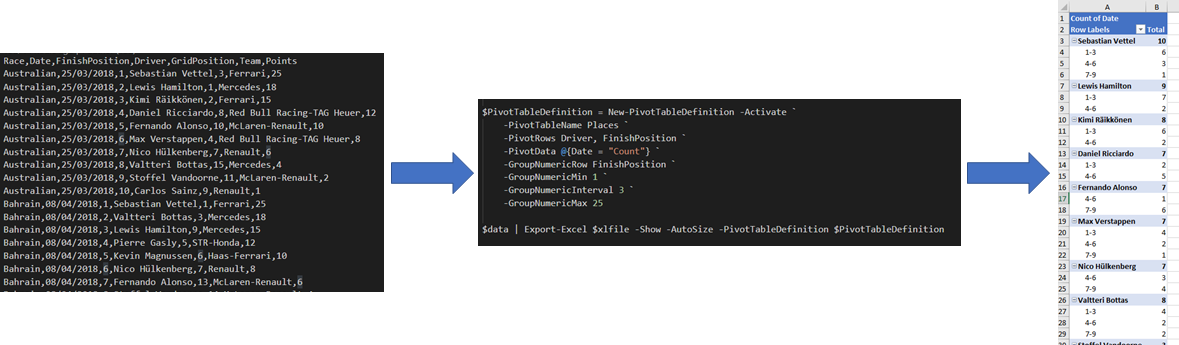
|
||||
|
||||
# What's new 5.4.0
|
||||
|
||||
- Thank you to Conrad Agramont, Twitter: [@AGramont](https://twitter.com/@AGramont) for the `AddMultiWorkSheet.ps1` example. Much appreciated!
|
||||
- Fixed several more bugs where parameters were ignored if passed a zero value
|
||||
- Fixed bug where chart series headers could not come form a cell reference (=Sheet1!Z10 now works as a header reference)
|
||||
- Add-Chart will now allow a single X range, or as many X ranges as there are Y ranges.
|
||||
- Merge-MultipleSheets is more robust.
|
||||
- Set-ExcelRow and Set-ExcelColumn trap attempts to process a sheet with no rows/columns.
|
||||
- Help has been proof-read (thanks to Mrs. @Jhoneill !).
|
||||
|
||||
# What's new 5.3.4
|
||||
|
||||
- HotFix for parameter PivotTableStyle should be PivotTableStyle https://github.com/dfinke/ImportExcel/issues/453
|
||||
|
||||
# What's new 5.3.3
|
||||
|
||||
- Thank you to (lazywinadmin)[https://github.com/lazywinadmin] - Expand aliases in examples and elsewhere
|
||||
- In Export-Excel fixed a bug where -AutoNameRange on pre-existing data included the header in the range.
|
||||
- In Export-Excel fixed a bug which caused a zero, null, or empty string in a list of simple objects to be skipped.
|
||||
- In Export-Excel improved the behaviour when a new worksheet is created without data, and Tables etc are added to it.
|
||||
- In Join-Worksheet: added argument completer to -TitleBackgroundColor and set default for -TitleBackgroundStyle to 'Solid'.
|
||||
- In Add-Excel chart, New-ExcelChart, tests and Examples fixed mis-spelling of "Position"
|
||||
- In Send-SqlDataToExcel: improved robustness of check for no data returned.
|
||||
- In Set-ExcelColumn: -column can come from the pipeline (supporting an array introduces complications for supporting script blocks); -AutoNameRange no longer requires heading to specified (so you can do 1..10 | Set-ExcelColumn -AutoNameRange ); In Set-ExcelRow: -Row can come from the pipeline
|
||||
- Improved test coverage (back over 80%).
|
||||
- Help and example improvements. In "Index - music.ps1" the module for querying the index can be downloaded from PowerShell gallery #requires set to demand it. In SQL+FillColumns+Pivot\example2.ps1 the GetSQL module can be downloaded and #Requires has been set. The F1 results spreadsheet is available from one drive and a link is provided.
|
||||
|
||||
- Added Azure DevOps continuous integration and badges <a href="https://dougfinke.visualstudio.com/ImportExcel/_build?definitionId=10"><img src="https://dougfinke.visualstudio.com/ImportExcel/_apis/build/status/ImportExcel-CI?branchName=master"></a>
|
||||
|
||||
|
||||
|
||||
# What's new in Release 5.3
|
||||
|
||||
- Help improvements and tidying up of examples and extra examples
|
||||
- Open-Excel Package and Add-Worksheet now add worksheets as script properties so `$Excel = Open-ExcelPackage -path test.xlsx ; $excel.sheet1` will return the sheet named "sheet1" `$Excel.SheetName` is a script property which is defined as `$this.workbook.worksheets["Sheetname"]`
|
||||
- Renamed Set-Column to `Set-ExcelColumn`, Set-Row to `Set-ExcelRow`, and Set-Format, to `Set-ExcelRange`. Added aliases so the old names still work.
|
||||
- `Set-ExcelRange` (or set-Format) used "Address" and "Range" incorrectly. There is now a single parameter `-Range`, with an alias of "Address". If the worksheet parameter is present, the function accepts a string specifying cells ("A1:Z10") or a the name of range. Without the worksheet it accepts an object representing a named range or a Table; or a tables's address, or part of the worksheet.cells collection.
|
||||
- `Add-ConditionalFormatting`: Used "address" correctly, and it will accept ranges in the address parameter (range is now an alias for address). It now wraps conditional value strings in quotes when needed (for = <= >= operations string needs to be in double quotes see issue #424). Parameter intellisense has been improved. There are new parameters: `-StopIfTrue` and `-Priority` and support for using the `-Reverse` parameter with Color-scale rules (issue #430). Booleans in the sheet are now supported as the value for a condition. Also brought the two different kinds of condition together inside Export-Excel, and fixed a bug where named-ranges didn't work in some places. In `New-ConditionalText`, more types of conditional format are supported, and the argument completer for -ConditionalTextColor was missing and has been added.
|
||||
- Improved handling of hyperlinks in `Export-Excel` (see issue #426)s
|
||||
- `Export-Excel` has better checking of Table and PivotTable names (for uniqueness) and a new test in quick charts that there is suitable data for charting. It also accepts hash tables for chart, pivot table and conditional formatting parameters which are splatted into the functions which add these.
|
||||
- Moved logic for adding a named-range out of Export-Excel and into a new function named `Add-ExcelName`, and logic for adding a table into a function named `Add-ExcelTable`; this is to make it easier to do these things independently of Export-Excel, but minimize duplication. The Add-ExcelTable command has extra parameters to toggle the options from table tools toolbar (show totals etc.) and set options in the totals row.
|
||||
- Moved PivotTable Functions out of Export-Excel.PS1 into their own file and moved Add-ExcelChart out of Export-Excel.ps1 into New-ExcelChart.ps1
|
||||
- Fixed bug in Merge-MultipleSheets where background pattern was set to None, making background color invisible.
|
||||
- Fixed issues where formatting could be reset when using Export-Excel to manipulate an existing sheet without appending data; this applied to number-formats and tables.
|
||||
- `Add-PivotTable` has some new parameters `-PassThru` returns the pivot table (e.g. to allow names /sort orders of data series to be tweaked ) `-Address` allows Pivot to be placed on an existing sheet; `-PivotTableStyle` allows a change from "Medium6", `-PivotNumberFormat` formats data cells. It is more flexible about how the source data is specified - copying the range options in Set-ExcelRange. `Add-ExcelChart` is now used for creating PivotCharts, and `-PivotChartDefinition` allows a definition created with `New-ExcelChartDefinition` to be used when setting up a PivotTable. This opens up all the things that Add-ExcelChart can do without duplicating the parameters on Add-Pivot table and Export-Excel. Definition, TableStyle, Numberformat and ChartDefiniton can be used in `New-PivotTableDefinition` .
|
||||
- `Add-ExcelChart` now supports -PassThru to return the chart for tweaking after creation; there is now a -PivotTable parameter to allow Add-PivotTable to call the code in Add-ExcelChart. And in `New-ExcelChartDefinition` Legend parameters (for size, bold & position ) are now supported
|
||||
- ChartDefinition and conditional formatting parameters can now be hashtables - anything that splats Add-ExcelChart or Add-ConditionalFormatting, it should be acceptable as a definition.
|
||||
|
||||
|
||||
# What's new in Release 5.2
|
||||
- Value does not need to be mandatory in Set-Row or Set-Column, also tidied their parameters a little.
|
||||
- Added support for array formulas in Set-Format (it really should be set range now that it sets values, formulas and hyperlinks - that can go on the to-do list )
|
||||
- Fixed a bug with -Append in Export-Excel which caused it to overwrite the last row if the new data was a simple type.
|
||||
- NumberFormat in Export-Excel now sets the default for on a new / blank sheet; but [still] sets individual cells when adding to a sheet
|
||||
- Added support for timespans in Export excel ; set as elapsed hours, mins, secs [h]:mm:sss
|
||||
- In Export-Excel improved the catch-all handler for insuring values to cope better with nested objects (#419) and reduce the number of parse operations
|
||||
- Added -Calculate switch to Export-Excel and Close-Excel Package; EPPlus needs formulas to OMIT the leading = sign so where formula is set it now strips a leading = sign
|
||||
- Added -PivotTotals parameter where there was already -NoTotalsInPivot new one allows None, Both, Rows, Columns. (#415)
|
||||
- When appending Export-Excel only extended tables and ranges if they were explicitly specified. It now does it automatically.
|
||||
- Compare and Merge worksheet originally had a problem with > 26 columns, I fixed merge turns out I hadn't fixed compare ... I have now
|
||||
- Fixed bug where Export-Excel would not recognize it had to set $TitleFillPattern - made the default 'Solid'
|
||||
- ExcludeProperty in Export-Excel now supports wildcards.
|
||||
- Added DateTime to the list of types which can be exported as single column.
|
||||
- Added Password support to Open- and Close-ExcelPackage (password was not doing anything in Export-Excel)
|
||||
- Gave Expand-NumberFormat a better grasp of currency layouts - it follows .NET which is not always the same as Excel would set:-(
|
||||
|
||||
# What's new in Release 5.1.1
|
||||
- Set-Row and Set-Column will now create hyperlinks and insert dates correctly
|
||||
- Import-Excel now has an argument completer for Worksheet name - this can be slow on large files
|
||||
- The NumberFormat parameter (in Export-Excel, Set-Row, Set-Column, Set-Format and Add-ConditionalFormat) and X&YAxisNumberFormat parameters (in New-ExcelChartDefinition and Add-ExcelChart) now have an argument completer and the names Currency, Number, Percentage, Scientific, Fraction, Short Date ,Short time,Long time, Date-Time and Text will be converted to the correct Excel formatting strings.
|
||||
- Added new function Select-Worksheet to make a named sheet active: Added -Activate switch to Add-Worksheet, to make current sheet active, Export-Excel and Add-PivotTable support -Activate and pass it to Add-Worksheet, and New-PivotTableDefinition allows it to be part of the Pivot TableDefinition.
|
||||
- Fixed a bug in Set-Format which caused -Hidden not to work
|
||||
- Made the same changes to Add-Conditional format as set format so -switch:$false is processed, and 0 enums and values are processed correctly
|
||||
- In Export-Excel, wrapped calls to Add-CellValue in a try catch so a value which causes an issue doesn't crash the whole export but generates a warning instead (#410) .
|
||||
- Additional tests.
|
||||
|
||||
# What's new to July 18
|
||||
|
||||
@@ -1,35 +1,43 @@
|
||||
Function Remove-WorkSheet {
|
||||
Param (
|
||||
$Path,
|
||||
$WorksheetName
|
||||
<#
|
||||
.SYNOPSIS
|
||||
Removes one or more worksheets from one or more workbooks
|
||||
.EXAMPLE
|
||||
C:\> Remove-WorkSheet -Path Test1.xlsx -WorksheetName Sheet1
|
||||
Removes the worksheet named 'Sheet1' from 'Test1.xlsx'
|
||||
|
||||
C:\> Remove-WorkSheet -Path Test1.xlsx -WorksheetName Sheet1,Target1
|
||||
Removes the worksheet named 'Sheet1' and 'Target1' from 'Test1.xlsx'
|
||||
|
||||
C:\> Remove-WorkSheet -Path Test1.xlsx -WorksheetName Sheet1,Target1 -Show
|
||||
Removes the worksheets and then launches the xlsx in Excel
|
||||
|
||||
C:\> dir c:\reports\*.xlsx | Remove-WorkSheet
|
||||
Removes 'Sheet1' from all the xlsx files in the c:\reports directory
|
||||
|
||||
#>
|
||||
param(
|
||||
# [Parameter(ValueFromPipelineByPropertyName)]
|
||||
[Parameter(ValueFromPipelineByPropertyName)]
|
||||
[Alias('Path')]
|
||||
$FullName,
|
||||
[String[]]$WorksheetName = "Sheet1",
|
||||
[Switch]$Show
|
||||
)
|
||||
|
||||
$Path = (Resolve-Path $Path).ProviderPath
|
||||
|
||||
$Excel = New-Object -TypeName OfficeOpenXml.ExcelPackage $Path
|
||||
|
||||
$workSheet = $Excel.Workbook.Worksheets[$WorkSheetName]
|
||||
|
||||
if($workSheet) {
|
||||
if($Excel.Workbook.Worksheets.Count -gt 1) {
|
||||
$Excel.Workbook.Worksheets.Delete($workSheet)
|
||||
} else {
|
||||
throw "Cannot delete $WorksheetName. A workbook must contain at least one visible worksheet"
|
||||
Process {
|
||||
if (!$FullName) {
|
||||
throw "Remove-WorkSheet requires the and Excel file"
|
||||
}
|
||||
|
||||
} else {
|
||||
throw "$WorksheetName not found"
|
||||
$pkg = Open-ExcelPackage -Path $FullName
|
||||
|
||||
if ($pkg) {
|
||||
foreach ($wsn in $WorksheetName) {
|
||||
$pkg.Workbook.Worksheets.Delete($wsn)
|
||||
}
|
||||
|
||||
$Excel.Save()
|
||||
$Excel.Dispose()
|
||||
Close-ExcelPackage -ExcelPackage $pkg -Show:$Show
|
||||
}
|
||||
}
|
||||
}
|
||||
|
||||
cls
|
||||
|
||||
ipmo .\ImportExcel.psd1 -Force
|
||||
|
||||
$names = Get-ExcelSheetInfo C:\Temp\testDelete.xlsx
|
||||
$names | % { Remove-WorkSheet C:\Temp\testDelete.xlsx $_.Name}
|
||||
|
||||
##Remove-WorkSheet C:\Temp\testDelete.xlsx sheet6
|
||||
@@ -1,229 +1,141 @@
|
||||
Function Send-SQLDataToExcel {
|
||||
<#
|
||||
.SYNOPSIS
|
||||
Inserts a DataTable - returned by SQL query into an ExcelSheet, more efficiently than sending it via Export-Excel
|
||||
Inserts a DataTable - returned by a SQL query - into an ExcelSheet
|
||||
.DESCRIPTION
|
||||
This command can accept a data table object or take a SQL command and run it against a database connection.
|
||||
If running the SQL command, it accepts an object representing a session with a SQL server or ODBC database, or a connection String to make a session.
|
||||
It the DataTable is inserted into the Excel sheet
|
||||
It takes most of the parameters of Export-Excel, but it is more efficient than getting dataRows and piping them into Export-Excel,
|
||||
data-rows have additional properties which need to be stripped off.
|
||||
.PARAMETER DataTable
|
||||
A System.Data.DataTable object containing the data to be inserted into the spreadsheet without running a query.
|
||||
This command takes a SQL statement and run it against a database connection; for the connection it accepts either
|
||||
* an object representing a session with a SQL server or ODBC database, or
|
||||
* a connection string to make a session (if -MSSQLServer is specified it uses the SQL Native client,
|
||||
and -Connection can be a server name instead of a detailed connection string. Without this switch it uses ODBC)
|
||||
The command takes all the parameters of Export-Excel, except for -InputObject (alias TargetData); after
|
||||
fetching the data it calls Export-Excel with the data as the value of InputParameter and whichever of
|
||||
Export-Excel's parameters it was passed; for details of these parameters see the help for Export-Excel.
|
||||
.PARAMETER Session
|
||||
An active ODBC Connection or SQL connection object representing a session with a database which will be queried to get the data .
|
||||
.PARAMETER Connection
|
||||
Database connection string; either DSN=ODBC_Data_Source_Name, a full odbc or SQL Connection string, or the name of a SQL server. This is used to create a database session.
|
||||
A database connection string to be used to create a database session; either
|
||||
* A Data source name written in the form DSN=ODBC_Data_Source_Name, or
|
||||
* A full ODBC or SQL Native Client Connection string, or
|
||||
* The name of a SQL server.
|
||||
.PARAMETER MSSQLServer
|
||||
Specifies the connection string is for SQL server, not ODBC .
|
||||
Specifies the connection string is for SQL server, not ODBC.
|
||||
.PARAMETER SQL
|
||||
The SQL query to run against the session which was passed in -Session or set up from $Connection.
|
||||
The SQL query to run against the session which was passed in -Session or set up from -Connection.
|
||||
.PARAMETER Database
|
||||
Switches to a specific database on a SQL server.
|
||||
.PARAMETER QueryTimeout
|
||||
Override the default query time of 30 seconds.
|
||||
.PARAMETER Path
|
||||
Path to a new or existing .XLSX file.
|
||||
.PARAMETER WorkSheetName
|
||||
The name of a sheet within the workbook - "Sheet1" by default .
|
||||
.PARAMETER KillExcel
|
||||
Closes Excel - prevents errors writing to the file because Excel has it open
|
||||
.PARAMETER Title
|
||||
Text of a title to be placed in the top left cell.
|
||||
.PARAMETER TitleBold
|
||||
Sets the title in boldface type.
|
||||
.PARAMETER TitleSize
|
||||
Sets the point size for the title.
|
||||
.PARAMETER TitleBackgroundColor
|
||||
Sets the cell background color for the title cell.
|
||||
.PARAMETER TitleFillPattern
|
||||
Sets the fill pattern for the title cell.
|
||||
.PARAMETER Password
|
||||
Sets password protection on the workbook.
|
||||
.PARAMETER IncludePivotTable
|
||||
Adds a Pivot table using the data in the worksheet.
|
||||
.PARAMETER PivotTableName
|
||||
If a Pivot table is created from command line parameters, specificies the name of the new sheet holding the pivot. If Omitted this will be "WorksheetName-PivotTable"
|
||||
.PARAMETER PivotRows
|
||||
Name(s) columns from the spreadhseet which will provide the Row name(s) in a pivot table created from command line parameters.
|
||||
.PARAMETER PivotColumns
|
||||
Name(s) columns from the spreadhseet which will provide the Column name(s) in a pivot table created from command line parameters.
|
||||
.PARAMETER PivotFilter
|
||||
Name(s) columns from the spreadhseet which will provide the Filter name(s) in a pivot table created from command line parameters.
|
||||
.PARAMETER PivotData
|
||||
In a pivot table created from command line parameters, the fields to use in the table body is given as a Hash table in the form ColumnName = Average|Count|CountNums|Max|Min|Product|None|StdDev|StdDevP|Sum|Var|VarP .
|
||||
.PARAMETER NoTotalsInPivot
|
||||
In a pivot table created from command line parameters, prevents the addition of totals to rows and columns.
|
||||
.PARAMETER IncludePivotChart
|
||||
Include a chart with the Pivot table - implies -IncludePivotTable.
|
||||
.PARAMETER ChartType
|
||||
The type for Pivot chart (one of Excel's defined chart types)
|
||||
.PARAMETER NoLegend
|
||||
Exclude the legend from the pivot chart.
|
||||
.PARAMETER ShowCategory
|
||||
Add category labels to the pivot chart.
|
||||
.PARAMETER ShowPercent
|
||||
Add Percentage labels to the pivot chart.
|
||||
.PARAMETER PivotTableDefinition
|
||||
Instead of describing a single pivot table with mutliple commandline paramters; you can use a HashTable in the form PivotTableName = Definition;
|
||||
Definition is itself a hashtable with Sheet PivotTows, PivotColumns, PivotData, IncludePivotChart and ChartType values.
|
||||
.PARAMETER ConditionalFormat
|
||||
One or more conditional formatting rules defined with New-ConditionalFormattingIconSet.
|
||||
.PARAMETER ConditionalText
|
||||
Applies a 'Conditional formatting rule' in Excel on all the cells. When specific conditions are met a rule is triggered.
|
||||
.PARAMETER BoldTopRow
|
||||
Makes the top Row boldface.
|
||||
.PARAMETER NoHeader
|
||||
Does not put field names at the top of columns.
|
||||
.PARAMETER RangeName
|
||||
Makes the data in the worksheet a named range.
|
||||
.PARAMETER AutoNameRange
|
||||
Makes each column a named range.
|
||||
.PARAMETER TableName
|
||||
Makes the data in the worksheet a table with a name applies a style to it. Name must not contain spaces.
|
||||
.PARAMETER TableStyle
|
||||
Selects the style for the named table - defaults to 'Medium6'.
|
||||
.PARAMETER BarChart
|
||||
Creates a "quick" bar chart using the first text column as labels and the first numeric column as values
|
||||
.PARAMETER ColumnChart
|
||||
Creates a "quick" column chart using the first text column as labels and the first numeric column as values
|
||||
.PARAMETER LineChart
|
||||
Creates a "quick" line chart using the first text column as labels and the first numeric column as values
|
||||
.PARAMETER PieChart
|
||||
Creates a "quick" pie chart using the first text column as labels and the first numeric column as values
|
||||
.PARAMETER ExcelChartDefinition
|
||||
A hash table containing ChartType, Title, NoLegend, ShowCategory, ShowPercent, Yrange, Xrange and SeriesHeader for one or more [non-pivot] charts.
|
||||
.PARAMETER StartRow
|
||||
Row to start adding data. 1 by default. Row 1 will contain the title if any. Then headers will appear (Unless -No header is specified) then the data appears.
|
||||
.PARAMETER StartColumn
|
||||
Column to start adding data - 1 by default.
|
||||
.PARAMETER FreezeTopRow
|
||||
Freezes headers etc. in the top row.
|
||||
.PARAMETER FreezeFirstColumn
|
||||
Freezes titles etc. in the left column.
|
||||
.PARAMETER FreezeTopRowFirstColumn
|
||||
Freezes top row and left column (equivalent to Freeze pane 2,2 ).
|
||||
.PARAMETER FreezePane
|
||||
Freezes panes at specified coordinates (in the form RowNumber , ColumnNumber).
|
||||
.PARAMETER AutoFilter
|
||||
Enables the 'Filter' in Excel on the complete header row. So users can easily sort, filter and/or search the data in the select column from within Excel.
|
||||
.PARAMETER AutoSize
|
||||
Sizes the width of the Excel column to the maximum width needed to display all the containing data in that cell.
|
||||
.PARAMETER Show
|
||||
Opens the Excel file immediately after creation. Convenient for viewing the results instantly without having to search for the file first.
|
||||
.PARAMETER ReturnRange
|
||||
If specified, Export-Excel returns the range of added cells in the format "A1:Z100"
|
||||
.PARAMETER PassThru
|
||||
If specified, Export-Excel returns an object representing the Excel package without saving the package first. To save it you need to call the save or Saveas method or send it back to Export-Excel.
|
||||
|
||||
.PARAMETER DataTable
|
||||
A System.Data.DataTable object containing the data to be inserted into the spreadsheet without running a query.
|
||||
This remains supported to avoid breaking older scripts, but if you have a DataTable object you can pass the it
|
||||
into Export-Excel using -InputObject.
|
||||
.EXAMPLE
|
||||
C:\> Send-SQLDataToExcel -MsSQLserver -Connection localhost -SQL "select name,type,type_desc from [master].[sys].[all_objects]" -Path .\temp.xlsx -WorkSheetname master -AutoSize -FreezeTopRow -AutoFilter -BoldTopRow
|
||||
Connects to the local SQL server and selects 3 columns from [Sys].[all_objects] and exports then to a sheet named master with some basic header manager
|
||||
.EXAMPLE
|
||||
C:\> $SQL="SELECT top 25 DriverName, Count(RaceDate) as Races, Count(Win) as Wins, Count(Pole) as Poles, Count(FastestLap) as Fastlaps FROM Results GROUP BY DriverName ORDER BY (count(win)) DESC"
|
||||
C:\> $Connection = 'Driver={Microsoft Excel Driver (*.xls, *.xlsx, *.xlsm, *.xlsb)};DriverId=790;ReadOnly=0;Dbq=C:\users\James\Documents\f1Results.xlsx;'
|
||||
C:\> Send-SQLDataToExcel -Connection $connection -SQL $sql -path .\demo1.xlsx -WorkSheetname "Winners" -AutoSize -AutoNameRange
|
||||
|
||||
This declares a SQL statement and creates an ODBC connection string to read from an Excel file, it then runs the statement and outputs the resulting data to a new spreadsheet.
|
||||
Connects to the local SQL server and selects 3 columns from [Sys].[all_objects] and exports then to a sheet named master with some basic header management
|
||||
.EXAMPLE
|
||||
C:\> $dbPath = 'C:\Users\James\Documents\Database1.accdb'
|
||||
C:\> $Connection = "Driver={Microsoft Access Driver (*.mdb, *.accdb)};Dbq=$dbPath;"
|
||||
C:\> $SQL="SELECT top 25 Name,Length From TestData ORDER BY Length DESC"
|
||||
|
||||
C:\> Send-SQLDataToExcel -Connection $connection -SQL $sql -path .\demo1.xlsx -WorkSheetname "Sizes" -AutoSize
|
||||
|
||||
This creates an ODBC connection string to read from an Access file and a SQL Statement to extracts data from it,
|
||||
and sends the resulting data to a new worksheet
|
||||
|
||||
.EXAMPLE
|
||||
C:\> $dbPath = 'C:\users\James\Documents\f1Results.xlsx'
|
||||
C:\> $Connection = "Driver={Microsoft Excel Driver (*.xls, *.xlsx, *.xlsm, *.xlsb)};Dbq=$dbPath;"
|
||||
C:\> $SQL="SELECT top 25 DriverName, Count(RaceDate) as Races, Count(Win) as Wins, Count(Pole) as Poles, Count(FastestLap) as Fastlaps " +
|
||||
" FROM Results GROUP BY DriverName ORDER BY (count(win)) DESC"
|
||||
|
||||
C:\> Send-SQLDataToExcel -Connection $connection -SQL $sql -path .\demo2.xlsx -WorkSheetname "Winners" -AutoSize -AutoNameRange -ConditionalFormat @{DataBarColor="Blue"; Range="Wins"}
|
||||
|
||||
Similar to the previous example this creates a connection string, this time for an Excel file, and runs
|
||||
a SQL statement to get a list of motor-racing results, outputting the resulting data to a new spreadsheet.
|
||||
The spreadsheet is formatted and a data bar added to show make the drivers' wins clearer.
|
||||
(the F1 results database is available from https://1drv.ms/x/s!AhfYu7-CJv4ehNdZWxJE9LMAX_N5sg )
|
||||
.EXAMPLE
|
||||
C:\> $SQL = "SELECT top 25 DriverName, Count(RaceDate) as Races, Count(Win) as Wins, Count(Pole) as Poles, Count(FastestLap) as Fastlaps FROM Results GROUP BY DriverName ORDER BY (count(win)) DESC"
|
||||
C:\> Get-SQL -Session F1 -excel -Connection "C:\Users\mcp\OneDrive\public\f1\f1Results.xlsx" -sql $sql -OutputVariable Table | out-null
|
||||
C:\> $dbPath = 'C:\users\James\Documents\f1Results.xlsx'
|
||||
C:\> $SQL = "SELECT top 25 DriverName, Count(RaceDate) as Races, Count(Win) as Wins, Count(Pole) as Poles, Count(FastestLap) as Fastlaps " +
|
||||
" FROM Results GROUP BY DriverName ORDER BY (count(win)) DESC"
|
||||
C:\> $null = Get-SQL -Session F1 -excel -Connection $dbPath -sql $sql -OutputVariable Table
|
||||
|
||||
C:\> Send-SQLDataToExcel -DataTable $Table -Path ".\demo3.xlsx" -WorkSheetname Gpwinners -autosize -TableName winners -TableStyle Light6 -show
|
||||
|
||||
This uses Get-SQL (at least V1.1 download from the gallery with Install-Module -Name GetSQL - note the function is get-SQL the module is GetSQL without the "-" )
|
||||
to simplify making database connections and building /submitting SQL statements.
|
||||
Here it uses the same SQL statement as before; -OutputVariable leaves a System.Data.DataTable object in $table
|
||||
This uses Get-SQL (at least V1.1 - download from the PowerShell gallery with Install-Module -Name GetSQL -
|
||||
note the function is Get-SQL the module is GetSQL without the "-" )
|
||||
Get-SQL simplify making database connections and building /submitting SQL statements.
|
||||
Here Get-SQL uses the same SQL statement as before; -OutputVariable leaves a System.Data.DataTable object in $table
|
||||
and Send-SQLDataToExcel puts $table into the worksheet and sets it as an Excel table.
|
||||
The command is equivalent to running
|
||||
C:\> Export-Excel -inputObject $Table -Path ".\demo3.xlsx" -WorkSheetname Gpwinners -autosize -TableName winners -TableStyle Light6 -show
|
||||
This is quicker than using
|
||||
C:\> Get-SQL <parameters> | export-excel -ExcludeProperty rowerror,rowstate,table,itemarray,haserrors <parameters>
|
||||
(the F1 results database is available from https://1drv.ms/x/s!AhfYu7-CJv4ehNdZWxJE9LMAX_N5sg )
|
||||
.EXAMPLE
|
||||
C:\> $SQL = "SELECT top 25 DriverName, Count(Win) as Wins FROM Results GROUP BY DriverName ORDER BY (count(win)) DESC"
|
||||
C:\> Send-SQLDataToExcel -Session $DbSessions["f1"] -SQL $sql -Path ".\demo3.xlsx" -WorkSheetname Gpwinners -autosize -ColumnChart
|
||||
C:\> Send-SQLDataToExcel -Session $DbSessions["f1"] -SQL $sql -Path ".\demo3.xlsx" -WorkSheetname Gpwinners -ClearSheet -autosize -ColumnChart
|
||||
|
||||
Like the previous example, this uses Get-SQL (download from the gallery with Install-Module -Name GetSQL).It uses the connection which Get-SQL made rather than an ODFBC connection string
|
||||
Like the previous example, this uses Get-SQL (download from the gallery with Install-Module -Name GetSQL).
|
||||
It uses the database session which Get-SQL created, rather than an ODBC connection string.
|
||||
The Session parameter can either be a object (as shown here), or the name used by Get-SQL ("F1" in this case).
|
||||
Here the data is presented as a quick chart.
|
||||
.EXAMPLE
|
||||
C:\> Send-SQLDataToExcel -path .\demo3.xlsx -WorkSheetname "LR" -Connection "DSN=LR" -sql "SELECT name AS CollectionName FROM AgLibraryCollection Collection ORDER BY CollectionName"
|
||||
C:\> Send-SQLDataToExcel -path .\demo4.xlsx -WorkSheetname "LR" -Connection "DSN=LR" -sql "SELECT name AS CollectionName FROM AgLibraryCollection Collection ORDER BY CollectionName"
|
||||
|
||||
This example uses an Existing ODBC datasource name "LR" which maps to an adobe lightroom database and gets a list of collection names into a worksheet
|
||||
|
||||
.Link
|
||||
Export-Excel
|
||||
#>
|
||||
[CmdletBinding()]
|
||||
[Diagnostics.CodeAnalysis.SuppressMessageAttribute("PSAvoidUsingPlainTextForPassword","")]
|
||||
[CmdletBinding(DefaultParameterSetName="none")]
|
||||
param (
|
||||
[Parameter(ParameterSetName="SQLConnection", Mandatory=$true)]
|
||||
[Parameter(ParameterSetName="ODBCConnection",Mandatory=$true)]
|
||||
[Parameter(ParameterSetName="ODBCConnection", Mandatory=$true)]
|
||||
$Connection,
|
||||
[Parameter(ParameterSetName="ExistingSession",Mandatory=$true)]
|
||||
[System.Data.Common.DbConnection]$Session,
|
||||
[Parameter(ParameterSetName="SQLConnection",Mandatory=$true)]
|
||||
[Parameter(ParameterSetName="ExistingSession", Mandatory=$true)]
|
||||
$Session,
|
||||
[Parameter(ParameterSetName="SQLConnection", Mandatory=$true)]
|
||||
[switch]$MsSQLserver,
|
||||
[Parameter(ParameterSetName="SQLConnection")]
|
||||
[String]$DataBase,
|
||||
[Parameter(ParameterSetName="SQLConnection", Mandatory=$true)]
|
||||
[Parameter(ParameterSetName="ODBCConnection",Mandatory=$true)]
|
||||
[Parameter(ParameterSetName="ExistingSession",Mandatory=$true)]
|
||||
[Parameter(ParameterSetName="ODBCConnection", Mandatory=$true)]
|
||||
[Parameter(ParameterSetName="ExistingSession", Mandatory=$true)]
|
||||
[string]$SQL,
|
||||
[int]$QueryTimeout,
|
||||
[Parameter(ParameterSetName="Pre-FetchedData",Mandatory=$true)]
|
||||
[System.Data.DataTable]$DataTable,
|
||||
$Path,
|
||||
[String]$WorkSheetname = 'Sheet1',
|
||||
[Switch]$KillExcel,
|
||||
[Switch]$Show,
|
||||
[String]$Title,
|
||||
[OfficeOpenXml.Style.ExcelFillStyle]$TitleFillPattern = 'None',
|
||||
[Switch]$TitleBold,
|
||||
[Int]$TitleSize = 22,
|
||||
[System.Drawing.Color]$TitleBackgroundColor,
|
||||
[String]$Password,
|
||||
[Hashtable]$PivotTableDefinition,
|
||||
[Switch]$IncludePivotTable,
|
||||
[String[]]$PivotRows,
|
||||
[String[]]$PivotColumns,
|
||||
$PivotData,
|
||||
[String[]]$PivotFilter,
|
||||
[Switch]$PivotDataToColumn,
|
||||
[Switch]$NoTotalsInPivot,
|
||||
[Switch]$IncludePivotChart,
|
||||
[OfficeOpenXml.Drawing.Chart.eChartType]$ChartType = 'Pie',
|
||||
[Switch]$NoLegend,
|
||||
[Switch]$ShowCategory,
|
||||
[Switch]$ShowPercent,
|
||||
[Switch]$AutoSize,
|
||||
[Switch]$FreezeTopRow,
|
||||
[Switch]$FreezeFirstColumn,
|
||||
[Switch]$FreezeTopRowFirstColumn,
|
||||
[Int[]]$FreezePane,
|
||||
[Switch]$AutoFilter,
|
||||
[Switch]$BoldTopRow,
|
||||
[Switch]$NoHeader,
|
||||
[String]$RangeName,
|
||||
[String]$TableName,
|
||||
[OfficeOpenXml.Table.TableStyles]$TableStyle = 'Medium6',
|
||||
[Switch]$Barchart,
|
||||
[Switch]$PieChart,
|
||||
[Switch]$LineChart ,
|
||||
[Switch]$ColumnChart ,
|
||||
[Object[]]$ExcelChartDefinition,
|
||||
[Switch]$AutoNameRange,
|
||||
[Object[]]$ConditionalFormat,
|
||||
[Object[]]$ConditionalText,
|
||||
[ScriptBlock]$CellStyleSB,
|
||||
[Int]$StartRow = 1,
|
||||
[Int]$StartColumn = 1,
|
||||
[Switch]$ReturnRange,
|
||||
[Switch]$Passthru
|
||||
[Parameter(ParameterSetName="Pre-FetchedData", Mandatory=$true)]
|
||||
[System.Data.DataTable]$DataTable
|
||||
)
|
||||
|
||||
if ($KillExcel) {
|
||||
Get-Process excel -ErrorAction Ignore | Stop-Process
|
||||
while (Get-Process excel -ErrorAction Ignore) {Start-Sleep -Milliseconds 250}
|
||||
#Import the parameters from Export-Excel, we will pass InputObject, and we have the common parameters so exclude those,
|
||||
#and re-write the [Parmameter] attribute on each one to avoid parameterSetName here competing with the settings in Export excel.
|
||||
#The down side of this that impossible parameter combinations won't be filtered out and need to be caught later.
|
||||
DynamicParam {
|
||||
$ParameterAttribute = "System.Management.Automation.ParameterAttribute"
|
||||
$RuntimeDefinedParam = "System.Management.Automation.RuntimeDefinedParameter"
|
||||
$paramDictionary = New-Object -TypeName System.Management.Automation.RuntimeDefinedParameterDictionary
|
||||
$attributeCollection = New-Object -TypeName System.Collections.ObjectModel.Collection[System.Attribute]
|
||||
$attributeCollection.Add((New-Object -TypeName $ParameterAttribute -Property @{ ParameterSetName = "__AllParameterSets" ;Mandatory = $false}))
|
||||
foreach ($P in (Get-Command -Name Export-Excel).Parameters.values.where({$_.name -notmatch 'Verbose|Debug|Action$|Variable$|Buffer$|TargetData$|InputObject$'})) {
|
||||
$paramDictionary.Add($p.Name, (New-Object -TypeName $RuntimeDefinedParam -ArgumentList $p.name, $p.ParameterType, $attributeCollection ) )
|
||||
}
|
||||
return $paramDictionary
|
||||
}
|
||||
process {
|
||||
#Dynamic params mean we can get passed parameter combination Export-Excel will reject, so throw here, rather than get data and then have Export-Excel error.
|
||||
if ($PSBoundParameters.Path -and $PSBoundParameters.ExcelPackage) {
|
||||
throw 'Parameter error: you cannot specify both a path and an Excel Package.'
|
||||
return
|
||||
}
|
||||
if ($PSBoundParameters.AutoFilter -and ($PSBoundParameters.TableName -or $PSBoundParameters.TableStyle)) {
|
||||
Write-Warning "Tables are automatically auto-filtered, -AutoFilter will be ignored"
|
||||
$null = $PSBoundParameters.Remove('AutoFilter')
|
||||
}
|
||||
|
||||
#We were either given a session object or a connection string (with, optionally a MSSQLServer parameter)
|
||||
# If we got -MSSQLServer, create a SQL connection, if we didn't but we got -Connection create an ODBC connection
|
||||
#If we got -MSSQLServer, create a SQL connection, if we didn't but we got -Connection create an ODBC connection
|
||||
if ($MsSQLserver -and $Connection) {
|
||||
if ($Connection -notmatch "=") {$Connection = "server=$Connection;trusted_connection=true;timeout=60"}
|
||||
if ($Connection -notmatch '=') {$Connection = "server=$Connection;trusted_connection=true;timeout=60"}
|
||||
$Session = New-Object -TypeName System.Data.SqlClient.SqlConnection -ArgumentList $Connection
|
||||
if ($Session.State -ne 'Open') {$Session.Open()}
|
||||
if ($DataBase) {$Session.ChangeDatabase($DataBase) }
|
||||
@@ -231,9 +143,9 @@
|
||||
elseif ($Connection) {
|
||||
$Session = New-Object -TypeName System.Data.Odbc.OdbcConnection -ArgumentList $Connection ; $Session.ConnectionTimeout = 30
|
||||
}
|
||||
|
||||
If ($session) {
|
||||
if ($Session) {
|
||||
#A session was either passed in or just created. If it's a SQL one make a SQL DataAdapter, otherwise make an ODBC one
|
||||
if ($Session -is [String] -and $Global:DbSessions[$Session]) {$Session = $Global:DbSessions[$Session]}
|
||||
if ($Session.GetType().name -match "SqlConnection") {
|
||||
$dataAdapter = New-Object -TypeName System.Data.SqlClient.SqlDataAdapter -ArgumentList (
|
||||
New-Object -TypeName System.Data.SqlClient.SqlCommand -ArgumentList $SQL, $Session)
|
||||
@@ -242,27 +154,20 @@
|
||||
$dataAdapter = New-Object -TypeName System.Data.Odbc.OdbcDataAdapter -ArgumentList (
|
||||
New-Object -TypeName System.Data.Odbc.OdbcCommand -ArgumentList $SQL, $Session )
|
||||
}
|
||||
if ($QueryTimeout) {$dataAdapter.SelectCommand.CommandTimeout = $ServerTimeout}
|
||||
if ($QueryTimeout) {$dataAdapter.SelectCommand.CommandTimeout = $QueryTimeout}
|
||||
|
||||
#Both adapter types output the same kind of table, create one and fill it from the adapter
|
||||
$DataTable = New-Object -TypeName System.Data.DataTable
|
||||
$rowCount = $dataAdapter.fill($dataTable)
|
||||
Write-Verbose -Message "Query returned $rowCount row(s)"
|
||||
}
|
||||
if ($DataTable.Rows) {
|
||||
#ExportExcel user a -NoHeader parameter so that's what we use here, but needs to be the other way around.
|
||||
$printHeaders = -not $NoHeader
|
||||
if ($Title) {$r = $StartRow +1 }
|
||||
else {$r = $StartRow}
|
||||
#Get our Excel sheet and fill it with the data
|
||||
$excelPackage = Export-Excel -Path $Path -WorkSheetname $WorkSheetname -PassThru
|
||||
$excelPackage.Workbook.Worksheets[$WorkSheetname].Cells[$r,$StartColumn].LoadFromDataTable($dataTable, $printHeaders ) | Out-Null
|
||||
|
||||
#Call export-excel with any parameters which don't relate to the SQL query
|
||||
"Connection", "Database" , "Session", "MsSQLserver", "Destination" , "SQL" , "DataTable", "Path" | ForEach-Object {$null = $PSBoundParameters.Remove($_) }
|
||||
Export-Excel -ExcelPackage $excelPackage @PSBoundParameters
|
||||
if ($DataTable.Rows.Count) {
|
||||
#Call export-excel removing parameters which relate to the SQL query, and keeping the rest.
|
||||
'Connection' , 'Database' , 'Session' , 'MsSQLserver' , 'SQL' , 'DataTable' , 'QueryTimeout' | ForEach-Object {$null = $PSBoundParameters.Remove($_) }
|
||||
Export-Excel @PSBoundParameters -InputObject $DataTable
|
||||
}
|
||||
else {Write-Warning -Message "No Data to insert."}
|
||||
else {Write-Warning -Message ' No Data to insert.' }
|
||||
#If we were passed a connection and opened a session, close that session.
|
||||
if ($Connection) {$Session.close() }
|
||||
}
|
||||
}
|
||||
@@ -4,9 +4,9 @@
|
||||
$Row,
|
||||
$LastColumn,
|
||||
[OfficeOpenXml.Style.ExcelFillStyle]$Pattern,
|
||||
[System.Drawing.Color]$Color
|
||||
$Color
|
||||
)
|
||||
|
||||
if ($Color -is [string]) {$Color = [System.Drawing.Color]::$Color }
|
||||
$t=$WorkSheet.Cells["A$($Row):$($LastColumn)$($Row)"]
|
||||
$t.Style.Fill.PatternType=$Pattern
|
||||
$t.Style.Fill.BackgroundColor.SetColor($Color)
|
||||
|
||||
206
Set-Column.ps1
206
Set-Column.ps1
@@ -1,116 +1,166 @@
|
||||
Function Set-Column {
|
||||
Function Set-ExcelColumn {
|
||||
<#
|
||||
.SYNOPSIS
|
||||
Adds a column to the existing data area in an Excel sheet, fills values and sets formatting
|
||||
Adds or modifies a column in an Excel worksheet, filling values, setting formatting and/or creating named ranges.
|
||||
.DESCRIPTION
|
||||
Set-Column takes a value which is either string containing a value or formula or a scriptblock
|
||||
which evaluates to a string, and optionally a column number and fills that value down the column.
|
||||
A column name can be specified and the new column can be made a named range.
|
||||
The column can be formatted.
|
||||
.Example
|
||||
C:> Set-Column -Worksheet $ws -Heading "WinsToFastLaps" -Value {"=E$row/C$row"} -Column 7 -AutoSize -AutoNameRange
|
||||
Here $WS already contains a worksheet which contains counts of races won and fastest laps recorded by racing drivers (in columns C and E)
|
||||
Set-Column specifies that Column 7 should have a heading of "WinsToFastLaps" and the data cells should contain =E2/C2 , =E3/C3
|
||||
the data cells should become a named range, which will also be "WinsToFastLaps" the column width will be set automatically
|
||||
Set-ExcelColumn can take a value which is either a string containing a
|
||||
value or formula or a scriptblock which evaluates to a string,
|
||||
and optionally a column number and fills that value down the column.
|
||||
A column heading can be specified, and the column can be made a named range.
|
||||
The column can be formatted in the same operation.
|
||||
.EXAMPLE
|
||||
Set-ExcelColumn -Worksheet $ws -Column 5 -NumberFormat 'Currency'
|
||||
|
||||
$ws contains a worksheet object - and column "E" is set to use the
|
||||
local currency format. Intelisense will complete the names of predefined
|
||||
number formats. You can see how currency is interpreted on the
|
||||
local computer with the command
|
||||
Expand-NumberFormat currency
|
||||
.EXAMPLE
|
||||
Set-ExcelColumn -Worksheet $ws -Heading "WinsToFastLaps" -Value {"=E$row/C$row"} -Column 7 -AutoSize -AutoNameRange
|
||||
|
||||
Here, $WS already contains a worksheet which holds counts of races won
|
||||
and fastest laps recorded by racing drivers (in columns C and E).
|
||||
Set-ExcelColumn specifies that Column 7 should have a heading of
|
||||
"WinsToFastLaps" and the data cells should contain =E2/C2 , =E3/C3 etc
|
||||
the new data cells should become a named range, which will also be
|
||||
named "WinsToFastLaps" and the column width will be set automatically.
|
||||
.EXAMPLE
|
||||
Set-ExcelColumn -Worksheet $ws -Heading "Link" -Value {"https://en.wikipedia.org" + $worksheet.cells["B$Row"].value } -AutoSize
|
||||
|
||||
In this example, the worksheet in $ws has partial links to Wikipedia
|
||||
pages in column B. The -Value parameter is a script block which
|
||||
outputs a string beginning "https..." and ending with the value of
|
||||
the cell at column B in the current row.
|
||||
When given a valid URI, Set-ExcelColumn makes it a hyperlink.
|
||||
The column will be autosized to fit the links.
|
||||
.EXAMPLE
|
||||
4..6 | Set-ExcelColumn -Worksheet $ws -AutoNameRange
|
||||
|
||||
Again $ws contains a worksheet. Here columns 4 to 6 are made into
|
||||
named ranges, row 1 is used for the range name
|
||||
and the rest of the column becomes the range.
|
||||
#>
|
||||
[cmdletbinding()]
|
||||
[Alias("Set-Column")]
|
||||
[OutputType([OfficeOpenXml.ExcelColumn],[String])]
|
||||
Param (
|
||||
#If specifying the worksheet by name, the ExcelPackage object which contains the worksheet also needs to be passed.
|
||||
[Parameter(ParameterSetName="Package",Mandatory=$true)]
|
||||
[OfficeOpenXml.ExcelPackage]$ExcelPackage,
|
||||
#The sheet to update can be a given as a name or an Excel Worksheet object - this sets it by name
|
||||
#The sheet to update can be given as a name or an Excel Worksheet object - this sets it by name.
|
||||
[Parameter(ParameterSetName="Package")]
|
||||
#The sheet to update can be a given as a name or an Excel Worksheet object - $workSheet contains the object
|
||||
$Worksheetname = "Sheet1",
|
||||
[String]$Worksheetname = "Sheet1",
|
||||
#This passes the worksheet object instead of passing a sheet name and an Excelpackage object.
|
||||
[Parameter(ParameterSetName="sheet",Mandatory=$true)]
|
||||
[OfficeOpenXml.ExcelWorksheet]
|
||||
$Worksheet,
|
||||
#Column to fill down - first column is 1. 0 will be interpreted as first unused column
|
||||
[OfficeOpenXml.ExcelWorksheet]$Worksheet,
|
||||
#Column to fill down - the first column is 1. 0 will be interpreted as first empty column.
|
||||
[Parameter(ValueFromPipeline=$true)]
|
||||
[ValidateRange(0,16384)]
|
||||
$Column = 0 ,
|
||||
#First row to fill data in
|
||||
#First row to fill data in.
|
||||
[ValidateRange(1,1048576)]
|
||||
[Int]$StartRow ,
|
||||
#value, formula or script block for to fill in. Script block can use $row, $column [number], $ColumnName [letter(s)], $startRow, $startColumn, $endRow, $endColumn
|
||||
[parameter(Mandatory=$true)]
|
||||
#A value, formula or scriptblock to fill in. A script block can use $worksheet, $row, $column [number], $columnName [letter(s)], $startRow, $startColumn, $endRow, $endColumn.
|
||||
$Value ,
|
||||
#Optional column heading
|
||||
#Optional column heading.
|
||||
$Heading ,
|
||||
#Number format to apply to cells e.g. "dd/MM/yyyy HH:mm", "£#,##0.00;[Red]-£#,##0.00", "0.00%" , "##/##" , "0.0E+0" etc
|
||||
#Number format to apply to cells e.g. "dd/MM/yyyy HH:mm", "£#,##0.00;[Red]-£#,##0.00", "0.00%" , "##/##" , "0.0E+0" etc.
|
||||
[Alias("NFormat")]
|
||||
$NumberFormat,
|
||||
#Style of border to draw around the row
|
||||
#Style of border to draw around the row.
|
||||
[OfficeOpenXml.Style.ExcelBorderStyle]$BorderAround,
|
||||
#Colour for the text - if none specified it will be left as it it is
|
||||
[System.Drawing.Color]$FontColor,
|
||||
#Make text bold; use -Bold:$false to remove bold
|
||||
[switch]$Bold,
|
||||
#Make text italic; use -Italic:$false to remove italic
|
||||
[switch]$Italic,
|
||||
#Underline the text using the underline style in -underline type; use -Underline:$false to remove underlining
|
||||
[switch]$Underline,
|
||||
#Should Underline use single or double, normal or accounting mode : default is single normal
|
||||
#Colour for the text - if none specified it will be left as it it is.
|
||||
$FontColor,
|
||||
#Make text bold; use -Bold:$false to remove bold.
|
||||
[Switch]$Bold,
|
||||
#Make text italic; use -Italic:$false to remove italic.
|
||||
[Switch]$Italic,
|
||||
#Underline the text using the underline style in -UnderlineType; use -Underline:$false to remove underlining.
|
||||
[Switch]$Underline,
|
||||
#Specifies whether underlining should be single or double, normal or accounting mode. The default is "Single".
|
||||
[OfficeOpenXml.Style.ExcelUnderLineType]$UnderLineType = [OfficeOpenXml.Style.ExcelUnderLineType]::Single,
|
||||
#Strike through text; use -Strikethru:$false to remove Strike through
|
||||
[switch]$StrikeThru,
|
||||
#Subscript or superscript (or none)
|
||||
#Strike through text; use -StrikeThru:$false to remove strike through.
|
||||
[Switch]$StrikeThru,
|
||||
#Subscript or Superscript (or None).
|
||||
[OfficeOpenXml.Style.ExcelVerticalAlignmentFont]$FontShift,
|
||||
#Font to use - Excel defaults to Calibri
|
||||
#Font to use - Excel defaults to Calibri.
|
||||
[String]$FontName,
|
||||
#Point size for the text
|
||||
#Point size for the text.
|
||||
[float]$FontSize,
|
||||
#Change background colour
|
||||
[System.Drawing.Color]$BackgroundColor,
|
||||
#Background pattern - solid by default
|
||||
#Change background color.
|
||||
$BackgroundColor,
|
||||
#Background pattern - "Solid" by default.
|
||||
[OfficeOpenXml.Style.ExcelFillStyle]$BackgroundPattern = [OfficeOpenXml.Style.ExcelFillStyle]::Solid ,
|
||||
#Secondary colour for background pattern
|
||||
#Secondary color for background pattern.
|
||||
[Alias("PatternColour")]
|
||||
[System.Drawing.Color]$PatternColor,
|
||||
#Turn on text wrapping; use -WrapText:$false to turn off word wrapping
|
||||
[switch]$WrapText,
|
||||
#Position cell contents to left, right, center etc. default is 'General'
|
||||
$PatternColor,
|
||||
#Turn on Text-Wrapping; use -WrapText:$false to turn off wrapping.
|
||||
[Switch]$WrapText,
|
||||
#Position cell contents to Left, Right, Center etc. Default is "General".
|
||||
[OfficeOpenXml.Style.ExcelHorizontalAlignment]$HorizontalAlignment,
|
||||
#Position cell contents to top bottom or centre
|
||||
#Position cell contents to Top, Bottom or Center.
|
||||
[OfficeOpenXml.Style.ExcelVerticalAlignment]$VerticalAlignment,
|
||||
#Degrees to rotate text. Up to +90 for anti-clockwise ("upwards"), or to -90 for clockwise.
|
||||
[ValidateRange(-90, 90)]
|
||||
[int]$TextRotation ,
|
||||
#Autofit cells to width
|
||||
#Attempt to auto-fit cells to the width their contents.
|
||||
[Alias("AutoFit")]
|
||||
[Switch]$AutoSize,
|
||||
#Set cells to a fixed width, ignored if Autosize is specified
|
||||
#Set cells to a fixed width, ignored if -AutoSize is specified.
|
||||
[float]$Width,
|
||||
#Set the inserted data to be a named range (ignored if header is not specified)
|
||||
#Set the inserted data to be a named range.
|
||||
[Switch]$AutoNameRange,
|
||||
#If Sepecified returns the range of cells which affected
|
||||
[switch]$ReturnRange,
|
||||
#If Specified, return an ExcelPackage object to allow further work to be done on the file.
|
||||
[switch]$PassThru
|
||||
#Hide the column.
|
||||
[Switch]$Hide,
|
||||
#If specified, returns the range of cells which were affected.
|
||||
[Switch]$Specified,
|
||||
#If specified, return an object representing the Column, to allow further work to be done on it.
|
||||
[Switch]$PassThru
|
||||
)
|
||||
#if we were passed a package object and a worksheet name , get the worksheet.
|
||||
if ($ExcelPackage) {$Worksheet = $ExcelPackage.Workbook.Worksheets[$Worksheetname] }
|
||||
|
||||
#In a script block to build a formula, we may want any of corners or the columnname,
|
||||
#if column and startrow aren't specified, assume first unused column, and first row
|
||||
begin {
|
||||
#if we were passed a package object and a worksheet name , get the worksheet.
|
||||
if ($ExcelPackage) {
|
||||
if ($ExcelPackage.Workbook.Worksheets.Name -notcontains $Worksheetname) {
|
||||
throw "The Workbook does not contain a sheet named '$Worksheetname'"
|
||||
}
|
||||
else {$Worksheet = $ExcelPackage.Workbook.Worksheets[$Worksheetname] }
|
||||
}
|
||||
|
||||
#In a script block to build a formula, we may want any of corners or the column name,
|
||||
#if Column and Startrow aren't specified, assume first unused column, and first row
|
||||
if (-not $StartRow) {$startRow = $Worksheet.Dimension.Start.Row }
|
||||
$StartColumn = $Worksheet.Dimension.Start.Column
|
||||
$startColumn = $Worksheet.Dimension.Start.Column
|
||||
$endColumn = $Worksheet.Dimension.End.Column
|
||||
$endRow = $Worksheet.Dimension.End.Row
|
||||
if ($Column -lt 2 ) {$Column = $endColumn + 1 }
|
||||
$ColumnName = [OfficeOpenXml.ExcelCellAddress]::new(1,$column).Address -replace "1",""
|
||||
|
||||
Write-Verbose -Message "Updating Column $ColumnName"
|
||||
#If there is a heading, insert it and use it as the name for a range (if we're creating one)
|
||||
if ($Heading) {
|
||||
$Worksheet.Cells[$StartRow, $Column].Value = $heading
|
||||
$startRow ++
|
||||
if ($AutoNameRange) { $Worksheet.Names.Add( $heading, ($Worksheet.Cells[$startrow, $Column, $endRow, $Column]) ) | Out-Null }
|
||||
}
|
||||
#Fill in the data
|
||||
if ($PSBoundParameters.ContainsKey('value')) { foreach ($row in ($StartRow.. $endRow)) {
|
||||
process {
|
||||
if ($null -eq $workSheet.Dimension) {Write-Warning "Can't format an empty worksheet."; return}
|
||||
if ($Column -eq 0 ) {$Column = $endColumn + 1 }
|
||||
$columnName = [OfficeOpenXml.ExcelCellAddress]::new(1,$column).Address -replace "1",""
|
||||
Write-Verbose -Message "Updating Column $columnName"
|
||||
#If there is a heading, insert it and use it as the name for a range (if we're creating one)
|
||||
if ($PSBoundParameters.ContainsKey('Heading')) {
|
||||
$Worksheet.Cells[$StartRow, $Column].Value = $Heading
|
||||
$StartRow ++
|
||||
if ($AutoNameRange) {
|
||||
Add-ExcelName -Range $Worksheet.Cells[$StartRow, $Column, $endRow, $Column] -RangeName $Heading
|
||||
}
|
||||
}
|
||||
elseif ($AutoNameRange) {
|
||||
Add-ExcelName -Range $Worksheet.Cells[($StartRow+1), $Column, $endRow, $Column] -RangeName $Worksheet.Cells[$StartRow, $Column].Value
|
||||
}
|
||||
|
||||
#Fill in the data -it can be zero null or and empty string.
|
||||
if ($PSBoundParameters.ContainsKey('Value')) { foreach ($row in ($StartRow..$endRow)) {
|
||||
if ($Value -is [scriptblock]) { #re-create the script block otherwise variables from this function are out of scope.
|
||||
$cellData = & ([scriptblock]::create( $Value ))
|
||||
Write-Verbose -Message $cellData
|
||||
if ($null -eq $cellData) {Write-Verbose -Message "Script block evaluates to null."}
|
||||
else {Write-Verbose -Message "Script block evaluates to '$cellData'"}
|
||||
}
|
||||
else { $cellData = $Value}
|
||||
if ($cellData -match "^=") { $Worksheet.Cells[$Row, $Column].Formula = $cellData }
|
||||
if ($cellData -match "^=") { $Worksheet.Cells[$Row, $Column].Formula = ($cellData -replace '^=','') } #EPPlus likes formulas with no = sign; Excel doesn't care
|
||||
elseif ( [System.Uri]::IsWellFormedUriString($cellData , [System.UriKind]::Absolute)) {
|
||||
# Save a hyperlink : internal links can be in the form xl://sheet!E419 (use A1 as goto sheet), or xl://RangeName
|
||||
if ($cellData -match "^xl://internal/") {
|
||||
@@ -120,25 +170,29 @@
|
||||
$Worksheet.Cells[$Row, $Column].HyperLink = $h
|
||||
}
|
||||
else {$Worksheet.Cells[$Row, $Column].HyperLink = $cellData }
|
||||
$Worksheet.Cells[$Row, $Column].Style.Font.Color.SetColor([System.Drawing.Color]::Blue)
|
||||
$Worksheet.Cells[$Row, $Column].Style.Font.UnderLine = $true
|
||||
$Worksheet.Cells[$Row, $Column].Style.Font.Color.SetColor([System.Drawing.Color]::Blue)
|
||||
}
|
||||
else { $Worksheet.Cells[$Row, $Column].Value = $cellData }
|
||||
if ($cellData -is [datetime]) { $Worksheet.Cells[$Row, $Column].Style.Numberformat.Format = 'm/d/yy h:mm' } # This is not a custom format, but a preset recognized as date and localized.
|
||||
if ($cellData -is [timespan]) { $Worksheet.Cells[$Row, $Column].Style.Numberformat.Format = '[h]:mm:ss' }
|
||||
}}
|
||||
|
||||
#region Apply formatting
|
||||
$params = @{}
|
||||
foreach ($p in @('Underline','Bold','Italic','StrikeThru','FontSize','FontShift','NumberFormat','TextRotation',
|
||||
foreach ($p in @('Underline','Bold','Italic','StrikeThru', 'FontName', 'FontSize','FontShift','NumberFormat','TextRotation',
|
||||
'WrapText', 'HorizontalAlignment','VerticalAlignment', 'Autosize', 'Width', 'FontColor'
|
||||
'BorderAround', 'BackgroundColor', 'BackgroundPattern', 'PatternColor')) {
|
||||
if ($PSBoundParameters.ContainsKey($p)) {$params[$p] = $PSBoundParameters[$p]}
|
||||
}
|
||||
$theRange = "$ColumnName$startRow`:$ColumnName$endRow"
|
||||
if ($params.Count) {
|
||||
Set-Format -WorkSheet $Worksheet -Range $theRange @params
|
||||
$theRange = "$columnName$StartRow`:$columnName$endRow"
|
||||
Set-ExcelRange -WorkSheet $Worksheet -Range $theRange @params
|
||||
}
|
||||
#endregion
|
||||
if ($PSBoundParameters.ContainsKey('Hide')) {$workSheet.Column($Column).Hidden = [bool]$Hide}
|
||||
#return the new data if -passthru was specified.
|
||||
if ($passThru) { $Worksheet.Column( $Column)}
|
||||
if ($PassThru) { $Worksheet.Column($Column)}
|
||||
elseif ($ReturnRange) { $theRange}
|
||||
}
|
||||
}
|
||||
178
Set-Row.ps1
178
Set-Row.ps1
@@ -1,115 +1,157 @@
|
||||
Function Set-Row {
|
||||
Function Set-ExcelRow {
|
||||
<#
|
||||
.Synopsis
|
||||
Fills values into a [new] row in an Excel spreadsheet. To format a row without setting values, use Set-Format.
|
||||
Fills values into a [new] row in an Excel spreadsheet, and sets row formats.
|
||||
.Description
|
||||
Set-Row accepts either a Worksheet object or an Excel package object returned by Export-Excel and the name of a sheet,
|
||||
and inserts the chosen contents into a row of the sheet.
|
||||
The contents can be a constant "42" , a formula or a script block which is converted into a constant or formula.
|
||||
The first cell of the row can optional be given a heading.
|
||||
Set-ExcelRow accepts either a Worksheet object or an ExcelPackage object
|
||||
returned by Export-Excel and the name of a sheet, and inserts the chosen
|
||||
contents into a row of the sheet. The contents can be a constant,
|
||||
like "42", a formula or a script block which is converted into a
|
||||
constant or a formula.
|
||||
The first cell of the row can optionally be given a heading.
|
||||
.Example
|
||||
Set-row -Worksheet $ws -Heading Total -Value {"=sum($columnName`2:$columnName$endrow)" }
|
||||
Set-ExcelRow -Worksheet $ws -Heading Total -Value {"=sum($columnName`2:$columnName$endrow)" }
|
||||
|
||||
$Ws contains a worksheet object, and no Row number is specified so Set-Row will select the next row after the end of the data in the sheet
|
||||
The first cell will contain "Total", and each other cell will contain
|
||||
=Sum(xx2:xx99) - where xx is the column name, and 99 is the last row of data.
|
||||
$Ws contains a worksheet object, and no Row number is specified so
|
||||
Set-ExcelRow will select the next row after the endof the data in
|
||||
the sheet. The first cell in the row will contain "Total", and
|
||||
each of the other cells will contain
|
||||
=Sum(xx2:xx99)
|
||||
where xx is the column name, and 99 is the last row of data.
|
||||
Note the use of `2 to Prevent 2 becoming part of the variable "ColumnName"
|
||||
The script block can use $row, $column, $ColumnName, $startRow/Column $endRow/Column
|
||||
The script block can use $Worksheet, $Row, $Column (number),
|
||||
$ColumnName (letter), $StartRow/Column and $EndRow/Column.
|
||||
.Example
|
||||
Set-ExcelRow -Worksheet $ws -Heading Total -HeadingBold -Value {"=sum($columnName`2:$columnName$endrow)" } -NumberFormat 'Currency' -StartColumn 2 -Bold -BorderTop Double -BorderBottom Thin
|
||||
|
||||
This builds on the previous example, but this time the label "Total"
|
||||
appears in column 2 and the formula fills from column 3 onwards.
|
||||
The formula and heading are set in bold face, and the formula is
|
||||
formatted for the local currency, and given a double line border
|
||||
above and single line border below.
|
||||
#>
|
||||
[cmdletbinding()]
|
||||
[Alias("Set-Row")]
|
||||
[OutputType([OfficeOpenXml.ExcelRow],[String])]
|
||||
Param (
|
||||
#An Excel package object - e.g. from Export-Excel -passthru - requires a sheet name
|
||||
#An Excel package object - e.g. from Export-Excel -PassThru - requires a sheet name.
|
||||
[Parameter(ParameterSetName="Package",Mandatory=$true)]
|
||||
[OfficeOpenXml.ExcelPackage]$ExcelPackage,
|
||||
#the name to update in the package
|
||||
#The name of the sheet to update in the package.
|
||||
[Parameter(ParameterSetName="Package")]
|
||||
$Worksheetname = "Sheet1",
|
||||
#A worksheet object
|
||||
[Parameter(ParameterSetName="sheet",Mandatory=$true)]
|
||||
[OfficeOpenXml.Excelworksheet]
|
||||
$Worksheet,
|
||||
#Row to fill right - first row is 1. 0 will be interpreted as first unused row
|
||||
#A worksheet object instead of passing a name and package.
|
||||
[Parameter(ParameterSetName="Sheet",Mandatory=$true)]
|
||||
[OfficeOpenXml.Excelworksheet] $Worksheet,
|
||||
#Row to fill right - first row is 1. 0 will be interpreted as first unused row.
|
||||
[Parameter(ValueFromPipeline = $true)]
|
||||
$Row = 0 ,
|
||||
#Position in the row to start from
|
||||
[Int]$StartColumn,
|
||||
#value, formula or script block for to fill in. Script block can use $worksheet, $row, $column [number], $ColumnName [letter(s)], $startRow, $startColumn, $endRow, $endColumn
|
||||
[parameter(Mandatory=$true)]
|
||||
#Position in the row to start from.
|
||||
[int]$StartColumn,
|
||||
#Value, Formula or ScriptBlock to fill in. A ScriptBlock can use $worksheet, $row, $Column [number], $ColumnName [letter(s)], $startRow, $startColumn, $endRow, $endColumn.
|
||||
$Value,
|
||||
#Optional Row heading
|
||||
#Optional row-heading.
|
||||
$Heading ,
|
||||
#Number format to apply to cells e.g. "dd/MM/yyyy HH:mm", "£#,##0.00;[Red]-£#,##0.00", "0.00%" , "##/##" , "0.0E+0" etc
|
||||
#Set the heading in bold type.
|
||||
[Switch]$HeadingBold,
|
||||
#Change the font-size of the heading.
|
||||
[Int]$HeadingSize ,
|
||||
#Number format to apply to cells e.g. "dd/MM/yyyy HH:mm", "£#,##0.00;[Red]-£#,##0.00", "0.00%" , "##/##" , "0.0E+0" etc.
|
||||
[Alias("NFormat")]
|
||||
$NumberFormat,
|
||||
#Style of border to draw around the row
|
||||
#Style of border to draw around the row.
|
||||
[OfficeOpenXml.Style.ExcelBorderStyle]$BorderAround,
|
||||
#Colour for the text - if none specified it will be left as it it is
|
||||
[System.Drawing.Color]$FontColor,
|
||||
#Make text bold; use -Bold:$false to remove bold
|
||||
[switch]$Bold,
|
||||
#Make text italic; use -Italic:$false to remove italic
|
||||
[switch]$Italic,
|
||||
#Underline the text using the underline style in -underline type; use -Underline:$false to remove underlining
|
||||
[switch]$Underline,
|
||||
#Should Underline use single or double, normal or accounting mode : default is single normal
|
||||
#Color of the border.
|
||||
$BorderColor=[System.Drawing.Color]::Black,
|
||||
#Style for the bottom border.
|
||||
[OfficeOpenXml.Style.ExcelBorderStyle]$BorderBottom,
|
||||
#Style for the top border.
|
||||
[OfficeOpenXml.Style.ExcelBorderStyle]$BorderTop,
|
||||
#Style for the left border.
|
||||
[OfficeOpenXml.Style.ExcelBorderStyle]$BorderLeft,
|
||||
#Style for the right border.
|
||||
[OfficeOpenXml.Style.ExcelBorderStyle]$BorderRight,
|
||||
#Color for the text - if none specified it will be left as it it is.
|
||||
$FontColor,
|
||||
#Make text bold; use -Bold:$false to remove bold.
|
||||
[Switch]$Bold,
|
||||
#Make text italic; use -Italic:$false to remove italic.
|
||||
[Switch]$Italic,
|
||||
#Underline the text using the underline style in -UnderlineType; use -Underline:$false to remove underlining.
|
||||
[Switch]$Underline,
|
||||
#Specifies whether underlining should be single or double, normal or accounting mode. The default is "Single".
|
||||
[OfficeOpenXml.Style.ExcelUnderLineType]$UnderLineType = [OfficeOpenXml.Style.ExcelUnderLineType]::Single,
|
||||
#Strike through text; use -Strikethru:$false to remove Strike through
|
||||
[switch]$StrikeThru,
|
||||
#Subscript or superscript (or none)
|
||||
#Strike through text; use -StrikeThru:$false to remove strike through.
|
||||
[Switch]$StrikeThru,
|
||||
#Subscript or Superscript (or none).
|
||||
[OfficeOpenXml.Style.ExcelVerticalAlignmentFont]$FontShift,
|
||||
#Font to use - Excel defaults to Calibri.
|
||||
[String]$FontName,
|
||||
#Point size for the text
|
||||
#Point size for the text.
|
||||
[float]$FontSize,
|
||||
#Change background colour
|
||||
[System.Drawing.Color]$BackgroundColor,
|
||||
#Background pattern - solid by default
|
||||
#Change background color.
|
||||
$BackgroundColor,
|
||||
#Background pattern - solid by default.
|
||||
[OfficeOpenXml.Style.ExcelFillStyle]$BackgroundPattern = [OfficeOpenXml.Style.ExcelFillStyle]::Solid ,
|
||||
#Secondary colour for background pattern
|
||||
#Secondary color for background pattern.
|
||||
[Alias("PatternColour")]
|
||||
[System.Drawing.Color]$PatternColor,
|
||||
#Turn on text wrapping; use -WrapText:$false to turn off word wrapping
|
||||
[switch]$WrapText,
|
||||
#Position cell contents to left, right, center etc. default is 'General'
|
||||
$PatternColor,
|
||||
#Turn on Text-Wrapping; use -WrapText:$false to turn off wrapping.
|
||||
[Switch]$WrapText,
|
||||
#Position cell contents to Left, Right, Center etc. default is 'General'.
|
||||
[OfficeOpenXml.Style.ExcelHorizontalAlignment]$HorizontalAlignment,
|
||||
#Position cell contents to top bottom or centre
|
||||
#Position cell contents to Top, Bottom or Center.
|
||||
[OfficeOpenXml.Style.ExcelVerticalAlignment]$VerticalAlignment,
|
||||
#Degrees to rotate text. Up to +90 for anti-clockwise ("upwards"), or to -90 for clockwise
|
||||
#Degrees to rotate text. Up to +90 for anti-clockwise ("upwards"), or to -90 for clockwise.
|
||||
[ValidateRange(-90, 90)]
|
||||
[int]$TextRotation ,
|
||||
#Set cells to a fixed hieght
|
||||
#Set cells to a fixed height.
|
||||
[float]$Height,
|
||||
#If Sepecified returns the range of cells which affected
|
||||
[switch]$ReturnRange,
|
||||
#If Specified, return a row object to allow further work to be done
|
||||
[switch]$PassThru
|
||||
#Hide the row.
|
||||
[Switch]$Hide,
|
||||
#If sepecified, returns the range of cells which were affected.
|
||||
[Switch]$ReturnRange,
|
||||
#If Specified, return a row object to allow further work to be done.
|
||||
[Switch]$PassThru
|
||||
)
|
||||
|
||||
begin {
|
||||
#if we were passed a package object and a worksheet name , get the worksheet.
|
||||
if ($ExcelPackage) {$Worksheet = $ExcelPackage.Workbook.worksheets[$Worksheetname] }
|
||||
|
||||
if ($ExcelPackage) {
|
||||
if ($ExcelPackage.Workbook.Worksheets.Name -notcontains $Worksheetname) {
|
||||
throw "The Workbook does not contain a sheet named '$Worksheetname'"
|
||||
}
|
||||
else {$Worksheet = $ExcelPackage.Workbook.Worksheets[$Worksheetname] }
|
||||
}
|
||||
#In a script block to build a formula, we may want any of corners or the columnname,
|
||||
#if row and start column aren't specified assume first unused row, and first column
|
||||
if (-not $StartColumn) {$StartColumn = $Worksheet.Dimension.Start.Column }
|
||||
$startRow = $Worksheet.Dimension.Start.Row + 1
|
||||
$endColumn = $Worksheet.Dimension.End.Column
|
||||
$endRow = $Worksheet.Dimension.End.Row
|
||||
if ($Row -lt 2 ) {$Row = $endRow + 1 }
|
||||
}
|
||||
process {
|
||||
if ($null -eq $workSheet.Dimension) {Write-Warning "Can't format an empty worksheet."; return}
|
||||
if ($Row -eq 0 ) {$Row = $endRow + 1 }
|
||||
Write-Verbose -Message "Updating Row $Row"
|
||||
#Add a row label
|
||||
if ($Heading) {
|
||||
$Worksheet.Cells[$Row, $StartColumn].Value = $Heading
|
||||
if ($HeadingBold) {$Worksheet.Cells[$Row, $StartColumn].Style.Font.Bold = $true}
|
||||
if ($HeadingSize) {$Worksheet.Cells[$Row, $StartColumn].Style.Font.Size = $HeadingSize}
|
||||
$StartColumn ++
|
||||
}
|
||||
#Fill in the data
|
||||
if ($PSBoundParameters.ContainsKey('Value')) {foreach ($column in ($StartColumn..$EndColumn)) {
|
||||
if ($PSBoundParameters.ContainsKey('Value')) {foreach ($column in ($StartColumn..$endColumn)) {
|
||||
#We might want the column name in a script block
|
||||
$ColumnName = [OfficeOpenXml.ExcelCellAddress]::new(1,$column).Address -replace "1",""
|
||||
$columnName = [OfficeOpenXml.ExcelCellAddress]::new(1,$column).Address -replace "1",""
|
||||
if ($Value -is [scriptblock] ) {
|
||||
#re-create the script block otherwise variables from this function are out of scope.
|
||||
$cellData = & ([scriptblock]::create( $Value ))
|
||||
Write-Verbose -Message $cellData
|
||||
if ($null -eq $cellData) {Write-Verbose -Message "Script block evaluates to null."}
|
||||
else {Write-Verbose -Message "Script block evaluates to '$cellData'"}
|
||||
}
|
||||
else{$cellData = $Value}
|
||||
if ($cellData -match "^=") { $Worksheet.Cells[$Row, $column].Formula = $cellData }
|
||||
if ($cellData -match "^=") { $Worksheet.Cells[$Row, $column].Formula = ($cellData -replace '^=','') } #EPPlus likes formulas with no = sign; Excel doesn't care
|
||||
elseif ( [System.Uri]::IsWellFormedUriString($cellData , [System.UriKind]::Absolute)) {
|
||||
# Save a hyperlink : internal links can be in the form xl://sheet!E419 (use A1 as goto sheet), or xl://RangeName
|
||||
if ($cellData -match "^xl://internal/") {
|
||||
@@ -123,21 +165,25 @@
|
||||
$Worksheet.Cells[$Row, $Column].Style.Font.UnderLine = $true
|
||||
}
|
||||
else { $Worksheet.Cells[$Row, $column].Value = $cellData }
|
||||
if ($cellData -is [datetime]) { $Worksheet.Cells[$Row, $column].Style.Numberformat.Format = 'm/d/yy h:mm' } # This is not a custom format, but a preset recognized as date and localized.
|
||||
if ($cellData -is [datetime]) { $Worksheet.Cells[$Row, $column].Style.Numberformat.Format = 'm/d/yy h:mm' } #This is not a custom format, but a preset recognized as date and localized.
|
||||
if ($cellData -is [timespan]) { $Worksheet.Cells[$Row, $Column].Style.Numberformat.Format = '[h]:mm:ss' }
|
||||
}}
|
||||
#region Apply formatting
|
||||
$params = @{}
|
||||
foreach ($p in @('Underline','Bold','Italic','StrikeThru','FontSize', 'FontShift','NumberFormat','TextRotation',
|
||||
foreach ($p in @('Underline','Bold','Italic','StrikeThru', 'FontName', 'FontSize', 'FontShift','NumberFormat','TextRotation',
|
||||
'WrapText', 'HorizontalAlignment','VerticalAlignment', 'Height', 'FontColor'
|
||||
'BorderAround', 'BackgroundColor', 'BackgroundPattern', 'PatternColor')) {
|
||||
'BorderAround', 'BorderBottom', 'BorderTop', 'BorderLeft', 'BorderRight', 'BorderColor',
|
||||
'BackgroundColor', 'BackgroundPattern', 'PatternColor')) {
|
||||
if ($PSBoundParameters.ContainsKey($p)) {$params[$p] = $PSBoundParameters[$p]}
|
||||
}
|
||||
$theRange = [OfficeOpenXml.ExcelAddress]::TranslateFromR1C1("R[$Row]C[$StartColumn]:R[$Row]C[$EndColumn]",0,0)
|
||||
if ($params.Count) {
|
||||
Set-Format -WorkSheet $Worksheet -Range $theRange @params
|
||||
$theRange = [OfficeOpenXml.ExcelAddress]::New($Row, $StartColumn, $Row, $endColumn)
|
||||
Set-ExcelRange -WorkSheet $Worksheet -Range $theRange @params
|
||||
}
|
||||
#endregion
|
||||
if ($PSBoundParameters.ContainsKey('Hide')) {$workSheet.Row($Row).Hidden = [bool]$Hide}
|
||||
#return the new data if -passthru was specified.
|
||||
if ($passThru) {$Worksheet.Row($Row)}
|
||||
elseif ($ReturnRange) {$theRange}
|
||||
}
|
||||
}
|
||||
80
Set-WorkSheetProtection.ps1
Normal file
80
Set-WorkSheetProtection.ps1
Normal file
@@ -0,0 +1,80 @@
|
||||
Function Set-WorkSheetProtection {
|
||||
[Cmdletbinding()]
|
||||
<#
|
||||
.Synopsis
|
||||
Sets protection on the worksheet
|
||||
.Description
|
||||
|
||||
.Example
|
||||
Set-WorkSheetProtection -WorkSheet $planSheet -IsProtected -AllowAll -AllowInsertColumns:$false -AllowDeleteColumns:$false -UnLockAddress "A:N"
|
||||
Turns on protection for the worksheet in $planSheet, checks all the allow boxes excel Insert and Delete columns and unlocks columns A-N
|
||||
#>
|
||||
param (
|
||||
#The worksheet where protection is to be applied.
|
||||
[Parameter(Mandatory=$true)]
|
||||
[OfficeOpenXml.ExcelWorksheet]$WorkSheet ,
|
||||
#Value of the "Protect Worksheet and Contents of locked cells" check box. Initially FALSE. use -IsProtected:$false to turn off it it has been switched on
|
||||
[switch]$IsProtected,
|
||||
#If provided sets all the ALLOW options to true or false and then allows them to be changed individually
|
||||
[switch]$AllowAll,
|
||||
#Opposite of the value in the 'Select locked cells' check box. Set to allow when Protect is first enabled
|
||||
[switch]$BlockSelectLockedCells,
|
||||
#Opposite of the value in the 'Select unlocked cells' check box. Set to allow when Protect is first enabled
|
||||
[switch]$BlockSelectUnlockedCells,
|
||||
#Value of the 'Format Cells' check box. Set to block when Protect is first enabled
|
||||
[switch]$AllowFormatCells,
|
||||
#Value of the 'Format Columns' check box. Set to block when Protect is first enabled
|
||||
[switch]$AllowFormatColumns,
|
||||
#Value of the 'Format Rows' check box. Set to block when Protect is first enabled
|
||||
[switch]$AllowFormatRows,
|
||||
#Value of the 'Insert Columns' check box. Set to block when Protect is first enabled
|
||||
[switch]$AllowInsertColumns,
|
||||
#Value of the 'Insert Columns' check box. Set to block when Protect is first enabled
|
||||
[switch]$AllowInsertRows,
|
||||
#Value of the 'Insert Hyperlinks' check box. Set to block when Protect is first enabled
|
||||
[switch]$AllowInsertHyperlinks,
|
||||
#Value of the 'Delete Columns' check box. Set to block when Protect is first enabled
|
||||
[switch]$AllowDeleteColumns,
|
||||
#Value of the 'Delete Rows' check box. Set to block when Protect is first enabled
|
||||
[switch]$AllowDeleteRows,
|
||||
#Value of the 'Sort' check box. Set to block when Protect is first enabled
|
||||
[switch]$AllowSort,
|
||||
#Value of the 'Use AutoFilter' check box. Set to block when Protect is first enabled
|
||||
[switch]$AllowAutoFilter,
|
||||
#Value of the 'Use PivotTable and PivotChart' check box. Set to block when Protect is first enabled
|
||||
[switch]$AllowPivotTables,
|
||||
##Opposite of the value in the 'Edit objects' check box. Set to allow when Protect is first enabled
|
||||
[switch]$BlockEditObject,
|
||||
##Opposite of the value in the 'Edit Scenarios' check box. Set to allow when Protect is first enabled
|
||||
[switch]$BlockEditScenarios,
|
||||
#Address range for cells to lock in the form "A:Z" or "1:10" or "A1:Z10"
|
||||
[string]$LockAddress,
|
||||
#Address range for cells to Unlock in the form "A:Z" or "1:10" or "A1:Z10"
|
||||
[string]$UnLockAddress
|
||||
)
|
||||
|
||||
if ($PSBoundParameters.ContainsKey('isprotected') -and $IsProtected -eq $false) {$worksheet.Protection.IsProtected = $false}
|
||||
elseif ($IsProtected) {
|
||||
$worksheet.Protection.IsProtected = $true
|
||||
foreach ($ParName in @('AllowFormatCells',
|
||||
'AllowFormatColumns', 'AllowFormatRows',
|
||||
'AllowInsertColumns', 'AllowInsertRows', 'AllowInsertHyperlinks',
|
||||
'AllowDeleteColumns', 'AllowDeleteRows',
|
||||
'AllowSort' , 'AllowAutoFilter', 'AllowPivotTables')) {
|
||||
if ($AllowAll -and -not $PSBoundParameters.ContainsKey($Parname)) {$worksheet.Protection.$ParName = $true}
|
||||
elseif ($PSBoundParameters[$ParName] -eq $true ) {$worksheet.Protection.$ParName = $true}
|
||||
}
|
||||
if ($BlockSelectLockedCells) {$worksheet.Protection.AllowSelectLockedCells = $false }
|
||||
if ($BlockSelectUnlockedCells) {$worksheet.Protection.AllowSelectUnLockedCells = $false }
|
||||
if ($BlockEditObject) {$worksheet.Protection.AllowEditObject = $false }
|
||||
if ($BlockEditScenarios) {$worksheet.Protection.AllowEditScenarios = $false }
|
||||
}
|
||||
Else {Write-Warning -Message "You haven't said if you want to turn protection off, or on." }
|
||||
|
||||
if ($UnlockAddress) {
|
||||
Set-ExcelRange -Range $WorkSheet.cells[$UnlockAddress] -Locked:$false
|
||||
}
|
||||
if ($lockAddress) {
|
||||
Set-ExcelRange -Range $WorkSheet.cells[$UnlockAddress] -Locked
|
||||
}
|
||||
}
|
||||
Some files were not shown because too many files have changed in this diff Show More
Reference in New Issue
Block a user