mirror of
https://github.com/dfinke/ImportExcel.git
synced 2025-12-21 02:33:22 +00:00
Compare commits
25 Commits
| Author | SHA1 | Date | |
|---|---|---|---|

|
91b0e8b0ed | ||
|
|
b997e90e78 | ||
|
|
4d8710d017 | ||
|
|
0929a442a5 | ||
|
|
895a5c0cb2 | ||
|
|
d7901af8f3 | ||
|
|
34f55a3659 | ||
|
|
606988bcf6 | ||

|
441f2ada22 | ||
|
|
29ea7012d7 | ||
|
|
67ac63ddcf | ||

|
c939c6ecb0 | ||
|
|
96493e059b | ||
|
|
cb7f2a06f4 | ||
|
|
99beda7a10 | ||
|
|
0c8bb2300a | ||
|
|
c09083d350 | ||
|
|
556f0ac51e | ||
|
|
1e4fc59a25 | ||
|
|
5ab6a9116d | ||

|
f33215382a | ||
|
|
cf5d3f83d6 | ||
|
|
91da711635 | ||
|
|
eec5e343d4 | ||
|
|
d69b640edc |
119
Examples/AddImage/Add-ExcelImage.ps1
Normal file
119
Examples/AddImage/Add-ExcelImage.ps1
Normal file
@@ -0,0 +1,119 @@
|
||||
function Add-ExcelImage {
|
||||
<#
|
||||
.SYNOPSIS
|
||||
Adds an image to a worksheet in an Excel package.
|
||||
.DESCRIPTION
|
||||
Adds an image to a worksheet in an Excel package using the
|
||||
`WorkSheet.Drawings.AddPicture(name, image)` method, and places the
|
||||
image at the location specified by the Row and Column parameters.
|
||||
|
||||
Additional position adjustment can be made by providing RowOffset and
|
||||
ColumnOffset values in pixels.
|
||||
.EXAMPLE
|
||||
$image = [System.Drawing.Image]::FromFile($octocat)
|
||||
$xlpkg = $data | Export-Excel -Path $path -PassThru
|
||||
$xlpkg.Sheet1 | Add-ExcelImage -Image $image -Row 4 -Column 6 -ResizeCell
|
||||
|
||||
Where $octocat is a path to an image file, and $data is a collection of
|
||||
data to be exported, and $path is the output path for the Excel document,
|
||||
Add-Excel places the image at row 4 and column 6, resizing the column
|
||||
and row as needed to fit the image.
|
||||
.INPUTS
|
||||
[OfficeOpenXml.ExcelWorksheet]
|
||||
.OUTPUTS
|
||||
None
|
||||
#>
|
||||
[CmdletBinding()]
|
||||
param(
|
||||
# Specifies the worksheet to add the image to.
|
||||
[Parameter(Mandatory, ValueFromPipeline)]
|
||||
[OfficeOpenXml.ExcelWorksheet]
|
||||
$WorkSheet,
|
||||
|
||||
# Specifies the Image to be added to the worksheet.
|
||||
[Parameter(Mandatory)]
|
||||
[System.Drawing.Image]
|
||||
$Image,
|
||||
|
||||
# Specifies the row where the image will be placed. Rows are counted from 1.
|
||||
[Parameter(Mandatory)]
|
||||
[ValidateRange(1, [int]::MaxValue)]
|
||||
[int]
|
||||
$Row,
|
||||
|
||||
# Specifies the column where the image will be placed. Columns are counted from 1.
|
||||
[Parameter(Mandatory)]
|
||||
[ValidateRange(1, [int]::MaxValue)]
|
||||
[int]
|
||||
$Column,
|
||||
|
||||
# Specifies the name to associate with the image. Names must be unique per sheet.
|
||||
# Omit the name and a GUID will be used instead.
|
||||
[Parameter()]
|
||||
[string]
|
||||
$Name,
|
||||
|
||||
# Specifies the number of pixels to offset the image on the Y-axis. A
|
||||
# positive number moves the image down by the specified number of pixels
|
||||
# from the top border of the cell.
|
||||
[Parameter()]
|
||||
[int]
|
||||
$RowOffset = 1,
|
||||
|
||||
# Specifies the number of pixels to offset the image on the X-axis. A
|
||||
# positive number moves the image to the right by the specified number
|
||||
# of pixels from the left border of the cell.
|
||||
[Parameter()]
|
||||
[int]
|
||||
$ColumnOffset = 1,
|
||||
|
||||
# Increase the column width and row height to fit the image if the current
|
||||
# dimensions are smaller than the image provided.
|
||||
[Parameter()]
|
||||
[switch]
|
||||
$ResizeCell
|
||||
)
|
||||
|
||||
begin {
|
||||
if ($IsWindows -eq $false) {
|
||||
throw "This only works on Windows and won't run on $([environment]::OSVersion)"
|
||||
}
|
||||
|
||||
<#
|
||||
These ratios work on my machine but it feels fragile. Need to better
|
||||
understand how row and column sizing works in Excel and what the
|
||||
width and height units represent.
|
||||
#>
|
||||
$widthFactor = 1 / 7
|
||||
$heightFactor = 3 / 4
|
||||
}
|
||||
|
||||
process {
|
||||
if ([string]::IsNullOrWhiteSpace($Name)) {
|
||||
$Name = (New-Guid).ToString()
|
||||
}
|
||||
if ($null -ne $WorkSheet.Drawings[$Name]) {
|
||||
Write-Error "A picture with the name `"$Name`" already exists in worksheet $($WorkSheet.Name)."
|
||||
return
|
||||
}
|
||||
|
||||
<#
|
||||
The row and column offsets of 1 ensures that the image lands just
|
||||
inside the gray cell borders at the top left.
|
||||
#>
|
||||
$picture = $WorkSheet.Drawings.AddPicture($Name, $Image)
|
||||
$picture.SetPosition($Row - 1, $RowOffset, $Column - 1, $ColumnOffset)
|
||||
|
||||
if ($ResizeCell) {
|
||||
<#
|
||||
Adding 1 to the image height and width ensures that when the
|
||||
row and column are resized, the bottom right of the image lands
|
||||
just inside the gray cell borders at the bottom right.
|
||||
#>
|
||||
$width = $widthFactor * ($Image.Width + 1)
|
||||
$height = $heightFactor * ($Image.Height + 1)
|
||||
$WorkSheet.Column($Column).Width = [Math]::Max($width, $WorkSheet.Column($Column).Width)
|
||||
$WorkSheet.Row($Row).Height = [Math]::Max($height, $WorkSheet.Row($Row).Height)
|
||||
}
|
||||
}
|
||||
}
|
||||
39
Examples/AddImage/AddImage.ps1
Normal file
39
Examples/AddImage/AddImage.ps1
Normal file
@@ -0,0 +1,39 @@
|
||||
if ($IsWindows -eq $false) {
|
||||
throw "This only works on Windows and won't run on $([environment]::OSVersion)"
|
||||
}
|
||||
|
||||
Add-Type -AssemblyName System.Drawing
|
||||
|
||||
. $PSScriptRoot\Add-ExcelImage.ps1
|
||||
|
||||
$data = ConvertFrom-Csv @"
|
||||
Region,State,Units,Price
|
||||
West,Texas,927,923.71
|
||||
North,Tennessee,466,770.67
|
||||
East,Florida,520,458.68
|
||||
East,Maine,828,661.24
|
||||
West,Virginia,465,053.58
|
||||
North,Missouri,436,235.67
|
||||
South,Kansas,214,992.47
|
||||
North,North Dakota,789,640.72
|
||||
South,Delaware,712,508.55
|
||||
"@
|
||||
|
||||
$path = "$PSScriptRoot/Add-Picture-test.xlsx"
|
||||
Remove-Item $path -ErrorAction SilentlyContinue
|
||||
|
||||
|
||||
try {
|
||||
$octocat = "$PSScriptRoot/Octocat.jpg"
|
||||
$image = [System.Drawing.Image]::FromFile($octocat)
|
||||
$xlpkg = $data | Export-Excel -Path $path -PassThru
|
||||
$xlpkg.Sheet1 | Add-ExcelImage -Image $image -Row 4 -Column 6 -ResizeCell
|
||||
}
|
||||
finally {
|
||||
if ($image) {
|
||||
$image.Dispose()
|
||||
}
|
||||
if ($xlpkg) {
|
||||
Close-ExcelPackage -ExcelPackage $xlpkg -Show
|
||||
}
|
||||
}
|
||||
BIN
Examples/AddImage/Octocat.jpg
Normal file
BIN
Examples/AddImage/Octocat.jpg
Normal file

Binary file not shown.
|
After Width: | Height: | Size: 6.1 KiB |
33
Examples/AddImage/README.md
Normal file
33
Examples/AddImage/README.md
Normal file
@@ -0,0 +1,33 @@
|
||||
# Add-ExcelImage Example
|
||||
|
||||
Adding pictures to an Excel worksheet is possible by calling the `AddPicture(name, image)`
|
||||
method on the `Drawings` property of an `ExcelWorksheet` object.
|
||||
|
||||
The `Add-ExcelImage` example here demonstrates how to add a picture at a given
|
||||
cell location, and optionally resize the row and column to fit the image.
|
||||
|
||||
## Running the example
|
||||
|
||||
To try this example, run the script `AddImage.ps1`. The `Add-ExcelImage`
|
||||
function will be dot-sourced, and an Excel document will be created in the same
|
||||
folder with a sample data set. The Octocat image will then be embedded into
|
||||
Sheet1.
|
||||
|
||||
The creation of the Excel document and the `System.Drawing.Image` object
|
||||
representing Octocat are properly disposed within a `finally` block to ensure
|
||||
that the resources are released, even if an error occurs in the `try` block.
|
||||
|
||||
## Note about column and row sizing
|
||||
|
||||
Care has been taken in this example to get the image placement to be just inside
|
||||
the cell border, and if the `-ResizeCell` switch is present, the height and width
|
||||
of the row and column will be increased, if needed, so that the bottom right of
|
||||
the image also lands just inside the cell border.
|
||||
|
||||
The Excel row and column sizes are measured in "point" units rather than pixels,
|
||||
and a fixed multiplication factor is used to convert the size of the image in
|
||||
pixels, to the corresponding height and width values in Excel.
|
||||
|
||||
It's possible that different DPI or text scaling options could result in
|
||||
imperfect column and row sizing and if a better strategy is found for converting
|
||||
the image dimensions to column and row sizes, this example will be updated.
|
||||
54
Examples/Freeze/FreezePane.ps1
Normal file
54
Examples/Freeze/FreezePane.ps1
Normal file
@@ -0,0 +1,54 @@
|
||||
# Freeze the columns/rows to left and above the cell
|
||||
|
||||
$data = ConvertFrom-Csv @"
|
||||
Region,State,Units,Price,Name,NA,EU,JP,Other
|
||||
West,Texas,927,923.71,Wii Sports,41.49,29.02,3.77,8.46
|
||||
West,Texas,927,923.71,Wii Sports,41.49,29.02,3.77,8.46
|
||||
West,Texas,927,923.71,Wii Sports,41.49,29.02,3.77,8.46
|
||||
West,Texas,927,923.71,Wii Sports,41.49,29.02,3.77,8.46
|
||||
West,Texas,927,923.71,Wii Sports,41.49,29.02,3.77,8.46
|
||||
West,Texas,927,923.71,Wii Sports,41.49,29.02,3.77,8.46
|
||||
West,Texas,927,923.71,Wii Sports,41.49,29.02,3.77,8.46
|
||||
West,Texas,927,923.71,Wii Sports,41.49,29.02,3.77,8.46
|
||||
West,Texas,927,923.71,Wii Sports,41.49,29.02,3.77,8.46
|
||||
West,Texas,927,923.71,Wii Sports,41.49,29.02,3.77,8.46
|
||||
West,Texas,927,923.71,Wii Sports,41.49,29.02,3.77,8.46
|
||||
West,Texas,927,923.71,Wii Sports,41.49,29.02,3.77,8.46
|
||||
West,Texas,927,923.71,Wii Sports,41.49,29.02,3.77,8.46
|
||||
West,Texas,927,923.71,Wii Sports,41.49,29.02,3.77,8.46
|
||||
West,Texas,927,923.71,Wii Sports,41.49,29.02,3.77,8.46
|
||||
West,Texas,927,923.71,Wii Sports,41.49,29.02,3.77,8.46
|
||||
West,Texas,927,923.71,Wii Sports,41.49,29.02,3.77,8.46
|
||||
West,Texas,927,923.71,Wii Sports,41.49,29.02,3.77,8.46
|
||||
West,Texas,927,923.71,Wii Sports,41.49,29.02,3.77,8.46
|
||||
West,Texas,927,923.71,Wii Sports,41.49,29.02,3.77,8.46
|
||||
West,Texas,927,923.71,Wii Sports,41.49,29.02,3.77,8.46
|
||||
West,Texas,927,923.71,Wii Sports,41.49,29.02,3.77,8.46
|
||||
West,Texas,927,923.71,Wii Sports,41.49,29.02,3.77,8.46
|
||||
West,Texas,927,923.71,Wii Sports,41.49,29.02,3.77,8.46
|
||||
West,Texas,927,923.71,Wii Sports,41.49,29.02,3.77,8.46
|
||||
West,Texas,927,923.71,Wii Sports,41.49,29.02,3.77,8.46
|
||||
West,Texas,927,923.71,Wii Sports,41.49,29.02,3.77,8.46
|
||||
West,Texas,927,923.71,Wii Sports,41.49,29.02,3.77,8.46
|
||||
West,Texas,927,923.71,Wii Sports,41.49,29.02,3.77,8.46
|
||||
West,Texas,927,923.71,Wii Sports,41.49,29.02,3.77,8.46
|
||||
West,Texas,927,923.71,Wii Sports,41.49,29.02,3.77,8.46
|
||||
West,Texas,927,923.71,Wii Sports,41.49,29.02,3.77,8.46
|
||||
West,Texas,927,923.71,Wii Sports,41.49,29.02,3.77,8.46
|
||||
West,Texas,927,923.71,Wii Sports,41.49,29.02,3.77,8.46
|
||||
West,Texas,927,923.71,Wii Sports,41.49,29.02,3.77,8.46
|
||||
West,Texas,927,923.71,Wii Sports,41.49,29.02,3.77,8.46
|
||||
West,Texas,927,923.71,Wii Sports,41.49,29.02,3.77,8.46
|
||||
West,Texas,927,923.71,Wii Sports,41.49,29.02,3.77,8.46
|
||||
West,Texas,927,923.71,Wii Sports,41.49,29.02,3.77,8.46
|
||||
West,Texas,927,923.71,Wii Sports,41.49,29.02,3.77,8.46
|
||||
"@
|
||||
|
||||
$xlfilename = "test.xlsx"
|
||||
Remove-Item $xlfilename -ErrorAction SilentlyContinue
|
||||
|
||||
<#
|
||||
Freezes the top two rows and the two leftmost column
|
||||
#>
|
||||
|
||||
$data | Export-Excel $xlfilename -Show -Title 'Sales Data' -FreezePane 3, 3
|
||||
64
Examples/VBA/AddModuleMultipleWorksheetVBA.ps1
Normal file
64
Examples/VBA/AddModuleMultipleWorksheetVBA.ps1
Normal file
@@ -0,0 +1,64 @@
|
||||
$xlfile = "$env:temp\test.xlsm"
|
||||
Remove-Item $xlfile -ErrorAction SilentlyContinue
|
||||
|
||||
ConvertFrom-Csv @"
|
||||
Region,Item,TotalSold
|
||||
West,screwdriver,98
|
||||
West,kiwi,19
|
||||
North,kiwi,47
|
||||
West,screws,48
|
||||
West,avocado,52
|
||||
East,avocado,40
|
||||
South,drill,61
|
||||
North,orange,92
|
||||
South,drill,29
|
||||
South,saw,36
|
||||
"@ | Export-Excel $xlfile -TableName 'Sales' -WorksheetName 'Sales' -AutoSize
|
||||
|
||||
$Excel = ConvertFrom-Csv @"
|
||||
Supplier,Item,TotalBought
|
||||
Hardware,screwdriver,98
|
||||
Groceries,kiwi,19
|
||||
Hardware,screws,48
|
||||
Groceries,avocado,52
|
||||
Hardware,drill,61
|
||||
Groceries,orange,92
|
||||
Hardware,drill,29
|
||||
HArdware,saw,36
|
||||
"@ | Export-Excel $xlfile -TableName 'Purchases' -WorksheetName 'Purchases' -PassThru -AutoSize
|
||||
|
||||
$wb = $Excel.Workbook
|
||||
$wb.CreateVBAProject()
|
||||
|
||||
# Create a module with a sub to highlight the selected row & column of the active table.
|
||||
# https://docs.microsoft.com/en-gb/office/vba/excel/Concepts/Cells-and-Ranges/highlight-the-active-cell-row-or-column
|
||||
$codeModule = @"
|
||||
Public Sub HighlightSelection(ByVal Target As Range)
|
||||
' Clear the color of all the cells
|
||||
Cells.Interior.ColorIndex = 0
|
||||
If Target.Cells.Count > 1 Then Exit Sub
|
||||
Application.ScreenUpdating = False
|
||||
With ActiveCell
|
||||
' Highlight the row and column that contain the active cell, within the current region
|
||||
Range(Cells(.Row, .CurrentRegion.Column), Cells(.Row, .CurrentRegion.Columns.Count + .CurrentRegion.Column - 1)).Interior.ColorIndex = 38
|
||||
Range(Cells(.CurrentRegion.Row, .Column), Cells(.CurrentRegion.Rows.Count + .CurrentRegion.Row - 1, .Column)).Interior.ColorIndex = 24
|
||||
End With
|
||||
Application.ScreenUpdating = True
|
||||
End Sub
|
||||
"@
|
||||
|
||||
$module = $wb.VbaProject.Modules.AddModule("PSExcelModule")
|
||||
$module.Code = $codeModule
|
||||
|
||||
# Add a call to the row & column highlight sub on each worksheet.
|
||||
$codeSheet = @"
|
||||
Private Sub Worksheet_SelectionChange(ByVal Target As Range)
|
||||
HighlightSelection Target
|
||||
End Sub
|
||||
"@
|
||||
|
||||
foreach ($sheet in $wb.Worksheets) {
|
||||
$sheet.CodeModule.Code = $codeSheet
|
||||
}
|
||||
|
||||
Close-ExcelPackage $Excel -Show
|
||||
41
Examples/VBA/AddWorksheetVBA.ps1
Normal file
41
Examples/VBA/AddWorksheetVBA.ps1
Normal file
@@ -0,0 +1,41 @@
|
||||
$xlfile = "$env:temp\test.xlsm"
|
||||
Remove-Item $xlfile -ErrorAction SilentlyContinue
|
||||
|
||||
$Excel = ConvertFrom-Csv @"
|
||||
Region,Item,TotalSold
|
||||
West,screwdriver,98
|
||||
West,kiwi,19
|
||||
North,kiwi,47
|
||||
West,screws,48
|
||||
West,avocado,52
|
||||
East,avocado,40
|
||||
South,drill,61
|
||||
North,orange,92
|
||||
South,drill,29
|
||||
South,saw,36
|
||||
"@ | Export-Excel $xlfile -TableName 'Sales' -WorksheetName 'Sales' -AutoSize -PassThru
|
||||
|
||||
$wb = $Excel.Workbook
|
||||
$sheet = $wb.Worksheets["Sales"]
|
||||
$wb.CreateVBAProject()
|
||||
|
||||
# Add a sub to the 'Worksheet_SelectionChange' event of the worksheet to highlight the selected row & column of the active table.
|
||||
# https://docs.microsoft.com/en-gb/office/vba/excel/Concepts/Cells-and-Ranges/highlight-the-active-cell-row-or-column
|
||||
$code = @"
|
||||
Private Sub Worksheet_SelectionChange(ByVal Target As Range)
|
||||
' Clear the color of all the cells
|
||||
Cells.Interior.ColorIndex = 0
|
||||
If Target.Cells.Count > 1 Then Exit Sub
|
||||
Application.ScreenUpdating = False
|
||||
With ActiveCell
|
||||
' Highlight the row and column that contain the active cell, within the current region
|
||||
Range(Cells(.Row, .CurrentRegion.Column), Cells(.Row, .CurrentRegion.Columns.Count + .CurrentRegion.Column - 1)).Interior.ColorIndex = 38
|
||||
Range(Cells(.CurrentRegion.Row, .Column), Cells(.CurrentRegion.Rows.Count + .CurrentRegion.Row - 1, .Column)).Interior.ColorIndex = 24
|
||||
End With
|
||||
Application.ScreenUpdating = True
|
||||
End Sub
|
||||
"@
|
||||
|
||||
$sheet.CodeModule.Code = $code
|
||||
|
||||
Close-ExcelPackage $Excel -Show
|
||||
@@ -6,7 +6,7 @@
|
||||
RootModule = 'ImportExcel.psm1'
|
||||
|
||||
# Version number of this module.
|
||||
ModuleVersion = '7.4.1'
|
||||
ModuleVersion = '7.4.2'
|
||||
|
||||
# ID used to uniquely identify this module
|
||||
GUID = '60dd4136-feff-401a-ba27-a84458c57ede'
|
||||
|
||||
@@ -16,12 +16,15 @@ function ConvertFrom-ExcelToSQLInsert {
|
||||
[switch]$NoHeader,
|
||||
[switch]$DataOnly,
|
||||
[switch]$ConvertEmptyStringsToNull,
|
||||
[switch]$UseMsSqlSyntax
|
||||
[switch]$UseMsSqlSyntax,
|
||||
[Parameter(Mandatory = $false)]
|
||||
$SingleQuoteStyle
|
||||
)
|
||||
|
||||
$null = $PSBoundParameters.Remove('TableName')
|
||||
$null = $PSBoundParameters.Remove('ConvertEmptyStringsToNull')
|
||||
$null = $PSBoundParameters.Remove('UseMsSqlSyntax')
|
||||
$null = $PSBoundParameters.Remove('SingleQuoteStyle')
|
||||
|
||||
$params = @{} + $PSBoundParameters
|
||||
|
||||
@@ -38,7 +41,12 @@ function ConvertFrom-ExcelToSQLInsert {
|
||||
'NULL'
|
||||
}
|
||||
else {
|
||||
"'" + $record.$propertyName + "'"
|
||||
if ( $SingleQuoteStyle ) {
|
||||
"'" + $record.$propertyName.ToString().Replace("'",${SingleQuoteStyle}) + "'"
|
||||
}
|
||||
else {
|
||||
"'" + $record.$propertyName + "'"
|
||||
}
|
||||
}
|
||||
}
|
||||
$targetValues = ($values -join ", ")
|
||||
|
||||
@@ -1,5 +1,6 @@
|
||||
# PowerShell + Excel = Better Together
|
||||
|
||||
|
||||
Automate Excel via PowerShell without having Excel installed. Runs on Windows, Linux and MAC. Creating Tables, Pivot Tables, Charts and much more has just become a lot easier.
|
||||
|
||||
<br/>
|
||||
@@ -8,12 +9,6 @@ Automate Excel via PowerShell without having Excel installed. Runs on Windows, L
|
||||
|
||||
<br/>
|
||||
|
||||
Open `ImportExcel` as a remote repo in VS Code, without cloning it.
|
||||
|
||||
[](https://open.vscode.dev/dfinke/importexcel)
|
||||
|
||||
<br/>
|
||||
|
||||
| CI System | Environment | Status |
|
||||
| :--- | :--- | :--- |
|
||||
| Azure DevOps | Windows | [](https://dougfinke.visualstudio.com/ImportExcel/_build/latest?definitionId=21&branchName=master) |
|
||||
|
||||
@@ -1,22 +1,22 @@
|
||||
#Requires -Modules Pester
|
||||
[Diagnostics.CodeAnalysis.SuppressMessageAttribute('PSUseDeclaredVarsMoreThanAssignments','',Justification='False Positives')]
|
||||
[Diagnostics.CodeAnalysis.SuppressMessageAttribute('PSAvoidUsingCmdletAliases','',Justification='Testing for presence of alias')]
|
||||
[Diagnostics.CodeAnalysis.SuppressMessageAttribute('PSUseDeclaredVarsMoreThanAssignments', '', Justification = 'False Positives')]
|
||||
[Diagnostics.CodeAnalysis.SuppressMessageAttribute('PSAvoidUsingCmdletAliases', '', Justification = 'Testing for presence of alias')]
|
||||
param()
|
||||
|
||||
describe "Consistent passing of ranges." {
|
||||
BeforeAll {
|
||||
$path = "TestDrive:\test.xlsx"
|
||||
if (-not (Get-command Get-Service -ErrorAction SilentlyContinue)) {
|
||||
Function Get-Service {Import-Clixml $PSScriptRoot\Mockservices.xml}
|
||||
}
|
||||
$path = "TestDrive:\test.xlsx"
|
||||
# if (-not (Get-command Get-Service -ErrorAction SilentlyContinue)) {
|
||||
Function Get-Service { Import-Clixml $PSScriptRoot\Mockservices.xml }
|
||||
# }
|
||||
}
|
||||
Context "Conditional Formatting" {
|
||||
Context "Conditional Formatting" {
|
||||
it "accepts named ranges, cells['name'], worksheet + Name, worksheet + column " {
|
||||
Remove-Item -path $path -ErrorAction SilentlyContinue
|
||||
$excel = Get-Service | Export-Excel -Path $path -WorksheetName Services -PassThru -AutoSize -DisplayPropertySet -AutoNameRange -Title "Services on $Env:COMPUTERNAME"
|
||||
{Add-ConditionalFormatting $excel.Services.Names["Status"] -StrikeThru -RuleType ContainsText -ConditionValue "Stopped" } | Should -Not -Throw
|
||||
{ Add-ConditionalFormatting $excel.Services.Names["Status"] -StrikeThru -RuleType ContainsText -ConditionValue "Stopped" } | Should -Not -Throw
|
||||
$excel.Services.ConditionalFormatting.Count | Should -Be 1
|
||||
{Add-ConditionalFormatting $excel.Services.Cells["Name"] -Italic -RuleType ContainsText -ConditionValue "SVC" } | Should -Not -Throw
|
||||
{ Add-ConditionalFormatting $excel.Services.Cells["Name"] -Italic -RuleType ContainsText -ConditionValue "SVC" } | Should -Not -Throw
|
||||
$excel.Services.ConditionalFormatting.Count | Should -Be 2
|
||||
$warnvar = $null
|
||||
Add-ConditionalFormatting $excel.Services.Column(3) `
|
||||
@@ -25,25 +25,25 @@ describe "Consistent passing of ranges." {
|
||||
$excel.Services.ConditionalFormatting.Count | Should -Be 2
|
||||
$warnvar = $null
|
||||
Add-ConditionalFormatting $excel.Services.Column(3) -Worksheet $excel.Services`
|
||||
-underline -RuleType ContainsText -ConditionValue "Windows" -WarningVariable warnvar -WarningAction SilentlyContinue
|
||||
-underline -RuleType ContainsText -ConditionValue "Windows" -WarningVariable warnvar -WarningAction SilentlyContinue
|
||||
$warnvar | Should -BeNullOrEmpty
|
||||
$excel.Services.ConditionalFormatting.Count | Should -Be 3
|
||||
{Add-ConditionalFormatting "Status" -Worksheet $excel.Services `
|
||||
-ForeGroundColor ([System.Drawing.Color]::Green) -RuleType ContainsText -ConditionValue "Running"} | Should -Not -Throw
|
||||
{ Add-ConditionalFormatting "Status" -Worksheet $excel.Services `
|
||||
-ForeGroundColor ([System.Drawing.Color]::Green) -RuleType ContainsText -ConditionValue "Running" } | Should -Not -Throw
|
||||
$excel.Services.ConditionalFormatting.Count | Should -Be 4
|
||||
Close-ExcelPackage -NoSave $excel
|
||||
}
|
||||
|
||||
it "accepts table, table.Address and worksheet + 'C:C' " {
|
||||
$excel = Get-Service | Export-Excel -Path $path -WorksheetName Services -PassThru -AutoSize -DisplayPropertySet -TableName servicetable -Title "Services on $Env:COMPUTERNAME"
|
||||
{Add-ConditionalFormatting $excel.Services.Tables[0] `
|
||||
-Italic -RuleType ContainsText -ConditionValue "Svc" } | Should -Not -Throw
|
||||
$excel = Get-Service | Export-Excel -Path $path -WorksheetName Services -PassThru -AutoSize -DisplayPropertySet -TableName servicetable -Title "Services on $Env:COMPUTERNAME"
|
||||
{ Add-ConditionalFormatting $excel.Services.Tables[0] `
|
||||
-Italic -RuleType ContainsText -ConditionValue "Svc" } | Should -Not -Throw
|
||||
$excel.Services.ConditionalFormatting.Count | Should -Be 1
|
||||
{Add-ConditionalFormatting $excel.Services.Tables["ServiceTable"].Address `
|
||||
-Bold -RuleType ContainsText -ConditionValue "windows" } | Should -Not -Throw
|
||||
{ Add-ConditionalFormatting $excel.Services.Tables["ServiceTable"].Address `
|
||||
-Bold -RuleType ContainsText -ConditionValue "windows" } | Should -Not -Throw
|
||||
$excel.Services.ConditionalFormatting.Count | Should -Be 2
|
||||
{Add-ConditionalFormatting -Worksheet $excel.Services -Address "a:a" `
|
||||
-RuleType ContainsText -ConditionValue "stopped" -ForeGroundColor ([System.Drawing.Color]::Red) } | Should -Not -Throw
|
||||
{ Add-ConditionalFormatting -Worksheet $excel.Services -Address "a:a" `
|
||||
-RuleType ContainsText -ConditionValue "stopped" -ForeGroundColor ([System.Drawing.Color]::Red) } | Should -Not -Throw
|
||||
$excel.Services.ConditionalFormatting.Count | Should -Be 3
|
||||
Close-ExcelPackage -NoSave $excel
|
||||
}
|
||||
@@ -52,29 +52,29 @@ describe "Consistent passing of ranges." {
|
||||
Context "Formating (Set-ExcelRange or its alias Set-Format) " {
|
||||
it "accepts Named Range, cells['Name'], cells['A1:Z9'], row, Worksheet + 'A1:Z9'" {
|
||||
$excel = Get-Service | Export-Excel -Path test2.xlsx -WorksheetName Services -PassThru -AutoSize -DisplayPropertySet -RangeName servicerange -Title "Services on $Env:COMPUTERNAME"
|
||||
{Set-format $excel.Services.Names["serviceRange"] -Bold } | Should -Not -Throw
|
||||
{ Set-format $excel.Services.Names["serviceRange"] -Bold } | Should -Not -Throw
|
||||
$excel.Services.cells["B2"].Style.Font.Bold | Should -Be $true
|
||||
{Set-ExcelRange -Range $excel.Services.Cells["serviceRange"] -italic:$true } | Should -Not -Throw
|
||||
{ Set-ExcelRange -Range $excel.Services.Cells["serviceRange"] -italic:$true } | Should -Not -Throw
|
||||
$excel.Services.cells["C3"].Style.Font.Italic | Should -Be $true
|
||||
{Set-format $excel.Services.Row(4) -underline -Bold:$false } | Should -Not -Throw
|
||||
{ Set-format $excel.Services.Row(4) -underline -Bold:$false } | Should -Not -Throw
|
||||
$excel.Services.cells["A4"].Style.Font.UnderLine | Should -Be $true
|
||||
$excel.Services.cells["A4"].Style.Font.Bold | Should -Not -Be $true
|
||||
{Set-ExcelRange $excel.Services.Cells["A3:B3"] -StrikeThru } | Should -Not -Throw
|
||||
{ Set-ExcelRange $excel.Services.Cells["A3:B3"] -StrikeThru } | Should -Not -Throw
|
||||
$excel.Services.cells["B3"].Style.Font.Strike | Should -Be $true
|
||||
{Set-ExcelRange -Worksheet $excel.Services -Range "A5:B6" -FontSize 8 } | Should -Not -Throw
|
||||
{ Set-ExcelRange -Worksheet $excel.Services -Range "A5:B6" -FontSize 8 } | Should -Not -Throw
|
||||
$excel.Services.cells["A5"].Style.Font.Size | Should -Be 8
|
||||
Close-ExcelPackage -NoSave $excel
|
||||
}
|
||||
|
||||
it "Accepts Table, Table.Address , worksheet + Name, Column," {
|
||||
$excel = Get-Service | Export-Excel -Path test2.xlsx -WorksheetName Services -PassThru -AutoNameRange -AutoSize -DisplayPropertySet -TableName servicetable -Title "Services on $Env:COMPUTERNAME"
|
||||
{Set-ExcelRange $excel.Services.Tables[0] -Italic } | Should -Not -Throw
|
||||
{ Set-ExcelRange $excel.Services.Tables[0] -Italic } | Should -Not -Throw
|
||||
$excel.Services.cells["C3"].Style.Font.Italic | Should -Be $true
|
||||
{Set-format $excel.Services.Tables["ServiceTable"].Address -Underline } | Should -Not -Throw
|
||||
{ Set-format $excel.Services.Tables["ServiceTable"].Address -Underline } | Should -Not -Throw
|
||||
$excel.Services.cells["C3"].Style.Font.UnderLine | Should -Be $true
|
||||
{Set-ExcelRange -Worksheet $excel.Services -Range "Name" -Bold } | Should -Not -Throw
|
||||
{ Set-ExcelRange -Worksheet $excel.Services -Range "Name" -Bold } | Should -Not -Throw
|
||||
$excel.Services.cells["B4"].Style.Font.Bold | Should -Be $true
|
||||
{$excel.Services.Column(3) | Set-ExcelRange -FontColor ([System.Drawing.Color]::Red) } | Should -Not -Throw
|
||||
{ $excel.Services.Column(3) | Set-ExcelRange -FontColor ([System.Drawing.Color]::Red) } | Should -Not -Throw
|
||||
$excel.Services.cells["C4"].Style.Font.Color.Rgb | Should -Be "FFFF0000"
|
||||
Close-ExcelPackage -NoSave $excel
|
||||
}
|
||||
@@ -82,41 +82,41 @@ describe "Consistent passing of ranges." {
|
||||
}
|
||||
|
||||
Context "PivotTables" {
|
||||
it "Accepts Named range, .Cells['Name'], name&Worksheet, cells['A1:Z9'], worksheet&'A1:Z9' "{
|
||||
it "Accepts Named range, .Cells['Name'], name&Worksheet, cells['A1:Z9'], worksheet&'A1:Z9' " {
|
||||
$excel = Get-Service | Export-Excel -Path $path -WorksheetName Services -PassThru -AutoSize -DisplayPropertySet -RangeName servicerange -Title "Services on $Env:COMPUTERNAME"
|
||||
$ws = $excel.Workbook.Worksheets[1] #can get a worksheet by name or index - starting at 1
|
||||
$end = $ws.Dimension.End.Address
|
||||
$ws = $excel.Workbook.Worksheets[1] #can get a worksheet by name or index - starting at 1
|
||||
$end = $ws.Dimension.End.Address
|
||||
#can get a named ranged by name or index - starting at zero
|
||||
{Add-PivotTable -ExcelPackage $excel -PivotTableName pt0 -SourceRange $ws.Names[0]`
|
||||
-PivotRows Status -PivotData Name } | Should -Not -Throw
|
||||
{ Add-PivotTable -ExcelPackage $excel -PivotTableName pt0 -SourceRange $ws.Names[0]`
|
||||
-PivotRows Status -PivotData Name } | Should -Not -Throw
|
||||
$excel.Workbook.Worksheets["pt0"] | Should -Not -BeNullOrEmpty
|
||||
{Add-PivotTable -ExcelPackage $excel -PivotTableName pt1 -SourceRange $ws.Names["servicerange"]`
|
||||
-PivotRows Status -PivotData Name } | Should -Not -Throw
|
||||
{ Add-PivotTable -ExcelPackage $excel -PivotTableName pt1 -SourceRange $ws.Names["servicerange"]`
|
||||
-PivotRows Status -PivotData Name } | Should -Not -Throw
|
||||
$excel.Workbook.Worksheets["pt1"] | Should -Not -BeNullOrEmpty
|
||||
#Can specify the range for a pivot as NamedRange or Table or TableAddress or Worksheet + "A1:Z10" or worksheet + RangeName, or worksheet.cells["A1:Z10"] or worksheet.cells["RangeName"]
|
||||
{Add-PivotTable -ExcelPackage $excel -PivotTableName pt2 -SourceRange "servicerange" -SourceWorkSheet $ws `
|
||||
-PivotRows Status -PivotData Name } | Should -Not -Throw
|
||||
{ Add-PivotTable -ExcelPackage $excel -PivotTableName pt2 -SourceRange "servicerange" -SourceWorkSheet $ws `
|
||||
-PivotRows Status -PivotData Name } | Should -Not -Throw
|
||||
$excel.Workbook.Worksheets["pt2"] | Should -Not -BeNullOrEmpty
|
||||
{Add-PivotTable -ExcelPackage $excel -PivotTableName pt3 -SourceRange $ws.cells["servicerange"]`
|
||||
-PivotRows Status -PivotData Name } | Should -Not -Throw
|
||||
{ Add-PivotTable -ExcelPackage $excel -PivotTableName pt3 -SourceRange $ws.cells["servicerange"]`
|
||||
-PivotRows Status -PivotData Name } | Should -Not -Throw
|
||||
$excel.Workbook.Worksheets["pt3"] | Should -Not -BeNullOrEmpty
|
||||
{Add-PivotTable -ExcelPackage $excel -PivotTableName pt4 -SourceRange $ws.cells["A2:$end"]`
|
||||
-PivotRows Status -PivotData Name } | Should -Not -Throw
|
||||
{ Add-PivotTable -ExcelPackage $excel -PivotTableName pt4 -SourceRange $ws.cells["A2:$end"]`
|
||||
-PivotRows Status -PivotData Name } | Should -Not -Throw
|
||||
$excel.Workbook.Worksheets["pt4"] | Should -Not -BeNullOrEmpty
|
||||
{Add-PivotTable -ExcelPackage $excel -PivotTableName pt5 -SourceRange "A2:$end" -SourceWorkSheet $ws `
|
||||
-PivotRows Status -PivotData Name } | Should -Not -Throw
|
||||
{ Add-PivotTable -ExcelPackage $excel -PivotTableName pt5 -SourceRange "A2:$end" -SourceWorkSheet $ws `
|
||||
-PivotRows Status -PivotData Name } | Should -Not -Throw
|
||||
$excel.Workbook.Worksheets["pt5"] | Should -Not -BeNullOrEmpty
|
||||
Close-ExcelPackage -NoSave $excel
|
||||
Close-ExcelPackage -NoSave $excel
|
||||
}
|
||||
it "Accepts Table, Table.Addres " {
|
||||
$excel = Get-Service | Export-Excel -Path $path -WorksheetName Services -PassThru -AutoSize -DisplayPropertySet -TableName servicetable -Title "Services on $Env:COMPUTERNAME"
|
||||
$ws = $excel.Workbook.Worksheets["Services"] #can get a worksheet by name or index - starting at 1
|
||||
$ws = $excel.Workbook.Worksheets["Services"] #can get a worksheet by name or index - starting at 1
|
||||
#Can get a table by name or -stating at zero. Can specify the range for a pivot as or Table or TableAddress
|
||||
{Add-PivotTable -ExcelPackage $excel -PivotTableName pt1 -SourceRange $ws.tables["servicetable"]`
|
||||
-PivotRows Status -PivotData Name } | Should -Not -Throw
|
||||
{ Add-PivotTable -ExcelPackage $excel -PivotTableName pt1 -SourceRange $ws.tables["servicetable"]`
|
||||
-PivotRows Status -PivotData Name } | Should -Not -Throw
|
||||
$excel.Workbook.Worksheets["pt1"] | Should -Not -BeNullOrEmpty
|
||||
{Add-PivotTable -ExcelPackage $excel -PivotTableName pt2 -SourceRange $ws.tables[0].Address `
|
||||
-PivotRows Status -PivotData Name } | Should -Not -Throw
|
||||
{ Add-PivotTable -ExcelPackage $excel -PivotTableName pt2 -SourceRange $ws.tables[0].Address `
|
||||
-PivotRows Status -PivotData Name } | Should -Not -Throw
|
||||
$excel.Workbook.Worksheets["pt2"] | Should -Not -BeNullOrEmpty
|
||||
Close-ExcelPackage -NoSave $excel
|
||||
}
|
||||
|
||||
@@ -1,3 +1,11 @@
|
||||
# v7.4.2
|
||||
|
||||
- Thank you [James Mueller](https://github.com/jamesmmueller) Updated `ConvertFrom-ExcelToSQLInsert` to handle single quotes in the SQL statement.
|
||||
|
||||
- Thank you to Josh Hendricks
|
||||
- Add images to spreadsheets. [Check it out](https://github.com/dfinke/ImportExcel/tree/master/Examples/AddImage)
|
||||
- Catch up with him on [GitHub](https://github.com/joshooaj) and [Twitter](https://twitter.com/joshooaj) for the idea
|
||||
|
||||
# v7.4.1
|
||||
|
||||
- Implements: https://github.com/dfinke/ImportExcel/issues/1111
|
||||
|
||||
@@ -1,2 +0,0 @@
|
||||
# Examples
|
||||
|
||||
@@ -1,2 +0,0 @@
|
||||
# Charts
|
||||
|
||||
@@ -1,28 +0,0 @@
|
||||
# Multiplecharts
|
||||
|
||||
## PowerShell
|
||||
|
||||
```text
|
||||
$xlFile = "$env:TEMP\ImportExcelExample.xlsx"
|
||||
Remove-Item $xlFile -ErrorAction Ignore
|
||||
|
||||
$data = ConvertFrom-Csv @"
|
||||
ID,Product,Quantity,Price,Total
|
||||
12001,Nails,37,3.99,147.63
|
||||
12002,Hammer,5,12.10,60.5
|
||||
12003,Saw,12,15.37,184.44
|
||||
12010,Drill,20,8,160
|
||||
12011,Crowbar,7,23.48,164.36
|
||||
"@
|
||||
|
||||
$chart1 = New-ExcelChartDefinition -YRange "Price" -XRange "Product" -Title "Item price" -NoLegend -Height 225
|
||||
$chart2 = New-ExcelChartDefinition -YRange "Total "-XRange "Product" -Title "Total sales" -NoLegend -Height 225 -Row 9 -Column 15
|
||||
$chart3 = New-ExcelChartDefinition -YRange "Quantity"-XRange "Product" -Title "Sales volume" -NoLegend -Height 225 -Row 15
|
||||
|
||||
$data | Export-Excel -Path $xlFile -AutoFilter -AutoNameRange -AutoSize -Show -ExcelChartDefinition $chart1,$chart2,$chart3
|
||||
```
|
||||
|
||||
## Result
|
||||
|
||||
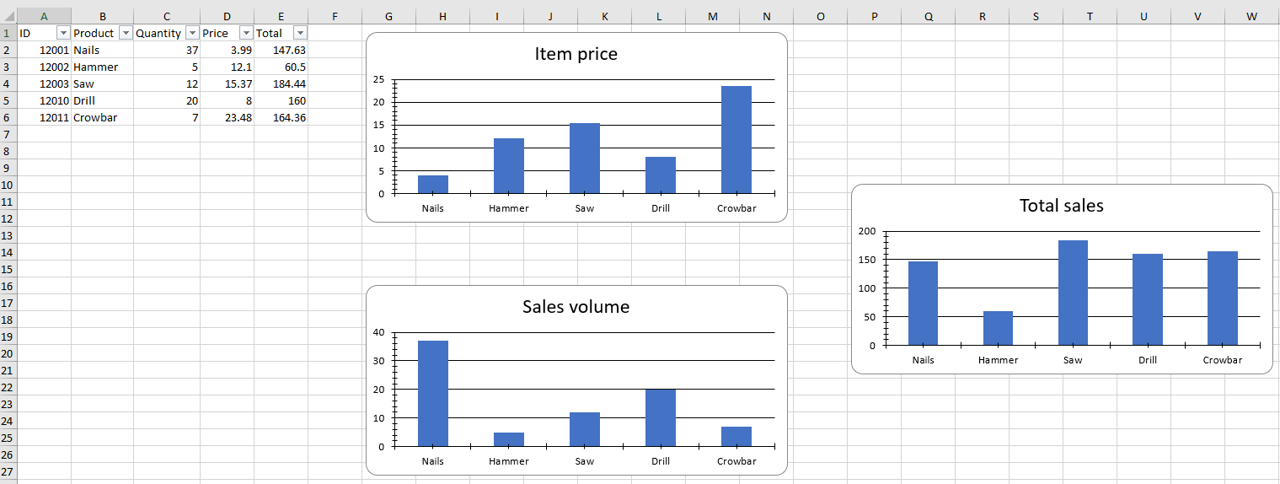
|
||||
|
||||
@@ -1,2 +0,0 @@
|
||||
# Untitled
|
||||
|
||||
Reference in New Issue
Block a user