mirror of
https://github.com/dfinke/ImportExcel.git
synced 2025-12-15 07:43:23 +00:00
Compare commits
117 Commits
| Author | SHA1 | Date | |
|---|---|---|---|

|
34457d05da | ||
|
|
d5bf0a44b4 | ||

|
cbe5c8e347 | ||
|
|
848177c358 | ||
|
|
80224da067 | ||
|
|
a5b9ddc257 | ||
|
|
2f70cd88e8 | ||
|
|
5969bba169 | ||
|
|
7de56c803c | ||
|
|
5e4220bd09 | ||
|
|
e8a3d3f350 | ||
|
|
458a08dab0 | ||
|
|
c598bbc2a5 | ||
|
|
dc4b66fffe | ||
|
|
9b57853881 | ||
|
|
a4169a42f1 | ||
|
|
0862fcdc8c | ||
|
|
28ddd7de13 | ||
|
|
21d9c56854 | ||
|
|
0f9bf07d30 | ||
|
|
1df63e3206 | ||
|
|
360c497bee | ||
|
|
182e4313b3 | ||
|
|
df3702a09c | ||
|
|
4616112aee | ||
|
|
a6f0d621f8 | ||
|
|
0489ac7d4f | ||
|
|
9969a94309 | ||
|
|
6d106fcc33 | ||
|
|
98d7c04b3f | ||
|
|
23b1608671 | ||
|
|
e008f3cc21 | ||
|
|
9b7e068beb | ||
|
|
624a4e4b82 | ||
|
|
93868d4cd3 | ||
|
|
53b35f9285 | ||
|
|
edc8b29859 | ||
|
|
efadf83b6b | ||
|
|
890906ff10 | ||
|
|
bd40cfe829 | ||
|
|
08254b0fe1 | ||
|
|
1834a4967f | ||
|
|
954ed8d736 | ||

|
4823424ae3 | ||
|
|
e07fad442a | ||
|
|
a175125990 | ||
|
|
ca92d468cf | ||
|
|
8d6f5521af | ||
|
|
ceb986b408 | ||
|
|
48607e403e | ||
|
|
57c02a466d | ||
|
|
1004d8a9ea | ||
|
|
f5acf88a17 | ||
|
|
85151f8375 | ||
|
|
304a96e955 | ||
|
|
3c027bafdd | ||
|
|
ac04f0025a | ||
|
|
fd2c5dd042 | ||
|
|
51447f9732 | ||
|
|
6966d0d4ef | ||
|
|
2dc50250fc | ||

|
8ad38b544e | ||
|
|
06124e12e7 | ||
|
|
d1c3e7b23e | ||
|
|
f0203f38e8 | ||
|
|
ef816d28d2 | ||

|
85512c2261 | ||
|
|
409f69e915 | ||
|
|
58ae6845ff | ||
|
|
5d70003582 | ||
|
|
9a66cb6123 | ||
|
|
efb9e158b5 | ||
|
|
75aaff300a | ||
|
|
12fd17b9ea | ||
|
|
facb38a2aa | ||
|
|
222e0609d9 | ||
|
|
a3c2a92e33 | ||
|
|
1f435277a5 | ||
|
|
295b369a81 | ||
|
|
84ad62989a | ||
|
|
a0563d4daa | ||
|
|
2c16cdcbfe | ||
|
|
e45437e32e | ||
|
|
aadae64105 | ||
|
|
41b2455705 | ||
|
|
d75350c659 | ||
|
|
323c52a24b | ||
|
|
bcc2db8657 | ||
|
|
e42fa83043 | ||
|
|
662d5913ae | ||
|
|
d8d624ba9c | ||
|
|
2e7df0a2fe | ||
|
|
b90087bd63 | ||
|
|
c39a012205 | ||

|
675ba9d664 | ||
|
|
a8b20df16c | ||
|
|
097f11a661 | ||
|
|
c359560fd8 | ||
|
|
ea0a5a7c76 | ||
|
|
39019d2680 | ||
|
|
d009581b1b | ||
|
|
8344118c11 | ||
|
|
1b695478e7 | ||
|
|
39d176e31b | ||
|
|
ed84db6b2e | ||
|
|
b33223460e | ||
|
|
822e63a667 | ||
|
|
f9aa52cdae | ||
|
|
615f677b2e | ||
|
|
26f6df7168 | ||
|
|
dc67012590 | ||

|
2ae32dae7c | ||
|
|
e8a027c951 | ||
|
|
363deae40d | ||
|
|
1cfa5c2115 | ||
|
|
2354636edd | ||
|
|
81fa60dad8 |
117
AddConditionalFormatting.ps1
Normal file
117
AddConditionalFormatting.ps1
Normal file
@@ -0,0 +1,117 @@
|
||||
Function Add-ConditionalFormatting {
|
||||
<#
|
||||
.Synopsis
|
||||
Adds contitional formatting to worksheet
|
||||
.Example
|
||||
$excel = $avdata | Export-Excel -Path (Join-path $FilePath "\Machines.XLSX" ) -WorksheetName "Server Anti-Virus" -AutoSize -FreezeTopRow -AutoFilter -PassThru
|
||||
|
||||
Add-ConditionalFormatting -WorkSheet $excel.Workbook.Worksheets[1] -Address "b":b1048576" -ForeGroundColor "RED" -RuleType ContainsText -ConditionValue "2003"
|
||||
Add-ConditionalFormatting -WorkSheet $excel.Workbook.Worksheets[1] -Address "i2:i1048576" -ForeGroundColor "RED" -RuleType ContainsText -ConditionValue "Disabled"
|
||||
$excel.Workbook.Worksheets[1].Cells["D1:G1048576"].Style.Numberformat.Format = [cultureinfo]::CurrentCulture.DateTimeFormat.ShortDatePattern
|
||||
$excel.Workbook.Worksheets[1].Row(1).style.font.bold = $true
|
||||
$excel.Save() ; $excel.Dispose()
|
||||
|
||||
Here Export-Excel is called with the -passThru parameter so the Excel Package object is stored in $Excel
|
||||
The desired worksheet is selected and the then columns B and i are conditially formatted (excluding the top row) to show
|
||||
Fixed formats are then applied to dates in columns D..G and the top row is formatted
|
||||
Finally the workbook is saved and the Excel closed.
|
||||
|
||||
#>
|
||||
Param (
|
||||
#The worksheet where the format is to be applied
|
||||
[Parameter(Mandatory = $true, ParameterSetName = "NamedRule")]
|
||||
[Parameter(Mandatory = $true, ParameterSetName = "DataBar")]
|
||||
[Parameter(Mandatory = $true, ParameterSetName = "ThreeIconSet")]
|
||||
[Parameter(Mandatory = $true, ParameterSetName = "FourIconSet")]
|
||||
[Parameter(Mandatory = $true, ParameterSetName = "FiveIconSet")]
|
||||
[OfficeOpenXml.ExcelWorksheet]$WorkSheet ,
|
||||
#The area of the worksheet where the format is to be applied
|
||||
[Parameter(Mandatory = $true, ParameterSetName = "NamedRule")]
|
||||
[Parameter(Mandatory = $true, ParameterSetName = "DataBar")]
|
||||
[Parameter(Mandatory = $true, ParameterSetName = "ThreeIconSet")]
|
||||
[Parameter(Mandatory = $true, ParameterSetName = "FourIconSet")]
|
||||
[Parameter(Mandatory = $true, ParameterSetName = "FiveIconSet")]
|
||||
[OfficeOpenXml.ExcelAddress]$Range ,
|
||||
#One or more row(s), Column(s) and/or block(s) of cells to format
|
||||
[Parameter(Mandatory = $true, ParameterSetName = "NamedRuleAddress")]
|
||||
[Parameter(Mandatory = $true, ParameterSetName = "DataBarAddress")]
|
||||
[Parameter(Mandatory = $true, ParameterSetName = "ThreeIconSetAddress")]
|
||||
[Parameter(Mandatory = $true, ParameterSetName = "FourIconSetAddress")]
|
||||
[Parameter(Mandatory = $true, ParameterSetName = "FiveIconSetAddress")]
|
||||
$Address ,
|
||||
#One of the standard named rules - Top / Bottom / Less than / Greater than / Contains etc
|
||||
[Parameter(Mandatory = $true, ParameterSetName = "NamedRule", Position = 3)]
|
||||
[Parameter(Mandatory = $true, ParameterSetName = "NamedRuleAddress", Position = 3)]
|
||||
[OfficeOpenXml.ConditionalFormatting.eExcelConditionalFormattingRuleType]$RuleType ,
|
||||
#Text colour for matching objects
|
||||
[Alias("ForeGroundColour")]
|
||||
[System.Drawing.Color]$ForeGroundColor,
|
||||
#colour for databar type charts
|
||||
[Parameter(Mandatory = $true, ParameterSetName = "DataBar")]
|
||||
[Parameter(Mandatory = $true, ParameterSetName = "DataBarAddress")]
|
||||
[Alias("DataBarColour")]
|
||||
[System.Drawing.Color]$DataBarColor,
|
||||
#One of the three-icon set types (e.g. Traffic Lights)
|
||||
[Parameter(Mandatory = $true, ParameterSetName = "ThreeIconSet")]
|
||||
[Parameter(Mandatory = $true, ParameterSetName = "ThreeIconSetAddress")]
|
||||
[OfficeOpenXml.ConditionalFormatting.eExcelconditionalFormatting3IconsSetType]$ThreeIconsSet,
|
||||
#A four-icon set name
|
||||
[Parameter(Mandatory = $true, ParameterSetName = "FourIconSet")]
|
||||
[Parameter(Mandatory = $true, ParameterSetName = "FourIconSetAddress")]
|
||||
[OfficeOpenXml.ConditionalFormatting.eExcelconditionalFormatting4IconsSetType]$FourIconsSet,
|
||||
#A five-icon set name
|
||||
[Parameter(Mandatory = $true, ParameterSetName = "FiveIconSet")]
|
||||
[Parameter(Mandatory = $true, ParameterSetName = "FiveIconSetAddress")]
|
||||
[OfficeOpenXml.ConditionalFormatting.eExcelconditionalFormatting5IconsSetType]$FiveIconsSet,
|
||||
#A value for the condition (e.g. "2000" if the test is 'lessthan 2000')
|
||||
[string]$ConditionValue,
|
||||
#A second value for the conditions like between x and Y
|
||||
[string]$ConditionValue2,
|
||||
#Background colour for matching items
|
||||
[System.Drawing.Color]$BackgroundColor,
|
||||
#Background pattern for matching items
|
||||
[OfficeOpenXml.Style.ExcelFillStyle]$BackgroundPattern = [OfficeOpenXml.Style.ExcelFillStyle]::Solid,
|
||||
#Secondary colour when a background pattern requires it
|
||||
[System.Drawing.Color]$PatternColor,
|
||||
#Sets the numeric format for matching items
|
||||
$NumberFormat,
|
||||
#Put matching items in bold face
|
||||
[switch]$Bold,
|
||||
#Put matching items in italic
|
||||
[switch]$Italic,
|
||||
#Underline matching items
|
||||
[switch]$Underline,
|
||||
#Strikethrough text of matching items
|
||||
[switch]$StrikeThru
|
||||
)
|
||||
#Allow add conditional formatting to work like Set-Format (with single ADDRESS parameter) split it to get worksheet and Range of cells.
|
||||
If ($Address -and -not $WorkSheet -and -not $Range) {
|
||||
$WorkSheet = $Address.Worksheet[0]
|
||||
$Range = $Address.Address
|
||||
}
|
||||
If ($ThreeIconsSet) {$rule = $WorkSheet.ConditionalFormatting.AddThreeIconSet($Range , $ThreeIconsSet)}
|
||||
elseif ($FourIconsSet) {$rule = $WorkSheet.ConditionalFormatting.AddFourIconSet( $Range , $FourIconsSet) }
|
||||
elseif ($FiveIconsSet) {$rule = $WorkSheet.ConditionalFormatting.AddFiveIconSet( $Range , $IconType) }
|
||||
elseif ($DataBarColor) {$rule = $WorkSheet.ConditionalFormatting.AddDatabar( $Range , $DataBarColor) }
|
||||
else { $rule = ($WorkSheet.ConditionalFormatting)."Add$RuleType"($Range)}
|
||||
|
||||
if ($ConditionValue -and $RuleType -match "Top|Botom") {$rule.Rank = $ConditionValue }
|
||||
if ($ConditionValue -and $RuleType -match "StdDev") {$rule.StdDev = $ConditionValue }
|
||||
if ($ConditionValue -and $RuleType -match "Than|Equal|Expression") {$rule.Formula = $ConditionValue }
|
||||
if ($ConditionValue -and $RuleType -match "Text|With") {$rule.Text = $ConditionValue }
|
||||
if ($ConditionValue -and
|
||||
$ConditionValue2 -and $RuleType -match "Between") {
|
||||
$rule.Formula = $ConditionValue
|
||||
$rule.Formula2 = $ConditionValue2
|
||||
}
|
||||
|
||||
if ($NumberFormat) {$rule.Style.NumberFormat.Format = $NumberFormat }
|
||||
if ($Underline) {$rule.Style.Font.Underline = [OfficeOpenXml.Style.ExcelUnderLineType]::Single }
|
||||
if ($Bold) {$rule.Style.Font.Bold = $true}
|
||||
if ($Italic) {$rule.Style.Font.Italic = $true}
|
||||
if ($StrikeThru) {$rule.Style.Font.Strike = $true}
|
||||
if ($ForeGroundColor) {$rule.Style.Font.Color.color = $ForeGroundColor }
|
||||
if ($BackgroundColor) {$rule.Style.Fill.BackgroundColor.color = $BackgroundColor }
|
||||
if ($BackgroundPattern) {$rule.Style.Fill.PatternType = $BackgroundPattern }
|
||||
if ($PatternColor) {$rule.Style.Fill.PatternColor.color = $PatternColor }
|
||||
}
|
||||
16
ColorCompletion.ps1
Normal file
16
ColorCompletion.ps1
Normal file
@@ -0,0 +1,16 @@
|
||||
Function ColorCompletion {
|
||||
param($commandName, $parameterName, $wordToComplete, $commandAst, $fakeBoundParameter)
|
||||
[System.Drawing.KnownColor].GetFields() | Where-Object {$_.IsStatic -and $_.name -like "$wordToComplete*" } |
|
||||
Sort-Object name | ForEach-Object {New-CompletionResult $_.name $_.name
|
||||
}
|
||||
}
|
||||
|
||||
if (Get-Command -Name register-argumentCompleter -ErrorAction SilentlyContinue) {
|
||||
Register-ArgumentCompleter -CommandName Export-Excel -ParameterName TitleBackgroundColor -ScriptBlock $Function:ColorCompletion
|
||||
Register-ArgumentCompleter -CommandName Add-ConditionalFormatting -ParameterName ForeGroundColor -ScriptBlock $Function:ColorCompletion
|
||||
Register-ArgumentCompleter -CommandName Add-ConditionalFormatting -ParameterName DataBarColor -ScriptBlock $Function:ColorCompletion
|
||||
Register-ArgumentCompleter -CommandName Add-ConditionalFormatting -ParameterName BackgroundColor -ScriptBlock $Function:ColorCompletion
|
||||
Register-ArgumentCompleter -CommandName Set-Format -ParameterName FontColor -ScriptBlock $Function:ColorCompletion
|
||||
Register-ArgumentCompleter -CommandName Set-Format -ParameterName BackgroundColor -ScriptBlock $Function:ColorCompletion
|
||||
Register-ArgumentCompleter -CommandName Set-Format -ParameterName PatternColor -ScriptBlock $Function:ColorCompletion
|
||||
}
|
||||
74
ConvertExcelToImageFile.ps1
Normal file
74
ConvertExcelToImageFile.ps1
Normal file
@@ -0,0 +1,74 @@
|
||||
Function Convert-XlRangeToImage {
|
||||
<#
|
||||
.Synopsis
|
||||
Gets the specified part of an Excel file and exports it as an image
|
||||
.Description
|
||||
Excel allows charts to be exported directly to a file, but can't do this with the rest of a sheet. To work round this this function
|
||||
* Opens a copy of Excel and loads a file
|
||||
* Selects a worksheet and then a range of cells in that worksheet
|
||||
* Copies the select to the clipboard
|
||||
* Saves the clipboard contents as an image file (it will save as .JPG unless the file name ends .BMP or .PNG)
|
||||
* Copies a single cell to the clipboard (to prevent the "you have put a lot in the clipboard" message appearing)
|
||||
* Closes Excel
|
||||
#>
|
||||
Param (
|
||||
#Path to the Excel file
|
||||
[parameter(Mandatory=$true)]
|
||||
$Path,
|
||||
#Worksheet name - if none is specified "Sheet1" will be assumed
|
||||
$workSheetname = "Sheet1" ,
|
||||
#Range of cells within the sheet, e.g "A1:Z99"
|
||||
[parameter(Mandatory=$true)]
|
||||
$range,
|
||||
#A bmp, png or jpg file where the result will be saved
|
||||
$destination = "$pwd\temp.png",
|
||||
#If specified opens the image in the default viewer.
|
||||
[switch]$show
|
||||
)
|
||||
$extension = $destination -replace '^.*\.(\w+)$' ,'$1'
|
||||
if ($extension -in @('JPEG','BMP','PNG')) {
|
||||
$Format = [system.Drawing.Imaging.ImageFormat]$extension
|
||||
} #if we don't recognise the extension OR if it is JPG with an E, use JPEG format
|
||||
else { $Format = [system.Drawing.Imaging.ImageFormat]::Jpeg}
|
||||
Write-Progress -Activity "Exporting $range of $workSheetname in $Path" -Status "Starting Excel"
|
||||
$xlApp = New-Object -ComObject "Excel.Application"
|
||||
Write-Progress -Activity "Exporting $range of $workSheetname in $Path" -Status "Opening Workbook and copying data"
|
||||
$xlWbk = $xlApp.Workbooks.Open($Path)
|
||||
$xlWbk.Worksheets($workSheetname).Select()
|
||||
$xlWbk.ActiveSheet.Range($range).Select() | Out-Null
|
||||
$xlApp.Selection.Copy() | Out-Null
|
||||
Write-Progress -Activity "Exporting $range of $workSheetname in $Path" -Status "Saving copied data"
|
||||
# Get-Clipboard came in with PS5. Older versions can use [System.Windows.Clipboard] but it is ugly.
|
||||
$image = Get-Clipboard -Format Image
|
||||
$image.Save($destination, $Format)
|
||||
Write-Progress -Activity "Exporting $range of $workSheetname in $Path" -Status "Closing Excel"
|
||||
$xlWbk.ActiveSheet.Range("a1").Select() | Out-Null
|
||||
$xlApp.Selection.Copy() | Out-Null
|
||||
$xlApp.Quit()
|
||||
Write-Progress -Activity "Exporting $range of $workSheetname in $Path" -Completed
|
||||
if ($show) {Start-Process -FilePath $destination}
|
||||
else {Get-Item -Path $destination}
|
||||
}
|
||||
<#
|
||||
del demo*.xlsx
|
||||
|
||||
$workSheetname = 'Processes'
|
||||
$Path = "$pwd\demo.xlsx"
|
||||
$myData = Get-Process | Select-Object -Property Name,WS,CPU,Description,company,startTime
|
||||
|
||||
$excelPackage = $myData | Export-Excel -KillExcel -Path $Path -WorkSheetname $workSheetname -ClearSheet -AutoSize -AutoFilter -BoldTopRow -FreezeTopRow -PassThru
|
||||
$workSheet = $excelPackage.Workbook.Worksheets[$workSheetname]
|
||||
$range = $workSheet.Dimension.Address
|
||||
Set-Format -WorkSheet $workSheet -Range "b:b" -NumberFormat "#,###" -AutoFit
|
||||
Set-Format -WorkSheet $workSheet -Range "C:C" -NumberFormat "#,##0.00" -AutoFit
|
||||
Set-Format -WorkSheet $workSheet -Range "F:F" -NumberFormat "dd MMMM HH:mm:ss" -AutoFit
|
||||
Add-ConditionalFormatting -WorkSheet $workSheet -Range "c2:c1000" -DataBarColor Blue
|
||||
Add-ConditionalFormatting -WorkSheet $workSheet -Range "b2:B1000" -RuleType GreaterThan -ConditionValue '104857600' -ForeGroundColor "Red" -Bold
|
||||
|
||||
Export-Excel -ExcelPackage $excelPackage -WorkSheetname $workSheetname
|
||||
|
||||
Convert-XlRangeToImage -Path $Path -workSheetname $workSheetname -range $range -destination "$pwd\temp.png" -show
|
||||
#>
|
||||
|
||||
|
||||
#Convert-XlRangeToImage -Path $Path -workSheetname $workSheetname -range $range -destination "$pwd\temp.png" -show
|
||||
50
ConvertFromExcelData.ps1
Normal file
50
ConvertFromExcelData.ps1
Normal file
@@ -0,0 +1,50 @@
|
||||
function ConvertFrom-ExcelData {
|
||||
<#
|
||||
.SYNOPSIS
|
||||
Reads data from a sheet, and for each row, calls a custom scriptblock with a list of property names and the row of data.
|
||||
|
||||
|
||||
.EXAMPLE
|
||||
ConvertFrom-ExcelData .\testSQLGen.xlsx {
|
||||
param($propertyNames, $record)
|
||||
|
||||
$reportRecord = @()
|
||||
foreach ($pn in $propertyNames) {
|
||||
$reportRecord += "{0}: {1}" -f $pn, $record.$pn
|
||||
}
|
||||
$reportRecord +=""
|
||||
$reportRecord -join "`r`n"
|
||||
}
|
||||
|
||||
First: John
|
||||
Last: Doe
|
||||
The Zip: 12345
|
||||
....
|
||||
#>
|
||||
param(
|
||||
[Alias("FullName")]
|
||||
[Parameter(ValueFromPipelineByPropertyName = $true, ValueFromPipeline = $true, Mandatory = $true)]
|
||||
[ValidateScript( { Test-Path $_ -PathType Leaf })]
|
||||
$Path,
|
||||
[ScriptBlock]$scriptBlock,
|
||||
[Alias("Sheet")]
|
||||
$WorkSheetname = 1,
|
||||
[int]$HeaderRow = 1,
|
||||
[string[]]$Header,
|
||||
[switch]$NoHeader,
|
||||
[switch]$DataOnly
|
||||
)
|
||||
|
||||
$null = $PSBoundParameters.Remove('scriptBlock')
|
||||
$params = @{} + $PSBoundParameters
|
||||
|
||||
$data = Import-Excel @params
|
||||
|
||||
$PropertyNames = $data[0].psobject.Properties |
|
||||
Where-Object {$_.membertype -match 'property'} |
|
||||
Select-Object -ExpandProperty name
|
||||
|
||||
foreach ($record in $data) {
|
||||
& $scriptBlock $PropertyNames $record
|
||||
}
|
||||
}
|
||||
46
ConvertFromExcelToSQLInsert.ps1
Normal file
46
ConvertFromExcelToSQLInsert.ps1
Normal file
@@ -0,0 +1,46 @@
|
||||
function ConvertFrom-ExcelToSQLInsert {
|
||||
param(
|
||||
[Parameter(Mandatory = $true)]
|
||||
$TableName,
|
||||
[Alias("FullName")]
|
||||
[Parameter(ValueFromPipelineByPropertyName = $true, ValueFromPipeline = $true, Mandatory = $true)]
|
||||
[ValidateScript( { Test-Path $_ -PathType Leaf })]
|
||||
$Path,
|
||||
[Alias("Sheet")]
|
||||
$WorkSheetname = 1,
|
||||
[int]$HeaderRow = 1,
|
||||
[string[]]$Header,
|
||||
[switch]$NoHeader,
|
||||
[switch]$DataOnly
|
||||
)
|
||||
|
||||
$null = $PSBoundParameters.Remove('TableName')
|
||||
$params = @{} + $PSBoundParameters
|
||||
|
||||
ConvertFrom-ExcelData @params {
|
||||
param($propertyNames, $record)
|
||||
|
||||
$ColumnNames = "'" + ($PropertyNames -join "', '") + "'"
|
||||
$values = foreach ($propertyName in $PropertyNames) { $record.$propertyName }
|
||||
$targetValues = "'" + ($values -join "', '") + "'"
|
||||
|
||||
"INSERT INTO {0} ({1}) Values({2});" -f $TableName, $ColumnNames, $targetValues
|
||||
}
|
||||
# $data = Import-Excel @params
|
||||
|
||||
# $PropertyNames = $data[0].psobject.Properties |
|
||||
# Where-Object {$_.membertype -match 'property'} |
|
||||
# Select-Object -ExpandProperty name
|
||||
|
||||
# $ColumnNames = "'" + ($PropertyNames -join "', '") + "'"
|
||||
|
||||
# foreach ($record in $data) {
|
||||
# $values = $(foreach ($propertyName in $PropertyNames) {
|
||||
# $record.$propertyName
|
||||
# })
|
||||
|
||||
# $targetValues = "'" + ($values -join "', '") + "'"
|
||||
|
||||
# "INSERT INTO {0} ({1}) Values({2});" -f $TableName, $ColumnNames, $targetValues
|
||||
# }
|
||||
}
|
||||
53
ConvertToExcelXlsx.ps1
Normal file
53
ConvertToExcelXlsx.ps1
Normal file
@@ -0,0 +1,53 @@
|
||||
Function ConvertTo-ExcelXlsx {
|
||||
[CmdletBinding()]
|
||||
Param
|
||||
(
|
||||
[parameter(Mandatory=$true, ValueFromPipeline)]
|
||||
[string]$Path,
|
||||
[parameter(Mandatory=$false)]
|
||||
[switch]$Force
|
||||
)
|
||||
Process
|
||||
{
|
||||
if(-Not ($Path | Test-Path) ){
|
||||
throw "File not found"
|
||||
}
|
||||
if(-Not ($Path | Test-Path -PathType Leaf) ){
|
||||
throw "Folder paths are not allowed"
|
||||
}
|
||||
|
||||
$xlFixedFormat = 51 #Constant for XLSX Workbook
|
||||
$xlsFile = Get-Item -Path $Path
|
||||
$xlsxPath = "{0}x" -f $xlsFile.FullName
|
||||
|
||||
if($xlsFile.Extension -ne ".xls"){
|
||||
throw "Expected .xls extension"
|
||||
}
|
||||
|
||||
if(Test-Path -Path $xlsxPath){
|
||||
if($Force){
|
||||
try {
|
||||
Remove-Item $xlsxPath -Force
|
||||
} catch {
|
||||
throw "{0} already exists and cannot be removed. The file may be locked by another application." -f $xlsxPath
|
||||
}
|
||||
Write-Verbose $("Removed {0}" -f $xlsxPath)
|
||||
} else {
|
||||
throw "{0} already exists!" -f $xlsxPath
|
||||
}
|
||||
}
|
||||
|
||||
try{
|
||||
$Excel = New-Object -ComObject "Excel.Application"
|
||||
} catch {
|
||||
throw "Could not create Excel.Application ComObject. Please verify that Excel is installed."
|
||||
}
|
||||
|
||||
$Excel.Visible = $false
|
||||
$Excel.Workbooks.Open($xlsFile.FullName) | Out-Null
|
||||
$Excel.ActiveWorkbook.SaveAs($xlsxPath, $xlFixedFormat)
|
||||
$Excel.ActiveWorkbook.Close()
|
||||
$Excel.Quit()
|
||||
}
|
||||
}
|
||||
|
||||
13
Examples/ConvertFrom/ConvertFrom.ps1
Normal file
13
Examples/ConvertFrom/ConvertFrom.ps1
Normal file
@@ -0,0 +1,13 @@
|
||||
|
||||
ConvertFrom-ExcelToSQLInsert People .\testSQLGen.xlsx
|
||||
|
||||
ConvertFrom-ExcelData .\testSQLGen.xlsx {
|
||||
param($propertyNames, $record)
|
||||
|
||||
$reportRecord = @()
|
||||
foreach ($pn in $propertyNames) {
|
||||
$reportRecord += "{0}: {1}" -f $pn, $record.$pn
|
||||
}
|
||||
$reportRecord +=""
|
||||
$reportRecord -join "`r`n"
|
||||
}
|
||||
BIN
Examples/ConvertFrom/testSQLGen.xlsx
Normal file
BIN
Examples/ConvertFrom/testSQLGen.xlsx
Normal file
Binary file not shown.
88
Examples/SQL+FillColumns+Pivot/Example.ps1
Normal file
88
Examples/SQL+FillColumns+Pivot/Example.ps1
Normal file
@@ -0,0 +1,88 @@
|
||||
ipmo C:\Users\mcp\Documents\GitHub\ImportExcel\ImportExcel.psd1 -Force -Verbose
|
||||
|
||||
$sql = @"
|
||||
SELECT rootfile.baseName , rootfile.extension , Image.fileWidth AS width , image.fileHeight AS height ,
|
||||
metadata.dateDay , metadata.dateMonth , metadata.dateYear , Image.captureTime AS dateTaken,
|
||||
metadata.hasGPS , metadata.GPSLatitude , metadata.GPSLongitude ,
|
||||
metadata.focalLength , metadata.flashFired , metadata.ISOSpeedRating AS ISOSpeed,
|
||||
metadata.Aperture AS apertureValue , metadata.ShutterSpeed AS shutterSpeedValue,
|
||||
Image.bitdepth , image.colorLabels ,
|
||||
Camera.Value AS cameraModel , LensRef.value AS lensModel
|
||||
FROM Adobe_images image
|
||||
JOIN AgLibraryFile rootFile ON rootfile.id_local = image.rootFile
|
||||
JOIN AgharvestedExifMetadata metadata ON image.id_local = metadata.image
|
||||
LEFT JOIN AgInternedExifLens LensRef ON LensRef.id_Local = metadata.lensRef
|
||||
LEFT JOIN AgInternedExifCameraModel Camera ON Camera.id_local = metadata.cameraModelRef
|
||||
"@
|
||||
``
|
||||
#Sql Statement gets 20 columns of data from Adobe lightroom database
|
||||
#Define a pivot table and chart for total pictures with each lens.
|
||||
|
||||
$pt = @{"LensPivot" = @{ "PivotTableName" = "LensPivot";
|
||||
"SourceWorkSheet" = "Sheet1" ;
|
||||
"PivotRows" = "LensModel" ;
|
||||
"PivotData" = @{"basename" = "Count"} ;
|
||||
"IncludePivotChart" = $true ;
|
||||
"NoLegend" = $true ;
|
||||
"ShowPercent" = $true ;
|
||||
"ChartType" = "Pie" ;
|
||||
"ChartTitle" = "Split by Lens" }
|
||||
}
|
||||
|
||||
#we want to add 3 columns, translate Apperture value and Shutter speed value into familar f/ and seconds notation, and use these and ISO to calculate EV level
|
||||
$Avalue = {"=IF(P$ROW>6.63,TEXT(ROUND(Sqrt(Power(2,O$ROW)),1),`"`"`"f/`"`"0.0`")," +
|
||||
"TEXT(ROUND(Sqrt(Power(2,O$ROW)),1),`"`"`"f/`"`"0.0`"))"}
|
||||
$Svalue = {"=IF(P$ROW>2,TEXT(ROUND(POWER(2,P$ROW),0),`"`"`"1/`"`"0`"`"sec`"`"`"),"+
|
||||
"IF(P$ROW>3.32,TEXT(ROUND(1/POWER(2,P$ROW),2),`"0.0`"`"Sec`"`"`"),"+
|
||||
"TEXT(ROUND(1/POWER(2,P$ROW),2),`"0`"`"Sec`"`"`")))"}
|
||||
$evValue = {"=ROUND(P$Row+O$Row-(LOG(N$Row/100,2)),0)" }
|
||||
|
||||
#remove and recreate the file
|
||||
Remove-Item -Path "~\Documents\temp.xlsx" -ErrorAction SilentlyContinue
|
||||
|
||||
#Open a connection to the ODBC source "LR" (which points to the SQLLite DB for Lightroom), run the SQL query, and drop into Excel - in sheet1, autosizing columns.
|
||||
$e = Send-SQLDataToExcel -Path "~\Documents\temp.xlsx" -WorkSheetname "Sheet1" -Connection "DSN=LR" -SQL $sql -AutoSize -Passthru
|
||||
|
||||
#Add columns, then format them and hide the ones which aren't of interest.
|
||||
Set-Column -Worksheet $e.workbook.Worksheets["sheet1"] -Column 21 -Value $Avalue -Heading "Apperture"
|
||||
Set-Column -Worksheet $e.workbook.Worksheets["sheet1"] -Column 22 -Value $Svalue -Heading "Shutter"
|
||||
Set-Column -Worksheet $e.workbook.Worksheets["sheet1"] -Column 23 -Value $Evvalue -Heading "Ev"
|
||||
Set-Format -Address $e.workbook.Worksheets["sheet1" ].Column(21) -HorizontalAlignment Left -AutoFit
|
||||
Set-Format -Address $e.workbook.Worksheets["sheet1" ].Column(22) -HorizontalAlignment Right -AutoFit
|
||||
@(5,6,7,13,15,16,17,18) | ForEach-Object {
|
||||
Set-Format -Address $e.workbook.Worksheets["sheet1" ].Column($_) -Hidden
|
||||
}
|
||||
|
||||
#Center the column labels.
|
||||
Set-Format -Address $e.workbook.Worksheets["sheet1" ].Row(1) -HorizontalAlignment Center
|
||||
|
||||
#Format the data as a nice Table, Create the pivot table & chart defined above, show the file in Excel in excel after saving.
|
||||
Export-Excel -ExcelPackage $e -WorkSheetname "sheet1" -TableName "Table" -PivotTableDefinition $pt -Show
|
||||
|
||||
############################################################
|
||||
|
||||
Remove-Item .\demo3.xlsx
|
||||
#Database query to get race wins, Poles and fastest lapes for the 25 best drivers; we already have a connection to the DB in $dbSessions
|
||||
$session = $DbSessions["f1"]
|
||||
$SQL = @"
|
||||
SELECT TOP 25 DriverName,
|
||||
Count(RaceDate) AS Races,
|
||||
Count(Win) AS Wins,
|
||||
Count(Pole) AS Poles,
|
||||
Count(FastestLap) AS Fastlaps
|
||||
FROM Results
|
||||
GROUP BY DriverName
|
||||
ORDER BY (Count(win)) DESC
|
||||
"@
|
||||
|
||||
#Run the query and put the results in workshet "Winners", autosize the columns and hold on to the ExcelPackage object
|
||||
$Excel = Send-SQLDataToExcel -SQL $sql -Session $session -path .\demo3.xlsx -WorkSheetname "Winners" -AutoSize -Passthru
|
||||
#Create and format columns for the ratio of Wins to poles and fast laps.
|
||||
Set-Column -ExcelPackage $Excel -WorkSheetname "Winners" -column 6 -Heading "WinsToPoles" -Value {"=D$row/C$row"}
|
||||
Set-Column -ExcelPackage $Excel -WorkSheetname "Winners" -column 7 -Heading "WinsToFast" -Value {"=E$row/C$row"}
|
||||
6..7 | ForEach-Object {
|
||||
Set-Format -Address $Excel.Workbook.Worksheets["Winners"].column($_) -NumberFormat "0.0%" -AutoFit }
|
||||
#Define a chart to show the relationship of lest on an XY Grid, create the ranges required in the, add the chart and show the file in Excel in excel after saving.
|
||||
$chart = New-ExcelChart -NoLegend -ChartType XYScatter -XRange WinsToFast -YRange WinsToPoles -ShowCategory -Column 7 -Width 2000 -Height 700
|
||||
Export-Excel -ExcelPackage $Excel -WorkSheetname "Winners" -AutoNameRange -ExcelChartDefinition $chart -Show
|
||||
|
||||
22
Examples/SQL+FillColumns+Pivot/Example2.ps1
Normal file
22
Examples/SQL+FillColumns+Pivot/Example2.ps1
Normal file
@@ -0,0 +1,22 @@
|
||||
ipmo C:\Users\mcp\Documents\GitHub\ImportExcel\ImportExcel.psd1 -Force
|
||||
|
||||
Get-SQL -Session f1 -Excel -Connection C:\Users\mcp\OneDrive\Public\F1\f1Results.xlsx -showtables -Verbose
|
||||
|
||||
del .\demo3.xlsx
|
||||
$session = $DbSessions["f1"]
|
||||
|
||||
$SQL = "SELECT top 25 DriverName, Count(RaceDate) as Races ,
|
||||
Count(Win) as Wins, Count(Pole) as Poles, Count(FastestLap) as Fastlaps
|
||||
FROM Results GROUP BY DriverName
|
||||
order by (count(win)) desc"
|
||||
$Excel = Send-SQLDataToExcel -SQL $sql -Session $session -path .\demo3.xlsx -WorkSheetname "Winners" -AutoSize -AutoNameRange -BoldTopRow -FreezeTopRow -Passthru
|
||||
|
||||
$ws = $Excel.Workbook.Worksheets["Winners"]
|
||||
|
||||
Set-Row -Worksheet $ws -Heading "Average" -Value {"=Average($columnName`2:$columnName$endrow)"} -NumberFormat "0.0" -Bold
|
||||
Set-Column -Worksheet $ws -Heading "WinsToPoles" -Value {"=D$row/C$row"} -Column 6 -AutoSize -AutoNameRange
|
||||
Set-Column -Worksheet $ws -Heading "WinsToFast" -Value {"=E$row/C$row"} -Column 7 -AutoSize -AutoNameRange
|
||||
|
||||
Set-Format -WorkSheet $ws -Range "F2:G50" -NumberFormat "0.0%"
|
||||
$chart = New-ExcelChart -NoLegend -ChartType XYScatter -XRange WinsToFast -YRange WinsToPoles -Column 7 -Width 2000 -Height 700 -Title "Poles vs fastlaps"
|
||||
Export-Excel -ExcelPackage $Excel -WorkSheetname "Winners" -ExcelChartDefinition $chart -Show
|
||||
@@ -0,0 +1,9 @@
|
||||
|
||||
$p = ps | select Company, Handles | Export-Excel c:\temp\testBackgroundColor.xlsx -ClearSheet -KillExcel -PassThru
|
||||
|
||||
$ws = $p.Workbook.WorkSheets[1]
|
||||
$totalRows = $ws.Dimension.Rows
|
||||
|
||||
Set-Format -Address $ws.Cells["B2:B$($totalRows)"] -BackgroundColor LightBlue
|
||||
|
||||
Export-Excel -ExcelPackage $p -show
|
||||
30
Examples/TryMultiplePivotTables.ps1
Normal file
30
Examples/TryMultiplePivotTables.ps1
Normal file
@@ -0,0 +1,30 @@
|
||||
# To ship, is to choose
|
||||
|
||||
ipmo .\ImportExcel.psd1 -Force
|
||||
|
||||
$pt=[ordered]@{}
|
||||
|
||||
$pt.ServiceInfo=@{
|
||||
SourceWorkSheet='Services'
|
||||
PivotRows = "Status"
|
||||
PivotData= @{'Status'='count'}
|
||||
IncludePivotChart=$true
|
||||
ChartType='BarClustered3D'
|
||||
}
|
||||
|
||||
$pt.ProcessInfo=@{
|
||||
SourceWorkSheet='Processes'
|
||||
PivotRows = "Company"
|
||||
PivotData= @{'Company'='count'}
|
||||
IncludePivotChart=$true
|
||||
ChartType='PieExploded3D'
|
||||
}
|
||||
|
||||
$gsv=Get-Service | Select-Object status, Name, displayName, starttype
|
||||
$ps=Get-Process | Select-Object Name,Company, Handles
|
||||
|
||||
$file = "c:\temp\testPT.xlsx"
|
||||
rm $file -ErrorAction Ignore
|
||||
|
||||
$gsv| Export-Excel -Path $file -AutoSize -WorkSheetname Services
|
||||
$ps | Export-Excel -Path $file -AutoSize -WorkSheetname Processes -PivotTableDefinition $pt -Show
|
||||
26
Examples/TryMultiplePivotTablesFromOneSheet.ps1
Normal file
26
Examples/TryMultiplePivotTablesFromOneSheet.ps1
Normal file
@@ -0,0 +1,26 @@
|
||||
Import-Module ..\ImportExcel.psd1 -Force
|
||||
|
||||
$file = "C:\Temp\test.xlsx"
|
||||
|
||||
Remove-Item $file -ErrorAction Ignore -Force
|
||||
|
||||
$base = @{
|
||||
SourceWorkSheet = 'gsv'
|
||||
PivotData = @{'Status' = 'count'}
|
||||
IncludePivotChart = $true
|
||||
# ChartType = 'BarClustered3D'
|
||||
}
|
||||
|
||||
$ptd = [ordered]@{}
|
||||
|
||||
# $ptd.gpt1 = $base + @{ PivotRows = "ServiceType" }
|
||||
# $ptd.gpt2 = $base + @{ PivotRows = "Status" }
|
||||
# $ptd.gpt3 = $base + @{ PivotRows = "StartType" }
|
||||
# $ptd.gpt4 = $base + @{ PivotRows = "CanStop" }
|
||||
|
||||
$ptd += New-PivotTableDefinition @base servicetype -PivotRows servicetype -ChartType Area3D
|
||||
$ptd += New-PivotTableDefinition @base status -PivotRows status -ChartType PieExploded3D
|
||||
$ptd += New-PivotTableDefinition @base starttype -PivotRows starttype -ChartType BarClustered3D
|
||||
$ptd += New-PivotTableDefinition @base canstop -PivotRows canstop -ChartType ConeColStacked
|
||||
|
||||
Get-Service | Export-Excel -path $file -WorkSheetname gsv -Show -PivotTableDefinition $ptd
|
||||
23
Examples/XlRangeToImage/XlRangeToImage.ps1
Normal file
23
Examples/XlRangeToImage/XlRangeToImage.ps1
Normal file
@@ -0,0 +1,23 @@
|
||||
ipmo .\ImportExcel.psd1 -Force
|
||||
|
||||
. .\ConvertExcelToImageFile.ps1
|
||||
|
||||
$xlFileName = "C:\Temp\testPNG.xlsx"
|
||||
|
||||
rm C:\Temp\testPNG.xlsx -ErrorAction Ignore
|
||||
|
||||
$range = @"
|
||||
Region,Item,Cost
|
||||
North,Pear,1
|
||||
South,Apple,2
|
||||
East,Grapes,3
|
||||
West,Berry,4
|
||||
North,Pear,1
|
||||
South,Apple,2
|
||||
East,Grapes,3
|
||||
West,Berry,4
|
||||
"@ | ConvertFrom-Csv |
|
||||
Export-Excel $xlFileName -ReturnRange `
|
||||
-ConditionalText (New-ConditionalText Apple), (New-ConditionalText Berry -ConditionalTextColor White -BackgroundColor Purple)
|
||||
|
||||
Convert-XlRangeToImage -Path $xlFileName -workSheetname sheet1 -range $range -Show
|
||||
@@ -1,64 +1,94 @@
|
||||
# Contributed by https://github.com/W1M0R
|
||||
#Requires -Modules Pester
|
||||
#Requires -Modules Assert
|
||||
|
||||
Import-Module ImportExcel -Force
|
||||
$here = Split-Path -Parent $MyInvocation.MyCommand.Path
|
||||
$sut = (Split-Path -Leaf $MyInvocation.MyCommand.Path) -replace '\.Tests\.', '.'
|
||||
|
||||
function New-TestWorkbook {
|
||||
$testWorkbook = "$($PSScriptRoot)\test.xlsx"
|
||||
|
||||
Remove-Item $testWorkbook -ErrorAction Ignore
|
||||
$testWorkbook
|
||||
Import-Module $here -Force
|
||||
|
||||
$WarningPreference = 'SilentlyContinue'
|
||||
$ProgressPreference = 'SilentlyContinue'
|
||||
|
||||
Function Test-isNumeric {
|
||||
Param (
|
||||
[Parameter(ValueFromPipeline)]$x
|
||||
)
|
||||
|
||||
Return $x -is [byte] -or $x -is [int16] -or $x -is [int32] -or $x -is [int64] `
|
||||
-or $x -is [sbyte] -or $x -is [uint16] -or $x -is [uint32] -or $x -is [uint64] `
|
||||
-or $x -is [float] -or $x -is [double] -or $x -is [decimal]
|
||||
}
|
||||
|
||||
function Remove-TestWorkbook {
|
||||
New-TestWorkbook | Out-Null
|
||||
$fakeData = [PSCustOmobject]@{
|
||||
Property_1_Date = (Get-Date).ToString('d') # US '10/16/2017' BE '16/10/2107'
|
||||
Property_2_Formula = '=SUM(G2:H2)'
|
||||
Property_3_String = 'My String'
|
||||
Property_4_String = 'a'
|
||||
Property_5_IPAddress = '10.10.25.5'
|
||||
Property_6_Number = '0'
|
||||
Property_7_Number = '5'
|
||||
Property_8_Number = '007'
|
||||
Property_9_Number = (33).ToString('F2') # US '33.00' BE '33,00'
|
||||
Property_10_Number = (5/3).ToString('F2') # US '1.67' BE '1,67'
|
||||
Property_11_Number = (15999998/3).ToString('N2') # US '5,333,332.67' BE '5.333.332,67'
|
||||
Property_12_Number = '1.555,83'
|
||||
Property_13_PhoneNr = '+32 44'
|
||||
Property_14_PhoneNr = '+32 4 4444 444'
|
||||
Property_15_PhoneNr = '+3244444444'
|
||||
}
|
||||
|
||||
function New-TestDataCsv {
|
||||
@"
|
||||
ID,Product,Quantity,Price,Total
|
||||
12001,Nails,37,3.99,147.63
|
||||
12002,Hammer,5,12.10,60.5
|
||||
12003,Saw,12,15.37,184.44
|
||||
01200,Drill,20,8,160
|
||||
00120,Crowbar,7,23.48,164.36
|
||||
true,Bla,7,82,12
|
||||
false,Bla,7,82,12
|
||||
2009-05-01 14:57:32.8,Yay,1,3,2
|
||||
"@ | ConvertFrom-Csv
|
||||
}
|
||||
$Path = 'Test.xlsx'
|
||||
|
||||
Describe "Export-Excel" {
|
||||
Describe 'Export-Excel' {
|
||||
in $TestDrive {
|
||||
Describe 'Number conversion' {
|
||||
Context 'numerical values expected' {
|
||||
#region Create test file
|
||||
$fakeData | Export-Excel -Path $Path
|
||||
|
||||
$Path = $ExecutionContext.SessionState.Path.GetUnresolvedProviderPathFromPSPath($Path)
|
||||
$Excel = New-Object OfficeOpenXml.ExcelPackage $Path
|
||||
$Worksheet = $Excel.Workbook.WorkSheets[1]
|
||||
#endregion
|
||||
|
||||
$csvData = New-TestDataCsv
|
||||
$workbook = New-TestWorkbook
|
||||
it 'zero' {
|
||||
$fakeData.Property_6_Number | Should -BeExactly '0'
|
||||
$Worksheet.Cells[2, 6].Text | Should -BeExactly $fakeData.Property_6_Number
|
||||
$Worksheet.Cells[2, 6].Value | Test-isNumeric | Should -Be $true
|
||||
}
|
||||
|
||||
Context "Importing CSV data from a here string" {
|
||||
It "All properties are type [string]" {
|
||||
$csvData | % {
|
||||
$_.PSObject.Properties | % {
|
||||
$_.Value -is [string] | Should Be $true
|
||||
It 'regular number' {
|
||||
$fakeData.Property_7_Number | Should -BeExactly '5'
|
||||
$Worksheet.Cells[2, 7].Text | Should -BeExactly $fakeData.Property_7_Number
|
||||
$Worksheet.Cells[2, 7].Value | Test-isNumeric | Should -Be $true
|
||||
}
|
||||
|
||||
It 'number starting with zero' {
|
||||
$fakeData.Property_8_Number | Should -BeExactly '007'
|
||||
$Worksheet.Cells[2, 8].Text | Should -BeExactly '7'
|
||||
$Worksheet.Cells[2, 8].Value | Test-isNumeric | Should -Be $true
|
||||
}
|
||||
|
||||
It 'decimal number' {
|
||||
# US '33.00' BE '33,00'
|
||||
$fakeData.Property_9_Number | Should -BeExactly (33).ToString('F2')
|
||||
$Worksheet.Cells[2, 9].Text | Should -BeExactly '33'
|
||||
$Worksheet.Cells[2, 9].Value | Test-isNumeric | Should -Be $true
|
||||
|
||||
# US '1.67' BE '1,67'
|
||||
$fakeData.Property_10_Number | Should -BeExactly (5/3).ToString('F2')
|
||||
$Worksheet.Cells[2, 10].Text | Should -BeExactly $fakeData.Property_10_Number
|
||||
$Worksheet.Cells[2, 10].Value | Test-isNumeric | Should -Be $true
|
||||
}
|
||||
|
||||
It 'thousand seperator and decimal number' {
|
||||
# US '5,333,332.67' BE '5.333.332,67'
|
||||
# Excel BE '5333332,67'
|
||||
$fakeData.Property_11_Number | Should -BeExactly (15999998/3).ToString('N2')
|
||||
$Worksheet.Cells[2, 11].Text | Should -BeExactly $fakeData.Property_11_Number
|
||||
$Worksheet.Cells[2, 11].Value | Test-isNumeric | Should -Be $true
|
||||
}
|
||||
}
|
||||
}
|
||||
It "Leading zeroes are preserved" {
|
||||
$csvData[4] | Select-Object -ExpandProperty ID | Should Be "00120"
|
||||
}
|
||||
}
|
||||
|
||||
Context "Piping CSV data to Export-Excel" {
|
||||
|
||||
$xlPkg = $csvData | Export-Excel $workbook -PassThru
|
||||
$ws = $xlPkg.Workbook.WorkSheets[1]
|
||||
|
||||
It "Exports numeric strings as numbers" {
|
||||
$csvData[2] | Select-Object -ExpandProperty ID | Should Be "12003"
|
||||
$ws.Cells["A4"].Value -is [double] | Should Be $true
|
||||
$ws.Cells["A4"].Value | Should Be 12003
|
||||
}
|
||||
|
||||
$xlPkg.Save()
|
||||
$xlPkg.Dispose()
|
||||
}
|
||||
|
||||
Remove-TestWorkbook
|
||||
}
|
||||
1072
Export-Excel.ps1
1072
Export-Excel.ps1
File diff suppressed because it is too large
Load Diff
51
Export-charts.ps1
Normal file
51
Export-charts.ps1
Normal file
@@ -0,0 +1,51 @@
|
||||
<#
|
||||
.Synopsis
|
||||
Exports the charts in an Excel spreadSheet
|
||||
.Example
|
||||
Export-Charts .\test,xlsx
|
||||
Exports the charts in test.xlsx to JPEG files in the current directory.
|
||||
|
||||
.Example
|
||||
Export-Charts -path .\test,xlsx -destination [System.Environment+SpecialFolder]::MyDocuments -outputType PNG -passthrough
|
||||
Exports the charts to PNG files in MyDocuments , and returns file objects representing the newly created files
|
||||
|
||||
#>
|
||||
Param (
|
||||
#Path to the Excel file whose chars we will export.
|
||||
$Path = "C:\Users\public\Documents\stats.xlsx",
|
||||
#If specified, output file objects representing the image files.
|
||||
[switch]$passthru,
|
||||
#Format to write - JPG by default
|
||||
[ValidateSet("JPG","PNG","GIF")]
|
||||
$OutputType = "JPG",
|
||||
#Folder to write image files to (defaults to same one as the Excel file is in)
|
||||
$Destination
|
||||
)
|
||||
|
||||
#if no output folder was specified, set destination to the folder where the Excel file came from
|
||||
if (-not $Destination) {$Destination = Split-Path -Path $path -Parent }
|
||||
|
||||
#Call up Excel and tell it to open the file.
|
||||
try { $excelApp = New-Object -ComObject "Excel.Application" }
|
||||
catch { Write-Warning "Could not start Excel application - which usually means it is not installed." ; return }
|
||||
|
||||
try { $excelWorkBook = $excelApp.Workbooks.Open($path) }
|
||||
catch { Write-Warning "Could not start Excel application - which usually means it is not installed." ; return }
|
||||
|
||||
|
||||
#For each worksheet, for each chart, jump to the chart, create a filename of "WorksheetName_ChartTitle.jpg", and export the file.
|
||||
foreach ($excelWorkSheet in $excelWorkBook.Worksheets) {
|
||||
#note somewhat unusual way of telling excel we want all the charts.
|
||||
foreach ($excelchart in $excelWorkSheet.ChartObjects([System.Type]::Missing)) {
|
||||
#if you don't go to the chart the image will be zero size !
|
||||
$excelApp.Goto($excelchart.TopLeftCell,$true)
|
||||
$imagePath = Join-Path -Path $Destination -ChildPath ($excelWorkSheet.Name + "_" + ($excelchart.Chart.ChartTitle.Text -split "\s\d\d:\d\d,")[0] + ".$OutputType")
|
||||
if ( $excelchart.Chart.Export($imagePath, $OutputType, $false) ) { # Export returs true/false for success/failure
|
||||
if ($passThru) {Get-Item -Path $imagePath } # when succesful return a file object (-passthru) or print a verbose message, write warning for any failures
|
||||
else {Write-Verbose -Message "Exported $imagePath"}
|
||||
}
|
||||
else {Write-Warning -Message "Failure exporting $imagePath" }
|
||||
}
|
||||
}
|
||||
|
||||
$excelApp.Quit()
|
||||
104
GetExcelTable.ps1
Normal file
104
GetExcelTable.ps1
Normal file
@@ -0,0 +1,104 @@
|
||||
Function Get-ExcelTableName {
|
||||
Param (
|
||||
$Path,
|
||||
$WorksheetName
|
||||
)
|
||||
|
||||
$Path = (Resolve-Path $Path).ProviderPath
|
||||
$Stream = New-Object -TypeName System.IO.FileStream -ArgumentList $Path, 'Open', 'Read', 'ReadWrite'
|
||||
|
||||
$Excel = New-Object -TypeName OfficeOpenXml.ExcelPackage -ArgumentList $Stream
|
||||
|
||||
if ($WorksheetName) {
|
||||
$Worksheet = $Excel.Workbook.Worksheets[$WorkSheetName]
|
||||
} else {
|
||||
$Worksheet = $Excel.Workbook.Worksheets | Select-Object -First 1
|
||||
}
|
||||
|
||||
foreach($TableName in $Worksheet.Tables.Name) {
|
||||
[PSCustomObject][Ordered]@{
|
||||
WorksheetName=$Worksheet.Name
|
||||
TableName=$TableName
|
||||
}
|
||||
}
|
||||
|
||||
$Stream.Close()
|
||||
$Stream.Dispose()
|
||||
$Excel.Dispose()
|
||||
$Excel = $null
|
||||
}
|
||||
|
||||
Function Get-ExcelTable {
|
||||
Param (
|
||||
$Path,
|
||||
$TableName,
|
||||
$WorksheetName
|
||||
)
|
||||
|
||||
$Path = (Resolve-Path $Path).ProviderPath
|
||||
$Stream = New-Object -TypeName System.IO.FileStream -ArgumentList $Path, 'Open', 'Read', 'ReadWrite'
|
||||
|
||||
$Excel = New-Object -TypeName OfficeOpenXml.ExcelPackage -ArgumentList $Stream
|
||||
|
||||
if ($WorksheetName) {
|
||||
$Worksheet = $Excel.Workbook.Worksheets[$WorkSheetName]
|
||||
} else {
|
||||
$Worksheet = $Excel.Workbook.Worksheets | Select-Object -First 1
|
||||
}
|
||||
|
||||
if($TableName) {
|
||||
$Table = $Worksheet.Tables[$TableName]
|
||||
} else {
|
||||
$Table = $Worksheet.Tables | Select-Object -First 1
|
||||
}
|
||||
|
||||
$rowCount = $Table.Address.Rows
|
||||
$colCount = $Table.Address.Columns
|
||||
|
||||
$digits = "0123456789".ToCharArray()
|
||||
|
||||
$start, $end=$Table.Address.Address.Split(':')
|
||||
|
||||
$pos=$start.IndexOfAny($digits)
|
||||
[int]$startCol=ConvertFrom-ExcelColumnName $start.Substring(0,$pos)
|
||||
[int]$startRow=$start.Substring($pos)
|
||||
|
||||
$propertyNames = for($col=$startCol; $col -lt ($startCol+$colCount); $col+= 1) {
|
||||
$Worksheet.Cells[$startRow, $col].value
|
||||
}
|
||||
|
||||
$startRow++
|
||||
for($row=$startRow; $row -lt ($startRow+$rowCount); $row += 1) {
|
||||
$nr=[ordered]@{}
|
||||
$c=0
|
||||
for($col=$startCol; $col -lt ($startCol+$colCount); $col+= 1) {
|
||||
$nr.($propertyNames[$c]) = $Worksheet.Cells[$row, $col].value
|
||||
$c++
|
||||
}
|
||||
[pscustomobject]$nr
|
||||
}
|
||||
|
||||
$Stream.Close()
|
||||
$Stream.Dispose()
|
||||
$Excel.Dispose()
|
||||
$Excel = $null
|
||||
}
|
||||
|
||||
function ConvertFrom-ExcelColumnName {
|
||||
param($columnName)
|
||||
|
||||
$sum=0
|
||||
$columnName.ToCharArray() |
|
||||
ForEach {
|
||||
$sum*=26
|
||||
$sum+=[char]$_.tostring().toupper()-[char]'A'+1
|
||||
}
|
||||
$sum
|
||||
}
|
||||
|
||||
cls
|
||||
|
||||
ipmo .\ImportExcel.psd1 -Force
|
||||
|
||||
#Get-ExcelTableName .\testTable.xlsx | Get-ExcelTable .\testTable.xlsx
|
||||
Get-ExcelTable .\testTable.xlsx Table3
|
||||
2073
ImportExcel.Tests.ps1
Normal file
2073
ImportExcel.Tests.ps1
Normal file
File diff suppressed because it is too large
Load Diff
@@ -4,7 +4,7 @@
|
||||
RootModule = 'ImportExcel.psm1'
|
||||
|
||||
# Version number of this module.
|
||||
ModuleVersion = '2.4.0'
|
||||
ModuleVersion = '4.0.10'
|
||||
|
||||
# ID used to uniquely identify this module
|
||||
GUID = '60dd4136-feff-401a-ba27-a84458c57ede'
|
||||
@@ -19,7 +19,10 @@ CompanyName = 'Doug Finke'
|
||||
Copyright = 'c 2015 All rights reserved.'
|
||||
|
||||
# Description of the functionality provided by this module
|
||||
Description = 'PowerShell module to import/export Excel spreadsheets, without Excel'
|
||||
Description = @'
|
||||
PowerShell module to import/export Excel spreadsheets, without Excel.
|
||||
Check out the How To Videos https://www.youtube.com/watch?v=U3Ne_yX4tYo&list=PL5uoqS92stXioZw-u-ze_NtvSo0k0K0kq
|
||||
'@
|
||||
|
||||
# Minimum version of the Windows PowerShell engine required by this module
|
||||
# PowerShellVersion = ''
|
||||
|
||||
550
ImportExcel.psm1
550
ImportExcel.psm1
@@ -1,181 +1,438 @@
|
||||
Add-Type -Path "$($PSScriptRoot)\EPPlus.dll"
|
||||
Add-Type -Path "$($PSScriptRoot)\EPPlus.dll"
|
||||
|
||||
. $PSScriptRoot\Export-Excel.ps1
|
||||
. $PSScriptRoot\New-ConditionalFormattingIconSet.ps1
|
||||
. $PSScriptRoot\New-ConditionalText.ps1
|
||||
. $PSScriptRoot\Export-ExcelSheet.ps1
|
||||
. $PSScriptRoot\New-ExcelChart.ps1
|
||||
. $PSScriptRoot\Invoke-Sum.ps1
|
||||
. $PSScriptRoot\InferData.ps1
|
||||
. $PSScriptRoot\Get-ExcelColumnName.ps1
|
||||
. $PSScriptRoot\Get-XYRange.ps1
|
||||
. $PSScriptRoot\AddConditionalFormatting.ps1
|
||||
. $PSScriptRoot\Charting.ps1
|
||||
. $PSScriptRoot\New-PSItem.ps1
|
||||
. $PSScriptRoot\Pivot.ps1
|
||||
. $PSScriptRoot\ColorCompletion.ps1
|
||||
. $PSScriptRoot\ConvertFromExcelData.ps1
|
||||
. $PSScriptRoot\ConvertFromExcelToSQLInsert.ps1
|
||||
. $PSScriptRoot\ConvertToExcelXlsx.ps1
|
||||
. $PSScriptRoot\Copy-ExcelWorkSheet.ps1
|
||||
. $PSScriptRoot\Export-Excel.ps1
|
||||
. $PSScriptRoot\Export-ExcelSheet.ps1
|
||||
. $PSScriptRoot\Get-ExcelColumnName.ps1
|
||||
. $PSScriptRoot\Get-ExcelSheetInfo.ps1
|
||||
. $PSScriptRoot\Get-ExcelWorkbookInfo.ps1
|
||||
. $PSScriptRoot\Get-HtmlTable.ps1
|
||||
. $PSScriptRoot\Import-Html.ps1
|
||||
. $PSScriptRoot\Get-Range.ps1
|
||||
. $PSScriptRoot\TrackingUtils.ps1
|
||||
. $PSScriptRoot\Copy-ExcelWorkSheet.ps1
|
||||
. $PSScriptRoot\Get-XYRange.ps1
|
||||
. $PSScriptRoot\Import-Html.ps1
|
||||
. $PSScriptRoot\InferData.ps1
|
||||
. $PSScriptRoot\Invoke-Sum.ps1
|
||||
. $PSScriptRoot\New-ConditionalFormattingIconSet.ps1
|
||||
. $PSScriptRoot\New-ConditionalText.ps1
|
||||
. $PSScriptRoot\New-ExcelChart.ps1
|
||||
. $PSScriptRoot\New-PSItem.ps1
|
||||
. $PSScriptRoot\Open-ExcelPackage.ps1
|
||||
. $PSScriptRoot\Pivot.ps1
|
||||
. $PSScriptRoot\Send-SQLDataToExcel.ps1
|
||||
. $PSScriptRoot\Set-CellStyle.ps1
|
||||
. $PSScriptRoot\Set-Column.ps1
|
||||
. $PSScriptRoot\Set-Row.ps1
|
||||
. $PSScriptRoot\SetFormat.ps1
|
||||
. $PSScriptRoot\TrackingUtils.ps1
|
||||
. $PSScriptRoot\Update-FirstObjectProperties.ps1
|
||||
. $PSScriptRoot\ConvertExcelToImageFile.ps1
|
||||
|
||||
if($PSVersionTable.PSVersion.Major -ge 5) {
|
||||
. $PSScriptRoot\plot.ps1
|
||||
New-Alias -Name Use-ExcelData -Value "ConvertFrom-ExcelData" -Force
|
||||
|
||||
function New-Plot {
|
||||
if ($PSVersionTable.PSVersion.Major -ge 5) {
|
||||
. $PSScriptRoot\Plot.ps1
|
||||
|
||||
Function New-Plot {
|
||||
[OutputType([PSPlot])]
|
||||
param()
|
||||
Param()
|
||||
|
||||
[psplot]::new()
|
||||
[PSPlot]::new()
|
||||
}
|
||||
|
||||
} else {
|
||||
Write-Warning "PowerShell 5 is required for plot.ps1"
|
||||
Write-Warning "PowerShell Excel is ready, except for that functionality"
|
||||
}
|
||||
else {
|
||||
Write-Warning 'PowerShell 5 is required for plot.ps1'
|
||||
Write-Warning 'PowerShell Excel is ready, except for that functionality'
|
||||
}
|
||||
|
||||
|
||||
function Import-Excel {
|
||||
<#
|
||||
Function Import-Excel {
|
||||
<#
|
||||
.SYNOPSIS
|
||||
Read the content of an Excel sheet.
|
||||
|
||||
.DESCRIPTION
|
||||
The Import-Excel cmdlet reads the content of an Excel worksheet and creates one object for each row. This is done without using Microsoft Excel in the background but by using the .NET EPPLus.dll. You can also automate the creation of Pivot Tables and Charts.
|
||||
|
||||
.PARAMETER Path
|
||||
Create custom objects from the rows in an Excel worksheet.
|
||||
|
||||
.DESCRIPTION
|
||||
The Import-Excel cmdlet creates custom objects from the rows in an Excel worksheet. Each row represents one object. All of this is possible without installing Microsoft Excel and by using the .NET library ‘EPPLus.dll’.
|
||||
|
||||
By default, the property names of the objects are retrieved from the column headers. Because an object cannot have a blanc property name, only columns with column headers will be imported.
|
||||
|
||||
If the default behavior is not desired and you want to import the complete worksheet ‘as is’, the parameter ‘-NoHeader’ can be used. In case you want to provide your own property names, you can use the parameter ‘-HeaderName’.
|
||||
|
||||
.PARAMETER Path
|
||||
Specifies the path to the Excel file.
|
||||
|
||||
.PARAMETER WorkSheetname
|
||||
Specifies the name of the worksheet in the Excel workbook.
|
||||
|
||||
.PARAMETER HeaderRow
|
||||
Specifies custom header names for columns.
|
||||
|
||||
.PARAMETER Header
|
||||
Specifies the title used in the worksheet. The title is placed on the first line of the worksheet.
|
||||
|
||||
.PARAMETER NoHeader
|
||||
When used we generate our own headers (P1, P2, P3, ..) instead of the ones defined in the first row of the Excel worksheet.
|
||||
.PARAMETER WorksheetName
|
||||
Specifies the name of the worksheet in the Excel workbook to import. By default, if no name is provided, the first worksheet will be imported.
|
||||
|
||||
.PARAMETER DataOnly
|
||||
When used we will only generate objects for rows that contain text values, not for empty rows or columns.
|
||||
|
||||
Import only rows and columns that contain data, empty rows and empty columns are not imported.
|
||||
|
||||
.PARAMETER HeaderName
|
||||
Specifies custom property names to use, instead of the values defined in the column headers of the TopRow.
|
||||
|
||||
In case you provide less header names than there is data in the worksheet, then only the data with a corresponding header name will be imported and the data without header name will be disregarded.
|
||||
|
||||
In case you provide more header names than there is data in the worksheet, then all data will be imported and all objects will have all the property names you defined in the header names. As such, the last properties will be blanc as there is no data for them.
|
||||
|
||||
.PARAMETER NoHeader
|
||||
Automatically generate property names (P1, P2, P3, ..) instead of the ones defined in the column headers of the TopRow.
|
||||
|
||||
This switch is best used when you want to import the complete worksheet ‘as is’ and are not concerned with the property names.
|
||||
|
||||
.PARAMETER StartRow
|
||||
The row from where we start to import data, all rows above the StartRow are disregarded. By default this is the first row.
|
||||
|
||||
When the parameters ‘-NoHeader’ and ‘-HeaderName’ are not provided, this row will contain the column headers that will be used as property names. When one of both parameters are provided, the property names are automatically created and this row will be treated as a regular row containing data.
|
||||
|
||||
.PARAMETER Password
|
||||
Accepts a string that will be used to open a password protected Excel file.
|
||||
|
||||
.EXAMPLE
|
||||
Import-Excel -WorkSheetname 'Statistics' -Path 'E:\Finance\Company results.xlsx'
|
||||
Imports all the information found in the worksheet 'Statistics' of the Excel file 'Company results.xlsx'
|
||||
Import data from an Excel worksheet. One object is created for each row. The property names of the objects consist of the column names defined in the first row. In case a column doesn’t have a column header (usually in row 1 when ‘-StartRow’ is not used), then the unnamed columns will be skipped and the data in those columns will not be imported.
|
||||
|
||||
----------------------------------------------
|
||||
| File: Movies.xlsx - Sheet: Actors |
|
||||
----------------------------------------------
|
||||
| A B C |
|
||||
|1 First Name Address |
|
||||
|2 Chuck Norris California |
|
||||
|3 Jean-Claude Vandamme Brussels |
|
||||
----------------------------------------------
|
||||
|
||||
PS C:\> Import-Excel -Path 'C:\Movies.xlsx' -WorkSheetname Actors
|
||||
|
||||
First Name: Chuck
|
||||
Address : California
|
||||
|
||||
First Name: Jean-Claude
|
||||
Address : Brussels
|
||||
|
||||
Notice that column 'B' is not imported because there's no value in cell 'B1' that can be used as property name for the objects.
|
||||
|
||||
.EXAMPLE
|
||||
Import the complete Excel worksheet ‘as is’ by using the ‘-NoHeader’ switch. One object is created for each row. The property names of the objects will be automatically generated (P1, P2, P3, ..).
|
||||
|
||||
----------------------------------------------
|
||||
| File: Movies.xlsx - Sheet: Actors |
|
||||
----------------------------------------------
|
||||
| A B C |
|
||||
|1 First Name Address |
|
||||
|2 Chuck Norris California |
|
||||
|3 Jean-Claude Vandamme Brussels |
|
||||
----------------------------------------------
|
||||
|
||||
PS C:\> Import-Excel -Path 'C:\Movies.xlsx' -WorkSheetname Actors -NoHeader
|
||||
|
||||
P1: First Name
|
||||
P2:
|
||||
P3: Address
|
||||
|
||||
P1: Chuck
|
||||
P2: Norris
|
||||
P3: California
|
||||
|
||||
P1: Jean-Claude
|
||||
P2: Vandamme
|
||||
P3: Brussels
|
||||
|
||||
Notice that the column header (row 1) is imported as an object too.
|
||||
|
||||
.EXAMPLE
|
||||
Import data from an Excel worksheet. One object is created for each row. The property names of the objects consist of the names defined in the parameter ‘-HeaderName’. The properties are named starting from the most left column (A) to the right. In case no value is present in one of the columns, that property will have an empty value.
|
||||
|
||||
----------------------------------------------------------
|
||||
| File: Movies.xlsx - Sheet: Movies |
|
||||
----------------------------------------------------------
|
||||
| A B C D |
|
||||
|1 The Bodyguard 1992 9 |
|
||||
|2 The Matrix 1999 8 |
|
||||
|3 |
|
||||
|4 Skyfall 2012 9 |
|
||||
----------------------------------------------------------
|
||||
|
||||
PS C:\> Import-Excel -Path 'C:\Movies.xlsx' -WorkSheetname Movies -HeaderName 'Movie name', 'Year', 'Rating', 'Genre'
|
||||
|
||||
Movie name: The Bodyguard
|
||||
Year : 1992
|
||||
Rating : 9
|
||||
Genre :
|
||||
|
||||
Movie name: The Matrix
|
||||
Year : 1999
|
||||
Rating : 8
|
||||
Genre :
|
||||
|
||||
Movie name:
|
||||
Year :
|
||||
Rating :
|
||||
Genre :
|
||||
|
||||
Movie name: Skyfall
|
||||
Year : 2012
|
||||
Rating : 9
|
||||
Genre :
|
||||
|
||||
Notice that empty rows are imported and that data for the property 'Genre' is not present in the worksheet. As such, the 'Genre' property will be blanc for all objects.
|
||||
|
||||
.EXAMPLE
|
||||
Import data from an Excel worksheet. One object is created for each row. The property names of the objects are automatically generated by using the switch ‘-NoHeader’ (P1, P@, P#, ..). The switch ‘-DataOnly’ will speed up the import because empty rows and empty columns are not imported.
|
||||
|
||||
----------------------------------------------------------
|
||||
| File: Movies.xlsx - Sheet: Movies |
|
||||
----------------------------------------------------------
|
||||
| A B C D |
|
||||
|1 The Bodyguard 1992 9 |
|
||||
|2 The Matrix 1999 8 |
|
||||
|3 |
|
||||
|4 Skyfall 2012 9 |
|
||||
----------------------------------------------------------
|
||||
|
||||
PS C:\> Import-Excel -Path 'C:\Movies.xlsx' -WorkSheetname Movies –NoHeader -DataOnly
|
||||
|
||||
P1: The Bodyguard
|
||||
P2: 1992
|
||||
P3: 9
|
||||
|
||||
P1: The Matrix
|
||||
P2: 1999
|
||||
P3: 8
|
||||
|
||||
P1: Skyfall
|
||||
P2: 2012
|
||||
P3: 9
|
||||
|
||||
Notice that empty rows and empty columns are not imported.
|
||||
|
||||
.EXAMPLE
|
||||
Import data from an Excel worksheet. One object is created for each row. The property names are provided with the ‘-HeaderName’ parameter. The import will start from row 2 and empty columns and rows are not imported.
|
||||
|
||||
----------------------------------------------------------
|
||||
| File: Movies.xlsx - Sheet: Actors |
|
||||
----------------------------------------------------------
|
||||
| A B C D |
|
||||
|1 Chuck Norris California |
|
||||
|2 |
|
||||
|3 Jean-Claude Vandamme Brussels |
|
||||
----------------------------------------------------------
|
||||
|
||||
PS C:\> Import-Excel -Path 'C:\Movies.xlsx' -WorkSheetname Actors -DataOnly -HeaderName 'FirstName', 'SecondName', 'City' –StartRow 2
|
||||
|
||||
FirstName : Jean-Claude
|
||||
SecondName: Vandamme
|
||||
City : Brussels
|
||||
|
||||
Notice that only 1 object is imported with only 3 properties. Column B and row 2 are empty and have been disregarded by using the switch '-DataOnly'. The property names have been named with the values provided with the parameter '-HeaderName'. Row number 1 with ‘Chuck Norris’ has not been imported, because we started the import from row 2 with the parameter ‘-StartRow 2’.
|
||||
|
||||
.LINK
|
||||
https://github.com/dfinke/ImportExcel
|
||||
|
||||
.NOTES
|
||||
#>
|
||||
param(
|
||||
[Alias("FullName")]
|
||||
[Parameter(ValueFromPipelineByPropertyName=$true, ValueFromPipeline=$true, Mandatory=$true)]
|
||||
[ValidateScript({ Test-Path $_ -PathType Leaf })]
|
||||
$Path,
|
||||
[Alias("Sheet")]
|
||||
$WorkSheetname=1,
|
||||
[int]$HeaderRow=1,
|
||||
[string[]]$Header,
|
||||
[switch]$NoHeader,
|
||||
[switch]$DataOnly
|
||||
|
||||
[CmdLetBinding(DefaultParameterSetName)]
|
||||
Param (
|
||||
[Alias('FullName')]
|
||||
[Parameter(ValueFromPipelineByPropertyName, ValueFromPipeline, Position=0, Mandatory)]
|
||||
[ValidateScript( {(Test-Path -Path $_ -PathType Leaf) -and ($_ -match '.xls$|.xlsx$|.xlsm$')})]
|
||||
[String]$Path,
|
||||
[Alias('Sheet')]
|
||||
[Parameter(Position=1)]
|
||||
[ValidateNotNullOrEmpty()]
|
||||
[String]$WorksheetName,
|
||||
[Parameter(ParameterSetName='B', Mandatory)]
|
||||
[String[]]$HeaderName,
|
||||
[Parameter(ParameterSetName='C', Mandatory)]
|
||||
[Switch]$NoHeader,
|
||||
[Alias('HeaderRow','TopRow')]
|
||||
[ValidateRange(1, 9999)]
|
||||
[Int]$StartRow,
|
||||
[Switch]$DataOnly,
|
||||
[ValidateNotNullOrEmpty()]
|
||||
[String]$Password
|
||||
)
|
||||
|
||||
Process {
|
||||
Begin {
|
||||
Function Add-Property {
|
||||
<#
|
||||
.SYNOPSIS
|
||||
Add the property name and value to the hashtable that will create a new object for each row.
|
||||
#>
|
||||
|
||||
$Path = (Resolve-Path $Path).ProviderPath
|
||||
write-debug "target excel file $Path"
|
||||
Param (
|
||||
[Parameter(Mandatory)]
|
||||
[String]$Name,
|
||||
$Value
|
||||
)
|
||||
|
||||
$stream = New-Object -TypeName System.IO.FileStream -ArgumentList $Path,"Open","Read","ReadWrite"
|
||||
$xl = New-Object -TypeName OfficeOpenXml.ExcelPackage -ArgumentList $stream
|
||||
|
||||
$workbook = $xl.Workbook
|
||||
|
||||
$worksheet=$workbook.Worksheets[$WorkSheetname]
|
||||
$dimension=$worksheet.Dimension
|
||||
|
||||
$Rows=$dimension.Rows
|
||||
$Columns=$dimension.Columns
|
||||
|
||||
if ($NoHeader) {
|
||||
if ($DataOnly) {
|
||||
$CellsWithValues = $worksheet.Cells | where Value
|
||||
|
||||
$Script:i = 0
|
||||
$ColumnReference = $CellsWithValues | Select-Object -ExpandProperty End | Group-Object Column |
|
||||
Select-Object @{L='Column';E={$_.Name}}, @{L='NewColumn';E={$Script:i++; $Script:i}}
|
||||
|
||||
$CellsWithValues | Select-Object -ExpandProperty End | Group-Object Row | ForEach-Object {
|
||||
$newRow = [Ordered]@{}
|
||||
|
||||
foreach ($C in $ColumnReference) {
|
||||
$newRow."P$($C.NewColumn)" = $worksheet.Cells[($_.Name),($C.Column)].Value
|
||||
}
|
||||
|
||||
[PSCustomObject]$newRow
|
||||
}
|
||||
Try {
|
||||
$NewRow.$Name = $Value
|
||||
Write-Verbose "Import cell '$($Worksheet.Cells[$R, $P.Column].Address)' with property name '$Name' and value '$Value'"
|
||||
}
|
||||
else {
|
||||
foreach ($Row in 0..($Rows-1)) {
|
||||
$newRow = [Ordered]@{}
|
||||
foreach ($Column in 0..($Columns-1)) {
|
||||
$propertyName = "P$($Column+1)"
|
||||
$newRow.$propertyName = $worksheet.Cells[($Row+1),($Column+1)].Value
|
||||
}
|
||||
|
||||
[PSCustomObject]$newRow
|
||||
}
|
||||
}
|
||||
}
|
||||
else {
|
||||
if (!$Header) {
|
||||
$Header = foreach ($Column in 1..$Columns) {
|
||||
$worksheet.Cells[$HeaderRow,$Column].Value
|
||||
}
|
||||
}
|
||||
|
||||
if ($Rows -eq 1) {
|
||||
$Header | ForEach {$h=[Ordered]@{}} {$h.$_=''} {[PSCustomObject]$h}
|
||||
}
|
||||
else {
|
||||
if ($DataOnly) {
|
||||
$CellsWithValues = $worksheet.Cells | where {$_.Value -and ($_.End.Row -ne 1)}
|
||||
|
||||
$Script:i = -1
|
||||
$ColumnReference = $CellsWithValues | Select-Object -ExpandProperty End | Group-Object Column |
|
||||
Select-Object @{L='Column';E={$_.Name}}, @{L='NewColumn';E={$Script:i++; $Header[$Script:i]}}
|
||||
|
||||
$CellsWithValues | Select-Object -ExpandProperty End | Group-Object Row | ForEach-Object {
|
||||
$newRow = [Ordered]@{}
|
||||
|
||||
foreach ($C in $ColumnReference) {
|
||||
$newRow."$($C.NewColumn)" = $worksheet.Cells[($_.Name),($C.Column)].Value
|
||||
}
|
||||
|
||||
[PSCustomObject]$newRow
|
||||
}
|
||||
}
|
||||
else {
|
||||
foreach ($Row in ($HeaderRow+1)..$Rows) {
|
||||
$h=[Ordered]@{}
|
||||
foreach ($Column in 0..($Columns-1)) {
|
||||
if($Header[$Column].Length -gt 0) {
|
||||
$Name = $Header[$Column]
|
||||
$h.$Name = $worksheet.Cells[$Row,($Column+1)].Value
|
||||
}
|
||||
}
|
||||
[PSCustomObject]$h
|
||||
}
|
||||
}
|
||||
Catch {
|
||||
throw "Failed adding the property name '$Name' with value '$Value': $_"
|
||||
}
|
||||
}
|
||||
|
||||
$stream.Close()
|
||||
$stream.Dispose()
|
||||
$xl.Dispose()
|
||||
$xl = $null
|
||||
Function Get-PropertyNames {
|
||||
<#
|
||||
.SYNOPSIS
|
||||
Create objects containing the column number and the column name for each of the different header types.
|
||||
#>
|
||||
|
||||
Param (
|
||||
[Parameter(Mandatory)]
|
||||
[Int[]]$Columns,
|
||||
[Parameter(Mandatory)]
|
||||
[Int]$StartRow
|
||||
)
|
||||
|
||||
Try {
|
||||
if ($NoHeader) {
|
||||
$i = 0
|
||||
foreach ($C in $Columns) {
|
||||
$i++
|
||||
$C | Select-Object @{N='Column'; E={$_}}, @{N='Value'; E={'P' + $i}}
|
||||
}
|
||||
}
|
||||
elseif ($HeaderName) {
|
||||
$i = 0
|
||||
foreach ($H in $HeaderName) {
|
||||
$H | Select-Object @{N='Column'; E={$Columns[$i]}}, @{N='Value'; E={$H}}
|
||||
$i++
|
||||
}
|
||||
}
|
||||
else {
|
||||
if ($StartRow -eq 0) {
|
||||
throw 'The top row can never be equal to 0 when we need to retrieve headers from the worksheet.'
|
||||
}
|
||||
|
||||
foreach ($C in $Columns) {
|
||||
$Worksheet.Cells[$StartRow,$C] | where {$_.Value} | Select-Object @{N='Column'; E={$C}}, Value
|
||||
}
|
||||
}
|
||||
}
|
||||
Catch {
|
||||
throw "Failed creating property names: $_"
|
||||
}
|
||||
}
|
||||
}
|
||||
|
||||
Process {
|
||||
Try {
|
||||
#region Open file
|
||||
$Path = (Resolve-Path $Path).ProviderPath
|
||||
Write-Verbose "Import Excel workbook '$Path' with worksheet '$Worksheetname'"
|
||||
|
||||
$Stream = New-Object -TypeName System.IO.FileStream -ArgumentList $Path, 'Open', 'Read', 'ReadWrite'
|
||||
|
||||
if ($Password) {
|
||||
$Excel = New-Object -TypeName OfficeOpenXml.ExcelPackage
|
||||
|
||||
Try {
|
||||
$Excel.Load($Stream,$Password)
|
||||
}
|
||||
Catch {
|
||||
throw "Password '$Password' is not correct."
|
||||
}
|
||||
}
|
||||
else {
|
||||
$Excel = New-Object -TypeName OfficeOpenXml.ExcelPackage -ArgumentList $Stream
|
||||
}
|
||||
#endregion
|
||||
|
||||
#region Select worksheet
|
||||
if ($WorksheetName) {
|
||||
if (-not ($Worksheet = $Excel.Workbook.Worksheets[$WorkSheetName])) {
|
||||
throw "Worksheet '$WorksheetName' not found, the workbook only contains the worksheets '$($Excel.Workbook.Worksheets)'. If you only wish to select the first worksheet, please remove the '-WorksheetName' parameter."
|
||||
}
|
||||
}
|
||||
else {
|
||||
$Worksheet = $Excel.Workbook.Worksheets | Select-Object -First 1
|
||||
}
|
||||
#endregion
|
||||
|
||||
#region Set the top row
|
||||
if (((-not ($NoHeader -or $HeaderName)) -and ($StartRow -eq 0))) {
|
||||
$StartRow = 1
|
||||
}
|
||||
#endregion
|
||||
|
||||
if (-not ($AllCells = $Worksheet.Cells | where {($_.Start.Row -ge $StartRow)})) {
|
||||
Write-Warning "Worksheet '$WorksheetName' in workbook '$Path' is empty after StartRow '$StartRow'"
|
||||
}
|
||||
else {
|
||||
#region Get rows and columns
|
||||
if ($DataOnly) {
|
||||
$CellsWithValues = $AllCells | where {$_.Value}
|
||||
|
||||
$Columns = $CellsWithValues.Start.Column | Sort-Object -Unique
|
||||
$Rows = $CellsWithValues.Start.Row | Sort-Object -Unique
|
||||
}
|
||||
else {
|
||||
$LastColumn = $AllCells.Start.Column | Sort-Object -Unique | Select-Object -Last 1
|
||||
$Columns = 1..$LastColumn
|
||||
|
||||
$LastRow = $AllCells.Start.Row | Sort-Object -Unique | Select-Object -Last 1
|
||||
$Rows = $StartRow..$LastRow | where {($_ -ge $StartRow) -and ($_ -gt 0)}
|
||||
}
|
||||
#endregion
|
||||
|
||||
#region Create property names
|
||||
if ((-not $Columns) -or (-not ($PropertyNames = Get-PropertyNames -Columns $Columns -StartRow $StartRow))) {
|
||||
throw "No column headers found on top row '$StartRow'. If column headers in the worksheet are not a requirement then please use the '-NoHeader' or '-HeaderName' parameter."
|
||||
}
|
||||
|
||||
if ($Duplicates = $PropertyNames | Group-Object Value | where Count -GE 2) {
|
||||
throw "Duplicate column headers found on row '$StartRow' in columns '$($Duplicates.Group.Column)'. Column headers must be unique, if this is not a requirement please use the '-NoHeader' or '-HeaderName' parameter."
|
||||
}
|
||||
#endregion
|
||||
|
||||
#region Filter out rows with data in columns that don't have a column header
|
||||
if ($DataOnly -and (-not $NoHeader)) {
|
||||
$Rows = $CellsWithValues.Start | where {$PropertyNames.Column -contains $_.Column} |
|
||||
Sort-Object Row -Unique | Select-Object -ExpandProperty Row
|
||||
}
|
||||
#endregion
|
||||
|
||||
#region Filter out the top row when it contains column headers
|
||||
if (-not ($NoHeader -or $HeaderName)) {
|
||||
$Rows = $Rows | where {$_ -gt $StartRow}
|
||||
}
|
||||
#endregion
|
||||
|
||||
if (-not $Rows) {
|
||||
Write-Warning "Worksheet '$WorksheetName' in workbook '$Path' contains no data in the rows after top row '$StartRow'"
|
||||
}
|
||||
else {
|
||||
#region Create one object per row
|
||||
foreach ($R in $Rows) {
|
||||
Write-Verbose "Import row '$R'"
|
||||
$NewRow = [Ordered]@{}
|
||||
|
||||
foreach ($P in $PropertyNames) {
|
||||
Add-Property -Name $P.Value -Value $Worksheet.Cells[$R, $P.Column].Value
|
||||
}
|
||||
|
||||
[PSCustomObject]$NewRow
|
||||
}
|
||||
#endregion
|
||||
}
|
||||
}
|
||||
}
|
||||
Catch {
|
||||
throw "Failed importing the Excel workbook '$Path' with worksheet '$Worksheetname': $_"
|
||||
}
|
||||
Finally {
|
||||
$Stream.Close()
|
||||
$Stream.Dispose()
|
||||
$Excel.Dispose()
|
||||
$Excel = $null
|
||||
}
|
||||
}
|
||||
}
|
||||
|
||||
@@ -186,11 +443,12 @@ function Add-WorkSheet {
|
||||
[OfficeOpenXml.ExcelPackage] $ExcelPackage,
|
||||
[Parameter(Mandatory=$true)]
|
||||
[string] $WorkSheetname,
|
||||
[switch] $ClearSheet,
|
||||
[Switch] $NoClobber
|
||||
)
|
||||
|
||||
$ws = $ExcelPackage.Workbook.Worksheets[$WorkSheetname]
|
||||
|
||||
if($ClearSheet -and $ws) {$ExcelPackage.Workbook.Worksheets.Delete($WorkSheetname) ; $ws = $null }
|
||||
if(!$ws) {
|
||||
Write-Verbose "Add worksheet '$WorkSheetname'"
|
||||
$ws=$ExcelPackage.Workbook.Worksheets.Add($WorkSheetname)
|
||||
|
||||
128
Install.ps1
128
Install.ps1
@@ -1,52 +1,94 @@
|
||||
param([string]$InstallDirectory)
|
||||
<#
|
||||
.SYNOPSIS
|
||||
Download the module files from GitHub.
|
||||
|
||||
$fileList = echo `
|
||||
EPPlus.dll `
|
||||
ImportExcel.psd1 `
|
||||
ImportExcel.psm1 `
|
||||
Export-Excel.ps1 `
|
||||
New-ConditionalFormattingIconSet.ps1 `
|
||||
Export-ExcelSheet.ps1 `
|
||||
New-ExcelChart.ps1 `
|
||||
Invoke-Sum.ps1 `
|
||||
InferData.ps1 `
|
||||
Get-ExcelColumnName.ps1 `
|
||||
Get-XYRange.ps1 `
|
||||
Charting.ps1 `
|
||||
New-PSItem.ps1 `
|
||||
Pivot.ps1 `
|
||||
New-ConditionalText.ps1 `
|
||||
Get-HtmlTable.ps1 `
|
||||
Import-Html.ps1 `
|
||||
Get-ExcelSheetInfo.ps1 `
|
||||
Get-ExcelWorkbookInfo.ps1 `
|
||||
Get-Range.ps1 `
|
||||
TrackingUtils.ps1 `
|
||||
Copy-ExcelWorkSheet.ps1 `
|
||||
Set-CellStyle.ps1 `
|
||||
plot.ps1
|
||||
.DESCRIPTION
|
||||
Download the module files from GitHub to the local client in the module folder.
|
||||
#>
|
||||
|
||||
if ('' -eq $InstallDirectory)
|
||||
{
|
||||
$personalModules = Join-Path -Path ([Environment]::GetFolderPath('MyDocuments')) -ChildPath WindowsPowerShell\Modules
|
||||
[CmdLetBinding()]
|
||||
Param (
|
||||
[ValidateNotNullOrEmpty()]
|
||||
[String]$ModuleName = 'ImportExcel',
|
||||
[String]$InstallDirectory,
|
||||
[ValidateNotNullOrEmpty()]
|
||||
[String]$GitPath = 'https://raw.github.com/dfinke/ImportExcel/master'
|
||||
)
|
||||
|
||||
if (($env:PSModulePath -split ';') -notcontains $personalModules) {
|
||||
Write-Warning "$personalModules is not in `$env:PSModulePath"
|
||||
Begin {
|
||||
Try {
|
||||
Write-Verbose "$ModuleName module installation started"
|
||||
|
||||
$Files = @(
|
||||
'Charting.ps1',
|
||||
'ConvertFromExcelData.ps1',
|
||||
'ConvertFromExcelToSQLInsert.ps1',
|
||||
'ConvertToExcelXlsx.ps1',
|
||||
'Copy-ExcelWorkSheet.ps1',
|
||||
'EPPlus.dll',
|
||||
'Export-Excel.ps1',
|
||||
'Export-ExcelSheet.ps1',
|
||||
'Get-ExcelColumnName.ps1',
|
||||
'Get-ExcelSheetInfo.ps1',
|
||||
'Get-ExcelWorkbookInfo.ps1',
|
||||
'Get-HtmlTable.ps1',
|
||||
'Get-Range.ps1',
|
||||
'Get-XYRange.ps1',
|
||||
'Import-Html.ps1',
|
||||
'ImportExcel.psd1',
|
||||
'ImportExcel.psm1',
|
||||
'InferData.ps1',
|
||||
'Invoke-Sum.ps1',
|
||||
'New-ConditionalFormattingIconSet.ps1',
|
||||
'New-ConditionalText.ps1',
|
||||
'New-ExcelChart.ps1',
|
||||
'New-PSItem.ps1',
|
||||
'Pivot.ps1',
|
||||
'Plot.ps1',
|
||||
'Set-CellStyle.ps1',
|
||||
'TrackingUtils.ps1',
|
||||
'Update-FirstObjectProperties.ps1'
|
||||
)
|
||||
}
|
||||
|
||||
if (!(Test-Path $personalModules)) {
|
||||
Write-Error "$personalModules does not exist"
|
||||
Catch {
|
||||
throw "Failed installing the module in the install directory '$InstallDirectory': $_"
|
||||
}
|
||||
|
||||
$InstallDirectory = Join-Path -Path $personalModules -ChildPath ImportExcel
|
||||
}
|
||||
|
||||
if (!(Test-Path $InstallDirectory)) {
|
||||
$null = mkdir $InstallDirectory
|
||||
}
|
||||
Process {
|
||||
Try {
|
||||
if (-not $InstallDirectory) {
|
||||
Write-Verbose "$ModuleName no installation directory provided"
|
||||
|
||||
$wc = New-Object System.Net.WebClient
|
||||
$fileList |
|
||||
ForEach-Object {
|
||||
$wc.DownloadFile("https://raw.github.com/dfinke/ImportExcel/master/$_","$installDirectory\$_")
|
||||
$PersonalModules = Join-Path -Path ([Environment]::GetFolderPath('MyDocuments')) -ChildPath WindowsPowerShell\Modules
|
||||
|
||||
if (($env:PSModulePath -split ';') -notcontains $PersonalModules) {
|
||||
Write-Warning "$ModuleName personal module path '$PersonalModules' not found in '`$env:PSModulePath'"
|
||||
}
|
||||
|
||||
if (-not (Test-Path $PersonalModules)) {
|
||||
Write-Error "$ModuleName path '$PersonalModules' does not exist"
|
||||
}
|
||||
|
||||
$InstallDirectory = Join-Path -Path $PersonalModules -ChildPath $ModuleName
|
||||
Write-Verbose "$ModuleName default installation directory is '$InstallDirectory'"
|
||||
}
|
||||
|
||||
if (-not (Test-Path $InstallDirectory)) {
|
||||
New-Item -Path $InstallDirectory -ItemType Directory -EA Stop | Out-Null
|
||||
Write-Verbose "$ModuleName created module folder '$InstallDirectory'"
|
||||
}
|
||||
|
||||
$WebClient = New-Object System.Net.WebClient
|
||||
|
||||
$Files | ForEach-Object {
|
||||
$WebClient.DownloadFile("$GitPath/$_","$installDirectory\$_")
|
||||
Write-Verbose "$ModuleName installed module file '$_'"
|
||||
}
|
||||
|
||||
Write-Verbose "$ModuleName module installation successful"
|
||||
}
|
||||
Catch {
|
||||
throw "Failed installing the module in the install directory '$InstallDirectory': $_"
|
||||
}
|
||||
}
|
||||
@@ -1,37 +1,86 @@
|
||||
$ModuleName = "ImportExcel"
|
||||
$ModulePath = "C:\Program Files\WindowsPowerShell\Modules"
|
||||
$TargetPath = "$($ModulePath)\$($ModuleName)"
|
||||
<#
|
||||
.SYNOPSIS
|
||||
Install the module in the PowerShell module folder.
|
||||
|
||||
if(!(Test-Path $TargetPath)) { md $TargetPath | out-null}
|
||||
.DESCRIPTION
|
||||
Install the module in the PowerShell module folder by copying all the files.
|
||||
#>
|
||||
|
||||
$targetFiles = echo `
|
||||
*.psm1 `
|
||||
*.psd1 `
|
||||
*.dll `
|
||||
New-ConditionalText.ps1 `
|
||||
New-ConditionalFormattingIconSet.ps1 `
|
||||
Export-Excel.ps1 `
|
||||
Export-ExcelSheet.ps1 `
|
||||
New-ExcelChart.ps1 `
|
||||
Invoke-Sum.ps1 `
|
||||
InferData.ps1 `
|
||||
Get-ExcelColumnName.ps1 `
|
||||
Get-XYRange.ps1 `
|
||||
Charting.ps1 `
|
||||
New-PSItem.ps1 `
|
||||
Pivot.ps1 `
|
||||
Get-ExcelSheetInfo.ps1 `
|
||||
Get-ExcelWorkbookInfo.ps1 `
|
||||
New-ConditionalText.ps1 `
|
||||
Get-HtmlTable.ps1 `
|
||||
Import-Html.ps1 `
|
||||
Get-Range.ps1 `
|
||||
TrackingUtils.ps1 `
|
||||
Copy-ExcelWorkSheet.ps1 `
|
||||
Set-CellStyle.ps1 `
|
||||
plot.ps1
|
||||
[CmdLetBinding()]
|
||||
Param (
|
||||
[ValidateNotNullOrEmpty()]
|
||||
[String]$ModuleName = 'ImportExcel',
|
||||
[ValidateScript({Test-Path -Path $_ -Type Container})]
|
||||
[String]$ModulePath = 'C:\Program Files\WindowsPowerShell\Modules'
|
||||
)
|
||||
|
||||
Get-ChildItem $targetFiles |
|
||||
ForEach-Object {
|
||||
Copy-Item -Verbose -Path $_.FullName -Destination "$($TargetPath)\$($_.name)"
|
||||
}
|
||||
Begin {
|
||||
Try {
|
||||
Write-Verbose "$ModuleName module installation started"
|
||||
|
||||
$Files = @(
|
||||
'*.dll',
|
||||
'*.psd1',
|
||||
'*.psm1',
|
||||
'AddConditionalFormatting.ps1',
|
||||
'Charting.ps1',
|
||||
'ColorCompletion.ps1',
|
||||
'ConvertFromExcelData.ps1',
|
||||
'ConvertFromExcelToSQLInsert.ps1',
|
||||
'ConvertExcelToImageFile.ps1',
|
||||
'ConvertToExcelXlsx.ps1',
|
||||
'Copy-ExcelWorkSheet.ps1',
|
||||
'Export-Charts.ps1',
|
||||
'Export-Excel.ps1',
|
||||
'Export-ExcelSheet.ps1',
|
||||
'formatting.ps1',
|
||||
'Get-ExcelColumnName.ps1',
|
||||
'Get-ExcelSheetInfo.ps1',
|
||||
'Get-ExcelWorkbookInfo.ps1',
|
||||
'Get-HtmlTable.ps1',
|
||||
'Get-Range.ps1',
|
||||
'Get-XYRange.ps1',
|
||||
'Import-Html.ps1',
|
||||
'InferData.ps1',
|
||||
'Invoke-Sum.ps1',
|
||||
'New-ConditionalFormattingIconSet.ps1',
|
||||
'New-ConditionalText.ps1',
|
||||
'New-ExcelChart.ps1',
|
||||
'New-PSItem.ps1',
|
||||
'Open-ExcelPackage.ps1',
|
||||
'Pivot.ps1',
|
||||
'Plot.ps1',
|
||||
'Send-SQLDataToExcel.ps1',
|
||||
'Set-CellStyle.ps1',
|
||||
'Set-Column.ps1',
|
||||
'Set-Row.ps1',
|
||||
'SetFormat.ps1',
|
||||
'TrackingUtils.ps1',
|
||||
'Update-FirstObjectProperties.ps1'
|
||||
)
|
||||
}
|
||||
Catch {
|
||||
throw "Failed installing the module '$ModuleName': $_"
|
||||
}
|
||||
}
|
||||
|
||||
Process {
|
||||
Try {
|
||||
$TargetPath = Join-Path -Path $ModulePath -ChildPath $ModuleName
|
||||
|
||||
if (-not (Test-Path $TargetPath)) {
|
||||
New-Item -Path $TargetPath -ItemType Directory -EA Stop | Out-Null
|
||||
Write-Verbose "$ModuleName created module folder '$TargetPath'"
|
||||
}
|
||||
|
||||
Get-ChildItem $Files | ForEach-Object {
|
||||
Copy-Item -Path $_.FullName -Destination "$($TargetPath)\$($_.Name)"
|
||||
Write-Verbose "$ModuleName installed module file '$($_.Name)'"
|
||||
}
|
||||
|
||||
Write-Verbose "$ModuleName module installation successful"
|
||||
}
|
||||
Catch {
|
||||
throw "Failed installing the module '$ModuleName': $_"
|
||||
}
|
||||
}
|
||||
50
Open-ExcelPackage.ps1
Normal file
50
Open-ExcelPackage.ps1
Normal file
@@ -0,0 +1,50 @@
|
||||
Function Open-ExcelPackage {
|
||||
<#
|
||||
.Synopsis
|
||||
Returns an Excel Package Object with for the specified XLSX ile
|
||||
.Example
|
||||
$excel = Open-ExcelPackage -path $xlPath
|
||||
$sheet1 = $excel.Workbook.Worksheets["sheet1"]
|
||||
set-Format -Address $sheet1.Cells["E1:S1048576"], $sheet1.Cells["V1:V1048576"] -NFormat ([cultureinfo]::CurrentCulture.DateTimeFormat.ShortDatePattern)
|
||||
close-ExcelPackage $excel -Show
|
||||
|
||||
This will open the file at $xlPath, select sheet1 apply formatting to two blocks of the sheet and close the package
|
||||
#>
|
||||
[OutputType([OfficeOpenXml.ExcelPackage])]
|
||||
Param ([Parameter(Mandatory=$true)]$path,
|
||||
[switch]$KillExcel)
|
||||
|
||||
if($KillExcel) {
|
||||
Get-Process -Name "excel" -ErrorAction Ignore | Stop-Process
|
||||
while (Get-Process -Name "excel" -ErrorAction Ignore) {}
|
||||
}
|
||||
|
||||
$Path = $ExecutionContext.SessionState.Path.GetUnresolvedProviderPathFromPSPath($Path)
|
||||
if (Test-Path $path) {New-Object -TypeName OfficeOpenXml.ExcelPackage -ArgumentList $Path }
|
||||
Else {Write-Warning "Could not find $path" }
|
||||
}
|
||||
|
||||
Function Close-ExcelPackage {
|
||||
<#
|
||||
.Synopsis
|
||||
Closes an Excel Package, saving, saving under a new name or abandoning changes and opening the file as required
|
||||
#>
|
||||
Param (
|
||||
#File to close
|
||||
[parameter(Mandatory=$true, ValueFromPipeline=$true)]
|
||||
[OfficeOpenXml.ExcelPackage]$ExcelPackage,
|
||||
#Open the file
|
||||
[switch]$Show,
|
||||
#Abandon the file without saving
|
||||
[Switch]$NoSave,
|
||||
#Save file with a new name (ignored if -NoSaveSpecified)
|
||||
$SaveAs
|
||||
)
|
||||
if ( $NoSave) {$ExcelPackage.Dispose()}
|
||||
else {
|
||||
if ($SaveAs) {$ExcelPackage.SaveAs( $SaveAs ) }
|
||||
Else {$ExcelPackage.Save(); $SaveAs = $ExcelPackage.File.FullName }
|
||||
$ExcelPackage.Dispose()
|
||||
if ($show) {Start-Process -FilePath $SaveAs }
|
||||
}
|
||||
}
|
||||
240
README.md
240
README.md
@@ -1,33 +1,211 @@
|
||||
PowerShell Import-Excel
|
||||
-
|
||||
|
||||
This PowerShell Module wraps the .NET [EPPlus DLL](http://epplus.codeplex.com/) (included). Easily integrate reading and writing Excel spreadsheets into PowerShell, without launching Excel in the background. You can also automate the creation of Pivot Tables and Charts.
|
||||
This PowerShell Module allows you to read and write Excel files without installing Microsoft Excel on your system. No need to bother with the cumbersome Excel COM-objects thanks to the .NET EPPlus DLL (http://epplus.codeplex.com/) which is included in the module. Creating Tables, Pivot Tables, Charts and much more has just become a lot easier.
|
||||
|
||||

|
||||
|
||||
# How to Vidoes
|
||||
* [PowerShell Excel Module - ImportExcel](https://www.youtube.com/watch?v=U3Ne_yX4tYo&list=PL5uoqS92stXioZw-u-ze_NtvSo0k0K0kq)
|
||||
|
||||
Installation
|
||||
-
|
||||
#### [Powershell V5](https://www.microsoft.com/en-us/download/details.aspx?id=50395) and Later
|
||||
You can install ImportExcel directly from the Powershell Gallery
|
||||
#### [PowerShell V5](https://www.microsoft.com/en-us/download/details.aspx?id=50395) and Later
|
||||
You can install the `ImportExcel` module directly from the PowerShell Gallery
|
||||
|
||||
* [Recommended] Install to your personal Powershell Modules folder
|
||||
```powershell
|
||||
* [Recommended] Install to your personal PowerShell Modules folder
|
||||
```PowerShell
|
||||
Install-Module ImportExcel -scope CurrentUser
|
||||
```
|
||||
* [Requires Elevation] Install for Everyone (computer Powershell Modules folder)
|
||||
```powershell
|
||||
* [Requires Elevation] Install for Everyone (computer PowerShell Modules folder)
|
||||
```PowerShell
|
||||
Install-Module ImportExcel
|
||||
```
|
||||
|
||||
#### Powershell V4 and Earlier
|
||||
#### PowerShell V4 and Earlier
|
||||
To install to your personal modules folder (e.g. ~\Documents\WindowsPowerShell\Modules), run:
|
||||
|
||||
```powershell
|
||||
```PowerShell
|
||||
iex (new-object System.Net.WebClient).DownloadString('https://raw.github.com/dfinke/ImportExcel/master/Install.ps1')
|
||||
```
|
||||
|
||||
# What's new
|
||||
|
||||
#### 3/14/2018
|
||||
- Thank you to [James O'Neill](https://twitter.com/jamesoneill), fixed bugs with ChangeDatabase parameter which would prevent it working
|
||||
|
||||
####
|
||||
* Added -Force to New-Alias
|
||||
* Add example to set the background color of a column
|
||||
* Supports excluding Row Grand Totals for PivotTables
|
||||
* Allow xlsm files to be read
|
||||
* Fix `Set-Column.ps1`, `Set-Row.ps1`, `SetFormat.ps1`, `formatting.ps1` **$falsee** and **$BorderRound**
|
||||
#### 1/1/2018
|
||||
* Added switch `[Switch]$NoTotalsInPivot`. Allows hiding of the row totals in the pivot table.
|
||||
Thanks you to [jameseholt](https://github.com/jameseholt) for the request.
|
||||
|
||||
```powershell
|
||||
get-process | where Company | select Company, Handles, WorkingSet |
|
||||
export-excel C:\temp\testColumnGrand.xlsx `
|
||||
-Show -ClearSheet -KillExcel `
|
||||
-IncludePivotTable -PivotRows Company -PivotData @{"Handles"="average"} -NoTotalsInPivot
|
||||
```
|
||||
|
||||
* Fixed when using certain a `ChartType` for the Pivot Table Chart, would throw an error
|
||||
* Fixed - when you specify a file, and the directory does not exit, it now creates it
|
||||
|
||||
#### 11/23/2017
|
||||
More great additions and thanks to [James O'Neill](https://twitter.com/jamesoneill)
|
||||
|
||||
* Added `Convert-XlRangeToImage` Gets the specified part of an Excel file and exports it as an image
|
||||
* Fixed a typo in the message at line 373.
|
||||
* Now catch an attempt to both clear the sheet and append to it.
|
||||
* Fixed some issues when appending to sheets where the header isn't in row 1 or the data doesn't start in column 1.
|
||||
* Added support for more settings when creating a pivot chart.
|
||||
* Corrected a typo PivotTableName was PivtoTableName in definition of New-PivotTableDefinition
|
||||
* Add-ConditionalFormat and Set-Format added to the parameters so each has the choice of working more like the other.
|
||||
* Added Set-Row and Set-Column - fill a formula down or across.
|
||||
* Added Send-SQLDataToExcel. Insert a rowset and then call Export-Excel for ranges, charts, pivots etc
|
||||
|
||||
#### 10/30/2017
|
||||
Huge thanks to [James O'Neill](https://twitter.com/jamesoneill). PowerShell aficionado. He always brings a flare when working with PowerShell. This is no exception.
|
||||
|
||||
(Check out the examples `help Export-Excel -Examples`)
|
||||
|
||||
* New parameter `Package` allows an ExcelPackage object returned by `-passThru` to be passed in
|
||||
* New parameter `ExcludeProperty` to remove unwanted properties without needing to go through `select-object`
|
||||
* New parameter `Append` code to read the existing headers and move the insertion point below the current data
|
||||
* New parameter `ClearSheet` which removes the worksheet and any past data
|
||||
|
||||
* Remove any existing Pivot table before trying to [re]create it
|
||||
* Check for inserting a pivot table so if `-InsertPivotChart` is specified it implies `-InsertPivotTable`
|
||||
|
||||
(Check out the examples `help Export-Excel -Examples`)
|
||||
|
||||
* New function `Export-Charts` (requires Excel to be installed) - Export Excel charts out as JPG files
|
||||
* New function `Add-ConditionalFormatting` Adds contitional formatting to worksheet
|
||||
* New function `Set-Format` Applies Number, font, alignment and colour formatting to a range of Excel Cells
|
||||
* `ColorCompletion` an argument completer for `Colors` for params across functions
|
||||
|
||||
I also worked out the parameters so you can do this, which is the same as passing `-Now`. It creates an Excel file name for you, does an auto fit and sets up filters.
|
||||
|
||||
`ps | select Company, Handles | Export-Excel`
|
||||
|
||||
#### 10/13/2017
|
||||
Added `New-PivotTableDefinition`. You can create and wire up a PivotTable to a WorkSheet. You can also create as many PivotTable Worksheets to point a one Worksheet. Or, you create many Worksheets and many corresponding PivotTable Worksheets.
|
||||
|
||||
Here you can create a WorkSheet with the data from `Get-Service`. Then create four PivotTables, pointing to the data each pivoting on a differnt dimension and showing a differnet chart
|
||||
|
||||
```powershell
|
||||
$base = @{
|
||||
SourceWorkSheet = 'gsv'
|
||||
PivotData = @{'Status' = 'count'}
|
||||
IncludePivotChart = $true
|
||||
}
|
||||
|
||||
$ptd = [ordered]@{}
|
||||
|
||||
$ptd += New-PivotTableDefinition @base servicetype -PivotRows servicetype -ChartType Area3D
|
||||
$ptd += New-PivotTableDefinition @base status -PivotRows status -ChartType PieExploded3D
|
||||
$ptd += New-PivotTableDefinition @base starttype -PivotRows starttype -ChartType BarClustered3D
|
||||
$ptd += New-PivotTableDefinition @base canstop -PivotRows canstop -ChartType ConeColStacked
|
||||
|
||||
Get-Service | Export-Excel -path $file -WorkSheetname gsv -Show -PivotTableDefinition $ptd
|
||||
```
|
||||
|
||||
#### 10/4/2017
|
||||
Thanks to https://github.com/ili101 :
|
||||
- Fix Bug, Unable to find type [PSPlot]
|
||||
- Fix Bug, AutoFilter with TableName create corrupted Excel file.
|
||||
|
||||
#### 10/2/2017
|
||||
Thanks to [Jeremy Brun](https://github.com/jeremytbrun)
|
||||
Fixed issues related to use of -Title parameter combined with column formatting parameters.
|
||||
- [Issue #182](https://github.com/dfinke/ImportExcel/issues/182)
|
||||
- [Issue #89](https://github.com/dfinke/ImportExcel/issues/89)
|
||||
|
||||
#### 9/28/2017 (Version 4.0.1)
|
||||
- Added a new parameter called `Password` to import password protected files
|
||||
- Added even more `Pester` tests for a more robust and bug free module
|
||||
- Renamed parameter 'TopRow' to 'StartRow'
|
||||
This allows us to be more concise when new parameters ('StartColumn', ..) will be added in the future Your code will not break after the update, because we added an alias for backward compatibility
|
||||
|
||||
Special thanks to [robinmalik](https://github.com/robinmalik) for providing us with [the code](https://github.com/dfinke/ImportExcel/issues/174) to implement this new feature. A high five to [DarkLite1](https://github.com/DarkLite1) for the implementation.
|
||||
|
||||
#### 9/12/2017 (Version 4.0.0)
|
||||
|
||||
Super thanks and hat tip to [DarkLite1](https://github.com/DarkLite1). There is now a new and improved `Import-Excel`, not only in functionality, but also improved readability, examples and more. Not only that, he's been running it in production in his company for a number of weeks!
|
||||
|
||||
*Added* `Update-FirstObjectProperties` Updates the first object to contain all the properties of the object with the most properties in the array. Check out the help.
|
||||
|
||||
|
||||
***Breaking Changes***: Due to a big portion of the code that is rewritten some slightly different behavior can be expected from the `Import-Excel` function. This is especially true for importing empty Excel files with or without using the `TopRow` parameter. To make sure that your code is still valid, please check the examples in the help or the accompanying `Pester` test file.
|
||||
|
||||
|
||||
Moving forward, we are planning to include automatic testing with the help of `Pester`, `Appveyor` and `Travis`. From now on any changes in the module will have to be accompanied by the corresponding `Pester` tests to avoid breakages of code and functionality. This is in preparation for new features coming down the road.
|
||||
|
||||
#### 7/3/2017
|
||||
Thanks to [Mikkel Nordberg](https://www.linkedin.com/in/mikkelnordberg). He contributed a `ConvertTo-ExcelXlsx`. To use it, Excel needs to be installed. The function converts the older Excel file format ending in `.xls` to the new format ending in `.xlsx`.
|
||||
|
||||
#### 6/15/2017
|
||||
Huge thank you to [DarkLite1](https://github.com/DarkLite1)! Refactoring of code, adding help, adding features, fixing bugs. Specifically this long outstanding one:
|
||||
|
||||
[Export-Excel: Numeric values not correct](https://github.com/dfinke/ImportExcel/issues/168)
|
||||
|
||||
It is fantastic to work with people like `DarkLite1` in the community, to help make the module so much better. A hat to you.
|
||||
|
||||
Another shout out to [Damian Reeves](https://twitter.com/DamReev)! His questions turn into great features. He asked if it was possible to import an Excel worksheet and transform the data into SQL `INSERT` statements. We can now answer that question with a big YES!
|
||||
|
||||
```PowerShell
|
||||
ConvertFrom-ExcelToSQLInsert People .\testSQLGen.xlsx
|
||||
```
|
||||
|
||||
```
|
||||
INSERT INTO People ('First', 'Last', 'The Zip') Values('John', 'Doe', '12345');
|
||||
INSERT INTO People ('First', 'Last', 'The Zip') Values('Jim', 'Doe', '12345');
|
||||
INSERT INTO People ('First', 'Last', 'The Zip') Values('Tom', 'Doe', '12345');
|
||||
INSERT INTO People ('First', 'Last', 'The Zip') Values('Harry', 'Doe', '12345');
|
||||
INSERT INTO People ('First', 'Last', 'The Zip') Values('Jane', 'Doe', '12345');
|
||||
```
|
||||
## Bonus Points
|
||||
Use the underlying `ConvertFrom-ExcelData` function and you can use a scriptblock to format the data however you want.
|
||||
|
||||
```PowerShell
|
||||
ConvertFrom-ExcelData .\testSQLGen.xlsx {
|
||||
param($propertyNames, $record)
|
||||
|
||||
$reportRecord = @()
|
||||
foreach ($pn in $propertyNames) {
|
||||
$reportRecord += "{0}: {1}" -f $pn, $record.$pn
|
||||
}
|
||||
$reportRecord +=""
|
||||
$reportRecord -join "`r`n"
|
||||
}
|
||||
```
|
||||
Generates
|
||||
|
||||
```
|
||||
First: John
|
||||
Last: Doe
|
||||
The Zip: 12345
|
||||
|
||||
First: Jim
|
||||
Last: Doe
|
||||
The Zip: 12345
|
||||
|
||||
First: Tom
|
||||
Last: Doe
|
||||
The Zip: 12345
|
||||
|
||||
First: Harry
|
||||
Last: Doe
|
||||
The Zip: 12345
|
||||
|
||||
First: Jane
|
||||
Last: Doe
|
||||
The Zip: 12345
|
||||
```
|
||||
|
||||
#### 2/2/2017
|
||||
Thank you to [DarkLite1](https://github.com/DarkLite1) for more updates
|
||||
* TableName with parameter validation, throws an error when the TableName:
|
||||
@@ -45,22 +223,22 @@ Big thanks to [DarkLite1](https://github.com/DarkLite1) for some great updates
|
||||
Get-ExcelWorkbookInfo .\Test.xlsx
|
||||
|
||||
CorePropertiesXml : #document
|
||||
Title :
|
||||
Subject :
|
||||
Title :
|
||||
Subject :
|
||||
Author : Konica Minolta User
|
||||
Comments :
|
||||
Keywords :
|
||||
Comments :
|
||||
Keywords :
|
||||
LastModifiedBy : Bond, James (London) GBR
|
||||
LastPrinted : 2017-01-21T12:36:11Z
|
||||
Created : 17/01/2017 13:51:32
|
||||
Category :
|
||||
Status :
|
||||
Category :
|
||||
Status :
|
||||
ExtendedPropertiesXml : #document
|
||||
Application : Microsoft Excel
|
||||
HyperlinkBase :
|
||||
HyperlinkBase :
|
||||
AppVersion : 14.0300
|
||||
Company : Secret Service
|
||||
Manager :
|
||||
Manager :
|
||||
Modified : 10/02/2017 12:45:37
|
||||
CustomPropertiesXml : #document
|
||||
```
|
||||
@@ -68,22 +246,22 @@ Big thanks to [DarkLite1](https://github.com/DarkLite1) for some great updates
|
||||
#### 12/22/2016
|
||||
- Added `-Now` switch. This short cuts the process, automatically creating a temp file and enables the `-Show`, `-AutoFilter`, `-AutoSize` switches.
|
||||
|
||||
```powershell
|
||||
```PowerShell
|
||||
Get-Process | Select Company, Handles | Export-Excel -Now
|
||||
```
|
||||
|
||||
- Added ScriptBlocks for coloring cells. Check out [Examples](https://github.com/dfinke/ImportExcel/tree/master/Examples/FormatCellStyles)
|
||||
|
||||
```powershell
|
||||
```PowerShell
|
||||
Get-Process |
|
||||
Select-Object Company,Handles,PM, NPM|
|
||||
Select-Object Company,Handles,PM, NPM|
|
||||
Export-Excel $xlfile -Show -AutoSize -CellStyleSB {
|
||||
param(
|
||||
$workSheet,
|
||||
$totalRows,
|
||||
$lastColumn
|
||||
)
|
||||
|
||||
|
||||
Set-CellStyle $workSheet 1 $LastColumn Solid Cyan
|
||||
|
||||
foreach($row in (2..$totalRows | Where-Object {$_ % 2 -eq 0})) {
|
||||
@@ -98,7 +276,7 @@ Get-Process |
|
||||

|
||||
|
||||
#### 9/28/2016
|
||||
[Fixed](https://github.com/dfinke/ImportExcel/pull/126) Powershell 3.0 compatibility. Thanks to [headsphere](https://github.com/headsphere). He used `$obj.PSObject.Methods[$target]` snytax to make it backward compatible. PS v4.0 and later allow `$obj.$target`.
|
||||
[Fixed](https://github.com/dfinke/ImportExcel/pull/126) PowerShell 3.0 compatibility. Thanks to [headsphere](https://github.com/headsphere). He used `$obj.PSObject.Methods[$target]` snytax to make it backward compatible. PS v4.0 and later allow `$obj.$target`.
|
||||
|
||||
Thank you to [xelsirko](https://github.com/xelsirko) for fixing - *Import-module importexcel gives version warning if started inside background job*
|
||||
|
||||
@@ -140,7 +318,7 @@ Huge thank you to [Willie Möller](https://github.com/W1M0R)
|
||||
#### 4/18/2016
|
||||
Thanks to [Paul Williams](https://github.com/pauldalewilliams) for this feature. Now data can be transposed to columns for better charting.
|
||||
|
||||
```powershell
|
||||
```PowerShell
|
||||
$file = "C:\Temp\ps.xlsx"
|
||||
rm $file -ErrorAction Ignore
|
||||
|
||||
@@ -159,7 +337,7 @@ ps |
|
||||
|
||||
Add `-PivotDataToColumn`
|
||||
|
||||
```powershell
|
||||
```PowerShell
|
||||
$file = "C:\Temp\ps.xlsx"
|
||||
rm $file -ErrorAction Ignore
|
||||
|
||||
@@ -236,7 +414,7 @@ $data |
|
||||
#### 3/2/2016
|
||||
* Added `GreaterThan`, `GreaterThanOrEqual`, `LessThan`, `LessThanOrEqual` to `New-ConditionalText`
|
||||
|
||||
```powershell
|
||||
```PowerShell
|
||||
echo 489 668 299 777 860 151 119 497 234 788 |
|
||||
Export-Excel c:\temp\test.xlsx -Show `
|
||||
-ConditionalText (New-ConditionalText -ConditionalType GreaterThan 525)
|
||||
@@ -244,7 +422,7 @@ echo 489 668 299 777 860 151 119 497 234 788 |
|
||||

|
||||
|
||||
#### 2/22/2016
|
||||
* `Import-Html` using Lee Holmes [Extracting Tables from PowerShell’s Invoke-WebRequest](http://www.leeholmes.com/blog/2015/01/05/extracting-tables-from-powershells-invoke-webrequest/)
|
||||
* `Import-Html` using Lee Holmes [Extracting Tables from PowerShell’s Invoke-WebRequest](http://www.leeholmes.com/blog/2015/01/05/extracting-tables-from-PowerShells-invoke-webrequest/)
|
||||
|
||||
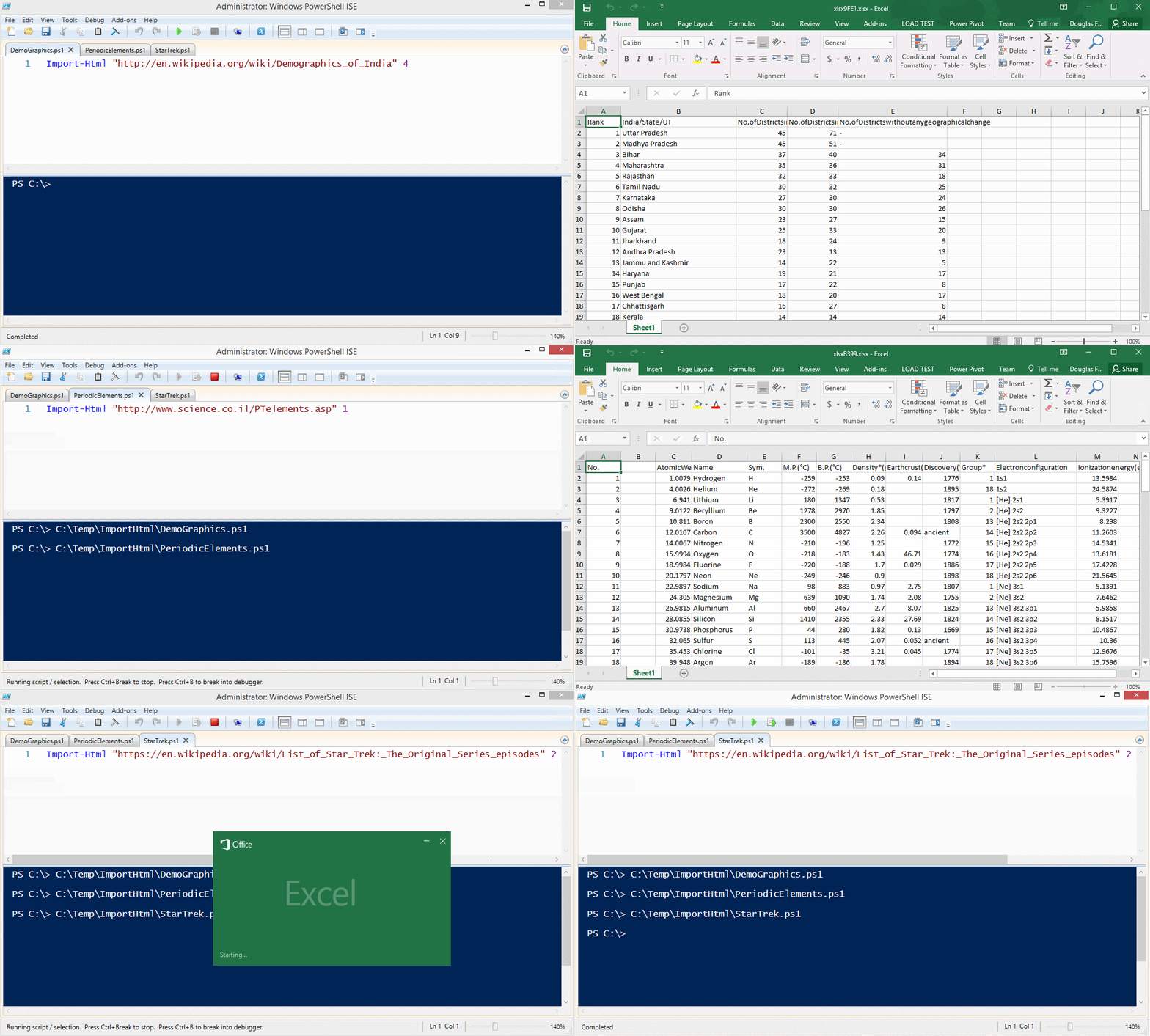
|
||||
|
||||
@@ -254,7 +432,7 @@ echo 489 668 299 777 860 151 119 497 234 788 |
|
||||
|
||||
## Try *PassThru*
|
||||
|
||||
```powershell
|
||||
```PowerShell
|
||||
$file = "C:\Temp\passthru.xlsx"
|
||||
rm $file -ErrorAction Ignore
|
||||
|
||||
@@ -317,14 +495,14 @@ Stay tuned for a [blog post](http://www.dougfinke.com/blog/) and examples.
|
||||
Big bug fix for version 3.0 PowerShell folks!
|
||||
|
||||
This technique fails in 3.0 and works in 4.0 and later.
|
||||
```powershell
|
||||
```PowerShell
|
||||
$m="substring"
|
||||
"hello".$m(2,1)
|
||||
```
|
||||
|
||||
Adding `.invoke` works in 3.0 and later.
|
||||
|
||||
```powershell
|
||||
```PowerShell
|
||||
$m="substring"
|
||||
"hello".$m.invoke(2,1)
|
||||
```
|
||||
@@ -396,7 +574,7 @@ Or, check out the short ***"How To"*** video.
|
||||
#### 7/09/2015
|
||||
* For -PivotRows you can pass a `hashtable` with the name of the property and the type of calculation. `Sum`, `Average`, `Max`, `Min`, `Product`, `StdDev`, `StdDevp`, `Var`, `Varp`
|
||||
|
||||
```powershell
|
||||
```PowerShell
|
||||
Get-Service |
|
||||
Export-Excel "c:\temp\test.xlsx" `
|
||||
-Show `
|
||||
@@ -529,7 +707,7 @@ You can set the pattern, size and of if the title is bold.
|
||||
Handles = {$p|select company, handles}
|
||||
Services = {gsv}
|
||||
Files = {dir -File}
|
||||
Albums = {(Invoke-RestMethod http://www.dougfinke.com/powershellfordevelopers/albums.js)}
|
||||
Albums = {(Invoke-RestMethod http://www.dougfinke.com/PowerShellfordevelopers/albums.js)}
|
||||
}
|
||||
|
||||
Export-MultipleExcelSheets -Show -AutoSize .\testExport.xlsx $DataToGather
|
||||
|
||||
35
RemoveWorksheet.ps1
Normal file
35
RemoveWorksheet.ps1
Normal file
@@ -0,0 +1,35 @@
|
||||
Function Remove-WorkSheet {
|
||||
Param (
|
||||
$Path,
|
||||
$WorksheetName
|
||||
)
|
||||
|
||||
$Path = (Resolve-Path $Path).ProviderPath
|
||||
|
||||
$Excel = New-Object -TypeName OfficeOpenXml.ExcelPackage $Path
|
||||
|
||||
$workSheet = $Excel.Workbook.Worksheets[$WorkSheetName]
|
||||
|
||||
if($workSheet) {
|
||||
if($Excel.Workbook.Worksheets.Count -gt 1) {
|
||||
$Excel.Workbook.Worksheets.Delete($workSheet)
|
||||
} else {
|
||||
throw "Cannot delete $WorksheetName. A workbook must contain at least one visible worksheet"
|
||||
}
|
||||
|
||||
} else {
|
||||
throw "$WorksheetName not found"
|
||||
}
|
||||
|
||||
$Excel.Save()
|
||||
$Excel.Dispose()
|
||||
}
|
||||
|
||||
cls
|
||||
|
||||
ipmo .\ImportExcel.psd1 -Force
|
||||
|
||||
$names = Get-ExcelSheetInfo C:\Temp\testDelete.xlsx
|
||||
$names | % { Remove-WorkSheet C:\Temp\testDelete.xlsx $_.Name}
|
||||
|
||||
##Remove-WorkSheet C:\Temp\testDelete.xlsx sheet6
|
||||
133
Send-SqlDataToExcel.ps1
Normal file
133
Send-SqlDataToExcel.ps1
Normal file
@@ -0,0 +1,133 @@
|
||||
Function Send-SQLDataToExcel {
|
||||
<#
|
||||
.Synopsis
|
||||
Runs a SQL query and inserts the results into an ExcelSheet, more efficiently than sending it via Export-Excel
|
||||
.Description
|
||||
This command takes either an object representing a session with a SQL server or ODBC database, or a connection String to make one.
|
||||
It the runs a SQL command, and inserts the rows of data returned into a worksheet.
|
||||
It takes most of the parameters of Export-Excel, but it is more efficient than getting dataRows and piping them into Export-Excel,
|
||||
data-rows have additional properties which need to be stripped off.
|
||||
.Example
|
||||
C:\> Send-SQLDataToExcel -MsSQLserver -Connection localhost -SQL "select name,type,type_desc from [master].[sys].[all_objects]" -Path .\temp.xlsx -WorkSheetname master -AutoSize -FreezeTopRow -AutoFilter -BoldTopRow
|
||||
Connects to the local SQL server and selects 3 columns from [Sys].[all_objects] and exports then to a sheet named master with some basic header manager
|
||||
.Example
|
||||
C:\> $SQL="SELECT top 25 DriverName, Count(RaceDate) as Races, Count(Win) as Wins, Count(Pole) as Poles, Count(FastestLap) as Fastlaps FROM Results GROUP BY DriverName ORDER BY (count(win)) DESC"
|
||||
C:\> $Connection = 'Driver={Microsoft Excel Driver (*.xls, *.xlsx, *.xlsm, *.xlsb)};DriverId=790;ReadOnly=0;Dbq=C:\users\James\Documents\f1Results.xlsx;'
|
||||
C:\> Send-SQLDataToExcel -Connection $connection -SQL $sql -path .\demo4.xlsx -WorkSheetname "Winners" -AutoSize -AutoNameRange
|
||||
|
||||
This declares a SQL statement and creates an ODBC connection string to read from an Excel file, it then runs the statement and outputs the resulting data to a new spreadsheet.
|
||||
.Example
|
||||
C:\> Send-SQLDataToExcel -path .\demo4.xlsx -WorkSheetname "LR" -Connection "DSN=LR" -sql "SELECT name AS CollectionName FROM AgLibraryCollection Collection ORDER BY CollectionName"
|
||||
|
||||
This example uses an Existing ODBC datasource name "LR" which maps to an adobe lightroom database and gets a list of collection names into a worksheet
|
||||
|
||||
|
||||
|
||||
#>
|
||||
param (
|
||||
#Database connection string; either DSN=ODBC_Data_Source_Name, a full odbc or SQL Connection string, or the name of a SQL server
|
||||
[Parameter(ParameterSetName="SQLConnection", Mandatory=$true)]
|
||||
[Parameter(ParameterSetName="ODBCConnection",Mandatory=$true)]
|
||||
$Connection,
|
||||
#A pre-existing database session object
|
||||
[Parameter(ParameterSetName="ExistingSession",Mandatory=$true)]
|
||||
[System.Data.Common.DbConnection]$Session,
|
||||
#Specifies the connection string is for SQL server not ODBC
|
||||
[Parameter(ParameterSetName="SQLConnection",Mandatory=$true)]
|
||||
[switch]$MsSQLserver,
|
||||
#Switches to a specific database on a SQL server
|
||||
[Parameter(ParameterSetName="SQLConnection")]
|
||||
[String]$DataBase,
|
||||
#The SQL query to run
|
||||
[Parameter(Mandatory=$true)]
|
||||
[string]$SQL,
|
||||
$Path,
|
||||
[String]$WorkSheetname = 'Sheet1',
|
||||
[Switch]$KillExcel,
|
||||
#If Specified, open the file created.
|
||||
[Switch]$Show,
|
||||
[String]$Title,
|
||||
[OfficeOpenXml.Style.ExcelFillStyle]$TitleFillPattern = 'None',
|
||||
[Switch]$TitleBold,
|
||||
[Int]$TitleSize = 22,
|
||||
[System.Drawing.Color]$TitleBackgroundColor,
|
||||
[String]$Password,
|
||||
[String[]]$PivotRows,
|
||||
[String[]]$PivotColumns,
|
||||
$PivotData,
|
||||
[Switch]$PivotDataToColumn,
|
||||
[Hashtable]$PivotTableDefinition,
|
||||
[Switch]$IncludePivotChart,
|
||||
[OfficeOpenXml.Drawing.Chart.eChartType]$ChartType = 'Pie',
|
||||
[Switch]$NoLegend,
|
||||
[Switch]$ShowCategory,
|
||||
[Switch]$ShowPercent,
|
||||
[Switch]$AutoSize,
|
||||
[Switch]$FreezeTopRow,
|
||||
[Switch]$FreezeFirstColumn,
|
||||
[Switch]$FreezeTopRowFirstColumn,
|
||||
[Int[]]$FreezePane,
|
||||
[Switch]$AutoFilter,
|
||||
[Switch]$BoldTopRow,
|
||||
[Switch]$NoHeader,
|
||||
[String]$RangeName,
|
||||
[String]$TableName,
|
||||
[OfficeOpenXml.Table.TableStyles]$TableStyle = 'Medium6',
|
||||
[Object[]]$ExcelChartDefinition,
|
||||
[Switch]$AutoNameRange,
|
||||
[Object[]]$ConditionalFormat,
|
||||
[Object[]]$ConditionalText,
|
||||
[ScriptBlock]$CellStyleSB,
|
||||
[Int]$StartRow = 1,
|
||||
[Int]$StartColumn = 1,
|
||||
#If Specified, return an ExcelPackage object to allow further work to be done on the file.
|
||||
[Switch]$Passthru
|
||||
)
|
||||
|
||||
if ($KillExcel) {
|
||||
Get-Process excel -ErrorAction Ignore | Stop-Process
|
||||
while (Get-Process excel -ErrorAction Ignore) {}
|
||||
}
|
||||
|
||||
#We were either given a session object or a connection string (with, optionally a MSSQLServer parameter)
|
||||
# If we got -MSSQLServer, create a SQL connection, if we didn't but we got -Connection create an ODBC connection
|
||||
if ($MsSQLserver) {
|
||||
if ($connection -notmatch "=") {$Connection = "server=$Connection;trusted_connection=true;timeout=60"}
|
||||
$Session = New-Object -TypeName System.Data.SqlClient.SqlConnection -ArgumentList $Connection
|
||||
if ($Session.State -ne 'Open') {$session.Open()}
|
||||
if ($DataBase) {$Session.ChangeDatabase($DataBase) }
|
||||
}
|
||||
elseif ($Connection) {
|
||||
$Session = New-Object -TypeName System.Data.Odbc.OdbcConnection -ArgumentList $Connection ; $Session.ConnectionTimeout = 30
|
||||
}
|
||||
|
||||
#A session was either passed in or just created. If it's a SQL one make a SQL DataAdapter, otherwise make an ODBC one
|
||||
if ($Session.gettype().name -match "SqlConnection") {
|
||||
$dataAdapter = New-Object -TypeName System.Data.SqlClient.SqlDataAdapter -ArgumentList (
|
||||
New-Object -TypeName System.Data.SqlClient.SqlCommand -ArgumentList $sql, $Session)
|
||||
}
|
||||
else {
|
||||
$dataAdapter = New-Object -TypeName System.Data.Odbc.OdbcDataAdapter -ArgumentList (
|
||||
New-Object -TypeName System.Data.Odbc.OdbcCommand -ArgumentList $sql, $Session )
|
||||
}
|
||||
|
||||
#Both adapter types output the same kind of table, create one and fill it from the adapter
|
||||
$dataTable = New-Object -TypeName System.Data.DataTable
|
||||
$rowCount = $dataAdapter.fill($dataTable)
|
||||
Write-Verbose "Query returned $rowcount row(s)"
|
||||
|
||||
#ExportExcel user a -NoHeader parameter so that's what we use here, but needs to be the other way around.
|
||||
$PrintHeaders = -not $NoHeader
|
||||
if ($Title) {$r = $StartRow +1 }
|
||||
else {$r = $StartRow}
|
||||
#Get our Excel sheet and fill it with the data
|
||||
$excelPackage = Export-Excel -Path $Path -WorkSheetname $WorkSheetname -PassThru
|
||||
$excelPackage.Workbook.Worksheets[$WorkSheetname].Cells[$r,$StartColumn].LoadFromDataTable($dataTable, $PrintHeaders ) | Out-Null
|
||||
|
||||
#Call export-excel with any parameters which don't relate to the SQL query
|
||||
"Connection", "Database" , "Session", "MsSQLserver", "Destination" , "sql" ,"Path" | foreach-object {$null = $PSBoundParameters.Remove($_) }
|
||||
Export-Excel -ExcelPackage $excelPackage @PSBoundParameters
|
||||
|
||||
#If we were not passed a session close the session we created.
|
||||
if ($Connection) {$Session.close() }
|
||||
}
|
||||
139
Set-Column.ps1
Normal file
139
Set-Column.ps1
Normal file
@@ -0,0 +1,139 @@
|
||||
Function Set-Column {
|
||||
<#
|
||||
.SYNOPSIS
|
||||
Adds a column to the existing data area in an Excel sheet, fills values and sets formatting
|
||||
.DESCRIPTION
|
||||
Set-Column takes a value which is either string containing a value or formula or a scriptblock
|
||||
which evaluates to a string, and optionally a column number and fills that value down the column.
|
||||
A column name can be specified and the new column can be made a named range.
|
||||
The column can be formatted.
|
||||
.Example
|
||||
C:> Set-Column -Worksheet $ws -Heading "WinsToFastLaps" -Value {"=E$row/C$row"} -Column 7 -AutoSize -AutoNameRange
|
||||
Here $WS already contains a worksheet which contains counts of races won and fastest laps recorded by racing drivers (in columns C and E)
|
||||
Set-Column specifies that Column 7 should have a heading of "WinsToFastLaps" and the data cells should contain =E2/C2 , =E3/C3
|
||||
the data celss should become a named range, which will also be "WinsToFastLaps" the column width will be set automatically
|
||||
|
||||
#>
|
||||
[cmdletbinding()]
|
||||
Param (
|
||||
[Parameter(ParameterSetName="Package",Mandatory=$true)]
|
||||
[OfficeOpenXml.ExcelPackage]$ExcelPackage,
|
||||
#Sheet to update
|
||||
[Parameter(ParameterSetName="Package")]
|
||||
$Worksheetname = "Sheet1",
|
||||
[Parameter(ParameterSetName="sheet",Mandatory=$true)]
|
||||
[OfficeOpenXml.ExcelWorksheet]
|
||||
$Worksheet,
|
||||
#Column to fill down - first column is 1. 0 will be interpreted as first unused column
|
||||
$Column = 0 ,
|
||||
[Int]$StartRow ,
|
||||
#value, formula or script block for to fill in. Script block can use $row, $column [number], $ColumnName [letter(s)], $startRow, $startColumn, $endRow, $endColumn
|
||||
[parameter(Mandatory=$true)]
|
||||
$Value ,
|
||||
#Optional column heading
|
||||
$Heading ,
|
||||
#Number format to apply to cells e.g. "dd/MM/yyyy HH:mm", "£#,##0.00;[Red]-£#,##0.00", "0.00%" , "##/##" , "0.0E+0" etc
|
||||
[Alias("NFormat")]
|
||||
$NumberFormat,
|
||||
#Style of border to draw around the row
|
||||
[OfficeOpenXml.Style.ExcelBorderStyle]$BorderAround,
|
||||
#Colour for the text - if none specified it will be left as it it is
|
||||
[System.Drawing.Color]$FontColor,
|
||||
#Make text bold
|
||||
[switch]$Bold,
|
||||
#Make text italic
|
||||
[switch]$Italic,
|
||||
#Underline the text using the underline style in -underline type
|
||||
[switch]$Underline,
|
||||
#Should Underline use single or double, normal or accounting mode : default is single normal
|
||||
[OfficeOpenXml.Style.ExcelUnderLineType]$UnderLineType = [OfficeOpenXml.Style.ExcelUnderLineType]::Single,
|
||||
#StrikeThrough text
|
||||
[switch]$StrikeThru,
|
||||
#Subscript or superscript
|
||||
[OfficeOpenXml.Style.ExcelVerticalAlignmentFont]$FontShift,
|
||||
#Font to use - Excel defaults to Calibri
|
||||
[String]$FontName,
|
||||
#Point size for the text
|
||||
[float]$FontSize,
|
||||
#Change background colour
|
||||
[System.Drawing.Color]$BackgroundColor,
|
||||
#Background pattern - solid by default
|
||||
[OfficeOpenXml.Style.ExcelFillStyle]$BackgroundPattern = [OfficeOpenXml.Style.ExcelFillStyle]::Solid ,
|
||||
#Secondary colour for background pattern
|
||||
[Alias("PatternColour")]
|
||||
[System.Drawing.Color]$PatternColor,
|
||||
#Turn on text wrapping
|
||||
[switch]$WrapText,
|
||||
#Position cell contents to left, right or centre ...
|
||||
[OfficeOpenXml.Style.ExcelHorizontalAlignment]$HorizontalAlignment,
|
||||
#Position cell contents to top bottom or centre
|
||||
[OfficeOpenXml.Style.ExcelVerticalAlignment]$VerticalAlignment,
|
||||
#Degrees to rotate text. Up to +90 for anti-clockwise ("upwards"), or to -90 for clockwise.
|
||||
[ValidateRange(-90, 90)]
|
||||
[int]$TextRotation ,
|
||||
#Autofit cells to width
|
||||
[Alias("AutoFit")]
|
||||
[Switch]$AutoSize,
|
||||
#Set cells to a fixed width, ignored if Autosize is specified
|
||||
[float]$Width,
|
||||
#Set the inserted data to be a named range (ignored if header is not specified) d
|
||||
[Switch]$AutoNameRange,
|
||||
[switch]$PassThru
|
||||
)
|
||||
#if we were passed a package object and a worksheet name , get the worksheet.
|
||||
if ($ExcelPackage) {$Worksheet = $ExcelPackage.Workbook.Worksheets[$Worksheetname] }
|
||||
|
||||
#In a script block to build a formula, we may want any of corners or the columnname,
|
||||
#if column and startrow aren't specified, assume first unused column, and first row
|
||||
if (-not $StartRow) {$startRow = $Worksheet.Dimension.Start.Row }
|
||||
$StartColumn = $Worksheet.Dimension.Start.Column
|
||||
$endColumn = $Worksheet.Dimension.End.Column
|
||||
$endRow = $Worksheet.Dimension.End.Row
|
||||
if ($Column -lt 2 ) {$Column = $endColumn + 1 }
|
||||
$ColumnName = [OfficeOpenXml.ExcelCellAddress]::new(1,$column).Address -replace "1",""
|
||||
|
||||
Write-Verbose -Message "Updating Column $ColumnName"
|
||||
#If there is a heading, insert it and use it as the name for a range (if we're creating one)
|
||||
if ($Heading) {
|
||||
$Worksheet.Cells[$StartRow, $Column].Value = $heading
|
||||
$startRow ++
|
||||
if ($AutoNameRange) { $Worksheet.Names.Add( $heading, ($Worksheet.Cells[$startrow, $Column, $endRow, $Column]) ) | Out-Null }
|
||||
}
|
||||
#Fill in the data
|
||||
if ($value) { foreach ($row in ($StartRow.. $endRow)) {
|
||||
if ($Value -is [scriptblock]) { #re-create the script block otherwise variables from this function are out of scope.
|
||||
$cellData = & ([scriptblock]::create( $Value ))
|
||||
Write-Verbose -Message $cellData
|
||||
}
|
||||
else { $cellData = $Value}
|
||||
if ($cellData -match "^=") { $Worksheet.Cells[$Row, $Column].Formula = $cellData }
|
||||
else { $Worksheet.Cells[$Row, $Column].Value = $cellData }
|
||||
if ($cellData -is [datetime]) { $Worksheet.Cells[$Row, $Column].Style.Numberformat.Format = 'm/d/yy h:mm' }
|
||||
}}
|
||||
#region Apply formatting
|
||||
if ($Underline) {
|
||||
$Worksheet.Column( $Column).Style.Font.UnderLine = $true
|
||||
$Worksheet.Column( $Column).Style.Font.UnderLineType = $UnderLineType
|
||||
}
|
||||
if ($Bold) { $Worksheet.Column( $Column).Style.Font.Bold = $true }
|
||||
if ($Italic) { $Worksheet.Column( $Column).Style.Font.Italic = $true }
|
||||
if ($StrikeThru) { $Worksheet.Column( $Column).Style.Font.Strike = $true }
|
||||
if ($FontShift) { $Worksheet.Column( $Column).Style.Font.VerticalAlign = $FontShift }
|
||||
if ($NumberFormat) { $Worksheet.Column( $Column).Style.Numberformat.Format = $NumberFormat }
|
||||
if ($TextRotation) { $Worksheet.Column( $Column).Style.TextRotation = $TextRotation }
|
||||
if ($WrapText) { $Worksheet.Column( $Column).Style.WrapText = $true }
|
||||
if ($HorizontalAlignment) { $Worksheet.Column( $Column).Style.HorizontalAlignment = $HorizontalAlignment}
|
||||
if ($VerticalAlignment) { $Worksheet.Column( $Column).Style.VerticalAlignment = $VerticalAlignment }
|
||||
if ($FontColor) { $Worksheet.Column( $Column).Style.Font.Color.SetColor( $FontColor ) }
|
||||
if ($BorderAround) { $Worksheet.Column( $Column).Style.Border.BorderAround( $BorderAround ) }
|
||||
if ($BackgroundColor) {
|
||||
$Worksheet.Column( $Column).Style.Fill.PatternType = $BackgroundPattern
|
||||
$Worksheet.Column( $Column).Style.Fill.BackgroundColor.SetColor($BackgroundColor )
|
||||
if ($PatternColor) { $Worksheet.Column( $Column).Style.Fill.PatternColor.SetColor( $PatternColor ) }
|
||||
}
|
||||
if ($Autosize) { $Worksheet.Column( $Column).AutoFit() }
|
||||
elseif ($Width) { $Worksheet.Column( $Column).Width = $Width }
|
||||
#endregion
|
||||
#return the new data if -passthru was specified.
|
||||
if ($passThru) { $Worksheet.Column( $Column)}
|
||||
}
|
||||
142
Set-Row.ps1
Normal file
142
Set-Row.ps1
Normal file
@@ -0,0 +1,142 @@
|
||||
Function Set-Row {
|
||||
<#
|
||||
.Synopsis
|
||||
Fills values into a row in a Excel spreadsheet
|
||||
.Description
|
||||
Set-Row accepts either a Worksheet object or an Excel package object returned by Export-Excel and the name of a sheet,
|
||||
and inserts the chosen contents into a row of the sheet.
|
||||
The contents can be a constant "42" , a formula or a script block which is converted into a constant or formula.
|
||||
The first cell of the row can optional be given a heading.
|
||||
.Example
|
||||
Set-row -Worksheet $ws -Heading Total -Value {"=sum($columnName`2:$columnName$endrow)" }
|
||||
|
||||
$Ws contains a worksheet object, and no Row number is specified so Set-Row will select the next row after the end of the data in the sheet
|
||||
The first cell will contain "Total", and each other cell will contain
|
||||
=Sum(xx2:xx99) - where xx is the column name, and 99 is the last row of data.
|
||||
Note the use of `2 to Prevent 2 becoming part of the variable "ColumnName"
|
||||
The script block can use $row, $column, $ColumnName, $startRow/Column $endRow/Column
|
||||
|
||||
|
||||
#>
|
||||
[cmdletbinding()]
|
||||
Param (
|
||||
#An Excel package object - e.g. from Export-Excel -passthru - requires a sheet name
|
||||
[Parameter(ParameterSetName="Package",Mandatory=$true)]
|
||||
[OfficeOpenXml.ExcelPackage]$ExcelPackage,
|
||||
#the name to update in the package
|
||||
[Parameter(ParameterSetName="Package")]
|
||||
$Worksheetname = "Sheet1",
|
||||
#A worksheet object
|
||||
[Parameter(ParameterSetName="sheet",Mandatory=$true)]
|
||||
[OfficeOpenXml.Excelworksheet]
|
||||
$Worksheet,
|
||||
#Row to fill right - first row is 1. 0 will be interpreted as first unused row
|
||||
$Row = 0 ,
|
||||
#Position in the row to start from
|
||||
[Int]$StartColumn,
|
||||
#value, formula or script block for to fill in. Script block can use $row, $column [number], $ColumnName [letter(s)], $startRow, $startColumn, $endRow, $endColumn
|
||||
[parameter(Mandatory=$true)]
|
||||
$Value,
|
||||
#Optional Row heading
|
||||
$Heading ,
|
||||
#Number format to apply to cells e.g. "dd/MM/yyyy HH:mm", "£#,##0.00;[Red]-£#,##0.00", "0.00%" , "##/##" , "0.0E+0" etc
|
||||
[Alias("NFormat")]
|
||||
$NumberFormat,
|
||||
#Style of border to draw around the row
|
||||
[OfficeOpenXml.Style.ExcelBorderStyle]$BorderAround,
|
||||
#Colour for the text - if none specified it will be left as it it is
|
||||
[System.Drawing.Color]$FontColor,
|
||||
#Make text bold
|
||||
[switch]$Bold,
|
||||
#Make text italic
|
||||
[switch]$Italic,
|
||||
#Underline the text using the underline style in -underline type
|
||||
[switch]$Underline,
|
||||
#Should Underline use single or double, normal or accounting mode : default is single normal
|
||||
[OfficeOpenXml.Style.ExcelUnderLineType]$UnderLineType = [OfficeOpenXml.Style.ExcelUnderLineType]::Single,
|
||||
#StrikeThrough text
|
||||
[switch]$StrikeThru,
|
||||
#Subscript or superscript
|
||||
[OfficeOpenXml.Style.ExcelVerticalAlignmentFont]$FontShift,
|
||||
#Font to use - Excel defaults to Calibri
|
||||
[String]$FontName,
|
||||
#Point size for the text
|
||||
[float]$FontSize,
|
||||
#Change background colour
|
||||
[System.Drawing.Color]$BackgroundColor,
|
||||
#Background pattern - solid by default
|
||||
[OfficeOpenXml.Style.ExcelFillStyle]$BackgroundPattern = [OfficeOpenXml.Style.ExcelFillStyle]::Solid ,
|
||||
#Secondary colour for background pattern
|
||||
[Alias("PatternColour")]
|
||||
[System.Drawing.Color]$PatternColor,
|
||||
#Turn on text wrapping
|
||||
[switch]$WrapText,
|
||||
#Position cell contents to left, right or centre ...
|
||||
[OfficeOpenXml.Style.ExcelHorizontalAlignment]$HorizontalAlignment,
|
||||
#Position cell contents to top bottom or centre
|
||||
[OfficeOpenXml.Style.ExcelVerticalAlignment]$VerticalAlignment,
|
||||
#Degrees to rotate text. Up to +90 for anti-clockwise ("upwards"), or to -90 for clockwise.
|
||||
[ValidateRange(-90, 90)]
|
||||
[int]$TextRotation ,
|
||||
#Set cells to a fixed hieght
|
||||
[float]$Height,
|
||||
[switch]$PassThru
|
||||
)
|
||||
|
||||
#if we were passed a package object and a worksheet name , get the worksheet.
|
||||
if ($ExcelPackage) {$Worksheet = $ExcelPackage.Workbook.worksheets[$Worksheetname] }
|
||||
|
||||
#In a script block to build a formula, we may want any of corners or the columnname,
|
||||
#if row and start column aren't specified assume first unused row, and first column
|
||||
if (-not $StartColumn) {$StartColumn = $Worksheet.Dimension.Start.Column }
|
||||
$startRow = $Worksheet.Dimension.Start.Row + 1
|
||||
$endColumn = $Worksheet.Dimension.End.Column
|
||||
$endRow = $Worksheet.Dimension.End.Row
|
||||
if ($Row -lt 2 ) {$Row = $endRow + 1 }
|
||||
|
||||
Write-Verbose -Message "Updating Row $Row"
|
||||
#Add a row label
|
||||
if ($Heading) {
|
||||
$Worksheet.Cells[$Row, $StartColumn].Value = $Heading
|
||||
$StartColumn ++
|
||||
}
|
||||
#Fill in the data
|
||||
if ($value) {foreach ($column in ($StartColumn..$EndColumn)) {
|
||||
#We might want the column name in a script block
|
||||
$ColumnName = [OfficeOpenXml.ExcelCellAddress]::new(1,$column).Address -replace "1",""
|
||||
if ($Value -is [scriptblock] ) {
|
||||
#re-create the script block otherwise variables from this function are out of scope.
|
||||
$cellData = & ([scriptblock]::create( $Value ))
|
||||
Write-Verbose -Message $cellData
|
||||
}
|
||||
else{$cellData = $Value}
|
||||
if ($cellData -match "^=") { $Worksheet.Cells[$Row, $column].Formula = $cellData }
|
||||
else { $Worksheet.Cells[$Row, $Column].Value = $cellData }
|
||||
if ($cellData -is [datetime]) { $Worksheet.Cells[$Row, $Column].Style.Numberformat.Format = 'm/d/yy h:mm' }
|
||||
}}
|
||||
#region Apply formatting
|
||||
if ($Underline) {
|
||||
$worksheet.row( $Row ).Style.Font.UnderLine = $true
|
||||
$worksheet.row( $Row ).Style.Font.UnderLineType = $UnderLineType
|
||||
}
|
||||
if ($Bold) { $worksheet.row( $Row ).Style.Font.Bold = $true }
|
||||
if ($Italic) { $worksheet.row( $Row ).Style.Font.Italic = $true }
|
||||
if ($StrikeThru) { $worksheet.row( $Row ).Style.Font.Strike = $true }
|
||||
if ($FontShift) { $worksheet.row( $Row ).Style.Font.VerticalAlign = $FontShift }
|
||||
if ($NumberFormat) { $worksheet.row( $Row ).Style.Numberformat.Format = $NumberFormat }
|
||||
if ($TextRotation) { $worksheet.row( $Row ).Style.TextRotation = $TextRotation }
|
||||
if ($WrapText) { $worksheet.row( $Row ).Style.WrapText = $true }
|
||||
if ($HorizontalAlignment) { $worksheet.row( $Row ).Style.HorizontalAlignment = $HorizontalAlignment}
|
||||
if ($VerticalAlignment) { $worksheet.row( $Row ).Style.VerticalAlignment = $VerticalAlignment }
|
||||
if ($Height) { $worksheet.row( $Row ).Height = $Height }
|
||||
if ($FontColor) { $worksheet.row( $Row ).Style.Font.Color.SetColor( $FontColor ) }
|
||||
if ($BorderAround) { $worksheet.row( $Row ).Style.Border.BorderAround( $BorderAround ) }
|
||||
if ($BackgroundColor) {
|
||||
$worksheet.row( $Row ).Style.Fill.PatternType = $BackgroundPattern
|
||||
$worksheet.row( $Row ).Style.Fill.BackgroundColor.SetColor($BackgroundColor )
|
||||
if ($PatternColor) { $worksheet.row( $Row ).Style.Fill.PatternColor.SetColor( $PatternColor ) }
|
||||
}
|
||||
#endregion
|
||||
#return the new data if -passthru was specified.
|
||||
if ($passThru) {$Worksheet.Row($Row)}
|
||||
}
|
||||
145
SetFormat.ps1
Normal file
145
SetFormat.ps1
Normal file
@@ -0,0 +1,145 @@
|
||||
Function Set-Format {
|
||||
<#
|
||||
.SYNOPSIS
|
||||
Applies Number, font, alignment and colour formatting to a range of Excel Cells
|
||||
.EXAMPLE
|
||||
$sheet.Column(3) | Set-Format -HorizontalAlignment Right -NumberFormat "#,###"
|
||||
Selects column 3 from a sheet object (within a workbook object, which is a child of the ExcelPackage object) and passes it to Set-Format which formats as an integer with comma seperated groups
|
||||
.EXAMPLE
|
||||
Set-Format -Address $sheet.Cells["E1:H1048576"] -HorizontalAlignment Right -NumberFormat "#,###"
|
||||
Instead of piping the address in this version specifies a block of cells and applies similar formatting
|
||||
|
||||
#>
|
||||
Param (
|
||||
#One or more row(s), Column(s) and/or block(s) of cells to format
|
||||
[Parameter(ValueFromPipeline = $true,ParameterSetName="Address",Mandatory=$True)]
|
||||
$Address ,
|
||||
#The worksheet where the format is to be applied
|
||||
[Parameter(ParameterSetName="SheetAndRange",Mandatory=$True)]
|
||||
[OfficeOpenXml.ExcelWorksheet]$WorkSheet ,
|
||||
#The area of the worksheet where the format is to be applied
|
||||
[Parameter(ParameterSetName="SheetAndRange",Mandatory=$True)]
|
||||
[OfficeOpenXml.ExcelAddress]$Range,
|
||||
#Number format to apply to cells e.g. "dd/MM/yyyy HH:mm", "£#,##0.00;[Red]-£#,##0.00", "0.00%" , "##/##" , "0.0E+0" etc
|
||||
[Alias("NFormat")]
|
||||
$NumberFormat,
|
||||
#Style of border to draw around the range
|
||||
[OfficeOpenXml.Style.ExcelBorderStyle]$BorderAround,
|
||||
#Colour for the text - if none specified it will be left as it it is
|
||||
[System.Drawing.Color]$FontColor,
|
||||
#Clear Bold, Italic, StrikeThrough and Underline and set colour to black
|
||||
[switch]$ResetFont,
|
||||
#Make text bold
|
||||
[switch]$Bold,
|
||||
#Make text italic
|
||||
[switch]$Italic,
|
||||
#Underline the text using the underline style in -underline type
|
||||
[switch]$Underline,
|
||||
#Should Underline use single or double, normal or accounting mode : default is single normal
|
||||
[OfficeOpenXml.Style.ExcelUnderLineType]$UnderLineType = [OfficeOpenXml.Style.ExcelUnderLineType]::Single,
|
||||
#StrikeThrough text
|
||||
[switch]$StrikeThru,
|
||||
#Subscript or superscript
|
||||
[OfficeOpenXml.Style.ExcelVerticalAlignmentFont]$FontShift,
|
||||
#Font to use - Excel defaults to Calibri
|
||||
[String]$FontName,
|
||||
#Point size for the text
|
||||
[float]$FontSize,
|
||||
#Change background colour
|
||||
[System.Drawing.Color]$BackgroundColor,
|
||||
#Background pattern - solid by default
|
||||
[OfficeOpenXml.Style.ExcelFillStyle]$BackgroundPattern = [OfficeOpenXml.Style.ExcelFillStyle]::Solid ,
|
||||
#Secondary colour for background pattern
|
||||
[Alias("PatternColour")]
|
||||
[System.Drawing.Color]$PatternColor,
|
||||
#Turn on text wrapping
|
||||
[switch]$WrapText,
|
||||
#Position cell contents to left, right or centre ...
|
||||
[OfficeOpenXml.Style.ExcelHorizontalAlignment]$HorizontalAlignment,
|
||||
#Position cell contents to top bottom or centre
|
||||
[OfficeOpenXml.Style.ExcelVerticalAlignment]$VerticalAlignment,
|
||||
#Degrees to rotate text. Up to +90 for anti-clockwise ("upwards"), or to -90 for clockwise.
|
||||
[ValidateRange(-90, 90)]
|
||||
[int]$TextRotation ,
|
||||
#Autofit cells to width (columns or ranges only)
|
||||
[Alias("AutoFit")]
|
||||
[Switch]$AutoSize,
|
||||
#Set cells to a fixed width (columns or ranges only), ignored if Autosize is specified
|
||||
[float]$Width,
|
||||
#Set cells to a fixed hieght (rows or ranges only)
|
||||
[float]$Height,
|
||||
#Hide a row or column (not a range)
|
||||
[switch]$Hidden
|
||||
)
|
||||
begin {
|
||||
#Allow Set-Format to take Worksheet and range parameters (like Add Contitional formatting) - convert them to an address
|
||||
if ($WorkSheet -and $Range) {$Address = $WorkSheet.Cells[$Range] }
|
||||
}
|
||||
|
||||
process {
|
||||
if ($Address -is [Array]) {
|
||||
[void]$PSBoundParameters.Remove("Address")
|
||||
$Address | Set-Format @PSBoundParameters
|
||||
}
|
||||
else {
|
||||
if ($ResetFont) {
|
||||
$Address.Style.Font.Color.SetColor("Black")
|
||||
$Address.Style.Font.Bold = $false
|
||||
$Address.Style.Font.Italic = $false
|
||||
$Address.Style.Font.UnderLine = $false
|
||||
$Address.Style.Font.Strike = $false
|
||||
}
|
||||
if ($Underline) {
|
||||
$Address.Style.Font.UnderLine = $true
|
||||
$Address.Style.Font.UnderLineType = $UnderLineType
|
||||
}
|
||||
if ($Bold) {$Address.Style.Font.Bold = $true }
|
||||
if ($Italic) {$Address.Style.Font.Italic = $true }
|
||||
if ($StrikeThru) {$Address.Style.Font.Strike = $true }
|
||||
if ($FontShift) {$Address.Style.Font.VerticalAlign = $FontShift }
|
||||
if ($FontColor) {$Address.Style.Font.Color.SetColor( $FontColor ) }
|
||||
if ($BorderAround) {$Address.Style.Border.BorderAround( $BorderAround ) }
|
||||
if ($NumberFormat) {$Address.Style.Numberformat.Format = $NumberFormat }
|
||||
if ($TextRotation) {$Address.Style.TextRotation = $TextRotation }
|
||||
if ($WrapText) {$Address.Style.WrapText = $true }
|
||||
if ($HorizontalAlignment) {$Address.Style.HorizontalAlignment = $HorizontalAlignment }
|
||||
if ($VerticalAlignment) {$Address.Style.VerticalAlignment = $VerticalAlignment }
|
||||
|
||||
if ($BackgroundColor) {
|
||||
$Address.Style.Fill.PatternType = $BackgroundPattern
|
||||
$Address.Style.Fill.BackgroundColor.SetColor($BackgroundColor)
|
||||
if ($PatternColor) {
|
||||
$Address.Style.Fill.PatternColor.SetColor( $PatternColor)
|
||||
}
|
||||
}
|
||||
|
||||
if ($Height) {
|
||||
if ($Address -is [OfficeOpenXml.ExcelRow] ) {$Address.Height = $Height }
|
||||
elseif ($Address -is [OfficeOpenXml.ExcelRange] ) {
|
||||
($Address.Start.Row)..($Address.Start.Row + $Address.Rows) |
|
||||
ForEach-Object {$ws.Row($_).Height = $Height }
|
||||
}
|
||||
else {Write-Warning -Message ("Can set the height of a row or a range but not a {0} object" -f ($Address.GetType().name)) }
|
||||
}
|
||||
if ($Autosize) {
|
||||
if ($Address -is [OfficeOpenXml.ExcelColumn]) {$Address.AutoFit() }
|
||||
elseif ($Address -is [OfficeOpenXml.ExcelRange] ) {$Address.AutoFitColumns() }
|
||||
else {Write-Warning -Message ("Can autofit a column or a range but not a {0} object" -f ($Address.GetType().name)) }
|
||||
|
||||
}
|
||||
elseif ($Width) {
|
||||
if ($Address -is [OfficeOpenXml.ExcelColumn]) {$Address.Width = $Width}
|
||||
elseif ($Address -is [OfficeOpenXml.ExcelRange] ) {
|
||||
($Address.Start.Column)..($Address.Start.Column + $Address.Columns) |
|
||||
ForEach-Object {$ws.Column($_).Width = $Width}
|
||||
}
|
||||
else {Write-Warning -Message ("Can set the width of a column or a range but not a {0} object" -f ($Address.GetType().name)) }
|
||||
}
|
||||
if ($Hidden) {
|
||||
if ($Address -is [OfficeOpenXml.ExcelRow] -or
|
||||
$Address -is [OfficeOpenXml.ExcelColumn] ) {$Address.Hidden = $True}
|
||||
else {Write-Warning -Message ("Can hide a row or a column but not a {0} object" -f ($Address.GetType().name)) }
|
||||
}
|
||||
}
|
||||
}
|
||||
}
|
||||
1
ToDo.md
Normal file
1
ToDo.md
Normal file
@@ -0,0 +1 @@
|
||||
- [ ] Create an autocomplete for WorkSheetName param on ImportExcel
|
||||
92
Update-FirstObjectProperties.ps1
Normal file
92
Update-FirstObjectProperties.ps1
Normal file
@@ -0,0 +1,92 @@
|
||||
Function Update-FirstObjectProperties {
|
||||
<#
|
||||
.SYNOPSIS
|
||||
Updates the first object to contain all the properties of the object with the most properties in the array.
|
||||
|
||||
.DESCRIPTION
|
||||
Updates the first object to contain all the properties of the object with the most properties in the array. This is usefull when not all objects have the same quantity of properties and CmdLets like Out-GridView or Export-Excel are not able to show all the properties because the first object doesn't have them all.
|
||||
|
||||
.EXAMPLE
|
||||
$Array = @()
|
||||
|
||||
$Obj1 = [PSCustomObject]@{
|
||||
Member1 = 'First'
|
||||
Member2 = 'Second'
|
||||
}
|
||||
|
||||
$Obj2 = [PSCustomObject]@{
|
||||
Member1 = 'First'
|
||||
Member2 = 'Second'
|
||||
Member3 = 'Third'
|
||||
}
|
||||
|
||||
$Obj3 = [PSCustomObject]@{
|
||||
Member1 = 'First'
|
||||
Member2 = 'Second'
|
||||
Member3 = 'Third'
|
||||
Member4 = 'Fourth'
|
||||
}
|
||||
|
||||
$Array = $Obj1, $Obj2, $Obj3
|
||||
$Array | Out-GridView -Title 'Not showing Member3 and Member4'
|
||||
$Array | Update-FirstObjectProperties | Out-GridView -Title 'All properties are visible'
|
||||
|
||||
Updates the fist object of the array by adding Member3 and Member4.
|
||||
|
||||
.EXAMPLE
|
||||
$ExcelParams = @{
|
||||
Path = $env:TEMP + '\Excel.xlsx'
|
||||
Show = $true
|
||||
Verbose = $true
|
||||
}
|
||||
Remove-Item -Path $ExcelParams.Path -Force -EA Ignore
|
||||
|
||||
$Array = @()
|
||||
|
||||
$Obj1 = [PSCustomObject]@{
|
||||
Member1 = 'First'
|
||||
Member2 = 'Second'
|
||||
}
|
||||
|
||||
$Obj2 = [PSCustomObject]@{
|
||||
Member1 = 'First'
|
||||
Member2 = 'Second'
|
||||
Member3 = 'Third'
|
||||
}
|
||||
|
||||
$Obj3 = [PSCustomObject]@{
|
||||
Member1 = 'First'
|
||||
Member2 = 'Second'
|
||||
Member3 = 'Third'
|
||||
Member4 = 'Fourth'
|
||||
}
|
||||
|
||||
$Array = $Obj1, $Obj2, $Obj3
|
||||
$Array | Out-GridView -Title 'Not showing Member3 and Member4'
|
||||
$Array | Update-FirstObjectProperties | Export-Excel @ExcelParams -WorkSheetname Numbers
|
||||
|
||||
Updates the first object of the array by adding property 'Member3' and 'Member4'. Afterwards. all objects are exported to an Excel file and all column headers are visible.
|
||||
|
||||
.LINK
|
||||
https://github.com/dfinke/ImportExcel
|
||||
|
||||
.NOTES
|
||||
CHANGELOG
|
||||
2017/06/08 Function born #>
|
||||
|
||||
Try {
|
||||
$Union = @()
|
||||
$Input | ForEach-Object {
|
||||
If ($Union.Count) {
|
||||
$_ | Get-Member | Where {-not ($Union[0] | Get-Member $_.Name)} | ForEach-Object {
|
||||
$Union[0] | Add-Member -MemberType NoteProperty -Name $_.Name -Value $Null
|
||||
}
|
||||
}
|
||||
$Union += $_
|
||||
}
|
||||
$Union
|
||||
}
|
||||
Catch {
|
||||
throw "Failed updating the properties of the first object: $_"
|
||||
}
|
||||
}
|
||||
235
formatting.ps1
Normal file
235
formatting.ps1
Normal file
@@ -0,0 +1,235 @@
|
||||
Function Add-ConditionalFormatting {
|
||||
<#
|
||||
.Synopsis
|
||||
Adds contitional formatting to worksheet
|
||||
.Example
|
||||
$excel = $avdata | Export-Excel -Path (Join-path $FilePath "\Machines.XLSX" ) -WorksheetName "Server Anti-Virus" -AutoSize -FreezeTopRow -AutoFilter -PassThru
|
||||
|
||||
Add-ConditionalFormatting -WorkSheet $excel.Workbook.Worksheets[1] -Address "b":b1048576" -ForeGroundColor "RED" -RuleType ContainsText -ConditionValue "2003"
|
||||
Add-ConditionalFormatting -WorkSheet $excel.Workbook.Worksheets[1] -Address "i2:i1048576" -ForeGroundColor "RED" -RuleType ContainsText -ConditionValue "Disabled"
|
||||
$excel.Workbook.Worksheets[1].Cells["D1:G1048576"].Style.Numberformat.Format = [cultureinfo]::CurrentCulture.DateTimeFormat.ShortDatePattern
|
||||
$excel.Workbook.Worksheets[1].Row(1).style.font.bold = $true
|
||||
$excel.Save() ; $excel.Dispose()
|
||||
|
||||
Here Export-Excel is called with the -passThru parameter so the Excel Package object is stored in $Excel
|
||||
The desired worksheet is selected and the then columns B and i are conditially formatted (excluding the top row) to show
|
||||
Fixed formats are then applied to dates in columns D..G and the top row is formatted
|
||||
Finally the workbook is saved and the Excel closed.
|
||||
|
||||
#>
|
||||
Param (
|
||||
#The worksheet where the format is to be applied
|
||||
[OfficeOpenXml.ExcelWorksheet]$WorkSheet ,
|
||||
#The area of the worksheet where the format is to be applied
|
||||
[OfficeOpenXml.ExcelAddress]$Range ,
|
||||
#One of the standard named rules - Top / Bottom / Less than / Greater than / Contains etc
|
||||
[Parameter(Mandatory=$true,ParameterSetName="NamedRule",Position=3)]
|
||||
[OfficeOpenXml.ConditionalFormatting.eExcelConditionalFormattingRuleType]$RuleType ,
|
||||
#Text colour for matching objects
|
||||
[Alias("ForeGroundColour")]
|
||||
[System.Drawing.Color]$ForeGroundColor,
|
||||
#colour for databar type charts
|
||||
[Parameter(Mandatory=$true,ParameterSetName="DataBar")]
|
||||
[Alias("DataBarColour")]
|
||||
[System.Drawing.Color]$DataBarColor,
|
||||
#One of the three-icon set types (e.g. Traffic Lights)
|
||||
[Parameter(Mandatory=$true,ParameterSetName="ThreeIconSet")]
|
||||
[OfficeOpenXml.ConditionalFormatting.eExcelconditionalFormatting3IconsSetType]$ThreeIconsSet,
|
||||
#A four-icon set name
|
||||
[Parameter(Mandatory=$true,ParameterSetName="FourIconSet")]
|
||||
[OfficeOpenXml.ConditionalFormatting.eExcelconditionalFormatting4IconsSetType]$FourIconsSet,
|
||||
#A five-icon set name
|
||||
[Parameter(Mandatory=$true,ParameterSetName="FiveIconSet")]
|
||||
[OfficeOpenXml.ConditionalFormatting.eExcelconditionalFormatting5IconsSetType]$FiveIconsSet,
|
||||
#A value for the condition (e.g. "2000" if the test is 'lessthan 2000')
|
||||
[string]$ConditionValue,
|
||||
#A second value for the conditions like between x and Y
|
||||
[string]$ConditionValue2,
|
||||
#Background colour for matching items
|
||||
[System.Drawing.Color]$BackgroundColor,
|
||||
#Background pattern for matching items
|
||||
[OfficeOpenXml.Style.ExcelFillStyle]$BackgroundPattern = [OfficeOpenXml.Style.ExcelFillStyle]::Solid,
|
||||
#Secondary colour when a background pattern requires it
|
||||
[System.Drawing.Color]$PatternColor,
|
||||
#Sets the numeric format for matching items
|
||||
$NumberFormat,
|
||||
#Put matching items in bold face
|
||||
[switch]$Bold,
|
||||
#Put matching items in italic
|
||||
[switch]$Italic,
|
||||
#Underline matching items
|
||||
[switch]$Underline,
|
||||
#Strikethrough text of matching items
|
||||
[switch]$StrikeThru
|
||||
)
|
||||
|
||||
If ($ThreeIconsSet) {$rule = $WorkSheet.ConditionalFormatting.AddThreeIconSet($Range , $ThreeIconsSet)}
|
||||
elseif ($FourIconsSet) {$rule = $WorkSheet.ConditionalFormatting.AddFourIconSet( $Range , $FourIconsSet) }
|
||||
elseif ($FiveIconsSet) {$rule = $WorkSheet.ConditionalFormatting.AddFiveIconSet( $Range , $IconType) }
|
||||
elseif ($DataBarColor) {$rule = $WorkSheet.ConditionalFormatting.AddDatabar( $Range , $DataBarColor) }
|
||||
else { $rule = ($WorkSheet.ConditionalFormatting)."Add$RuleType"($Range)}
|
||||
|
||||
if ($ConditionValue -and $RuleType -match "Top|Botom") {$rule.Rank = $ConditionValue }
|
||||
if ($ConditionValue -and $RuleType -match "StdDev") {$rule.StdDev = $ConditionValue }
|
||||
if ($ConditionValue -and $RuleType -match "Than|Equal|Expression") {$rule.Formula = $ConditionValue }
|
||||
if ($ConditionValue -and $RuleType -match "Text|With") {$rule.Text = $ConditionValue }
|
||||
if ($ConditionValue -and
|
||||
$ConditionValue2 -and $RuleType -match "Between") {$rule.Formula = $ConditionValue
|
||||
$rule.Formula2 = $ConditionValue2}
|
||||
|
||||
if ($NumberFormat) {$rule.Style.NumberFormat.Format = $NumberFormat }
|
||||
if ($Underline) {$rule.Style.Font.Underline = [OfficeOpenXml.Style.ExcelUnderLineType]::Single }
|
||||
if ($Bold) {$rule.Style.Font.Bold = $true}
|
||||
if ($Italic) {$rule.Style.Font.Italic = $true}
|
||||
if ($StrikeThru) {$rule.Style.Font.Strike = $true}
|
||||
if ($ForeGroundColor) {$rule.Style.Font.Color.color = $ForeGroundColor }
|
||||
if ($BackgroundColor) {$rule.Style.Fill.BackgroundColor.color = $BackgroundColor }
|
||||
if ($BackgroundPattern) {$rule.Style.Fill.PatternType = $BackgroundPattern }
|
||||
if ($PatternColor) {$rule.Style.Fill.PatternColor.color = $PatternColor }
|
||||
}
|
||||
|
||||
Function Set-Format {
|
||||
<#
|
||||
.SYNOPSIS
|
||||
Applies Number, font, alignment and colour formatting to a range of Excel Cells
|
||||
.EXAMPLE
|
||||
$sheet.Column(3) | Set-Format -HorizontalAlignment Right -NumberFormat "#,###"
|
||||
Selects column 3 from a sheet object (within a workbook object, which is a child of the ExcelPackage object) and passes it to Set-Format which formats as an integer with comma seperated groups
|
||||
.EXAMPLE
|
||||
Set-Format -Address $sheet.Cells["E1:H1048576"] -HorizontalAlignment Right -NumberFormat "#,###"
|
||||
Instead of piping the address in this version specifies a block of cells and applies similar formatting
|
||||
|
||||
#>
|
||||
Param (
|
||||
#One or more row(s), Column(s) and/or block(s) of cells to format
|
||||
[Parameter(ValueFromPipeline=$true)]
|
||||
[object[]]$Address ,
|
||||
#Number format to apply to cells e.g. "dd/MM/yyyy HH:mm", "£#,##0.00;[Red]-£#,##0.00", "0.00%" , "##/##" , "0.0E+0" etc
|
||||
[Alias("NFormat")]
|
||||
$NumberFormat,
|
||||
#Style of border to draw around the range
|
||||
[OfficeOpenXml.Style.ExcelBorderStyle]$BorderAround,
|
||||
#Colour for the text - if none specified it will be left as it it is
|
||||
[System.Drawing.Color]$FontColor,
|
||||
#Clear Bold, Italic, StrikeThrough and Underline and set colour to black
|
||||
[switch]$ResetFont,
|
||||
#Make text bold
|
||||
[switch]$Bold,
|
||||
#Make text italic
|
||||
[switch]$Italic,
|
||||
#Underline the text using the underline style in -underline type
|
||||
[switch]$Underline,
|
||||
#Should Underline use single or double, normal or accounting mode : default is single normal
|
||||
[OfficeOpenXml.Style.ExcelUnderLineType]$UnderLineType = [OfficeOpenXml.Style.ExcelUnderLineType]::Single,
|
||||
#StrikeThrough text
|
||||
[switch]$StrikeThru,
|
||||
#Subscript or superscript
|
||||
[OfficeOpenXml.Style.ExcelVerticalAlignmentFont]$FontShift,
|
||||
#Font to use - Excel defaults to Calibri
|
||||
[String]$FontName,
|
||||
#Point size for the text
|
||||
[float]$FontSize,
|
||||
#Change background colour
|
||||
[System.Drawing.Color]$BackgroundColor,
|
||||
#Background pattern - solid by default
|
||||
[OfficeOpenXml.Style.ExcelFillStyle]$BackgroundPattern =[OfficeOpenXml.Style.ExcelFillStyle]::Solid ,
|
||||
#Secondary colour for background pattern
|
||||
[Alias("PatternColour")]
|
||||
[System.Drawing.Color]$PatternColor,
|
||||
#Turn on text wrapping
|
||||
[switch]$WrapText,
|
||||
#Position cell contents to left, right or centre ...
|
||||
[OfficeOpenXml.Style.ExcelHorizontalAlignment]$HorizontalAlignment,
|
||||
#Position cell contents to top bottom or centre
|
||||
[OfficeOpenXml.Style.ExcelVerticalAlignment]$VerticalAlignment,
|
||||
#Degrees to rotate text. Up to +90 for anti-clockwise ("upwards"), or to -90 for clockwise.
|
||||
[ValidateRange(-90,90)]
|
||||
[int]$TextRotation ,
|
||||
#Autofit cells to width (columns or ranges only)
|
||||
[switch]$AutoFit,
|
||||
#Set cells to a fixed width (columns or ranges only), ignored if Autofit is specified
|
||||
[float]$Width,
|
||||
#Set cells to a fixed hieght (rows or ranges only)
|
||||
[float]$Height,
|
||||
#Hide a row or column (not a range)
|
||||
[switch]$Hidden
|
||||
)
|
||||
process {
|
||||
Foreach ($range in $Address) {
|
||||
if ($ResetFont) {$Range.Style.Font.Color.SetColor("Black")
|
||||
$Range.Style.Font.Bold = $false
|
||||
$Range.Style.Font.Italic = $false
|
||||
$Range.Style.Font.UnderLine = $false
|
||||
$Range.Style.Font.Strike = $false
|
||||
}
|
||||
if ($Underline) {$Range.Style.Font.UnderLine = $true
|
||||
$Range.Style.Font.UnderLineType =$UnderLineType
|
||||
}
|
||||
if ($Bold) {$Range.Style.Font.Bold = $true }
|
||||
if ($Italic) {$Range.Style.Font.Italic = $true }
|
||||
if ($StrikeThru) {$Range.Style.Font.Strike = $true }
|
||||
if ($FontShift) {$Range.Style.Font.VerticalAlign = $FontShift }
|
||||
if ($FontColor) {$Range.Style.Font.Color.SetColor( $FontColor ) }
|
||||
if ($BorderAround) {$Range.Style.Border.BorderAround( $BorderAround ) }
|
||||
if ($NumberFormat) {$Range.Style.Numberformat.Format= $NumberFormat }
|
||||
if ($TextRotation) {$Range.Style.TextRotation = $TextRotation }
|
||||
if ($WrapText) {$Range.Style.WrapText = $true }
|
||||
if ($HorizontalAlignment) {$Range.Style.HorizontalAlignment= $HorizontalAlignment }
|
||||
if ($VerticalAlignment) {$Range.Style.VerticalAlignment = $VerticalAlignment }
|
||||
|
||||
if ($BackgroundColor) {
|
||||
$Range.Style.Fill.PatternType = $BackgroundPattern
|
||||
$Range.Style.Fill.BackgroundColor.SetColor($BackgroundColor)
|
||||
if ($PatternColor) {
|
||||
$range.Style.Fill.PatternColor.SetColor( $PatternColor)
|
||||
}
|
||||
}
|
||||
|
||||
if ($Height) {
|
||||
if ($Range -is [OfficeOpenXml.ExcelRow] ) {$Range.Height = $Height }
|
||||
elseif ($Range -is [OfficeOpenXml.ExcelRange] ) {
|
||||
($range.Start.Row)..($range.Start.Row + $range.Rows) |
|
||||
ForEach-Object {$ws.Row($_).Height = $Height }
|
||||
}
|
||||
else {Write-Warning -Message ("Can set the height of a row or a range but not a {0} object" -f ($Range.GetType().name)) }
|
||||
}
|
||||
if ($AutoFit) {
|
||||
if ($Range -is [OfficeOpenXml.ExcelColumn]) {$Range.AutoFit() }
|
||||
elseif ($Range -is [OfficeOpenXml.ExcelRange] ) {$Range.AutoFitColumns() }
|
||||
else {Write-Warning -Message ("Can autofit a column or a range but not a {0} object" -f ($Range.GetType().name)) }
|
||||
|
||||
}
|
||||
elseif ($Width) {
|
||||
if ($Range -is [OfficeOpenXml.ExcelColumn]) {$Range.Width = $Width}
|
||||
elseif ($Range -is [OfficeOpenXml.ExcelRange] ) {
|
||||
($range.Start.Column)..($range.Start.Column+ $range.Columns) |
|
||||
ForEach-Object {$ws.Column($_).Width = $Width}
|
||||
}
|
||||
else {Write-Warning -Message ("Can set the width of a column or a range but not a {0} object" -f ($Range.GetType().name)) }
|
||||
}
|
||||
if ($Hidden) {
|
||||
if ($Range -is [OfficeOpenXml.ExcelRow] -or
|
||||
$Range -is [OfficeOpenXml.ExcelColumn] ) {$Range.Hidden = $True}
|
||||
else {Write-Warning -Message ("Can hide a row or a column but not a {0} object" -f ($Range.GetType().name)) }
|
||||
}
|
||||
}
|
||||
}
|
||||
}
|
||||
|
||||
#Argument completer for colours. If we have PS 5 or Tab expansion++ then we'll register it. Otherwise it does nothing.
|
||||
Function ColorCompletion{
|
||||
param($commandName, $parameterName, $wordToComplete, $commandAst, $fakeBoundParameter)
|
||||
[System.Drawing.KnownColor].GetFields() | Where-Object {$_.IsStatic -and $_.name -like "$wordToComplete*" } |
|
||||
Sort-Object name | ForEach-Object {New-CompletionResult $_.name $_.name
|
||||
}
|
||||
}
|
||||
|
||||
if (Get-Command -Name register-argumentCompleter -ErrorAction SilentlyContinue) {
|
||||
Register-ArgumentCompleter -CommandName Export-Excel -ParameterName TitleBackgroundColor -ScriptBlock $Function:ColorCompletion
|
||||
Register-ArgumentCompleter -CommandName Add-ConditionalFormatting -ParameterName ForeGroundColor -ScriptBlock $Function:ColorCompletion
|
||||
Register-ArgumentCompleter -CommandName Add-ConditionalFormatting -ParameterName DataBarColor -ScriptBlock $Function:ColorCompletion
|
||||
Register-ArgumentCompleter -CommandName Add-ConditionalFormatting -ParameterName BackgroundColor -ScriptBlock $Function:ColorCompletion
|
||||
Register-ArgumentCompleter -CommandName Set-Format -ParameterName FontColor -ScriptBlock $Function:ColorCompletion
|
||||
Register-ArgumentCompleter -CommandName Set-Format -ParameterName BackgroundColor -ScriptBlock $Function:ColorCompletion
|
||||
Register-ArgumentCompleter -CommandName Set-Format -ParameterName PatternColor -ScriptBlock $Function:ColorCompletion
|
||||
}
|
||||
BIN
images/MultiplePivotTablesInAWorkbook.png
Normal file
BIN
images/MultiplePivotTablesInAWorkbook.png
Normal file

Binary file not shown.
|
After Width: | Height: | Size: 192 KiB |
Reference in New Issue
Block a user