mirror of
https://github.com/dfinke/ImportExcel.git
synced 2025-12-13 23:03:24 +00:00
Compare commits
31 Commits
| Author | SHA1 | Date | |
|---|---|---|---|

|
d1c3e7b23e | ||
|
|
f0203f38e8 | ||
|
|
ef816d28d2 | ||

|
85512c2261 | ||
|
|
409f69e915 | ||
|
|
58ae6845ff | ||
|
|
5d70003582 | ||
|
|
9a66cb6123 | ||

|
efb9e158b5 | ||
|
|
75aaff300a | ||
|
|
12fd17b9ea | ||
|
|
facb38a2aa | ||
|
|
222e0609d9 | ||
|
|
a3c2a92e33 | ||
|
|
1f435277a5 | ||
|
|
295b369a81 | ||
|
|
84ad62989a | ||
|
|
a0563d4daa | ||
|
|
2c16cdcbfe | ||
|
|
e45437e32e | ||
|
|
aadae64105 | ||
|
|
41b2455705 | ||
|
|
d75350c659 | ||
|
|
323c52a24b | ||
|
|
bcc2db8657 | ||
|
|
e42fa83043 | ||
|
|
662d5913ae | ||
|
|
d8d624ba9c | ||
|
|
2e7df0a2fe | ||
|
|
39019d2680 | ||
|
|
d009581b1b |
145
Export-Excel.ps1
145
Export-Excel.ps1
@@ -41,7 +41,7 @@ Function Export-Excel {
|
||||
'#,##0.00'
|
||||
|
||||
# number with 2 decimal places and thousand separator and money symbol
|
||||
'<EFBFBD>#,##0.00'
|
||||
'€#,##0.00'
|
||||
|
||||
# percentage (1 = 100%, 0.01 = 1%)
|
||||
'0%'
|
||||
@@ -147,6 +147,40 @@ Function Export-Excel {
|
||||
|
||||
Export all services to an Excel sheet where all cells have a 'Conditional formatting rule' in Excel that will show the background fill color in 'LightPink' and the text color in 'DarkRed' when the value contains the word 'Stop'. If the value contains the word 'Running' it will have a background fill color in 'Cyan' and a text color 'Blue'. In case none of these conditions are met the color will be the default, black text on a white background.
|
||||
|
||||
.EXAMPLE
|
||||
$ExcelParams = @{
|
||||
Path = $env:TEMP + '\Excel.xlsx'
|
||||
Show = $true
|
||||
Verbose = $true
|
||||
}
|
||||
Remove-Item -Path $ExcelParams.Path -Force -EA Ignore
|
||||
|
||||
$Array = @()
|
||||
|
||||
$Obj1 = [PSCustomObject]@{
|
||||
Member1 = 'First'
|
||||
Member2 = 'Second'
|
||||
}
|
||||
|
||||
$Obj2 = [PSCustomObject]@{
|
||||
Member1 = 'First'
|
||||
Member2 = 'Second'
|
||||
Member3 = 'Third'
|
||||
}
|
||||
|
||||
$Obj3 = [PSCustomObject]@{
|
||||
Member1 = 'First'
|
||||
Member2 = 'Second'
|
||||
Member3 = 'Third'
|
||||
Member4 = 'Fourth'
|
||||
}
|
||||
|
||||
$Array = $Obj1, $Obj2, $Obj3
|
||||
$Array | Out-GridView -Title 'Not showing Member3 and Member4'
|
||||
$Array | Update-FirstObjectProperties | Export-Excel @ExcelParams -WorkSheetname Numbers
|
||||
|
||||
Updates the first object of the array by adding property 'Member3' and 'Member4'. Afterwards. all objects are exported to an Excel file and all column headers are visible.
|
||||
|
||||
.EXAMPLE
|
||||
Get-Process | Export-Excel .\test.xlsx -WorkSheetname Processes -IncludePivotTable -Show -PivotRows Company -PivotData PM
|
||||
|
||||
@@ -155,6 +189,9 @@ Function Export-Excel {
|
||||
|
||||
.EXAMPLE
|
||||
Get-Service | Export-Excel 'c:\temp\test.xlsx' -Show -IncludePivotTable -PivotRows status -PivotData @{status='count'}
|
||||
|
||||
.LINK
|
||||
https://github.com/dfinke/ImportExcel
|
||||
#>
|
||||
|
||||
[CmdLetBinding()]
|
||||
@@ -390,50 +427,55 @@ Function Export-Excel {
|
||||
}
|
||||
|
||||
Process {
|
||||
if ($firstTimeThru) {
|
||||
$firstTimeThru = $false
|
||||
$isDataTypeValueType = $TargetData.GetType().name -match $pattern
|
||||
Write-Debug "DataTypeName is '$($TargetData.GetType().name)' isDataTypeValueType '$isDataTypeValueType'"
|
||||
}
|
||||
|
||||
if ($isDataTypeValueType) {
|
||||
$ColumnIndex = $StartColumn
|
||||
|
||||
Add-CellValue -TargetCell $ws.Cells[$Row, $ColumnIndex] -CellValue $TargetData
|
||||
|
||||
$ColumnIndex += 1
|
||||
$Row += 1
|
||||
}
|
||||
else {
|
||||
#region Add headers
|
||||
if (-not $script:Header) {
|
||||
$ColumnIndex = $StartColumn
|
||||
$script:Header = $TargetData.PSObject.Properties.Name
|
||||
|
||||
if ($NoHeader) {
|
||||
# Don't push the headers to the spread sheet
|
||||
$Row -= 1
|
||||
}
|
||||
else {
|
||||
foreach ($Name in $script:Header) {
|
||||
$ws.Cells[$Row, $ColumnIndex].Value = $Name
|
||||
Write-Verbose "Cell '$Row`:$ColumnIndex' add header '$Name'"
|
||||
$ColumnIndex += 1
|
||||
}
|
||||
}
|
||||
Try {
|
||||
if ($firstTimeThru) {
|
||||
$firstTimeThru = $false
|
||||
$isDataTypeValueType = $TargetData.GetType().name -match $pattern
|
||||
Write-Debug "DataTypeName is '$($TargetData.GetType().name)' isDataTypeValueType '$isDataTypeValueType'"
|
||||
}
|
||||
#endregion
|
||||
|
||||
$Row += 1
|
||||
$ColumnIndex = $StartColumn
|
||||
if ($isDataTypeValueType) {
|
||||
$ColumnIndex = $StartColumn
|
||||
|
||||
foreach ($Name in $script:Header) {
|
||||
#region Add non header values
|
||||
Add-CellValue -TargetCell $ws.Cells[$Row, $ColumnIndex] -CellValue $TargetData.$Name
|
||||
Add-CellValue -TargetCell $ws.Cells[$Row, $ColumnIndex] -CellValue $TargetData
|
||||
|
||||
$ColumnIndex += 1
|
||||
$Row += 1
|
||||
}
|
||||
else {
|
||||
#region Add headers
|
||||
if (-not $script:Header) {
|
||||
$ColumnIndex = $StartColumn
|
||||
$script:Header = $TargetData.PSObject.Properties.Name
|
||||
|
||||
if ($NoHeader) {
|
||||
# Don't push the headers to the spread sheet
|
||||
$Row -= 1
|
||||
}
|
||||
else {
|
||||
foreach ($Name in $script:Header) {
|
||||
$ws.Cells[$Row, $ColumnIndex].Value = $Name
|
||||
Write-Verbose "Cell '$Row`:$ColumnIndex' add header '$Name'"
|
||||
$ColumnIndex += 1
|
||||
}
|
||||
}
|
||||
}
|
||||
#endregion
|
||||
|
||||
$Row += 1
|
||||
$ColumnIndex = $StartColumn
|
||||
|
||||
foreach ($Name in $script:Header) {
|
||||
#region Add non header values
|
||||
Add-CellValue -TargetCell $ws.Cells[$Row, $ColumnIndex] -CellValue $TargetData.$Name
|
||||
|
||||
$ColumnIndex += 1
|
||||
#endregion
|
||||
}
|
||||
}
|
||||
}
|
||||
Catch {
|
||||
throw "Failed exporting worksheet '$WorkSheetname' to '$Path': $_"
|
||||
}
|
||||
}
|
||||
|
||||
@@ -456,8 +498,14 @@ Function Export-Excel {
|
||||
}
|
||||
}
|
||||
|
||||
$startAddress=$ws.Dimension.Start.Address
|
||||
$dataRange="{0}:{1}" -f $startAddress, $ws.Dimension.End.Address
|
||||
if ($Title) {
|
||||
$startAddress = "A2"
|
||||
}
|
||||
else {
|
||||
$startAddress = $ws.Dimension.Start.Address
|
||||
}
|
||||
|
||||
$dataRange = "{0}:{1}" -f $startAddress, $ws.Dimension.End.Address
|
||||
|
||||
Write-Debug "Data Range '$dataRange'"
|
||||
|
||||
@@ -467,6 +515,9 @@ Function Export-Excel {
|
||||
|
||||
if (-not [String]::IsNullOrEmpty($TableName)) {
|
||||
$csr = $StartRow
|
||||
if ($Title) {
|
||||
$csr += 1
|
||||
}
|
||||
$csc = $StartColumn
|
||||
$cer = $ws.Dimension.End.Row
|
||||
$cec = $script:Header.Count
|
||||
@@ -484,10 +535,6 @@ Function Export-Excel {
|
||||
|
||||
$pivotTableDataName=$WorkSheetname + 'PivotTableData'
|
||||
|
||||
if ($Title) {
|
||||
$startAddress = 'A2'
|
||||
}
|
||||
|
||||
$pivotTable = $wsPivot.PivotTables.Add($wsPivot.Cells['A1'], $ws.Cells[$dataRange], $pivotTableDataName)
|
||||
|
||||
if ($PivotRows) {
|
||||
@@ -565,7 +612,13 @@ Function Export-Excel {
|
||||
}
|
||||
}
|
||||
if ($BoldTopRow) {
|
||||
$range=$ws.Dimension.Address -replace $ws.Dimension.Rows, '1'
|
||||
if ($Title) {
|
||||
$range = $ws.Dimension.Address -replace '\d+', '2'
|
||||
}
|
||||
else {
|
||||
$range = $ws.Dimension.Address -replace '\d+', '1'
|
||||
}
|
||||
|
||||
$ws.Cells[$range].Style.Font.Bold = $true
|
||||
}
|
||||
if ($AutoSize) {
|
||||
@@ -645,7 +698,7 @@ Function Export-Excel {
|
||||
$rule.Style.Font.Color.Color = $targetConditionalText.ConditionalTextColor
|
||||
$rule.Style.Fill.PatternType = $targetConditionalText.PatternType
|
||||
$rule.Style.Fill.BackgroundColor.Color = $targetConditionalText.BackgroundColor
|
||||
}
|
||||
}
|
||||
}
|
||||
|
||||
if ($CellStyleSB) {
|
||||
|
||||
2073
ImportExcel.Tests.ps1
Normal file
2073
ImportExcel.Tests.ps1
Normal file
File diff suppressed because it is too large
Load Diff
@@ -4,7 +4,7 @@
|
||||
RootModule = 'ImportExcel.psm1'
|
||||
|
||||
# Version number of this module.
|
||||
ModuleVersion = '3.0.1'
|
||||
ModuleVersion = '4.0.2'
|
||||
|
||||
# ID used to uniquely identify this module
|
||||
GUID = '60dd4136-feff-401a-ba27-a84458c57ede'
|
||||
|
||||
541
ImportExcel.psm1
541
ImportExcel.psm1
@@ -1,184 +1,429 @@
|
||||
Add-Type -Path "$($PSScriptRoot)\EPPlus.dll"
|
||||
|
||||
. $PSScriptRoot\Export-Excel.ps1
|
||||
. $PSScriptRoot\New-ConditionalFormattingIconSet.ps1
|
||||
. $PSScriptRoot\New-ConditionalText.ps1
|
||||
. $PSScriptRoot\Export-ExcelSheet.ps1
|
||||
. $PSScriptRoot\New-ExcelChart.ps1
|
||||
. $PSScriptRoot\Invoke-Sum.ps1
|
||||
. $PSScriptRoot\InferData.ps1
|
||||
. $PSScriptRoot\Get-ExcelColumnName.ps1
|
||||
. $PSScriptRoot\Get-XYRange.ps1
|
||||
. $PSScriptRoot\Charting.ps1
|
||||
. $PSScriptRoot\New-PSItem.ps1
|
||||
. $PSScriptRoot\Pivot.ps1
|
||||
. $PSScriptRoot\Get-ExcelSheetInfo.ps1
|
||||
. $PSScriptRoot\Get-ExcelWorkbookInfo.ps1
|
||||
. $PSScriptRoot\Get-HtmlTable.ps1
|
||||
. $PSScriptRoot\Import-Html.ps1
|
||||
. $PSScriptRoot\Get-Range.ps1
|
||||
. $PSScriptRoot\TrackingUtils.ps1
|
||||
. $PSScriptRoot\Copy-ExcelWorkSheet.ps1
|
||||
. $PSScriptRoot\Set-CellStyle.ps1
|
||||
. $PSScriptRoot\ConvertFromExcelData.ps1
|
||||
. $PSScriptRoot\ConvertFromExcelToSQLInsert.ps1
|
||||
. $PSScriptRoot\ConvertToExcelXlsx.ps1
|
||||
. $PSScriptRoot\Copy-ExcelWorkSheet.ps1
|
||||
. $PSScriptRoot\Export-Excel.ps1
|
||||
. $PSScriptRoot\Export-ExcelSheet.ps1
|
||||
. $PSScriptRoot\Get-ExcelColumnName.ps1
|
||||
. $PSScriptRoot\Get-ExcelSheetInfo.ps1
|
||||
. $PSScriptRoot\Get-ExcelWorkbookInfo.ps1
|
||||
. $PSScriptRoot\Get-HtmlTable.ps1
|
||||
. $PSScriptRoot\Get-Range.ps1
|
||||
. $PSScriptRoot\Get-XYRange.ps1
|
||||
. $PSScriptRoot\Import-Html.ps1
|
||||
. $PSScriptRoot\InferData.ps1
|
||||
. $PSScriptRoot\Invoke-Sum.ps1
|
||||
. $PSScriptRoot\New-ConditionalFormattingIconSet.ps1
|
||||
. $PSScriptRoot\New-ConditionalText.ps1
|
||||
. $PSScriptRoot\New-ExcelChart.ps1
|
||||
. $PSScriptRoot\New-PSItem.ps1
|
||||
. $PSScriptRoot\Pivot.ps1
|
||||
. $PSScriptRoot\Set-CellStyle.ps1
|
||||
. $PSScriptRoot\TrackingUtils.ps1
|
||||
. $PSScriptRoot\Update-FirstObjectProperties.ps1
|
||||
|
||||
if($PSVersionTable.PSVersion.Major -ge 5) {
|
||||
. $PSScriptRoot\plot.ps1
|
||||
|
||||
function New-Plot {
|
||||
if ($PSVersionTable.PSVersion.Major -ge 5) {
|
||||
. $PSScriptRoot\Plot.ps1
|
||||
|
||||
Function New-Plot {
|
||||
[OutputType([PSPlot])]
|
||||
param()
|
||||
Param()
|
||||
|
||||
[psplot]::new()
|
||||
[PSPlot]::new()
|
||||
}
|
||||
|
||||
} else {
|
||||
Write-Warning "PowerShell 5 is required for plot.ps1"
|
||||
Write-Warning "PowerShell Excel is ready, except for that functionality"
|
||||
}
|
||||
else {
|
||||
Write-Warning 'PowerShell 5 is required for plot.ps1'
|
||||
Write-Warning 'PowerShell Excel is ready, except for that functionality'
|
||||
}
|
||||
|
||||
|
||||
function Import-Excel {
|
||||
<#
|
||||
Function Import-Excel {
|
||||
<#
|
||||
.SYNOPSIS
|
||||
Read the content of an Excel sheet.
|
||||
Create custom objects from the rows in an Excel worksheet.
|
||||
|
||||
.DESCRIPTION
|
||||
The Import-Excel cmdlet reads the content of an Excel worksheet and creates one object for each row. This is done without using Microsoft Excel in the background but by using the .NET EPPLus.dll. You can also automate the creation of Pivot Tables and Charts.
|
||||
|
||||
The Import-Excel cmdlet creates custom objects from the rows in an Excel worksheet. Each row represents one object. All of this is possible without installing Microsoft Excel and by using the .NET library <20>EPPLus.dll<EFBFBD>.
|
||||
|
||||
By default, the property names of the objects are retrieved from the column headers. Because an object cannot have a blanc property name, only columns with column headers will be imported.
|
||||
|
||||
If the default behavior is not desired and you want to import the complete worksheet <20>as is<69>, the parameter <20>-NoHeader<65> can be used. In case you want to provide your own property names, you can use the parameter <20>-HeaderName<6D>.
|
||||
|
||||
.PARAMETER Path
|
||||
Specifies the path to the Excel file.
|
||||
|
||||
.PARAMETER WorkSheetname
|
||||
Specifies the name of the worksheet in the Excel workbook.
|
||||
|
||||
.PARAMETER HeaderRow
|
||||
Specifies custom header names for columns.
|
||||
|
||||
.PARAMETER Header
|
||||
Specifies the title used in the worksheet. The title is placed on the first line of the worksheet.
|
||||
|
||||
.PARAMETER NoHeader
|
||||
When used we generate our own headers (P1, P2, P3, ..) instead of the ones defined in the first row of the Excel worksheet.
|
||||
.PARAMETER WorksheetName
|
||||
Specifies the name of the worksheet in the Excel workbook to import. By default, if no name is provided, the first worksheet will be imported.
|
||||
|
||||
.PARAMETER DataOnly
|
||||
When used we will only generate objects for rows that contain text values, not for empty rows or columns.
|
||||
|
||||
.EXAMPLE
|
||||
Import-Excel -WorkSheetname 'Statistics' -Path 'E:\Finance\Company results.xlsx'
|
||||
Imports all the information found in the worksheet 'Statistics' of the Excel file 'Company results.xlsx'
|
||||
Import only rows and columns that contain data, empty rows and empty columns are not imported.
|
||||
|
||||
.PARAMETER HeaderName
|
||||
Specifies custom property names to use, instead of the values defined in the column headers of the TopRow.
|
||||
|
||||
In case you provide less header names than there is data in the worksheet, then only the data with a corresponding header name will be imported and the data without header name will be disregarded.
|
||||
|
||||
In case you provide more header names than there is data in the worksheet, then all data will be imported and all objects will have all the property names you defined in the header names. As such, the last properties will be blanc as there is no data for them.
|
||||
|
||||
.PARAMETER NoHeader
|
||||
Automatically generate property names (P1, P2, P3, ..) instead of the ones defined in the column headers of the TopRow.
|
||||
|
||||
This switch is best used when you want to import the complete worksheet <20>as is<69> and are not concerned with the property names.
|
||||
|
||||
.PARAMETER StartRow
|
||||
The row from where we start to import data, all rows above the StartRow are disregarded. By default this is the first row.
|
||||
|
||||
When the parameters <20>-NoHeader<65> and <20>-HeaderName<6D> are not provided, this row will contain the column headers that will be used as property names. When one of both parameters are provided, the property names are automatically created and this row will be treated as a regular row containing data.
|
||||
|
||||
.PARAMETER Password
|
||||
Accepts a string that will be used to open a password protected Excel file.
|
||||
|
||||
.EXAMPLE
|
||||
Import data from an Excel worksheet. One object is created for each row. The property names of the objects consist of the column names defined in the first row. In case a column doesn<73>t have a column header (usually in row 1 when <20>-StartRow<6F> is not used), then the unnamed columns will be skipped and the data in those columns will not be imported.
|
||||
|
||||
----------------------------------------------
|
||||
| File: Movies.xlsx - Sheet: Actors |
|
||||
----------------------------------------------
|
||||
| A B C |
|
||||
|1 First Name Address |
|
||||
|2 Chuck Norris California |
|
||||
|3 Jean-Claude Vandamme Brussels |
|
||||
----------------------------------------------
|
||||
|
||||
PS C:\> Import-Excel -Path 'C:\Movies.xlsx' -WorkSheetname Actors
|
||||
|
||||
First Name: Chuck
|
||||
Address : California
|
||||
|
||||
First Name: Jean-Claude
|
||||
Address : Brussels
|
||||
|
||||
Notice that column 'B' is not imported because there's no value in cell 'B1' that can be used as property name for the objects.
|
||||
|
||||
.EXAMPLE
|
||||
Import the complete Excel worksheet <20>as is<69> by using the <20>-NoHeader<65> switch. One object is created for each row. The property names of the objects will be automatically generated (P1, P2, P3, ..).
|
||||
|
||||
----------------------------------------------
|
||||
| File: Movies.xlsx - Sheet: Actors |
|
||||
----------------------------------------------
|
||||
| A B C |
|
||||
|1 First Name Address |
|
||||
|2 Chuck Norris California |
|
||||
|3 Jean-Claude Vandamme Brussels |
|
||||
----------------------------------------------
|
||||
|
||||
PS C:\> Import-Excel -Path 'C:\Movies.xlsx' -WorkSheetname Actors -NoHeader
|
||||
|
||||
P1: First Name
|
||||
P2:
|
||||
P3: Address
|
||||
|
||||
P1: Chuck
|
||||
P2: Norris
|
||||
P3: California
|
||||
|
||||
P1: Jean-Claude
|
||||
P2: Vandamme
|
||||
P3: Brussels
|
||||
|
||||
Notice that the column header (row 1) is imported as an object too.
|
||||
|
||||
.EXAMPLE
|
||||
Import data from an Excel worksheet. One object is created for each row. The property names of the objects consist of the names defined in the parameter <20>-HeaderName<6D>. The properties are named starting from the most left column (A) to the right. In case no value is present in one of the columns, that property will have an empty value.
|
||||
|
||||
----------------------------------------------------------
|
||||
| File: Movies.xlsx - Sheet: Movies |
|
||||
----------------------------------------------------------
|
||||
| A B C D |
|
||||
|1 The Bodyguard 1992 9 |
|
||||
|2 The Matrix 1999 8 |
|
||||
|3 |
|
||||
|4 Skyfall 2012 9 |
|
||||
----------------------------------------------------------
|
||||
|
||||
PS C:\> Import-Excel -Path 'C:\Movies.xlsx' -WorkSheetname Movies -HeaderName 'Movie name', 'Year', 'Rating', 'Genre'
|
||||
|
||||
Movie name: The Bodyguard
|
||||
Year : 1992
|
||||
Rating : 9
|
||||
Genre :
|
||||
|
||||
Movie name: The Matrix
|
||||
Year : 1999
|
||||
Rating : 8
|
||||
Genre :
|
||||
|
||||
Movie name:
|
||||
Year :
|
||||
Rating :
|
||||
Genre :
|
||||
|
||||
Movie name: Skyfall
|
||||
Year : 2012
|
||||
Rating : 9
|
||||
Genre :
|
||||
|
||||
Notice that empty rows are imported and that data for the property 'Genre' is not present in the worksheet. As such, the 'Genre' property will be blanc for all objects.
|
||||
|
||||
.EXAMPLE
|
||||
Import data from an Excel worksheet. One object is created for each row. The property names of the objects are automatically generated by using the switch <20>-NoHeader<65> (P1, P@, P#, ..). The switch <20>-DataOnly<6C> will speed up the import because empty rows and empty columns are not imported.
|
||||
|
||||
----------------------------------------------------------
|
||||
| File: Movies.xlsx - Sheet: Movies |
|
||||
----------------------------------------------------------
|
||||
| A B C D |
|
||||
|1 The Bodyguard 1992 9 |
|
||||
|2 The Matrix 1999 8 |
|
||||
|3 |
|
||||
|4 Skyfall 2012 9 |
|
||||
----------------------------------------------------------
|
||||
|
||||
PS C:\> Import-Excel -Path 'C:\Movies.xlsx' -WorkSheetname Movies <20>NoHeader -DataOnly
|
||||
|
||||
P1: The Bodyguard
|
||||
P2: 1992
|
||||
P3: 9
|
||||
|
||||
P1: The Matrix
|
||||
P2: 1999
|
||||
P3: 8
|
||||
|
||||
P1: Skyfall
|
||||
P2: 2012
|
||||
P3: 9
|
||||
|
||||
Notice that empty rows and empty columns are not imported.
|
||||
|
||||
.EXAMPLE
|
||||
Import data from an Excel worksheet. One object is created for each row. The property names are provided with the <20>-HeaderName<6D> parameter. The import will start from row 2 and empty columns and rows are not imported.
|
||||
|
||||
----------------------------------------------------------
|
||||
| File: Movies.xlsx - Sheet: Actors |
|
||||
----------------------------------------------------------
|
||||
| A B C D |
|
||||
|1 Chuck Norris California |
|
||||
|2 |
|
||||
|3 Jean-Claude Vandamme Brussels |
|
||||
----------------------------------------------------------
|
||||
|
||||
PS C:\> Import-Excel -Path 'C:\Movies.xlsx' -WorkSheetname Actors -DataOnly -HeaderName 'FirstName', 'SecondName', 'City' <20>StartRow 2
|
||||
|
||||
FirstName : Jean-Claude
|
||||
SecondName: Vandamme
|
||||
City : Brussels
|
||||
|
||||
Notice that only 1 object is imported with only 3 properties. Column B and row 2 are empty and have been disregarded by using the switch '-DataOnly'. The property names have been named with the values provided with the parameter '-HeaderName'. Row number 1 with <20>Chuck Norris<69> has not been imported, because we started the import from row 2 with the parameter <20>-StartRow 2<>.
|
||||
|
||||
.LINK
|
||||
https://github.com/dfinke/ImportExcel
|
||||
|
||||
.NOTES
|
||||
#>
|
||||
param(
|
||||
[Alias("FullName")]
|
||||
[Parameter(ValueFromPipelineByPropertyName=$true, ValueFromPipeline=$true, Mandatory=$true)]
|
||||
[ValidateScript({ Test-Path $_ -PathType Leaf })]
|
||||
$Path,
|
||||
[Alias("Sheet")]
|
||||
$WorkSheetname=1,
|
||||
[int]$HeaderRow=1,
|
||||
[string[]]$Header,
|
||||
[switch]$NoHeader,
|
||||
[switch]$DataOnly
|
||||
|
||||
[CmdLetBinding(DefaultParameterSetName)]
|
||||
Param (
|
||||
[Alias('FullName')]
|
||||
[Parameter(ValueFromPipelineByPropertyName, ValueFromPipeline, Position=0, Mandatory)]
|
||||
[ValidateScript({(Test-Path -Path $_ -PathType Leaf) -and ($_ -match '.xls$|.xlsx$')})]
|
||||
[String]$Path,
|
||||
[Alias('Sheet')]
|
||||
[Parameter(Position=1)]
|
||||
[ValidateNotNullOrEmpty()]
|
||||
[String]$WorksheetName,
|
||||
[Parameter(ParameterSetName='B', Mandatory)]
|
||||
[String[]]$HeaderName,
|
||||
[Parameter(ParameterSetName='C', Mandatory)]
|
||||
[Switch]$NoHeader,
|
||||
[Alias('HeaderRow','TopRow')]
|
||||
[ValidateRange(1, 9999)]
|
||||
[Int]$StartRow,
|
||||
[Switch]$DataOnly,
|
||||
[ValidateNotNullOrEmpty()]
|
||||
[String]$Password
|
||||
)
|
||||
|
||||
Process {
|
||||
Begin {
|
||||
Function Add-Property {
|
||||
<#
|
||||
.SYNOPSIS
|
||||
Add the property name and value to the hashtable that will create a new object for each row.
|
||||
#>
|
||||
|
||||
$Path = (Resolve-Path $Path).ProviderPath
|
||||
write-debug "target excel file $Path"
|
||||
|
||||
$stream = New-Object -TypeName System.IO.FileStream -ArgumentList $Path,"Open","Read","ReadWrite"
|
||||
$xl = New-Object -TypeName OfficeOpenXml.ExcelPackage -ArgumentList $stream
|
||||
|
||||
$workbook = $xl.Workbook
|
||||
|
||||
$worksheet=$workbook.Worksheets[$WorkSheetname]
|
||||
$dimension=$worksheet.Dimension
|
||||
|
||||
$Rows=$dimension.Rows
|
||||
$Columns=$dimension.Columns
|
||||
|
||||
if ($NoHeader) {
|
||||
if ($DataOnly) {
|
||||
$CellsWithValues = $worksheet.Cells | where Value
|
||||
|
||||
$Script:i = 0
|
||||
$ColumnReference = $CellsWithValues | Select-Object -ExpandProperty End | Group-Object Column |
|
||||
Select-Object @{L='Column';E={$_.Name}}, @{L='NewColumn';E={$Script:i++; $Script:i}}
|
||||
|
||||
$CellsWithValues | Select-Object -ExpandProperty End | Group-Object Row | ForEach-Object {
|
||||
$newRow = [Ordered]@{}
|
||||
|
||||
foreach ($C in $ColumnReference) {
|
||||
$newRow."P$($C.NewColumn)" = $worksheet.Cells[($_.Name),($C.Column)].Value
|
||||
}
|
||||
|
||||
[PSCustomObject]$newRow
|
||||
}
|
||||
Param (
|
||||
[Parameter(Mandatory)]
|
||||
[String]$Name,
|
||||
$Value
|
||||
)
|
||||
|
||||
Try {
|
||||
$NewRow.$Name = $Value
|
||||
Write-Verbose "Import cell '$($Worksheet.Cells[$R, $P.Column].Address)' with property name '$Name' and value '$Value'"
|
||||
}
|
||||
else {
|
||||
foreach ($Row in 0..($Rows-1)) {
|
||||
$newRow = [Ordered]@{}
|
||||
foreach ($Column in 0..($Columns-1)) {
|
||||
$propertyName = "P$($Column+1)"
|
||||
$newRow.$propertyName = $worksheet.Cells[($Row+1),($Column+1)].Value
|
||||
}
|
||||
|
||||
[PSCustomObject]$newRow
|
||||
}
|
||||
}
|
||||
}
|
||||
else {
|
||||
if (!$Header) {
|
||||
$Header = foreach ($Column in 1..$Columns) {
|
||||
$worksheet.Cells[$HeaderRow,$Column].Value
|
||||
}
|
||||
}
|
||||
|
||||
if ($Rows -eq 1) {
|
||||
$Header | ForEach {$h=[Ordered]@{}} {$h.$_=''} {[PSCustomObject]$h}
|
||||
}
|
||||
else {
|
||||
if ($DataOnly) {
|
||||
$CellsWithValues = $worksheet.Cells | where {$_.Value -and ($_.End.Row -ne 1)}
|
||||
|
||||
$Script:i = -1
|
||||
$ColumnReference = $CellsWithValues | Select-Object -ExpandProperty End | Group-Object Column |
|
||||
Select-Object @{L='Column';E={$_.Name}}, @{L='NewColumn';E={$Script:i++; $Header[$Script:i]}}
|
||||
|
||||
$CellsWithValues | Select-Object -ExpandProperty End | Group-Object Row | ForEach-Object {
|
||||
$newRow = [Ordered]@{}
|
||||
|
||||
foreach ($C in $ColumnReference) {
|
||||
$newRow."$($C.NewColumn)" = $worksheet.Cells[($_.Name),($C.Column)].Value
|
||||
}
|
||||
|
||||
[PSCustomObject]$newRow
|
||||
}
|
||||
}
|
||||
else {
|
||||
foreach ($Row in ($HeaderRow+1)..$Rows) {
|
||||
$h=[Ordered]@{}
|
||||
foreach ($Column in 0..($Columns-1)) {
|
||||
if($Header[$Column].Length -gt 0) {
|
||||
$Name = $Header[$Column]
|
||||
$h.$Name = $worksheet.Cells[$Row,($Column+1)].Value
|
||||
}
|
||||
}
|
||||
[PSCustomObject]$h
|
||||
}
|
||||
}
|
||||
Catch {
|
||||
throw "Failed adding the property name '$Name' with value '$Value': $_"
|
||||
}
|
||||
}
|
||||
|
||||
$stream.Close()
|
||||
$stream.Dispose()
|
||||
$xl.Dispose()
|
||||
$xl = $null
|
||||
Function Get-PropertyNames {
|
||||
<#
|
||||
.SYNOPSIS
|
||||
Create objects containing the column number and the column name for each of the different header types.
|
||||
#>
|
||||
|
||||
Param (
|
||||
[Parameter(Mandatory)]
|
||||
[Int[]]$Columns,
|
||||
[Parameter(Mandatory)]
|
||||
[Int]$StartRow
|
||||
)
|
||||
|
||||
Try {
|
||||
if ($NoHeader) {
|
||||
$i = 0
|
||||
foreach ($C in $Columns) {
|
||||
$i++
|
||||
$C | Select-Object @{N='Column'; E={$_}}, @{N='Value'; E={'P' + $i}}
|
||||
}
|
||||
}
|
||||
elseif ($HeaderName) {
|
||||
$i = 0
|
||||
foreach ($H in $HeaderName) {
|
||||
$H | Select-Object @{N='Column'; E={$Columns[$i]}}, @{N='Value'; E={$H}}
|
||||
$i++
|
||||
}
|
||||
}
|
||||
else {
|
||||
if ($StartRow -eq 0) {
|
||||
throw 'The top row can never be equal to 0 when we need to retrieve headers from the worksheet.'
|
||||
}
|
||||
|
||||
foreach ($C in $Columns) {
|
||||
$Worksheet.Cells[$StartRow,$C] | where {$_.Value} | Select-Object @{N='Column'; E={$C}}, Value
|
||||
}
|
||||
}
|
||||
}
|
||||
Catch {
|
||||
throw "Failed creating property names: $_"
|
||||
}
|
||||
}
|
||||
}
|
||||
|
||||
Process {
|
||||
Try {
|
||||
#region Open file
|
||||
$Path = (Resolve-Path $Path).ProviderPath
|
||||
Write-Verbose "Import Excel workbook '$Path' with worksheet '$Worksheetname'"
|
||||
|
||||
$Stream = New-Object -TypeName System.IO.FileStream -ArgumentList $Path, 'Open', 'Read', 'ReadWrite'
|
||||
|
||||
if ($Password) {
|
||||
$Excel = New-Object -TypeName OfficeOpenXml.ExcelPackage
|
||||
|
||||
Try {
|
||||
$Excel.Load($Stream,$Password)
|
||||
}
|
||||
Catch {
|
||||
throw "Password '$Password' is not correct."
|
||||
}
|
||||
}
|
||||
else {
|
||||
$Excel = New-Object -TypeName OfficeOpenXml.ExcelPackage -ArgumentList $Stream
|
||||
}
|
||||
#endregion
|
||||
|
||||
#region Select worksheet
|
||||
if ($WorksheetName) {
|
||||
if (-not ($Worksheet = $Excel.Workbook.Worksheets[$WorkSheetName])) {
|
||||
throw "Worksheet '$WorksheetName' not found, the workbook only contains the worksheets '$($Excel.Workbook.Worksheets)'. If you only wish to select the first worksheet, please remove the '-WorksheetName' parameter."
|
||||
}
|
||||
}
|
||||
else {
|
||||
$Worksheet = $Excel.Workbook.Worksheets | Select-Object -First 1
|
||||
}
|
||||
#endregion
|
||||
|
||||
#region Set the top row
|
||||
if (((-not ($NoHeader -or $HeaderName)) -and ($StartRow -eq 0))) {
|
||||
$StartRow = 1
|
||||
}
|
||||
#endregion
|
||||
|
||||
if (-not ($AllCells = $Worksheet.Cells | where {($_.Start.Row -ge $StartRow)})) {
|
||||
Write-Warning "Worksheet '$WorksheetName' in workbook '$Path' is empty after StartRow '$StartRow'"
|
||||
}
|
||||
else {
|
||||
#region Get rows and columns
|
||||
if ($DataOnly) {
|
||||
$CellsWithValues = $AllCells | where {$_.Value}
|
||||
|
||||
$Columns = $CellsWithValues.Start.Column | Sort-Object -Unique
|
||||
$Rows = $CellsWithValues.Start.Row | Sort-Object -Unique
|
||||
}
|
||||
else {
|
||||
$LastColumn = $AllCells.Start.Column | Sort-Object -Unique | Select-Object -Last 1
|
||||
$Columns = 1..$LastColumn
|
||||
|
||||
$LastRow = $AllCells.Start.Row | Sort-Object -Unique | Select-Object -Last 1
|
||||
$Rows = $StartRow..$LastRow | where {($_ -ge $StartRow) -and ($_ -gt 0)}
|
||||
}
|
||||
#endregion
|
||||
|
||||
#region Create property names
|
||||
if ((-not $Columns) -or (-not ($PropertyNames = Get-PropertyNames -Columns $Columns -StartRow $StartRow))) {
|
||||
throw "No column headers found on top row '$StartRow'. If column headers in the worksheet are not a requirement then please use the '-NoHeader' or '-HeaderName' parameter."
|
||||
}
|
||||
|
||||
if ($Duplicates = $PropertyNames | Group-Object Value | where Count -GE 2) {
|
||||
throw "Duplicate column headers found on row '$StartRow' in columns '$($Duplicates.Group.Column)'. Column headers must be unique, if this is not a requirement please use the '-NoHeader' or '-HeaderName' parameter."
|
||||
}
|
||||
#endregion
|
||||
|
||||
#region Filter out rows with data in columns that don't have a column header
|
||||
if ($DataOnly -and (-not $NoHeader)) {
|
||||
$Rows = $CellsWithValues.Start | where {$PropertyNames.Column -contains $_.Column} |
|
||||
Sort-Object Row -Unique | Select-Object -ExpandProperty Row
|
||||
}
|
||||
#endregion
|
||||
|
||||
#region Filter out the top row when it contains column headers
|
||||
if (-not ($NoHeader -or $HeaderName)) {
|
||||
$Rows = $Rows | where {$_ -gt $StartRow}
|
||||
}
|
||||
#endregion
|
||||
|
||||
if (-not $Rows) {
|
||||
Write-Warning "Worksheet '$WorksheetName' in workbook '$Path' contains no data in the rows after top row '$StartRow'"
|
||||
}
|
||||
else {
|
||||
#region Create one object per row
|
||||
foreach ($R in $Rows) {
|
||||
Write-Verbose "Import row '$R'"
|
||||
$NewRow = [Ordered]@{}
|
||||
|
||||
foreach ($P in $PropertyNames) {
|
||||
Add-Property -Name $P.Value -Value $Worksheet.Cells[$R, $P.Column].Value
|
||||
}
|
||||
|
||||
[PSCustomObject]$NewRow
|
||||
}
|
||||
#endregion
|
||||
}
|
||||
}
|
||||
}
|
||||
Catch {
|
||||
throw "Failed importing the Excel workbook '$Path' with worksheet '$Worksheetname': $_"
|
||||
}
|
||||
Finally {
|
||||
$Stream.Close()
|
||||
$Stream.Dispose()
|
||||
$Excel.Dispose()
|
||||
$Excel = $null
|
||||
}
|
||||
}
|
||||
}
|
||||
|
||||
|
||||
128
Install.ps1
128
Install.ps1
@@ -1,52 +1,94 @@
|
||||
param([string]$InstallDirectory)
|
||||
<#
|
||||
.SYNOPSIS
|
||||
Download the module files from GitHub.
|
||||
|
||||
$fileList = echo `
|
||||
EPPlus.dll `
|
||||
ImportExcel.psd1 `
|
||||
ImportExcel.psm1 `
|
||||
Export-Excel.ps1 `
|
||||
New-ConditionalFormattingIconSet.ps1 `
|
||||
Export-ExcelSheet.ps1 `
|
||||
New-ExcelChart.ps1 `
|
||||
Invoke-Sum.ps1 `
|
||||
InferData.ps1 `
|
||||
Get-ExcelColumnName.ps1 `
|
||||
Get-XYRange.ps1 `
|
||||
Charting.ps1 `
|
||||
New-PSItem.ps1 `
|
||||
Pivot.ps1 `
|
||||
New-ConditionalText.ps1 `
|
||||
Get-HtmlTable.ps1 `
|
||||
Import-Html.ps1 `
|
||||
Get-ExcelSheetInfo.ps1 `
|
||||
Get-ExcelWorkbookInfo.ps1 `
|
||||
Get-Range.ps1 `
|
||||
TrackingUtils.ps1 `
|
||||
Copy-ExcelWorkSheet.ps1 `
|
||||
Set-CellStyle.ps1 `
|
||||
plot.ps1
|
||||
.DESCRIPTION
|
||||
Download the module files from GitHub to the local client in the module folder.
|
||||
#>
|
||||
|
||||
if ('' -eq $InstallDirectory)
|
||||
{
|
||||
$personalModules = Join-Path -Path ([Environment]::GetFolderPath('MyDocuments')) -ChildPath WindowsPowerShell\Modules
|
||||
[CmdLetBinding()]
|
||||
Param (
|
||||
[ValidateNotNullOrEmpty()]
|
||||
[String]$ModuleName = 'ImportExcel',
|
||||
[String]$InstallDirectory,
|
||||
[ValidateNotNullOrEmpty()]
|
||||
[String]$GitPath = 'https://raw.github.com/dfinke/ImportExcel/master'
|
||||
)
|
||||
|
||||
if (($env:PSModulePath -split ';') -notcontains $personalModules) {
|
||||
Write-Warning "$personalModules is not in `$env:PSModulePath"
|
||||
Begin {
|
||||
Try {
|
||||
Write-Verbose "$ModuleName module installation started"
|
||||
|
||||
$Files = @(
|
||||
'Charting.ps1',
|
||||
'ConvertFromExcelData.ps1',
|
||||
'ConvertFromExcelToSQLInsert.ps1',
|
||||
'ConvertToExcelXlsx.ps1',
|
||||
'Copy-ExcelWorkSheet.ps1',
|
||||
'EPPlus.dll',
|
||||
'Export-Excel.ps1',
|
||||
'Export-ExcelSheet.ps1',
|
||||
'Get-ExcelColumnName.ps1',
|
||||
'Get-ExcelSheetInfo.ps1',
|
||||
'Get-ExcelWorkbookInfo.ps1',
|
||||
'Get-HtmlTable.ps1',
|
||||
'Get-Range.ps1',
|
||||
'Get-XYRange.ps1',
|
||||
'Import-Html.ps1',
|
||||
'ImportExcel.psd1',
|
||||
'ImportExcel.psm1',
|
||||
'InferData.ps1',
|
||||
'Invoke-Sum.ps1',
|
||||
'New-ConditionalFormattingIconSet.ps1',
|
||||
'New-ConditionalText.ps1',
|
||||
'New-ExcelChart.ps1',
|
||||
'New-PSItem.ps1',
|
||||
'Pivot.ps1',
|
||||
'Plot.ps1',
|
||||
'Set-CellStyle.ps1',
|
||||
'TrackingUtils.ps1',
|
||||
'Update-FirstObjectProperties.ps1'
|
||||
)
|
||||
}
|
||||
|
||||
if (!(Test-Path $personalModules)) {
|
||||
Write-Error "$personalModules does not exist"
|
||||
Catch {
|
||||
throw "Failed installing the module in the install directory '$InstallDirectory': $_"
|
||||
}
|
||||
|
||||
$InstallDirectory = Join-Path -Path $personalModules -ChildPath ImportExcel
|
||||
}
|
||||
|
||||
if (!(Test-Path $InstallDirectory)) {
|
||||
$null = mkdir $InstallDirectory
|
||||
}
|
||||
Process {
|
||||
Try {
|
||||
if (-not $InstallDirectory) {
|
||||
Write-Verbose "$ModuleName no installation directory provided"
|
||||
|
||||
$wc = New-Object System.Net.WebClient
|
||||
$fileList |
|
||||
ForEach-Object {
|
||||
$wc.DownloadFile("https://raw.github.com/dfinke/ImportExcel/master/$_","$installDirectory\$_")
|
||||
$PersonalModules = Join-Path -Path ([Environment]::GetFolderPath('MyDocuments')) -ChildPath WindowsPowerShell\Modules
|
||||
|
||||
if (($env:PSModulePath -split ';') -notcontains $PersonalModules) {
|
||||
Write-Warning "$ModuleName personal module path '$PersonalModules' not found in '`$env:PSModulePath'"
|
||||
}
|
||||
|
||||
if (-not (Test-Path $PersonalModules)) {
|
||||
Write-Error "$ModuleName path '$PersonalModules' does not exist"
|
||||
}
|
||||
|
||||
$InstallDirectory = Join-Path -Path $PersonalModules -ChildPath $ModuleName
|
||||
Write-Verbose "$ModuleName default installation directory is '$InstallDirectory'"
|
||||
}
|
||||
|
||||
if (-not (Test-Path $InstallDirectory)) {
|
||||
New-Item -Path $InstallDirectory -ItemType Directory -EA Stop | Out-Null
|
||||
Write-Verbose "$ModuleName created module folder '$InstallDirectory'"
|
||||
}
|
||||
|
||||
$WebClient = New-Object System.Net.WebClient
|
||||
|
||||
$Files | ForEach-Object {
|
||||
$WebClient.DownloadFile("$GitPath/$_","$installDirectory\$_")
|
||||
Write-Verbose "$ModuleName installed module file '$_'"
|
||||
}
|
||||
|
||||
Write-Verbose "$ModuleName module installation successful"
|
||||
}
|
||||
Catch {
|
||||
throw "Failed installing the module in the install directory '$InstallDirectory': $_"
|
||||
}
|
||||
}
|
||||
@@ -1,40 +1,76 @@
|
||||
$ModuleName = "ImportExcel"
|
||||
$ModulePath = "C:\Program Files\WindowsPowerShell\Modules"
|
||||
$TargetPath = "$($ModulePath)\$($ModuleName)"
|
||||
<#
|
||||
.SYNOPSIS
|
||||
Install the module in the PowerShell module folder.
|
||||
|
||||
if(!(Test-Path $TargetPath)) { md $TargetPath | out-null}
|
||||
.DESCRIPTION
|
||||
Install the module in the PowerShell module folder by copying all the files.
|
||||
#>
|
||||
|
||||
$targetFiles = echo `
|
||||
*.psm1 `
|
||||
*.psd1 `
|
||||
*.dll `
|
||||
New-ConditionalText.ps1 `
|
||||
New-ConditionalFormattingIconSet.ps1 `
|
||||
Export-Excel.ps1 `
|
||||
Export-ExcelSheet.ps1 `
|
||||
New-ExcelChart.ps1 `
|
||||
Invoke-Sum.ps1 `
|
||||
InferData.ps1 `
|
||||
Get-ExcelColumnName.ps1 `
|
||||
Get-XYRange.ps1 `
|
||||
Charting.ps1 `
|
||||
New-PSItem.ps1 `
|
||||
Pivot.ps1 `
|
||||
Get-ExcelSheetInfo.ps1 `
|
||||
Get-ExcelWorkbookInfo.ps1 `
|
||||
New-ConditionalText.ps1 `
|
||||
Get-HtmlTable.ps1 `
|
||||
Import-Html.ps1 `
|
||||
Get-Range.ps1 `
|
||||
TrackingUtils.ps1 `
|
||||
Copy-ExcelWorkSheet.ps1 `
|
||||
Set-CellStyle.ps1 `
|
||||
ConvertFromExcelToSQLInsert.ps1 `
|
||||
ConvertFromExcelData.ps1 `
|
||||
ConvertToExcelXlsx.ps1 `
|
||||
plot.ps1
|
||||
[CmdLetBinding()]
|
||||
Param (
|
||||
[ValidateNotNullOrEmpty()]
|
||||
[String]$ModuleName = 'ImportExcel',
|
||||
[ValidateScript({Test-Path -Path $_ -Type Container})]
|
||||
[String]$ModulePath = 'C:\Program Files\WindowsPowerShell\Modules'
|
||||
)
|
||||
|
||||
Get-ChildItem $targetFiles |
|
||||
ForEach-Object {
|
||||
Copy-Item -Verbose -Path $_.FullName -Destination "$($TargetPath)\$($_.name)"
|
||||
}
|
||||
Begin {
|
||||
Try {
|
||||
Write-Verbose "$ModuleName module installation started"
|
||||
|
||||
$Files = @(
|
||||
'*.dll',
|
||||
'*.psd1',
|
||||
'*.psm1',
|
||||
'Charting.ps1',
|
||||
'ConvertFromExcelData.ps1',
|
||||
'ConvertFromExcelToSQLInsert.ps1',
|
||||
'ConvertToExcelXlsx.ps1',
|
||||
'Copy-ExcelWorkSheet.ps1',
|
||||
'Export-Excel.ps1',
|
||||
'Export-ExcelSheet.ps1',
|
||||
'Get-ExcelColumnName.ps1',
|
||||
'Get-ExcelSheetInfo.ps1',
|
||||
'Get-ExcelWorkbookInfo.ps1',
|
||||
'Get-HtmlTable.ps1',
|
||||
'Get-Range.ps1',
|
||||
'Get-XYRange.ps1',
|
||||
'Import-Html.ps1',
|
||||
'InferData.ps1',
|
||||
'Invoke-Sum.ps1',
|
||||
'New-ConditionalText.ps1',
|
||||
'New-ConditionalFormattingIconSet.ps1',
|
||||
'New-ExcelChart.ps1',
|
||||
'New-PSItem.ps1',
|
||||
'Pivot.ps1',
|
||||
'Plot.ps1',
|
||||
'Set-CellStyle.ps1',
|
||||
'TrackingUtils.ps1',
|
||||
'Update-FirstObjectProperties.ps1'
|
||||
)
|
||||
}
|
||||
Catch {
|
||||
throw "Failed installing the module '$ModuleName': $_"
|
||||
}
|
||||
}
|
||||
|
||||
Process {
|
||||
Try {
|
||||
$TargetPath = Join-Path -Path $ModulePath -ChildPath $ModuleName
|
||||
|
||||
if (-not (Test-Path $TargetPath)) {
|
||||
New-Item -Path $TargetPath -ItemType Directory -EA Stop | Out-Null
|
||||
Write-Verbose "$ModuleName created module folder '$TargetPath'"
|
||||
}
|
||||
|
||||
Get-ChildItem $Files | ForEach-Object {
|
||||
Copy-Item -Path $_.FullName -Destination "$($TargetPath)\$($_.Name)"
|
||||
Write-Verbose "$ModuleName installed module file '$($_.Name)'"
|
||||
}
|
||||
|
||||
Write-Verbose "$ModuleName module installation successful"
|
||||
}
|
||||
Catch {
|
||||
throw "Failed installing the module '$ModuleName': $_"
|
||||
}
|
||||
}
|
||||
103
README.md
103
README.md
@@ -1,46 +1,71 @@
|
||||
PowerShell Import-Excel
|
||||
-
|
||||
|
||||
This PowerShell Module wraps the .NET [EPPlus DLL](http://epplus.codeplex.com/) (included). Easily integrate reading and writing Excel spreadsheets into PowerShell, without launching Excel in the background. You can also automate the creation of Pivot Tables and Charts.
|
||||
This PowerShell Module allows you to read and write Excel files without installing Microsoft Excel on your system. No need to bother with the cumbersome Excel COM-objects thanks to the .NET EPPlus DLL (http://epplus.codeplex.com/) which is included in the module. Creating Tables, Pivot Tables, Charts and much more has just become a lot easier.
|
||||
|
||||

|
||||
|
||||
Installation
|
||||
-
|
||||
#### [Powershell V5](https://www.microsoft.com/en-us/download/details.aspx?id=50395) and Later
|
||||
You can install ImportExcel directly from the Powershell Gallery
|
||||
#### [PowerShell V5](https://www.microsoft.com/en-us/download/details.aspx?id=50395) and Later
|
||||
You can install the `ImportExcel` module directly from the PowerShell Gallery
|
||||
|
||||
* [Recommended] Install to your personal Powershell Modules folder
|
||||
```powershell
|
||||
* [Recommended] Install to your personal PowerShell Modules folder
|
||||
```PowerShell
|
||||
Install-Module ImportExcel -scope CurrentUser
|
||||
```
|
||||
* [Requires Elevation] Install for Everyone (computer Powershell Modules folder)
|
||||
```powershell
|
||||
* [Requires Elevation] Install for Everyone (computer PowerShell Modules folder)
|
||||
```PowerShell
|
||||
Install-Module ImportExcel
|
||||
```
|
||||
|
||||
#### Powershell V4 and Earlier
|
||||
#### PowerShell V4 and Earlier
|
||||
To install to your personal modules folder (e.g. ~\Documents\WindowsPowerShell\Modules), run:
|
||||
|
||||
```powershell
|
||||
```PowerShell
|
||||
iex (new-object System.Net.WebClient).DownloadString('https://raw.github.com/dfinke/ImportExcel/master/Install.ps1')
|
||||
```
|
||||
|
||||
# What's new
|
||||
#### 10/2/2017
|
||||
Thanks to [Jeremy Brun](https://github.com/jeremytbrun)
|
||||
Fixed issues related to use of -Title parameter combined with column formatting parameters.
|
||||
- [Issue #182](https://github.com/dfinke/ImportExcel/issues/182)
|
||||
- [Issue #89](https://github.com/dfinke/ImportExcel/issues/89)
|
||||
|
||||
#### 9/28/2017 (Version 4.0.1)
|
||||
- Added a new parameter called `Password` to import password protected files
|
||||
- Added even more `Pester` tests for a more robust and bug free module
|
||||
- Renamed parameter 'TopRow' to 'StartRow'
|
||||
This allows us to be more concise when new parameters ('StartColumn', ..) will be added in the future Your code will not break after the update, because we added an alias for backward compatibility
|
||||
|
||||
Special thanks to [robinmalik](https://github.com/robinmalik) for providing us with [the code](https://github.com/dfinke/ImportExcel/issues/174) to implement this new feature. A high five to [DarkLite1](https://github.com/DarkLite1) for the implementation.
|
||||
|
||||
#### 9/12/2017 (Version 4.0.0)
|
||||
|
||||
Super thanks and hat tip to [DarkLite1](https://github.com/DarkLite1). There is now a new and improved `Import-Excel`, not only in functionality, but also improved readability, examples and more. Not only that, he's been running it in production in his company for a number of weeks!
|
||||
|
||||
*Added* `Update-FirstObjectProperties` Updates the first object to contain all the properties of the object with the most properties in the array. Check out the help.
|
||||
|
||||
|
||||
***Breaking Changes***: Due to a big portion of the code that is rewritten some slightly different behavior can be expected from the `Import-Excel` function. This is especially true for importing empty Excel files with or without using the `TopRow` parameter. To make sure that your code is still valid, please check the examples in the help or the accompanying `Pester` test file.
|
||||
|
||||
|
||||
Moving forward, we are planning to include automatic testing with the help of `Pester`, `Appveyor` and `Travis`. From now on any changes in the module will have to be accompanied by the corresponding `Pester` tests to avoid breakages of code and functionality. This is in preparation for new features coming down the road.
|
||||
|
||||
#### 7/3/2017
|
||||
Thanks to [Mikkel Nordberg](https://www.linkedin.com/in/mikkelnordberg). He contributed a `ConvertTo-ExcelXlsx`. To use it, Excel needs to be installed. I converts older Excel files `xls` to 'xlsx'.
|
||||
Thanks to [Mikkel Nordberg](https://www.linkedin.com/in/mikkelnordberg). He contributed a `ConvertTo-ExcelXlsx`. To use it, Excel needs to be installed. The function converts the older Excel file format ending in `.xls` to the new format ending in `.xlsx`.
|
||||
|
||||
#### 6/15/2017
|
||||
Huge thank you to [DarkLite1](https://github.com/DarkLite1)! Refactoring of code, adding help, adding features, fixing bugs. Specifically this long outstanding one:
|
||||
|
||||
[Export-Excel: Numeric values not correct](https://github.com/dfinke/ImportExcel/issues/168)
|
||||
|
||||
It is fantasic to work with and have folks like `DarkLite1` in the community, helping make PowerShells so much better.
|
||||
A hat to you.
|
||||
It is fantastic to work with people like `DarkLite1` in the community, to help make the module so much better. A hat to you.
|
||||
|
||||
Another shout out to [Damian Reeves](https://twitter.com/DamReev)! His questions turn into great features. He asked can you import and Excel sheet and transform the data into SQL Insert statements. The answer is now yes!
|
||||
Another shout out to [Damian Reeves](https://twitter.com/DamReev)! His questions turn into great features. He asked if it was possible to import an Excel worksheet and transform the data into SQL `INSERT` statements. We can now answer that question with a big YES!
|
||||
|
||||
```powershell
|
||||
```PowerShell
|
||||
ConvertFrom-ExcelToSQLInsert People .\testSQLGen.xlsx
|
||||
```
|
||||
|
||||
@@ -52,9 +77,9 @@ INSERT INTO People ('First', 'Last', 'The Zip') Values('Harry', 'Doe', '12345');
|
||||
INSERT INTO People ('First', 'Last', 'The Zip') Values('Jane', 'Doe', '12345');
|
||||
```
|
||||
## Bonus Points
|
||||
Use the underlying `ConvertFrom-ExcelData` and you can use a scriptblock to transform the data your way.
|
||||
Use the underlying `ConvertFrom-ExcelData` function and you can use a scriptblock to format the data however you want.
|
||||
|
||||
```powershell
|
||||
```PowerShell
|
||||
ConvertFrom-ExcelData .\testSQLGen.xlsx {
|
||||
param($propertyNames, $record)
|
||||
|
||||
@@ -66,7 +91,7 @@ ConvertFrom-ExcelData .\testSQLGen.xlsx {
|
||||
$reportRecord -join "`r`n"
|
||||
}
|
||||
```
|
||||
Prints
|
||||
Generates
|
||||
|
||||
```
|
||||
First: John
|
||||
@@ -107,22 +132,22 @@ Big thanks to [DarkLite1](https://github.com/DarkLite1) for some great updates
|
||||
Get-ExcelWorkbookInfo .\Test.xlsx
|
||||
|
||||
CorePropertiesXml : #document
|
||||
Title :
|
||||
Subject :
|
||||
Title :
|
||||
Subject :
|
||||
Author : Konica Minolta User
|
||||
Comments :
|
||||
Keywords :
|
||||
Comments :
|
||||
Keywords :
|
||||
LastModifiedBy : Bond, James (London) GBR
|
||||
LastPrinted : 2017-01-21T12:36:11Z
|
||||
Created : 17/01/2017 13:51:32
|
||||
Category :
|
||||
Status :
|
||||
Category :
|
||||
Status :
|
||||
ExtendedPropertiesXml : #document
|
||||
Application : Microsoft Excel
|
||||
HyperlinkBase :
|
||||
HyperlinkBase :
|
||||
AppVersion : 14.0300
|
||||
Company : Secret Service
|
||||
Manager :
|
||||
Manager :
|
||||
Modified : 10/02/2017 12:45:37
|
||||
CustomPropertiesXml : #document
|
||||
```
|
||||
@@ -130,22 +155,22 @@ Big thanks to [DarkLite1](https://github.com/DarkLite1) for some great updates
|
||||
#### 12/22/2016
|
||||
- Added `-Now` switch. This short cuts the process, automatically creating a temp file and enables the `-Show`, `-AutoFilter`, `-AutoSize` switches.
|
||||
|
||||
```powershell
|
||||
```PowerShell
|
||||
Get-Process | Select Company, Handles | Export-Excel -Now
|
||||
```
|
||||
|
||||
- Added ScriptBlocks for coloring cells. Check out [Examples](https://github.com/dfinke/ImportExcel/tree/master/Examples/FormatCellStyles)
|
||||
|
||||
```powershell
|
||||
```PowerShell
|
||||
Get-Process |
|
||||
Select-Object Company,Handles,PM, NPM|
|
||||
Select-Object Company,Handles,PM, NPM|
|
||||
Export-Excel $xlfile -Show -AutoSize -CellStyleSB {
|
||||
param(
|
||||
$workSheet,
|
||||
$totalRows,
|
||||
$lastColumn
|
||||
)
|
||||
|
||||
|
||||
Set-CellStyle $workSheet 1 $LastColumn Solid Cyan
|
||||
|
||||
foreach($row in (2..$totalRows | Where-Object {$_ % 2 -eq 0})) {
|
||||
@@ -160,7 +185,7 @@ Get-Process |
|
||||

|
||||
|
||||
#### 9/28/2016
|
||||
[Fixed](https://github.com/dfinke/ImportExcel/pull/126) Powershell 3.0 compatibility. Thanks to [headsphere](https://github.com/headsphere). He used `$obj.PSObject.Methods[$target]` snytax to make it backward compatible. PS v4.0 and later allow `$obj.$target`.
|
||||
[Fixed](https://github.com/dfinke/ImportExcel/pull/126) PowerShell 3.0 compatibility. Thanks to [headsphere](https://github.com/headsphere). He used `$obj.PSObject.Methods[$target]` snytax to make it backward compatible. PS v4.0 and later allow `$obj.$target`.
|
||||
|
||||
Thank you to [xelsirko](https://github.com/xelsirko) for fixing - *Import-module importexcel gives version warning if started inside background job*
|
||||
|
||||
@@ -202,7 +227,7 @@ Huge thank you to [Willie Möller](https://github.com/W1M0R)
|
||||
#### 4/18/2016
|
||||
Thanks to [Paul Williams](https://github.com/pauldalewilliams) for this feature. Now data can be transposed to columns for better charting.
|
||||
|
||||
```powershell
|
||||
```PowerShell
|
||||
$file = "C:\Temp\ps.xlsx"
|
||||
rm $file -ErrorAction Ignore
|
||||
|
||||
@@ -221,7 +246,7 @@ ps |
|
||||
|
||||
Add `-PivotDataToColumn`
|
||||
|
||||
```powershell
|
||||
```PowerShell
|
||||
$file = "C:\Temp\ps.xlsx"
|
||||
rm $file -ErrorAction Ignore
|
||||
|
||||
@@ -298,7 +323,7 @@ $data |
|
||||
#### 3/2/2016
|
||||
* Added `GreaterThan`, `GreaterThanOrEqual`, `LessThan`, `LessThanOrEqual` to `New-ConditionalText`
|
||||
|
||||
```powershell
|
||||
```PowerShell
|
||||
echo 489 668 299 777 860 151 119 497 234 788 |
|
||||
Export-Excel c:\temp\test.xlsx -Show `
|
||||
-ConditionalText (New-ConditionalText -ConditionalType GreaterThan 525)
|
||||
@@ -306,7 +331,7 @@ echo 489 668 299 777 860 151 119 497 234 788 |
|
||||

|
||||
|
||||
#### 2/22/2016
|
||||
* `Import-Html` using Lee Holmes [Extracting Tables from PowerShell’s Invoke-WebRequest](http://www.leeholmes.com/blog/2015/01/05/extracting-tables-from-powershells-invoke-webrequest/)
|
||||
* `Import-Html` using Lee Holmes [Extracting Tables from PowerShell’s Invoke-WebRequest](http://www.leeholmes.com/blog/2015/01/05/extracting-tables-from-PowerShells-invoke-webrequest/)
|
||||
|
||||
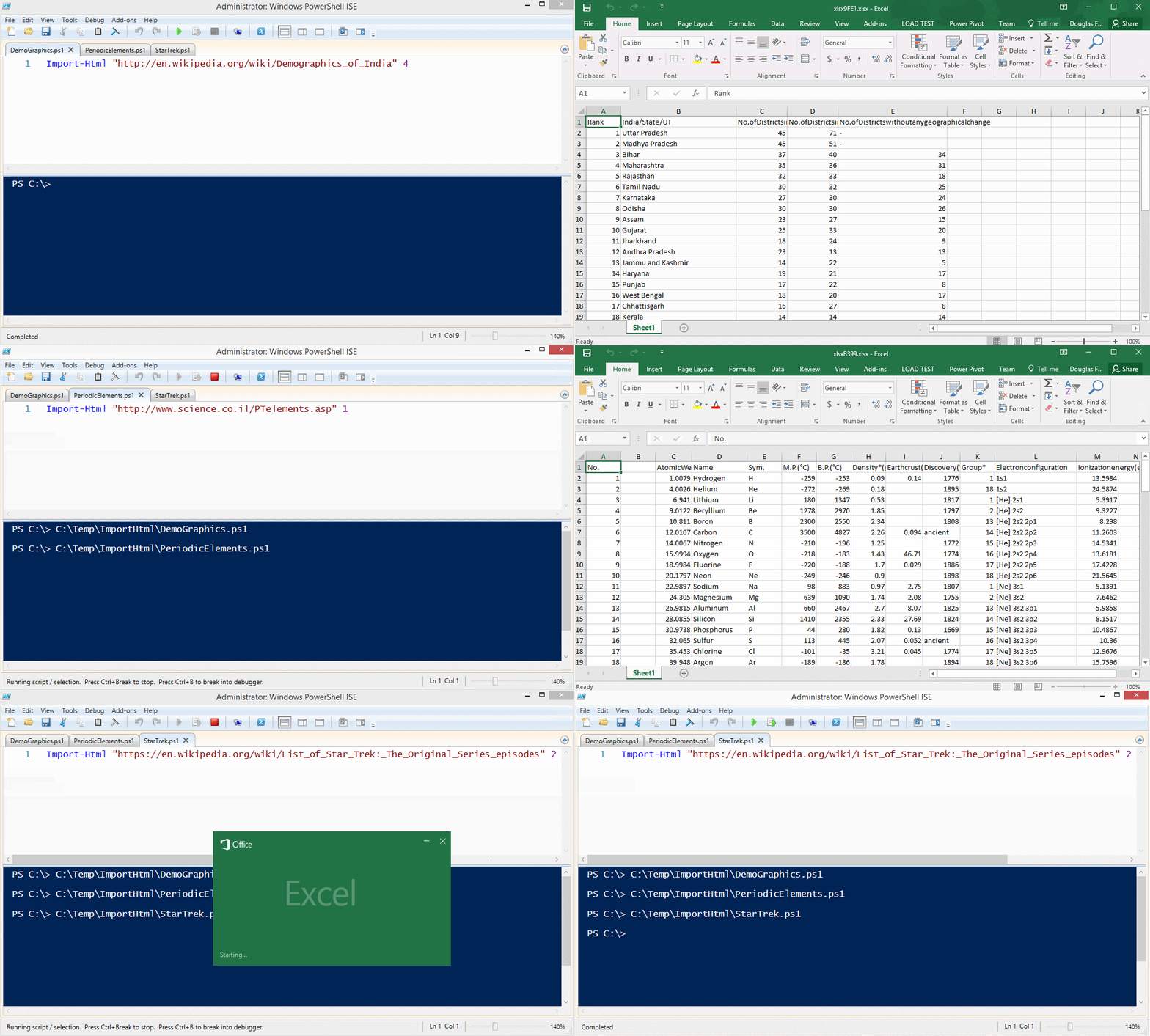
|
||||
|
||||
@@ -316,7 +341,7 @@ echo 489 668 299 777 860 151 119 497 234 788 |
|
||||
|
||||
## Try *PassThru*
|
||||
|
||||
```powershell
|
||||
```PowerShell
|
||||
$file = "C:\Temp\passthru.xlsx"
|
||||
rm $file -ErrorAction Ignore
|
||||
|
||||
@@ -379,14 +404,14 @@ Stay tuned for a [blog post](http://www.dougfinke.com/blog/) and examples.
|
||||
Big bug fix for version 3.0 PowerShell folks!
|
||||
|
||||
This technique fails in 3.0 and works in 4.0 and later.
|
||||
```powershell
|
||||
```PowerShell
|
||||
$m="substring"
|
||||
"hello".$m(2,1)
|
||||
```
|
||||
|
||||
Adding `.invoke` works in 3.0 and later.
|
||||
|
||||
```powershell
|
||||
```PowerShell
|
||||
$m="substring"
|
||||
"hello".$m.invoke(2,1)
|
||||
```
|
||||
@@ -458,7 +483,7 @@ Or, check out the short ***"How To"*** video.
|
||||
#### 7/09/2015
|
||||
* For -PivotRows you can pass a `hashtable` with the name of the property and the type of calculation. `Sum`, `Average`, `Max`, `Min`, `Product`, `StdDev`, `StdDevp`, `Var`, `Varp`
|
||||
|
||||
```powershell
|
||||
```PowerShell
|
||||
Get-Service |
|
||||
Export-Excel "c:\temp\test.xlsx" `
|
||||
-Show `
|
||||
@@ -591,7 +616,7 @@ You can set the pattern, size and of if the title is bold.
|
||||
Handles = {$p|select company, handles}
|
||||
Services = {gsv}
|
||||
Files = {dir -File}
|
||||
Albums = {(Invoke-RestMethod http://www.dougfinke.com/powershellfordevelopers/albums.js)}
|
||||
Albums = {(Invoke-RestMethod http://www.dougfinke.com/PowerShellfordevelopers/albums.js)}
|
||||
}
|
||||
|
||||
Export-MultipleExcelSheets -Show -AutoSize .\testExport.xlsx $DataToGather
|
||||
|
||||
92
Update-FirstObjectProperties.ps1
Normal file
92
Update-FirstObjectProperties.ps1
Normal file
@@ -0,0 +1,92 @@
|
||||
Function Update-FirstObjectProperties {
|
||||
<#
|
||||
.SYNOPSIS
|
||||
Updates the first object to contain all the properties of the object with the most properties in the array.
|
||||
|
||||
.DESCRIPTION
|
||||
Updates the first object to contain all the properties of the object with the most properties in the array. This is usefull when not all objects have the same quantity of properties and CmdLets like Out-GridView or Export-Excel are not able to show all the properties because the first object doesn't have them all.
|
||||
|
||||
.EXAMPLE
|
||||
$Array = @()
|
||||
|
||||
$Obj1 = [PSCustomObject]@{
|
||||
Member1 = 'First'
|
||||
Member2 = 'Second'
|
||||
}
|
||||
|
||||
$Obj2 = [PSCustomObject]@{
|
||||
Member1 = 'First'
|
||||
Member2 = 'Second'
|
||||
Member3 = 'Third'
|
||||
}
|
||||
|
||||
$Obj3 = [PSCustomObject]@{
|
||||
Member1 = 'First'
|
||||
Member2 = 'Second'
|
||||
Member3 = 'Third'
|
||||
Member4 = 'Fourth'
|
||||
}
|
||||
|
||||
$Array = $Obj1, $Obj2, $Obj3
|
||||
$Array | Out-GridView -Title 'Not showing Member3 and Member4'
|
||||
$Array | Update-FirstObjectProperties | Out-GridView -Title 'All properties are visible'
|
||||
|
||||
Updates the fist object of the array by adding Member3 and Member4.
|
||||
|
||||
.EXAMPLE
|
||||
$ExcelParams = @{
|
||||
Path = $env:TEMP + '\Excel.xlsx'
|
||||
Show = $true
|
||||
Verbose = $true
|
||||
}
|
||||
Remove-Item -Path $ExcelParams.Path -Force -EA Ignore
|
||||
|
||||
$Array = @()
|
||||
|
||||
$Obj1 = [PSCustomObject]@{
|
||||
Member1 = 'First'
|
||||
Member2 = 'Second'
|
||||
}
|
||||
|
||||
$Obj2 = [PSCustomObject]@{
|
||||
Member1 = 'First'
|
||||
Member2 = 'Second'
|
||||
Member3 = 'Third'
|
||||
}
|
||||
|
||||
$Obj3 = [PSCustomObject]@{
|
||||
Member1 = 'First'
|
||||
Member2 = 'Second'
|
||||
Member3 = 'Third'
|
||||
Member4 = 'Fourth'
|
||||
}
|
||||
|
||||
$Array = $Obj1, $Obj2, $Obj3
|
||||
$Array | Out-GridView -Title 'Not showing Member3 and Member4'
|
||||
$Array | Update-FirstObjectProperties | Export-Excel @ExcelParams -WorkSheetname Numbers
|
||||
|
||||
Updates the first object of the array by adding property 'Member3' and 'Member4'. Afterwards. all objects are exported to an Excel file and all column headers are visible.
|
||||
|
||||
.LINK
|
||||
https://github.com/dfinke/ImportExcel
|
||||
|
||||
.NOTES
|
||||
CHANGELOG
|
||||
2017/06/08 Function born #>
|
||||
|
||||
Try {
|
||||
$Union = @()
|
||||
$Input | ForEach-Object {
|
||||
If ($Union.Count) {
|
||||
$_ | Get-Member | Where {-not ($Union[0] | Get-Member $_.Name)} | ForEach-Object {
|
||||
$Union[0] | Add-Member -MemberType NoteProperty -Name $_.Name -Value $Null
|
||||
}
|
||||
}
|
||||
$Union += $_
|
||||
}
|
||||
$Union
|
||||
}
|
||||
Catch {
|
||||
throw "Failed updating the properties of the first object: $_"
|
||||
}
|
||||
}
|
||||
Reference in New Issue
Block a user